Are you tired of slow gaming sessions because other devices are hogging your network? You’re not alone.
Blocking unwanted devices on your gaming router can give you the speed and stability you need to dominate every match. In this guide, you’ll learn simple, step-by-step ways to take control of your network. Imagine cutting out distractions and lag, so your gaming experience stays smooth and fast.
Keep reading to discover how easy it is to block devices and boost your gaming performance right now.
Credit: www.tp-link.com
Choosing The Right Gaming Router
Choosing the right gaming router can make a big difference in how you manage your home network, especially when you want to block certain devices. A good router doesn’t just deliver fast speeds; it offers control and flexibility tailored to your gaming needs. Have you ever felt frustrated when your gaming session lagged because someone else was hogging the bandwidth? The right router can help you prevent that by allowing you to prioritize devices and block distractions effectively.
Features To Look For
Look for routers with advanced parental controls and device management options. These features let you block or limit devices easily without needing technical know-how. A built-in Quality of Service (QoS) setting is essential; it helps prioritize your gaming traffic over other activities on the network.
Security is another key feature. Ensure the router supports strong encryption and regular firmware updates to keep your network safe. Some gaming routers also come with dedicated apps that make managing connected devices straightforward and fast.
Compatibility With Devices
Check if the router supports all the devices you use for gaming and daily browsing. Compatibility isn’t just about Wi-Fi standards like Wi-Fi 5 or Wi-Fi 6; it also includes support for various operating systems and smart home gadgets.
Imagine trying to block a device only to find it doesn’t show up in your router’s device list because of incompatibility. That’s why it’s important to verify compatibility before buying. Look for routers with broad device support and easy-to-use interfaces that show all connected devices clearly.
Accessing Router Settings
Accessing your router settings is the first key step to controlling which devices connect to your gaming network. Without this access, you can’t block unwanted devices or prioritize your gaming traffic effectively. It might sound technical, but getting to your router’s admin panel is simpler than you think, and it puts you in full control of your network.
Finding The Router Ip Address
Your router’s IP address is like its street address on your local network. You need this address to open the admin panel in your web browser. Most routers use common default IPs such as 192.168.0.1or 192.168.1.1, but yours might be different.
To find your router’s IP address:
- On Windows, open Command Prompt and type
ipconfig. Look for the “Default Gateway” under your active network connection. - On Mac, open Terminal and type
netstat -nr | grep defaultor check your network settings under System Preferences. - On mobile devices, check Wi-Fi settings and find the “Router” or “Gateway” IP.
If you’ve never checked this before, try typing those common IP addresses into your browser first. It’s a quick way to see if your router uses the default setting.
Logging Into The Admin Panel
Once you have the IP address, open your web browser and enter it in the address bar. This will bring up the router’s login page. Here, you’ll need the admin username and password.
If you haven’t changed these credentials, they are often set to defaults like admin/adminor admin/password. You can usually find these in your router’s manual or on a sticker on the device itself.
Can’t log in? Double-check your IP address and try clearing your browser cache. If you still can’t access it, your router might have custom login details set by your ISP, so calling their support line could save time.
Getting into the admin panel is your gateway to managing devices, setting priorities, and securing your gaming experience. Don’t rush—take a moment to explore the interface once logged in, so you feel comfortable making changes.
Identifying Connected Devices
Identifying the devices connected to your gaming router is the crucial first step before deciding which ones to block. You need a clear picture of every gadget currently accessing your network to maintain control and ensure optimal gaming performance. Without knowing who’s connected, you risk blocking the wrong device or missing unauthorized users entirely.
Checking Device List
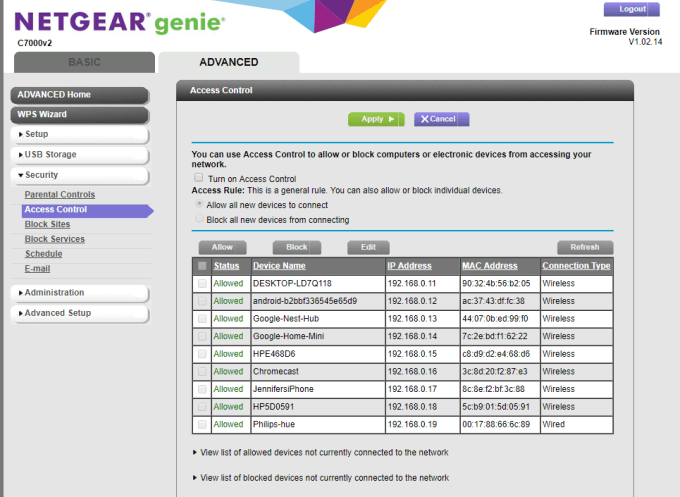
Most gaming routers offer a device list in their admin panel where you can see all connected devices at a glance. Log in to your router’s interface using its IP address, usually found on the back of the router or in the manual. Look for sections labeled “Connected Devices,” “Device List,” or “Client List.”
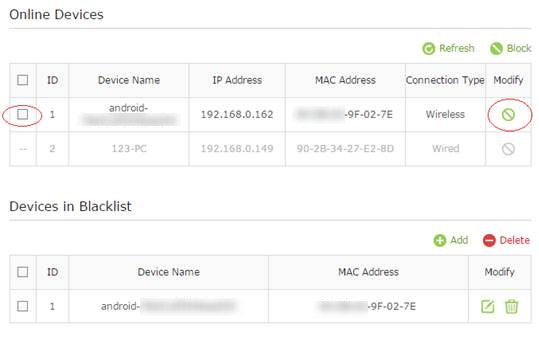
Here, you’ll find details like device names, IP addresses, and MAC addresses. Some routers even show connection types (wired or wireless) and bandwidth usage. Make it a habit to check this list regularly to spot any new or unexpected devices.
Recognizing Unknown Devices
Spotting unfamiliar devices can be tricky, especially if many gadgets in your household have generic names like “Android” or “iPhone.” Start by comparing the device names and MAC addresses against your known devices—phones, computers, consoles, smart TVs.
If you find a device you don’t recognize, don’t ignore it. It could be a neighbor using your Wi-Fi or a hidden device you forgot about. Try disconnecting it temporarily or blocking it to see if any family members complain about lost connectivity.
Have you ever noticed slow gaming during peak hours and wondered if someone else was stealing your bandwidth? Identifying unknown devices is your best defense. It puts you in control and lets you decide who gets access to your network.
Credit: www.tp-link.com
Methods To Block Devices
Blocking devices on your gaming router can help maintain a smooth and secure gaming experience. There are several practical ways to control which devices connect to your network. Understanding these methods lets you take charge of your bandwidth and keep unwanted users at bay.
Mac Address Filtering
MAC address filtering lets you specify exactly which devices can connect to your network based on their unique hardware addresses. You simply add the MAC addresses of allowed devices to your router’s whitelist or block the ones you don’t want.
This method is precise but requires you to know the MAC address of every device you want to manage. You can find these addresses in device settings or on the device itself. Have you ever tried identifying every gadget in your home? It can be eye-opening how many devices are connected.
Using Parental Controls
Parental controls offer a user-friendly way to block or limit devices, especially useful if you want to manage your kids’ gaming time. Most gaming routers include options to pause internet access or set time limits on specific devices.
These controls often let you create schedules or filter content, giving you more flexibility. If you’ve had trouble getting your family to stick to gaming rules, parental controls can take the pressure off you. Would a scheduled break improve your household’s gaming balance?
Setting Up Access Restrictions
Access restrictions allow you to block devices from certain parts of your network or the internet altogether. You can restrict access based on time, device type, or even application types.
This method is powerful for customizing your network’s security and performance. For example, you might block streaming services during gaming hours to reduce lag. Think about which apps or services slow your connection—could blocking them during peak gaming times help?
Steps To Block Devices On Popular Routers
Access your gaming router’s admin panel to find connected devices. Select the device you want to block and apply restrictions. This process helps manage network access and improve gaming performance.
Blocking devices on your gaming router can enhance your network’s performance, security, and overall gaming experience. Whether you’re dealing with bandwidth hogs or unwanted guests, knowing how to manage device access is crucial. Let’s dive into the steps you need to take on popular routers like Netgear, ASUS, and TP-Link.Netgear
Netgear routers are known for their user-friendly interfaces. Here’s how you can block devices: 1. Access the Router Dashboard: Open your web browser and type http://www.routerlogin.net or http://www.routerlogin.com into the address bar. Log in using your admin credentials. 2. Navigate to the Device List: Once logged in, head to the ‘Attached Devices’ or ‘Device Manager’ section. Here, you’ll see a list of all the devices currently connected to your network. 3. Block Unwanted Devices: Identify the device you want to block, and click on it. You should see an option to block or deny access. Confirm your choice, and the device will no longer have network access. 4. Save Changes: Don’t forget to save your changes before exiting. This ensures the device remains blocked even after the router restarts.Asus
ASUS routers offer robust control over network access. Follow these steps: 1. Log Into the Router: Enter http://router.asus.com in your browser and log in with your admin username and password. 2. Find the Network Map: On the main dashboard, locate the ‘Network Map’ option. This section displays all connected devices. 3. Apply Access Restrictions: Click on the device you wish to block. You’ll see an option labeled ‘Block Internet Access’—toggle this setting to deny access. 4. Confirm and Save: Make sure to confirm your action and save the settings. This step is crucial for the changes to take effect.Tp-link
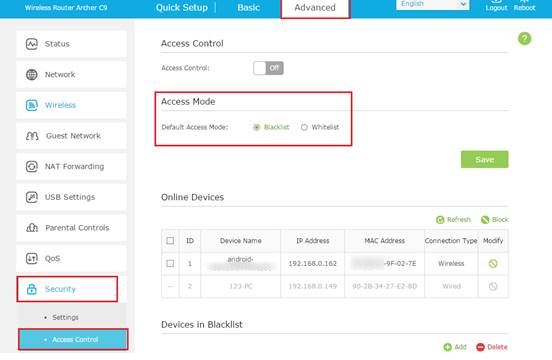
TP-Link routers provide a straightforward process for managing devices. Here’s how: 1. Enter the Router Settings: Type http://tplinkwifi.net into your browser and log in with your credentials. 2. Navigate to the DHCP Client List: Look for ‘DHCP Client List’ under the ‘Advanced’ tab. This will show you all the devices connected to your network. 3. Restrict Device Access: Select the device you want to block and click on the ‘Block’ or ‘Blacklist’ option. This action will prevent the device from connecting to the network. 4. Save Your Changes: Always remember to save the changes. This locks in your settings and ensures the device remains blocked. By taking control of your network, you can ensure a smoother gaming experience. What devices might you need to block to optimize your gaming sessions? It’s worth considering how these steps can transform your network management and keep unwanted interruptions at bay.Tips For Maintaining Network Security
Keeping your gaming router secure is crucial for a smooth and safe online experience. You want to make sure only trusted devices connect to your network, preventing unwanted access that can slow down your gameplay or compromise your data. Here are some practical tips to help you maintain strong network security and keep control over your devices.
Regular Firmware Updates
Firmware updates are essential for fixing security holes and improving your router’s performance. Many people overlook this simple step, but I once ignored updates and faced a sudden drop in connection quality. After updating the firmware, the problem vanished, and my network became much more stable.
Check your router’s settings regularly to see if updates are available. Some gaming routers even allow automatic updates, which can save you time and reduce risks.
Changing Default Passwords
Default passwords are often easy targets for hackers. You should change your router’s login credentials as soon as you set it up. Pick a strong password that combines letters, numbers, and symbols.
If you haven’t changed your default password yet, ask yourself: How much control do you really have over your network? Changing these passwords is a quick way to block unauthorized access and protect your gaming sessions.
Monitoring Device Connections
Keeping an eye on which devices are connected to your network helps you spot anything unusual. Your router’s admin panel usually lists all connected devices by name and IP address.
Make it a habit to check this list regularly. If you find a device you don’t recognize, you can block it immediately. This way, you’re not just reacting to problems—you’re preventing them.
Credit: helpdeskgeek.com
Frequently Asked Questions
How Can I Block Devices On A Gaming Router?
To block devices, log into your router’s admin panel. Find the device management or access control section. Add the device’s MAC address to the blacklist. Save changes to prevent the device from connecting to your network.
Why Block Devices On A Gaming Router?
Blocking devices improves network speed and reduces lag. It prevents unauthorized users from accessing your bandwidth. This ensures a smoother gaming experience and better security for your network.
Can I Block Devices Temporarily On A Gaming Router?
Yes, many gaming routers allow temporary blocking. You can set time limits or schedules for blocking devices. This helps control access without permanent restrictions.
What Info Do I Need To Block A Device?
You need the device’s MAC address or IP address. This unique identifier helps the router recognize and block the device. You can find this info in the router’s connected devices list.
Conclusion
Blocking devices on your gaming router helps keep your network safe. It stops unwanted users from slowing your connection. You control who can join and play online. This makes your gaming experience smoother and more fun. Follow simple steps to set up device blocking today.
Protect your network with easy settings anyone can use. Stay in charge and enjoy faster, safer gaming sessions every time.