Are you worried about unwanted devices accessing your Wi-Fi? Blocking a MAC address on your dual band router is a simple and effective way to take control of your network.
By doing this, you can stop specific devices from connecting, keeping your internet faster and more secure. You’ll learn exactly how to block MAC addresses step-by-step, even if you’re not tech-savvy. Keep reading to protect your network and enjoy a smoother online experience.

Credit: www.reddit.com
What Is A Mac Address
A MAC address is a unique code assigned to every device that connects to a network. It helps routers identify each device on the network. This code is essential for managing network access and security.
Each MAC address consists of letters and numbers. It looks like a series of six pairs separated by colons or hyphens. For example, 00:1A:2B:3C:4D:5Eis a typical MAC address.
How A Mac Address Works
The MAC address works at the data link layer of the network. It allows devices to communicate within the same local network. Unlike IP addresses, MAC addresses do not change.
Why Mac Addresses Are Important
MAC addresses help control which devices can connect to your network. They are used in network filtering and security settings. Blocking a MAC address can prevent unwanted devices from accessing your Wi-Fi.
Difference Between Mac Address And Ip Address
- MAC address is fixed for each device.
- IP address can change depending on the network.
- MAC works inside the local network.
- IP helps devices communicate over the internet.

Credit: www.youtube.com
Why Block A Mac Address
Blocking a MAC address on a dual band router helps control which devices access your network. It adds a layer of security by preventing unwanted connections. This is useful in homes, offices, and public spaces to keep the network safe and efficient.
Enhance Network Security
Blocking MAC addresses stops unauthorized devices from connecting. It prevents hackers or unknown users from accessing your internet. This keeps your data and devices protected from threats.
Manage Bandwidth Usage
Too many devices can slow down your internet speed. Blocking certain MAC addresses helps control who uses the network. This ensures faster internet for important devices.
Limit Access To Specific Devices
You can allow only trusted devices to connect to your router. Blocking other MAC addresses keeps strangers off your network. This control helps maintain privacy and safety.
Prevent Network Abuse
Some users may use the internet excessively or for harmful activities. Blocking their MAC addresses stops them from misusing your network. It protects your connection from being overloaded or abused.
Accessing Your Dual Band Router Settings
Blocking a MAC address on your dual-band router enhances network security. First, access your router settings via a web browser. Locate the MAC filtering section and add the specific MAC address you want to block. Save changes to apply restrictions effectively.
Accessing your dual band router settings is a crucial step if you want to block a Mac address effectively. Before diving into the technicalities, it’s essential to understand the basic framework of your router’s interface. Think of it as unlocking a door to a room where you can manage your network’s access with precision.Find Router Ip Address
Your journey begins with locating your router’s IP address. This is the unique identifier that allows you to access your router’s dashboard. On most devices, this is a simple process: – Open the command prompt on your computer. – Type ipconfig and press enter. – Look for the “Default Gateway” under your network connection; this is your router’s IP address. Once you have this address, you’re one step closer to managing your network settings. Have you ever wondered how often we overlook such simple details, yet they hold the key to our digital security?Login Credentials
Next, you need to log into your router using the right credentials. Most routers come with a default username and password, often found on a label on the device itself. But here’s a thought: when was the last time you updated those credentials? – Enter the IP address you found earlier into your web browser’s address bar. – A login page will appear. Input the default username and password. – If you’ve changed these, ensure you remember the updated credentials or reset them if necessary. Securing your login information is as crucial as locking the front door of your home. It’s a simple yet often neglected step towards safeguarding your network.Locating Mac Filtering Options
Finding the MAC filtering options on your dual band router can feel like searching for a needle in a haystack. Each router brand and model organizes its settings differently, making it tricky if you’re not familiar with the interface. But locating these options is the key to controlling which devices connect to your network.
Take a moment to open your router’s web interface using its IP address. This simple action leads you to the control center where you can manage all your wireless settings, including MAC filtering. Have you ever noticed how some routers hide important features under unexpected menus? That’s why knowing exactly where to look saves you time and frustration.
Navigate To Wireless Settings
Start by logging into your router’s admin panel—usually accessed via a browser at addresses like 192.168.1.1 or 192.168.0.1. Once inside, look for a tab or menu labeled Wireless, Wi-Fi, or similar. This section manages everything related to your wireless connections.
On dual band routers, you might see separate settings for 2.4 GHz and 5 GHz bands. Make sure to explore both bands because MAC filtering might be configured individually. Does your router interface list these bands distinctly? That’s your cue to check each one.
Identify Mac Filter Section
Within the wireless settings, search for a subsection named MAC Filtering, Access Control, or MAC Address Control. This is where you can add or block specific device addresses. Sometimes it’s tucked under advanced settings, so don’t hesitate to click through all available options.
Once you find this section, you’ll usually see options to enable or disable MAC filtering and a list of devices currently allowed or blocked. Think about the devices you want to restrict—do you know their MAC addresses? Having that information ready speeds up the process.
Adding Mac Addresses To Block List
Adding MAC addresses to the block list on your dual band router stops unwanted devices from connecting. This process helps keep your network safe and controls who uses your internet. Knowing how to do it right ensures the block works effectively without blocking the wrong devices.
Gather Device Mac Addresses
First, find the MAC addresses of devices you want to block. Each device has a unique MAC address. You can find it in the device’s settings or on its label. Common places to check include:
- Network settings on smartphones or tablets
- Device information on computers
- Router’s connected devices list
Write down each MAC address carefully. It looks like a string of six pairs of numbers and letters, for example, 00:1A:2B:3C:4D:5E.
Input Addresses Correctly
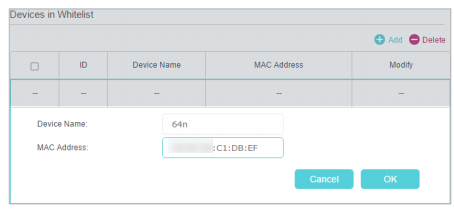
Next, enter the MAC addresses into your router’s block list. Log in to your router’s admin page. Locate the MAC filtering or access control section.
Type each MAC address exactly as it appears. Use colons or dashes if required by your router. Avoid extra spaces or wrong characters. Double-check each address for accuracy.
Save your changes after entering all addresses. This ensures blocked devices cannot connect to either the 2.4 GHz or 5 GHz bands of your router.
Credit: www.tp-link.com
Saving And Applying Changes
After entering the MAC addresses you want to block on your dual band router, the final step is to save and apply those changes. This ensures your router updates its settings and starts enforcing the new rules immediately. Skipping this step means your efforts won’t take effect, leaving unwanted devices connected.
Locating The Save Or Apply Button
Look carefully for the “Save,” “Apply,” or “Submit” button on the router’s configuration page. It’s usually found at the bottom or top of the MAC filtering section. If you miss this, your changes won’t be recorded, so don’t rush past it.
Confirming The Settings Are Activated
After hitting save, check for a confirmation message on the screen. Some routers show a pop-up or a status update indicating the settings were applied successfully. If you don’t see any confirmation, try refreshing the page or re-entering the settings to be sure.
Rebooting The Router If Necessary
Some routers require a reboot to enforce MAC address blocks. You can usually find a reboot option in the router menu or simply power cycle it by unplugging and plugging it back in. This simple step can solve many problems if the blocking doesn’t seem to work immediately.
Testing The Blocked Devices
After saving changes and rebooting if needed, test the blocked MAC addresses by trying to connect those devices to your network. If the block is active, they shouldn’t gain access. This quick test confirms your actions worked as expected.
Testing The Mac Block
After you block a MAC address on your dual band router, it’s important to test whether the block is working as intended. This step ensures that unauthorized devices can no longer access your network, keeping your connection secure and stable.
Verify Device Access
Check if the device with the blocked MAC address can still connect to your Wi-Fi network. Try connecting the device to both the 2.4 GHz and 5 GHz bands, as some routers handle MAC filtering separately for each band.
Use your phone, laptop, or any other device with the blocked MAC address. If the device fails to connect or access the internet, it means the block is effective. Don’t forget to test multiple times to rule out temporary glitches.
Troubleshoot Issues
If the device still connects, double-check the MAC address you entered. Even a small typo can cause the block to fail. Go back to your router’s admin panel and confirm the MAC address matches exactly.
Also, make sure MAC filtering is enabled and applied to both frequency bands if your router supports separate settings. Sometimes, firmware updates reset or disable MAC filtering, so verify your router’s current status.
Consider restarting your router after making changes. This refresh often helps apply new settings properly. If problems persist, consult your router’s manual or support site for specific instructions on MAC blocking behavior.
Tips For Managing Mac Filters
Managing MAC filters on a dual band router requires careful attention. It helps keep your network secure from unwanted devices. Proper management ensures the block list is effective and up to date. Following simple tips can make this process easier and more reliable.
Regularly Update Block List
Devices change over time. Some might get new MAC addresses, or you may add new devices to your network. Check the block list often to remove outdated entries. Add new MAC addresses of devices you want to block. This keeps your filter list clean and precise.
Set a routine for updating the list, such as once a month. This prevents unauthorized devices from slipping through. Regular updates help maintain control over who connects to your network.
Combine With Other Security Measures
MAC filtering alone is not enough for strong security. Use it together with other methods like strong passwords and encryption. WPA3 or WPA2 encryption can protect your Wi-Fi from hackers.
Enable your router’s firewall to add another layer of defense. Keep your router’s firmware updated for better security features. Combining these methods creates a safer and more reliable network environment.
Frequently Asked Questions
How Do I Find My Router’s Mac Address List?
Access your router’s admin panel via its IP address. Navigate to the connected devices or DHCP clients section. Here, you will see a list of MAC addresses connected to your dual-band router.
Can I Block Mac Addresses On Both Bands Separately?
Yes, most dual-band routers allow blocking MAC addresses individually on 2. 4 GHz and 5 GHz bands. Check your router’s wireless settings to apply filters per band.
What Are The Steps To Block A Mac Address?
Log into the router’s admin panel, find the MAC filtering section, add the MAC address to block, and save settings. This restricts device access on your network.
Will Blocking A Mac Address Improve My Network Speed?
Blocking unauthorized devices can reduce network congestion. It may improve speed and security by limiting access to only trusted devices.
Conclusion
Blocking a MAC address on your dual band router keeps your network safer. You control which devices can connect. It helps stop unwanted users from accessing Wi-Fi. Follow the steps carefully for the best results. Check your router settings often to keep control.
This simple action improves your home internet security. Stay aware and protect your network easily.