Are certain websites distracting you or causing trouble on your home network? You’re not alone.
Blocking specific websites on your dual band router can give you more control over what content is accessible. Imagine easily stopping unwanted sites from slowing down your internet or exposing your family to harmful material. In this guide, you’ll discover simple, step-by-step methods to block websites on your dual band router—no tech degree needed.
By the end, you’ll have the power to protect your online space and keep distractions at bay. Ready to take control? Let’s dive in.
Credit: www.tp-link.com
Access Router Settings
Accessing your router settings is the first step to block websites on a dual band router. This allows you to control and customize your network preferences. You need to connect your device to the router’s network before proceeding. Once connected, open a web browser to start the process.
Find Router Ip Address
The router IP address is essential to enter the settings page. Most routers use default addresses like 192.168.0.1or 192.168.1.1. You can check this address on the router label or manual. Another way is to find it through your device:
- Windows:Open Command Prompt and type
ipconfig. Look for the “Default Gateway” under your network. - Mac:Open System Preferences > Network. Select your connection and click Advanced, then TCP/IP tab. Find the router address next to “Router”.
Login To Admin Panel
Enter the router IP address into your browser’s address bar and press Enter. A login screen will appear. Use your router’s username and password to access the admin panel. Common default usernames are adminor user. Passwords are often admin, password, or blank. Check your router label if unsure.
After login, you will see the router’s settings dashboard. From here, you can manage network settings and block websites easily.
Identify Dual Band Features
Identifying the dual band features of your router is essential before you block websites effectively. Understanding how your router handles the 2.4 GHz and 5 GHz bands can help you control internet access more precisely. Knowing these features also helps you decide which band to target for website blocking.
Check 2.4 Ghz And 5 Ghz Bands
Most dual band routers broadcast on two frequencies: 2.4 GHz and 5 GHz. The 2.4 GHz band covers a larger area but offers slower speeds, while the 5 GHz band provides faster connections but with a shorter range.
Log into your router’s admin panel and look for wireless settings to see if both bands are active. You might find options to enable or disable each band separately. This is important because you can choose to block websites on one band while leaving the other unaffected.
Understand Band Controls
Band controls allow you to manage how devices connect to your network on different frequencies. Some routers let you assign specific devices to either the 2.4 GHz or 5 GHz band. This feature can be useful if you want to block websites only on devices connected to a particular band.
Check if your router offers parental controls or access restrictions tied to each band. These controls let you set rules for internet access, including blocking certain websites during specific times. Understanding these settings saves you from blocking websites across your entire network when you only want to limit access on a few devices.
Locate Website Blocking Options
Finding the right place to block websites on your dual band router is key to managing your network effectively. Most routers don’t label these options clearly, so you might need to dig a bit in the settings. Understanding where to look saves you time and avoids frustration, especially if you’re new to router management.
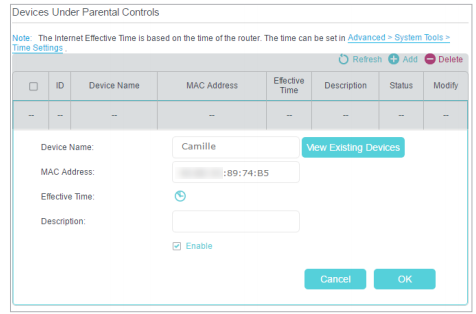
Navigate To Security Or Parental Controls
Start by logging into your router’s admin panel, usually through an IP address like 192.168.1.1 or 192.168.0.1. Once inside, look for tabs named Securityor Parental Controls. These sections often hold website blocking features because they control access and protect devices on your network.
Not all routers use the same menu names, so if you don’t see these options immediately, check under settings like Access Restrictionsor Advanced Settings. Have you ever spent time scrolling through pages only to find the exact place hiding in plain sight? Your router’s manual or online support site can also point you right to it.
Explore Url Filtering
Within Security or Parental Controls, search for a feature called URL Filteringor Website Filtering. This allows you to block specific websites by entering their URLs directly. For example, adding “facebook.com” to the filter list will prevent any device on your network from accessing Facebook.
Some routers let you block by keywords, while others require full web addresses. Make sure to save your settings after adding URLs, or the changes won’t take effect. Have you noticed how blocking certain sites can instantly boost your network’s performance or reduce distractions? It’s a simple step but can have a big impact.
Credit: www.bluehost.com
Block Websites On Each Band
Blocking websites on a dual-band router can enhance online safety. Many routers support both 2.4 GHz and 5 GHz bands. Each band can have unique settings. This allows you to block websites on each band separately. This ensures better control over network access. Follow these steps to add URLs to the block list on each band.
Add Urls To Block List On 2.4 Ghz
Access your router’s admin panel using its IP address. Usually found on the router’s label. Log in with your credentials. Navigate to the “Parental Controls” or “Access Control” section. Choose the 2.4 GHz band from the options. Find the URL blocking option. Enter the URLs you wish to block. Save your settings to activate the block.
Add Urls To Block List On 5 Ghz
Return to the “Parental Controls” or “Access Control” section. Switch to the 5 GHz band. Ensure you are on the correct settings page. Locate the URL blocking feature. Input the URLs you need to restrict. Confirm by saving the changes. Now, both bands will have website restrictions. Enjoy a safer browsing experience.
Save And Apply Changes
After setting up the websites you want to block on your dual band router, saving and applying those changes is crucial. This step ensures your router remembers the new settings and starts blocking the specified sites immediately. Without saving, all your work might be lost when the router restarts or the page refreshes.
Always double-check that you have correctly entered the website addresses and chosen the right options before saving. This avoids mistakes that could block the wrong sites or fail to block the intended ones. Once saved, the router uses these rules to control internet access on both the 2.4 GHz and 5 GHz bands.
Confirm Settings
After clicking the save button, look for a confirmation message or status update on the router’s page. This message usually says something like “Settings saved successfully” or “Changes applied.” It confirms your blocking rules are now active.
If there is an error message, review the website list and input fields. Correct any mistakes and try saving again. Confirming the settings helps prevent any confusion or failure to apply changes.
Restart Router If Needed
Some routers require a restart to apply new blocking rules fully. Check your router’s instructions or on-screen prompts for this information. Restarting refreshes the system and activates the new settings.
To restart, simply power off the router, wait 10 seconds, then power it back on. After reboot, the router should block the websites as programmed on both wireless bands. This step helps avoid issues where the changes do not take effect immediately.
Credit: www.youtube.com
Test Website Blocking
Testing your website blocking settings on a dual band router is essential to ensure that the restrictions work as intended. Without verification, you might assume sites are blocked while some devices still have access. This step helps confirm that your setup is effective across both frequency bands.
Connect Devices To Each Band
Start by connecting at least one device to the 2.4 GHz band and another to the 5 GHz band. Many routers broadcast separate network names (SSIDs) for each band, so make sure you know which device is on which band.
This allows you to check if your blocking rules apply consistently. Sometimes, settings only affect one band, leaving the other open. Connecting devices to both bands gives you a clear picture.
Try Accessing Blocked Sites
Next, open a browser on each connected device and try to visit the websites you intended to block. If the sites load normally, it means your blocking settings need adjustment.
Note any differences between the bands. If a site is blocked on 2.4 GHz but accessible on 5 GHz, revisit your router’s settings to apply restrictions to both bands.
Have you noticed certain devices bypassing your blocks? Sometimes, browser caches or DNS settings on individual devices can interfere. Clearing cache or restarting the device can help clarify if the block is truly effective.
Troubleshoot Common Issues
Troubleshooting common issues helps ensure your website blocking works well. Problems can come from outdated software or wrong settings. Fixing these issues keeps your network safe and running smoothly. Try these simple checks to solve most problems quickly.
Check Firmware Updates
Firmware controls your router’s functions. Old firmware can cause blocking problems. Check your router’s admin page for updates. Install the latest version to improve performance and fix bugs. Updated firmware often includes better security features too.
Reset Router Settings
Incorrect settings may stop website blocking from working. Resetting the router clears all changes and returns default settings. Use a pin to press the reset button for 10 seconds. After resetting, reconfigure your website blocking rules carefully. This step often solves hidden configuration errors.
Frequently Asked Questions
How Do I Block Websites On A Dual Band Router?
Access your router’s admin panel via its IP address. Locate the website blocking or parental control section. Add the URLs you want to block. Save changes and restart the router to apply settings on both bands.
Can I Block Websites On 2.4ghz And 5ghz Separately?
Yes, some dual band routers allow separate settings for each band. Check your router’s firmware or admin panel. Configure website blocking rules individually for 2. 4GHz and 5GHz bands if supported.
What Devices Can I Block Websites On Using A Dual Band Router?
You can block websites on all devices connected to your router. This includes smartphones, tablets, laptops, and smart TVs. Blocking works at the router level, affecting all devices on both frequency bands.
Is Website Blocking Effective On All Dual Band Routers?
Website blocking effectiveness depends on router features and firmware. Some routers offer robust parental controls, while others have limited options. Always check your router’s capabilities before relying on website blocking.
Conclusion
Blocking websites on a dual band router helps control internet use easily. You can protect kids from harmful content or limit distractions at work. The steps are simple and take just a few minutes. Adjust settings anytime to fit your needs.
Keep your home network safe and focused. Try these tips to manage access on both bands. Stay in control of your internet experience.