Are you tired of unwanted websites slowing down your internet or distracting you from what matters? Learning how to block websites on your Tri Band router can give you control over your online space.
Whether you want to keep your family safe, improve productivity, or limit access to certain content, this simple step can make a big difference. In this guide, you’ll discover easy-to-follow methods that anyone can use, even if you’re not tech-savvy.
Keep reading to take back control of your internet and create a safer, faster browsing experience for everyone on your network.
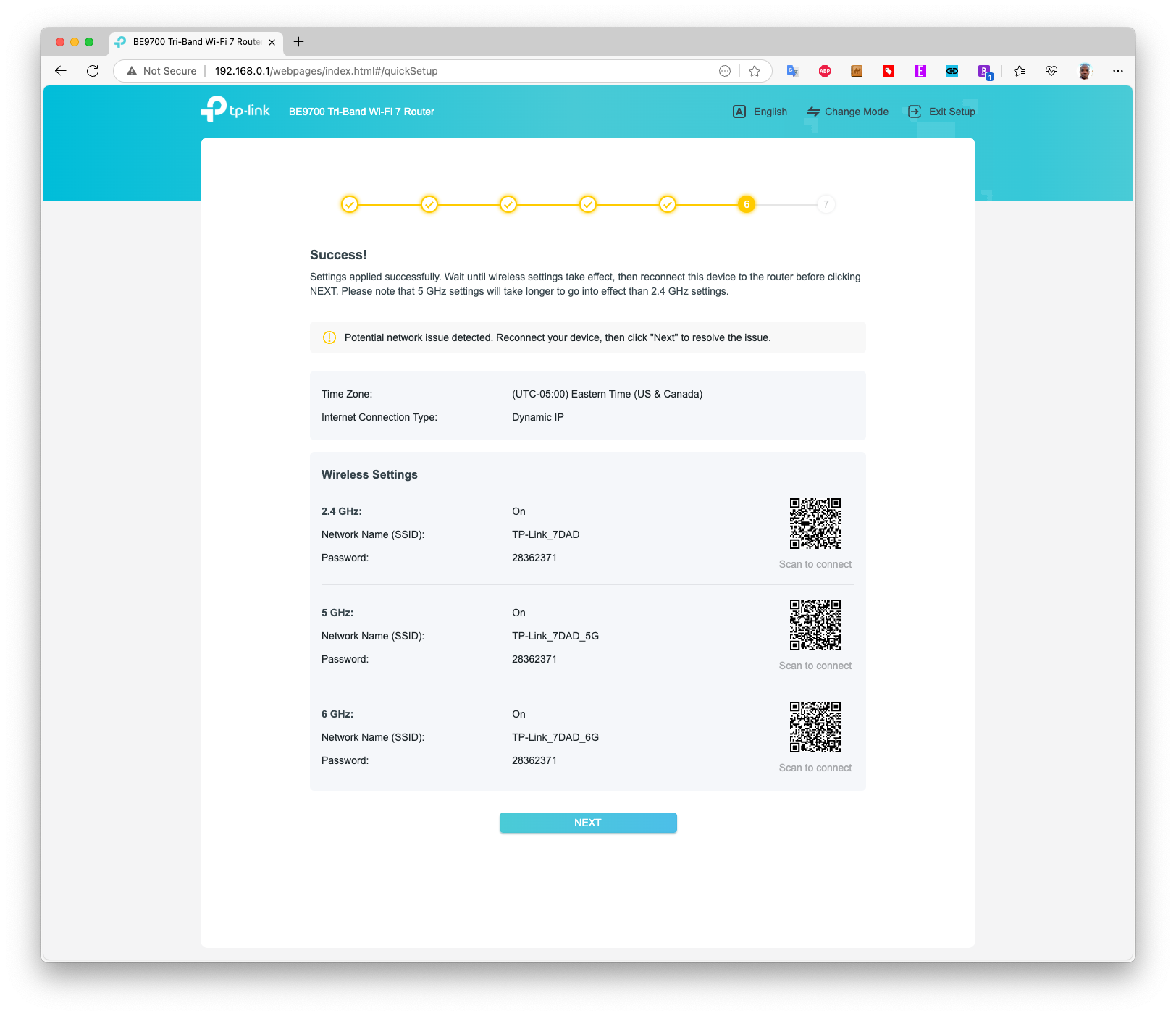
Credit: www.tomshardware.com
Access Router Settings
Accessing your tri band router settings is the first step to block unwanted websites. The router’s admin panel holds all controls. You need to enter it carefully to make changes. This section explains how to find your router’s IP address, use login credentials, and navigate the admin panel.
Find Router Ip Address
The IP address is the key to your router’s settings. Most routers use addresses like 192.168.1.1or 192.168.0.1. You can find it on the back of the router or in the manual. Another way is to check your device’s network settings. It shows the gateway address, which is your router’s IP.
Login Credentials
Access needs a username and password. These are often set to defaults by the manufacturer. Common usernames are adminor user. Passwords might be admin, password, or printed on the router label. Change these credentials for better security after your first login.
Navigate To Admin Panel
Open a web browser and enter the router’s IP address. A login page will appear. Enter your username and password. Once logged in, look for sections named Security, Access Restrictions, or Parental Controls. These areas let you manage website blocking and other settings.

Credit: www.youtube.com
Locate Website Blocking Features
Finding where to block websites on your tri-band router can feel tricky at first. However, most routers have built-in features designed for this exact purpose. Knowing where to look saves you time and helps you control internet access effectively.
Parental Controls
Parental controls are often the easiest way to block specific websites. These settings let you create profiles for different users and restrict content based on age or category.
Try checking your router’s admin panel under a tab named “Parental Controls” or something similar. You might find options to block sites by URL or set schedules for internet access.
Have you ever used parental controls to limit distractions during work or study hours? They can be surprisingly flexible for managing your entire household’s internet use.
Access Restrictions
Access restrictions let you block websites by setting rules on your router. This feature is often found under “Access Restrictions” or “Content Filtering.”
You can add specific URLs or keywords to block unwanted sites across all devices connected to the router. Some routers allow time-based restrictions too, which is handy for controlling when certain sites are accessible.
Think about the sites you want to block—are they a distraction, or a security risk? Access restrictions help you target exactly what needs to be filtered out.
Firewall Settings
The firewall on your tri-band router can also be used to block websites, though this is a more advanced option. It works by filtering traffic based on rules you create.
Look for a “Firewall” or “Security” section in your router’s settings. Here, you can add rules to block IP addresses or domain names linked to unwanted websites.
If you’re comfortable with networking basics, firewall settings give you precise control over what enters and leaves your network. Ever tried this approach? It’s powerful but requires careful setup to avoid blocking legitimate traffic.
Block Websites By Url
Blocking websites on a tri-band router is simple. Access the router’s settings through a browser. Enter the specific URLs you wish to block. Save changes to restrict access.
Blocking websites by URL on a tri-band router can be an essential tool for maintaining a focused and secure online environment. Whether you’re a parent wanting to shield your children from inappropriate content or a professional seeking to minimize distractions, knowing how to restrict access to specific sites can be invaluable. Imagine seamlessly controlling the digital boundaries within your home or office, ensuring that everyone stays on task and safe online.Add Urls To Block List
To start, you need to access your router’s control panel. This is typically done by entering your router’s IP address into a web browser. Once logged in, navigate to the section dealing with parental controls or website blocking. Here, you’ll find the option to add URLs to a block list. Enter the web addresses you wish to restrict. Be precise; even a small typo can render the block ineffective.Save And Apply Changes
After entering the URLs, don’t forget to save your changes. This step is crucial to ensure that the restrictions take effect immediately. Look for a ‘Save’ or ‘Apply’ button and click it. This might seem straightforward, but forgetting this step is a common mistake. Once saved, test the block by attempting to access the restricted sites from a connected device. If done correctly, the sites should no longer be accessible. Controlling your online environment can be empowering. Have you considered the peace of mind it could bring?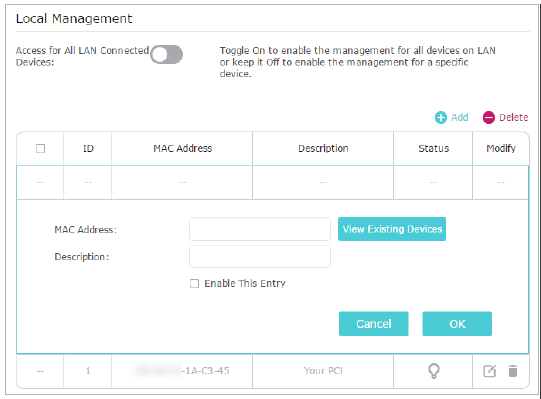
Credit: www.tp-link.com
Block Websites By Keywords
Blocking websites by keywords on a Tri Band Router helps control internet access effectively. This method stops any site containing certain words from loading. It works well for families and small offices to keep browsing safe and focused.
Enter Keywords To Filter
Access your router’s settings through the admin panel. Find the section labeled “Keyword Filtering” or “Content Filtering.” Here, type the words you want to block. Use simple keywords related to the websites you want to restrict.
Separate multiple keywords with commas or spaces, based on your router’s instructions. Save changes after entering the list. The router then blocks sites that include these keywords in their URLs or page content.
Monitor Blocked Content
Check the router’s log to see which sites get blocked. The log shows attempts to visit filtered websites by keyword. This helps understand what content users try to access.
Regularly reviewing this log helps adjust your keyword list. Add new keywords if needed to improve blocking. This keeps your internet environment controlled and secure.
Set Schedule For Blocking
Setting a schedule for blocking websites on your Tri Band Router helps control internet access efficiently. You can limit access during specific hours or days. This feature is useful for managing screen time or preventing distractions. Scheduling blocks also ensures better focus and security for all users.
Create Time Restrictions
Access your router’s admin panel using its IP address. Locate the parental control or access restriction section. Choose the option to set time limits for internet use. Pick days and hours when the websites should be blocked. Save your settings to activate the schedule. This creates a clear timeline for restricted internet access.
Assign Devices To Schedules
Identify the devices to be controlled by their MAC or IP addresses. Link each device to the previously set time restrictions. This ensures only selected devices follow the blocking schedule. Manage multiple devices easily with different schedules. Confirm the assignments in the router settings. This step personalizes internet rules for every device in your network.
Test Website Blocking
Testing whether website blocking is working on your Tri Band Router is essential to ensure the restrictions you set are effective. It’s not enough to just configure the settings—you need to confirm that access to those sites is truly denied. Let’s walk through how to check and troubleshoot your setup for best results.
Verify Access Denied
Start by opening a web browser on a device connected to your Tri Band Router’s network. Try to visit the websites you blocked through the router’s settings.
If the block is active, you should see a message indicating the site is unavailable or access is denied. Sometimes, the browser might display a generic error like “This site can’t be reached.” That’s a good sign the block is working.
Try multiple devices to confirm the block applies across the entire network. Have a friend or family member test from their phone or laptop for an outside perspective. This ensures the restriction isn’t just device-specific.
Troubleshoot Common Issues
What if the sites still load? First, double-check your router settings. Make sure you saved the changes and restarted the router if needed. Sometimes, settings don’t apply until a reboot.
Look for typos in the URLs you blocked. Even a small error can let the site slip through. Use exact domain names without “http://” or “https://” prefixes for best results.
Consider clearing your browser’s cache or trying a different browser. Cached pages might load despite the block. Also, check if your device uses a VPN or proxy that could bypass the router’s restrictions.
Finally, review your router’s firmware version. Outdated software can cause blocking features to malfunction. Updating the firmware can fix bugs and improve performance.
Have you encountered any surprising hurdles while testing website blocks? Sometimes, a quick adjustment in settings can solve what seems like a complex problem.
Manage Blocked Sites List
Managing the blocked sites list on your Tri Band Router helps keep control over internet access. It lets you adjust which websites are restricted easily. Keeping this list up to date ensures safe browsing for everyone in your home or office.
Edit Or Remove Entries
Access the router’s admin panel to see the blocked sites list. You can change entries to update the list as needed. Removing outdated or incorrect sites helps keep the list clean. Simply select the site from the list and choose to edit or delete it. Save changes to apply them immediately.
Backup And Restore Settings
Backing up your router settings is important to avoid losing your blocked sites list. The backup file stores your current configuration safely. Use the restore option to reload the settings if the router resets or updates. This saves time and keeps your website restrictions intact without redoing everything.
Use Third-party Tools
Using third-party tools offers extra ways to block websites on your tri-band router. These tools work alongside your router to give more control. They often provide easier setup and better filtering options than the router alone.
Third-party software can help manage internet access for all devices. It can block sites by category or specific URLs. Many tools also allow scheduling internet use and monitoring traffic. This makes managing your network safer and more flexible.
Router-compatible Software
Choose software compatible with your tri-band router model. Compatibility ensures smooth integration and reliable blocking. Many popular options support a wide range of routers. Some of these tools install directly on the router firmware.
- OpenWrt: Custom firmware with advanced blocking features.
- DD-WRT: Adds website filtering and parental controls.
- Tomato: Simple interface with URL blocking capabilities.
Check your router’s documentation to confirm support for these tools. Installing third-party firmware may require technical knowledge. Backup your router settings before making changes.
Additional Filtering Options
Third-party tools often include more filtering options than default router settings. They can block websites based on categories like social media or adult content. Some offer time-based restrictions to limit internet use during certain hours.
- Keyword blocking to filter specific words in URLs.
- IP address blocking for more precise control.
- Usage reports to monitor blocked attempts and traffic.
These options help customize your network security according to your needs. Use the software dashboard to adjust settings easily. This flexibility can protect children and reduce distractions.
Frequently Asked Questions
How Do I Block Websites On A Tri Band Router?
Access your router’s admin panel via its IP address. Locate the website blocking or parental control section. Add the URLs you want to block. Save settings and reboot the router if needed. This restricts access to specified sites on all connected devices.
Can I Block Websites On Tri Band Router Using An App?
Yes, many Tri Band routers offer mobile apps for management. Use the app to access parental controls or website filtering features. Add websites to the block list directly from your smartphone. This method is quick and convenient for remote control.
Will Blocking Websites Affect All Devices On My Tri Band Router?
Yes, blocking websites at the router level restricts access for all connected devices. This includes phones, tablets, computers, and smart TVs. It’s an effective way to manage internet access across your entire network simultaneously.
Is It Possible To Schedule Website Blocking On Tri Band Routers?
Some Tri Band routers support scheduling for website blocking. This feature allows you to block sites during specific times, like study hours. Check your router’s settings or user manual to enable and configure time-based restrictions.
Conclusion
Blocking websites on your tri-band router keeps your network safe and focused. You control what sites can be accessed easily. This helps protect kids and reduce distractions. Follow the steps carefully to set up filters right. Check settings regularly to maintain control.
A secure network means better internet for everyone at home. Stay in charge of your online space today.