Are you tired of lag ruining your gaming experience? A weak WiFi signal can turn your favorite games into a frustrating battle against slow connections and constant buffering.
But don’t worry—you don’t have to settle for slow speeds or dropped signals. You’ll discover simple and effective ways to boost your WiFi signal so you can enjoy smoother, faster gaming right at home. Keep reading to unlock easy tips that will give you the edge you need to win.
Credit: www.screenbeam.com
Optimize Router Placement
Optimizing your router placement is one of the simplest yet most effective ways to boost your WiFi signal for gaming. Where you position your router can drastically change the quality and strength of your connection. Small adjustments can reduce lag and improve your overall gaming experience.
Choose Central Location
Place your router near the center of your home or gaming area. This helps the signal reach your device evenly from all directions.
A router tucked away in a corner or far from your gaming setup often causes weak signals. Think about where you usually game and position the router so it’s as close to that spot as possible without being blocked.
Avoid Obstacles And Interference
Walls, furniture, and even appliances can block WiFi signals. Thick walls made of concrete or metal are especially troublesome.
Keep your router away from microwaves, cordless phones, and baby monitors, as they emit signals that interfere with WiFi. Have you noticed slower speeds near certain devices? That’s often why.
Elevate Your Router
Raising your router off the floor can improve signal coverage. Placing it on a shelf or high table lets the signal travel more freely.
Try to avoid placing your router in cabinets or behind objects. Elevation reduces obstacles, allowing your gaming device to get a stronger, more stable connection.

Credit: www.amazon.ca
Upgrade Your Hardware
Upgrading your hardware can greatly improve your WiFi signal for gaming. Better devices handle data faster and reduce lag. Investing in the right equipment makes a big difference.
Select A Gaming Router
A gaming router offers stronger and more stable connections. It supports higher speeds and reduces interference. These routers often have features like Quality of Service (QoS) to prioritize gaming traffic.
Use High-gain Antennas
High-gain antennas boost your WiFi signal strength and range. They focus the signal in one direction, improving coverage. Replacing standard antennas with high-gain ones helps reach distant areas better.
Consider Wi-fi Extenders
Wi-Fi extenders expand your network to cover dead zones. They pick up your router’s signal and rebroadcast it. Placing extenders near weak signal spots can improve gaming stability and speed.
Adjust Router Settings
Adjusting your router settings can significantly improve your WiFi signal strength and stability, especially during gaming sessions where every millisecond counts. Tweaking these settings is often overlooked, yet it can reduce lag and packet loss without spending extra on hardware. Let’s dive into some key adjustments that you can make right now to enhance your gaming experience.
Switch To 5ghz Band
Most modern routers offer two frequency bands: 2.4GHz and 5GHz. The 5GHz band provides faster speeds and less interference, which is crucial for smooth gaming. If you’re still using 2.4GHz, try switching to 5GHz to reduce lag and improve connection quality.
Keep in mind that 5GHz has a shorter range, so you’ll want to be closer to your router. I once moved my gaming setup just a few feet closer to my router and noticed instant improvement after switching bands.
Change Wi-fi Channels
WiFi channels can get crowded, especially in apartment buildings or dense neighborhoods. Routers often default to the same channels, causing interference and slower speeds. You can log into your router’s settings and manually select a less congested channel for better performance.
Use apps like WiFi Analyzer to scan nearby networks and find the clearest channel. This small change helped me reduce ping spikes during online matches, making gameplay much smoother.
Enable Quality Of Service (qos)
Quality of Service (QoS) prioritizes your gaming traffic over other devices on your network. Enabling QoS means your router will give your game data higher priority, reducing lag even when others are streaming or downloading.
Check your router’s settings for QoS options and add your gaming device or specific game ports to the priority list. After enabling QoS, I noticed fewer interruptions and a more stable connection during intense gaming sessions.
Reduce Network Congestion
Network congestion slows your WiFi and causes lag during gaming. Limit the number of devices using the connection to keep your game smooth and fast. Prioritize gaming traffic in your router settings for better performance.
Reducing network congestion is key to enhancing your gaming experience. Network congestion occurs when many devices use the internet simultaneously. This can slow down your WiFi signal. By managing the number of devices and activities, you can enjoy smoother gaming sessions. Below are some practical steps to reduce network congestion.Limit Connected Devices
Fewer devices mean a stronger WiFi signal for gaming. Disconnect devices not in use. This includes phones, tablets, and smart home gadgets. Limiting these devices can free up bandwidth for gaming. Prioritize your gaming console or PC to ensure stable connectivity.Schedule Large Downloads
Large downloads can disrupt gaming performance. Plan these during off-peak hours. Late at night or early morning is best. This reduces strain on your network. It also ensures that your gaming session remains uninterrupted.Use Ethernet When Possible
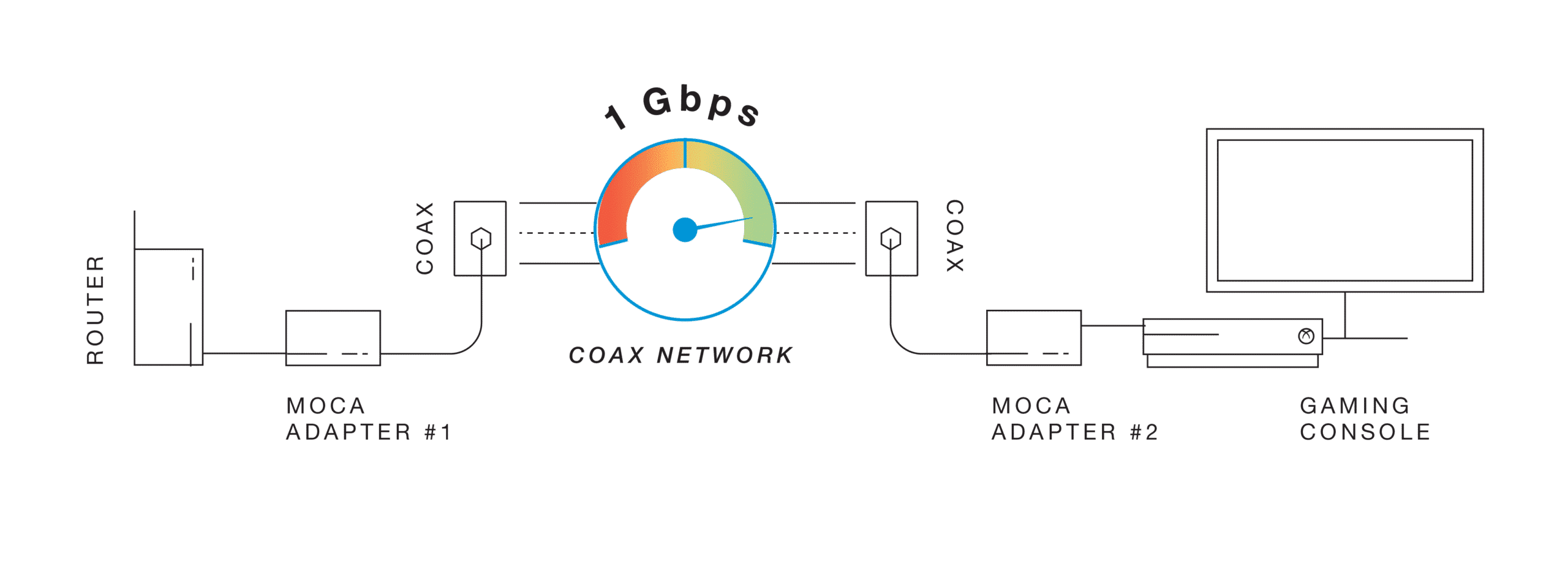
Ethernet provides a stable connection. It’s faster and more reliable than WiFi. Use an Ethernet cable for your gaming device. This minimizes lag and interference. When gaming, always choose Ethernet over wireless for the best experience.Enhance Device Performance
Enhancing device performance plays a crucial role in boosting your WiFi signal during gaming. A well-optimized device uses network resources efficiently, reducing lag and improving connection stability. Simple adjustments can make your gaming experience smoother and more responsive.
Update Network Drivers
Keeping network drivers up to date ensures your device communicates well with the router. Manufacturers release updates to fix bugs and improve speed. Check your device manager or visit the manufacturer’s website to download the latest drivers.
Disable Background Apps
Background apps consume bandwidth and slow down your connection. Close unnecessary apps running in the background before gaming. Use task manager or system settings to identify and stop these apps.
Use Gaming Mode On Devices
Many devices have a gaming mode that prioritizes network traffic for games. Activate this mode to reduce delays and packet loss. This feature helps your device focus on gaming, improving WiFi signal quality.
Test And Monitor Signal Strength
Testing and monitoring your Wi-Fi signal strength is essential for smooth gaming. It helps spot weak spots and connection issues that affect gameplay. Regular checks can reveal problems before they get worse. Understanding your signal quality guides you to make smart fixes. This section shows how to keep track of your Wi-Fi’s health for better gaming sessions.
Use Wi-fi Analyzers
Wi-Fi analyzers show detailed info about your network. They display signal strength, channel use, and interference. These tools help find the best spot for your router. Many apps work on phones and computers. Use them to scan your home and check signal quality. Strong signals mean fewer game interruptions.
Track Latency And Ping
Latency and ping measure how fast data travels to the server. Low ping means quick response times in games. High latency causes delays and lag. Use online tools or game settings to check these numbers. Monitor them during play to notice spikes. A stable ping keeps gaming smooth and fair.
Identify Dead Zones
Dead zones are areas with little or no Wi-Fi signal. They cause slow or lost connections. Walk through your space with a signal tester or app. Mark spots with weak or no signal. Avoid gaming in these zones or add a signal booster. Fixing dead zones improves your overall Wi-Fi coverage.
Credit: www.screenbeam.com
Frequently Asked Questions
How Can I Improve Wifi Signal For Better Gaming?
To improve wifi signal for gaming, place your router centrally and avoid obstructions. Use a 5GHz band for less interference and update router firmware regularly.
Does Wifi Extender Help Boost Gaming Signal?
Yes, wifi extenders can increase signal range. Place them midway between your router and gaming device for optimal performance.
What Router Settings Optimize Wifi For Gaming?
Enable Quality of Service (QoS) to prioritize gaming traffic. Use a less crowded wifi channel and enable MU-MIMO if available.
Is Wired Connection Better Than Wifi For Gaming?
Yes, wired connections offer lower latency and stable speeds, reducing lag and improving gaming experience compared to wifi.
Conclusion
Boosting your WiFi signal can make gaming much smoother. Small changes like moving your router or reducing interference help a lot. Using wired connections can also give faster and stable speeds. Keep your router updated and place it in an open spot.
Test your connection often to catch issues early. These simple steps improve gameplay and reduce lag. Enjoy your games with fewer interruptions and better speed.