Changing the admin password on your dual band router is one of the simplest yet most powerful steps you can take to protect your home network. If you haven’t updated it yet, your router could be an easy target for hackers.
But don’t worry—this guide will walk you through the process quickly and clearly. By the end, you’ll have full control over your router’s security, keeping your personal information safe and your internet running smoothly. Ready to take charge of your network?
Let’s get started.
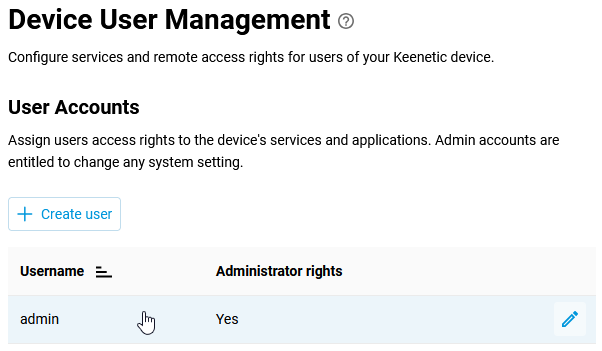
Credit: support.keenetic.com
Access Router Settings
Accessing your dual band router’s settings is the first crucial step to changing the admin password. Without entering the admin panel, you can’t make any adjustments to your network’s security or configuration. It might seem technical, but the process is straightforward once you know what to look for.
Connect To The Network
Make sure your device is connected to your router’s network. This can be either via Wi-Fi or an Ethernet cable. Connecting directly ensures a stable link, which is essential for accessing the router’s settings without interruptions.
Have you ever tried to change settings remotely only to find the connection dropped? That’s why a direct connection is always safer and faster.
Find Router Ip Address
You need the router’s IP address to open its settings page in your web browser. It usually looks like 192.168.0.1or 192.168.1.1. If you’re unsure, check the label on the back of the router or consult the user manual.
Alternatively, on your computer, you can find the IP by:
- On Windows: Open Command Prompt and type
ipconfig. Look for the “Default Gateway.” - On Mac: Go to System Preferences > Network > Advanced > TCP/IP tab.
Knowing this address is key because it acts as the gateway to your router’s control panel.
Login To Admin Panel
Open a web browser and enter the router’s IP address into the address bar. This will bring up the login screen for your router’s admin panel.
Here, you’ll be asked to enter your username and password. If you haven’t changed these before, default credentials like admin/adminor admin/passwordoften work. These are usually printed on the router itself.
Once logged in, you gain full control over your router’s settings, including the ability to change the admin password. Have you checked if your router still uses default login credentials? It’s a risk worth fixing right now.
Locate Password Settings
Finding where to change your admin password on a dual band router can feel tricky at first. The key is to locate the password settings within the router’s interface. This part controls your router’s security and access, so it’s important to know exactly where to look.
Navigate To Security Section
Start by logging into your router’s admin panel, usually through a web browser using the router’s IP address. Once inside, look for a tab or menu labeled Security, Administration, or Settings. This section holds the controls for your router’s password and other safety features.
Don’t rush through this step. Sometimes, routers hide the password options under unexpected menus like Systemor Advanced Settings. If you don’t see a clear Securitylabel, explore these areas carefully.
Identify Admin Password Option
Within the security section, look specifically for the admin password setting. It might appear as Administrator Password, Login Password, or simply Password. This is where you’ll enter your new password.
Keep an eye out for password rules displayed nearby—some routers require a mix of letters, numbers, and symbols. If you’ve ever struggled with password complexity, this is your chance to create a strong yet memorable password.
Have you noticed your router’s interface differs from the instructions? Router manufacturers often update their layouts, so don’t hesitate to check the manual or support site for your specific model. This little extra effort saves you time and frustration.
Change Admin Password
Changing the admin password on your dual band router is a crucial step to keep your network secure. It prevents unauthorized access and protects your personal information. Let’s break down the process into simple actions you can take right now.
Enter Current Password
Start by logging into your router’s admin panel. This usually requires entering the current admin password. If you haven’t changed it before, the default password is often found on the router label or in the manual.
Make sure you type the password carefully—caps lock and special characters matter. If you forget the current password, you may need to reset the router to factory settings, which erases all your custom configurations.
Set New Password
Once inside the settings, locate the section for changing the admin password. Here, you’ll enter a new password that only you will know.
Choose a strong password with a mix of letters, numbers, and symbols. Think about what would make it hard for others to guess but easy enough for you to remember without writing it down.
Confirm New Password
After setting the new password, you must confirm it by typing it again. This step ensures there are no typos that could lock you out of your router.
Take a moment to double-check both entries before saving. Have you ever saved a password only to realize it was misspelled? Avoid that frustration now by confirming carefully.
Save And Apply Changes
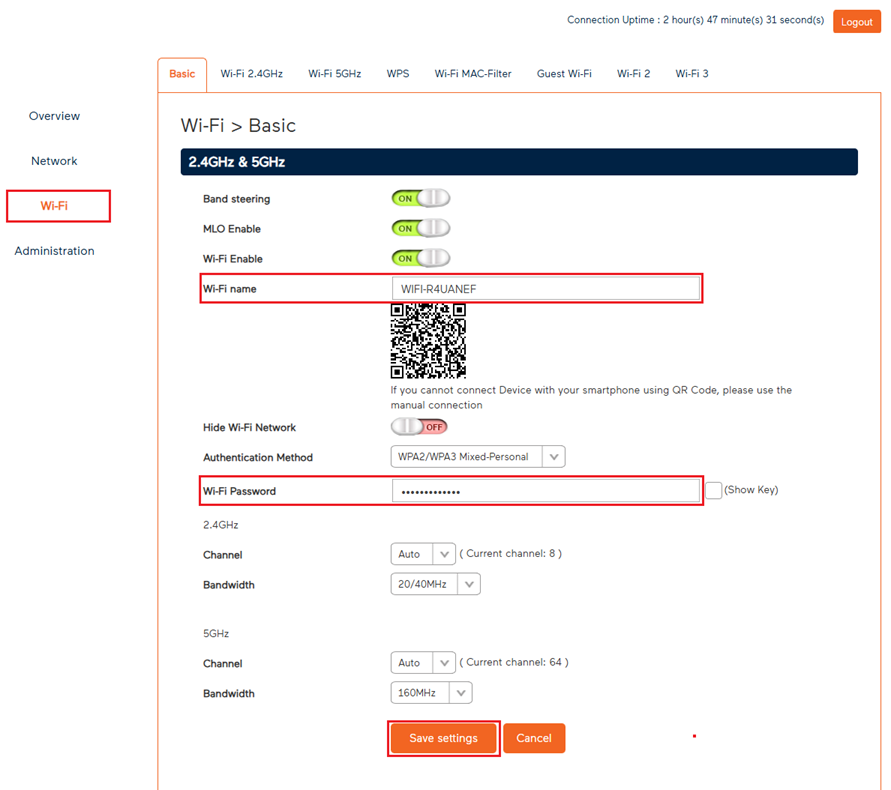
After entering your new admin password, click the Save or Apply Changes button to update the settings. This ensures your router uses the new password immediately. Wait for the router to restart if needed before logging in again.
Changing the admin password on a dual-band router requires attention. After entering the new password, you must save and apply changes for them to take effect. This ensures your router’s settings are updated and secure.Save Settings
After changing the password, locate the “Save” button. This button is usually found at the bottom of the settings page. Click it to store your new password. Failing to save means changes won’t apply. Always double-check before moving on.Reboot Router If Needed
Some routers need a reboot for changes to apply. Check your router’s manual for guidance. If needed, restart the router. This process may take a few minutes. Wait until all lights stabilize. Once done, your new password will be active.Tips For Strong Passwords
Creating a strong admin password for your dual band router protects your network from intruders. Strong passwords stop hackers from guessing or breaking into your system. Use these tips to build a password that keeps your router safe and secure.
Use Complex Characters
Mix uppercase and lowercase letters in your password. Add numbers and special symbols like @, , or $. This variety makes passwords harder to guess. Avoid simple patterns like “abcd” or “1234”. Complex characters increase security significantly.
Avoid Common Words
Do not use everyday words or easy phrases. Avoid using your name, birthdate, or “password”. Hackers use lists of common words to crack passwords quickly. Choose unique combinations that do not appear in a dictionary.
Update Password Regularly
Change your admin password every few months. Regular updates reduce the risk if someone finds your password. Set reminders to update your password and keep your network safe over time.
Credit: medium.com
Troubleshooting Tips
Troubles can happen while changing the admin password on a dual band router. These tips help solve common issues quickly. They guide you through fixing problems without extra stress. Follow clear steps to regain control of your router settings.
Forgot Admin Password
Resetting the router is the best way to recover a lost admin password. Press and hold the reset button for about 10 seconds. This restores factory settings, including the default password. Check the router label or manual for default login details. Save the new password in a safe place after reset.
Can’t Access Router Panel
Check the device connection to the router first. Use a wired connection for stable access. Confirm the router’s IP address is entered correctly in the browser. Clear browser cache or try a different browser if the panel won’t load. Restart the router to fix temporary glitches blocking access.
Password Not Changing
Ensure you click the save or apply button after entering the new password. Use a strong password with letters and numbers for security. Avoid special characters that the router might not accept. Update the router’s firmware if problems persist. Restart the router to apply changes fully.
Credit: support.tpg.com.au
Frequently Asked Questions
How Do I Access My Dual Band Router Settings?
To access your router settings, connect to its network. Open a browser and enter the router’s IP address, usually 192. 168. 1. 1. Log in using your admin username and password. This lets you change settings, including the admin password.
Why Should I Change My Dual Band Router Admin Password?
Changing your admin password improves network security. It prevents unauthorized access to your router settings. Regular updates protect against hacking and keep your network safe. Use a strong, unique password for better protection.
Can I Change The Admin Password Without Internet?
Yes, you can change the admin password without internet. Connect your device to the router via Wi-Fi or Ethernet. Access the router’s settings page through its IP address. Update the password and save the changes locally.
What If I Forget My Dual Band Router Password?
If you forget the admin password, reset the router. Press and hold the reset button for 10 seconds. This restores factory settings and default passwords. You can then log in and set a new password.
Conclusion
Changing your admin password on a dual band router keeps your network safe. It stops others from changing settings without your permission. Always choose a strong password with letters and numbers. Write it down somewhere safe, so you don’t forget.
Regularly updating your password adds extra protection. Take a few minutes to do this now. It helps you avoid many future problems. Protect your internet and devices easily with this simple step.