Are you tired of slow Wi-Fi and constant interruptions? The secret to a faster, more reliable connection might be hiding in your dual band router’s channel settings.
Changing your router’s channel can reduce interference and boost your internet speed, making streaming, gaming, and browsing smoother than ever. In this guide, you’ll learn exactly how to find and change the channel on your dual band router—step by simple step.
Keep reading, and take control of your Wi-Fi performance today.
Credit: www.slashgear.com
Why Change Router Channels
Changing your dual band router channel can improve your Wi-Fi performance. Routers use channels to send and receive signals. Sometimes, many devices use the same channel, causing slow internet or dropped connections. Changing the channel helps reduce these problems and gives you a better experience.
Impact Of Channel Interference
Channel interference happens when multiple routers use the same channel. This creates signal overlap and causes network slowdowns. Other wireless devices like microwaves or cordless phones can also cause interference. Interference leads to weak signals, making it hard to stream or browse smoothly.
Interference can cause:
- Slower internet speeds
- Frequent disconnects
- Poor video and voice quality
Benefits Of Optimal Channel Selection
Selecting the best channel reduces interference and improves signal strength. This means faster speeds and a more stable connection. It also helps multiple devices work well together on the same network. Choosing the right channel can extend your Wi-Fi range and reduce dead zones in your home.
- Improved internet speed
- Stronger and clearer signal
- Better device connectivity
- Reduced network interruptions
Credit: www.unihosted.com
Dual Band Router Basics
Understanding the basics of your dual band router is key to optimizing its performance. These devices broadcast signals on two separate frequency bands, each with distinct characteristics that affect speed, range, and interference. Knowing how these bands work helps you make smarter decisions about which channels to use for your home or office network.
2.4 Ghz Vs 5 Ghz Bands
The 2.4 GHz band covers a wider area and penetrates walls better. This makes it great for larger spaces or when you have obstacles like thick walls. However, it often suffers from more interference because many household devices—like microwaves and cordless phones—use this frequency.
The 5 GHz band offers faster speeds but covers a shorter range. It’s less crowded, so you’ll usually face less interference and enjoy more stable connections. This band works best when you are close to your router or need high bandwidth for activities like streaming or gaming.
Have you noticed your Wi-Fi slows down when you move to a different room? This might be a sign to switch between these bands based on your location and usage.
Channel Differences In Each Band
Channels act like lanes on a highway for your Wi-Fi signal. On the 2.4 GHz band, there are 11 to 14 channels, but only three (1, 6, and 11) don’t overlap. Using overlapping channels can cause interference and slow down your network.
The 5 GHz band has many more channels—up to 25 or more depending on your region. These channels usually don’t overlap, which reduces interference and improves performance. But some channels might be restricted or less effective indoors due to regulations and signal strength.
- 2.4 GHz Band:Fewer channels, higher interference risk
- 5 GHz Band:More channels, less interference, shorter range
Have you checked your router’s default channel recently? Sometimes routers pick crowded channels by default, which can slow your connection. Changing the channel can make a noticeable difference in speed and reliability.
Tools To Find Best Channels
Finding the best channel for your dual band router improves Wi-Fi speed and reduces interference. Use tools like Wi-Fi analyzers to scan nearby networks and pick the clearest channel. This makes your connection more stable and faster.
To optimize your dual band router’s performance, selecting the best channel is crucial. Various tools help identify the most suitable channels, reducing interference and boosting connectivity. Understanding these tools can enhance your WiFi experience significantly. Let’s explore some tools that make this task easier.Wifi Analyzer Apps
WiFi analyzer apps are valuable tools for finding the best channels. They scan nearby networks and show which channels are crowded. With visual graphs, you can see signal strength and interference. Popular apps include NetSpot and WiFi Analyzer. These apps work on smartphones and computers. They are user-friendly and provide clear insights. By using them, you can easily pinpoint the optimal channel for your router.Router Admin Interface
The router admin interface is another essential tool. Access it through a web browser. Enter the router’s IP address in the address bar. Log in using your credentials. Once inside, navigate to the wireless settings. Here, you can view the current channel settings. Many routers suggest the best channels automatically. You can also manually select a channel based on your analysis. This interface is handy for making quick changes to improve your WiFi network.Steps To Change Router Channel
Changing the channel on your dual band router can significantly improve your Wi-Fi performance by reducing interference. The process is straightforward but requires accessing specific settings within your router’s interface. Here’s how you can adjust the channel step-by-step to get a better wireless experience.
Accessing Router Settings
Start by connecting your device to the router, either via Wi-Fi or Ethernet cable. Open a web browser and type your router’s IP address into the address bar—common addresses include 192.168.0.1or 192.168.1.1. You’ll be prompted to enter your username and password; if you haven’t changed them, check the router’s label or manual for default credentials.
Once logged in, you’ll see the router’s control panel. Don’t worry if it looks complicated at first—just focus on finding the wireless settings.
Locating Wireless Channel Options
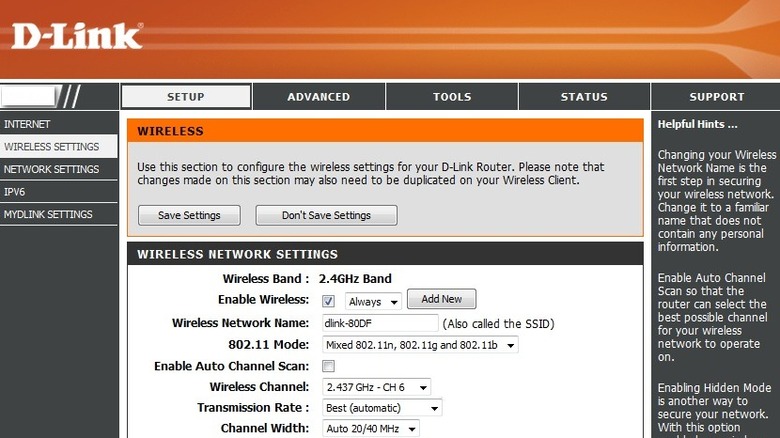
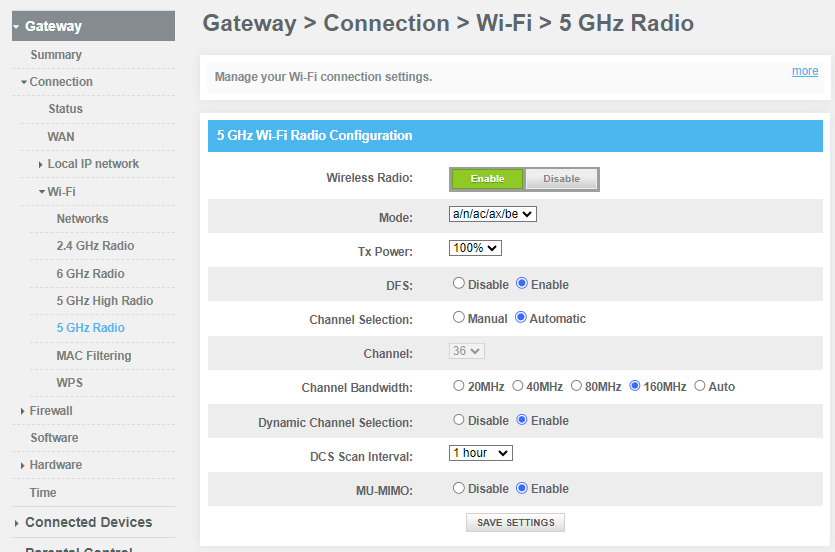
Look for sections labeled Wirelessor Wi-Fi Settings. Since your router is dual band, you’ll find separate options for the 2.4 GHz and 5 GHz bands. Navigate to each band’s settings individually to find the channel selection menu.
This is where you can see which channel your router currently uses. Notice if the channel is set to “Auto”—sometimes manual selection can give you better control.
Selecting Optimal Channel
Choosing the right channel depends on your environment. Use a Wi-Fi analyzer app on your phone or computer to scan nearby networks and identify which channels are crowded. For the 2.4 GHz band, channels 1, 6, and 11 are usually best because they don’t overlap.
For 5 GHz, there are more non-overlapping channels, so pick one with the least traffic. If your neighbors use channel 6 on 2.4 GHz, switching to channel 1 or 11 could boost your signal quality.
Saving And Applying Changes
After selecting your desired channel, look for the Saveor Applybutton at the bottom of the page. Click it to update your settings. Your router might reboot or temporarily disconnect your device while applying changes.
Once done, test your connection to see if performance has improved. If you don’t notice a difference, try switching to another channel until you find the best one for your space.
Tips For Faster Wifi
Improving your WiFi speed does not always require new equipment. Small changes can boost your connection. This section shares simple tips to make your WiFi faster and more reliable.
Regular Channel Scans
Check your WiFi channels often to find the best one. Many devices and neighbors use the same channels. Scanning helps spot crowded channels and avoid them. Use free apps or your router’s tools for scans. Changing channels regularly keeps your signal clear and fast.
Avoiding Overlapping Channels
WiFi channels can overlap and cause interference. Overlapping slows down your internet. Choose non-overlapping channels for 2.4 GHz band: 1, 6, or 11. For 5 GHz band, pick channels spaced apart. This reduces signal clash and improves speed. Check your router settings to select the right channel.
Positioning Your Router
Place your router in a central, open space. Avoid walls and metal objects that block signals. Keep it away from microwaves and cordless phones. Higher positions help spread the signal better. Correct placement means stronger WiFi and fewer dead zones.
Credit: community.surfboard.com
Troubleshooting Channel Issues
Channel problems with dual band routers can cause slow speeds and dropped connections. Troubleshooting these issues helps improve your Wi-Fi performance. It is important to try simple fixes before making big changes.
Start by checking common causes like interference and overlapping channels. If problems continue, deeper troubleshooting is necessary. The following steps cover key solutions for channel-related problems.
Resetting Router Settings
Resetting your router clears any incorrect settings. It can fix channel conflicts caused by previous changes. Use the reset button on the router or access its web interface to restore factory defaults.
After reset, set up your Wi-Fi again. Choose the best channels for 2.4 GHz and 5 GHz bands. This often resolves hidden conflicts and boosts signal quality.
Firmware Updates
Router manufacturers release firmware updates to fix bugs and improve performance. Updating firmware can solve channel selection issues that cause interference.
Check the router’s admin page for update options. Download and install the latest firmware carefully. Avoid interruptions during this process to prevent damage.
When To Contact Support
Contact router support if problems persist after resets and updates. Persistent channel issues may indicate hardware faults or complex software bugs.
Support teams can guide advanced troubleshooting or arrange repairs. Keep your router model and firmware details ready for faster help.
Frequently Asked Questions
How Do I Find The Best Channel For My Dual Band Router?
To find the best channel, use a Wi-Fi analyzer app. It scans nearby networks and suggests the least crowded channels for 2. 4GHz and 5GHz bands, improving your router’s performance and reducing interference.
Can Changing Router Channels Improve Wi-fi Speed?
Yes, changing channels can boost Wi-Fi speed by reducing interference. Choosing a less congested channel allows clearer signals, enhancing your connection quality and stability on both 2. 4GHz and 5GHz bands.
How Often Should I Change My Router’s Channel?
Change your router’s channel when experiencing slow speeds or frequent disconnects. Regular checks every few months help maintain optimal performance, especially in crowded Wi-Fi environments.
What Is The Difference Between 2.4ghz And 5ghz Channels?
2. 4GHz channels cover longer distances but are slower and crowded. 5GHz channels offer faster speeds with less interference but have a shorter range, ideal for close-range, high-speed connections.
Conclusion
Changing your dual band router channel helps improve your Wi-Fi signal. It reduces interference from other devices nearby. You can enjoy faster and more stable internet. The process is simple and takes only a few steps. Regularly checking your router settings keeps your network strong.
Try different channels to find the best one for you. Good Wi-Fi makes working and streaming much easier. Take control of your connection today and see the difference.