Are you struggling to get the most out of your portable router? Changing your router settings can feel confusing, but it doesn’t have to be.
Imagine having full control over your internet connection—boosting speed, improving security, and customizing your network exactly how you want it. You’ll discover simple, step-by-step instructions to change your portable router settings with ease. By the end, you’ll know exactly what to do to make your portable router work better for you.
Ready to take control? Let’s dive in.
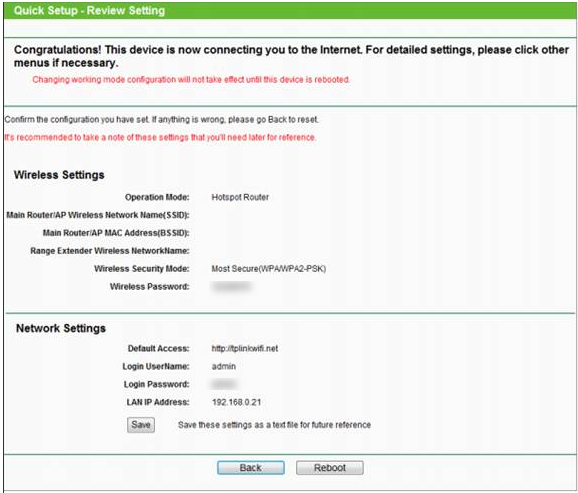
Credit: www.tp-link.com
Accessing The Router Interface
Accessing your portable router’s interface is the first crucial step to customizing its settings. This interface acts as the control panel for your network, allowing you to tweak everything from security options to connection preferences. Without gaining entry to this panel, you won’t be able to manage your router effectively.
Connecting To The Router Network
Start by connecting your device to the router’s Wi-Fi network. This is often named after the brand or model of your router and may include terms like “Portable” or “Mobile.”
You can connect via Wi-Fi or use an Ethernet cable if your router supports it. Remember, you need to be on the router’s network to access its settings.
Finding The Router Ip Address
The router’s IP address is the gateway to its interface. Common default IPs include 192.168.0.1or 192.168.1.1, but this can vary depending on the brand.
To find the exact IP on Windows, open Command Prompt and type ipconfig, then look for the “Default Gateway.” On a Mac, go to System Preferences > Network, select your connection, and click Advanced > TCP/IP.
Logging Into The Admin Panel
Once you have the IP, enter it into your web browser’s address bar. This will open the router’s login page. Use the default username and password provided in the router’s manual or on a sticker beneath the device.
If you’ve changed these credentials before, use the updated ones. Forgot your password? Resetting the router to factory settings will restore the default login details, but be aware this erases all your custom settings.
Credit: www.esecurityplanet.com
Modifying Network Settings
Modifying network settings on your portable router lets you control how your Wi-Fi works. You can change the network name, update the password, and pick the best channel. These changes help secure your network and improve connection quality.
Changing The Ssid Name
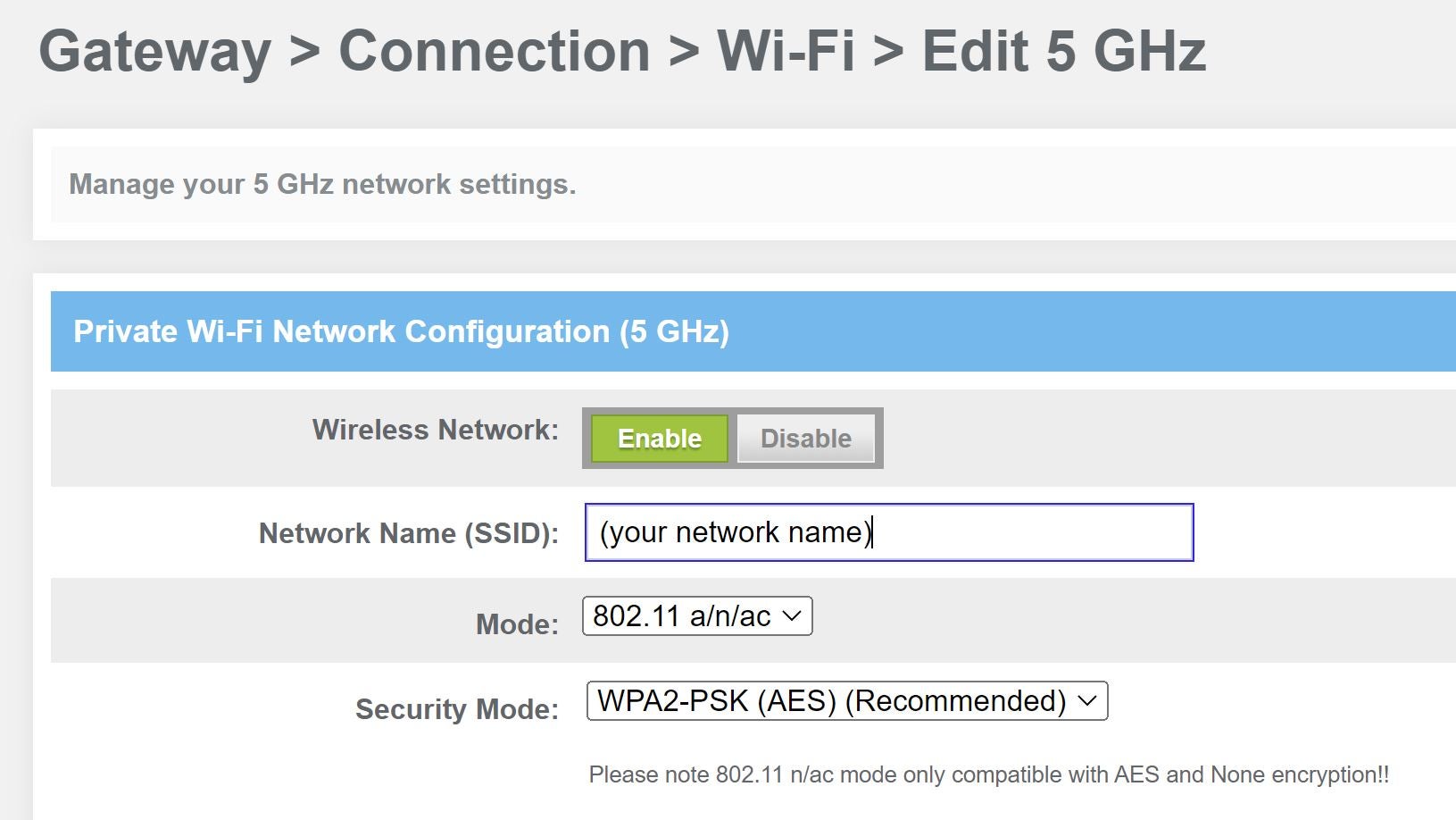
The SSID is the name shown to devices searching for Wi-Fi. Changing it makes your network easy to find and recognize. Choose a simple name that you can remember but avoid personal info.
To change the SSID:
- Log into the router’s admin page using its IP address.
- Find the wireless settings or network settings section.
- Look for the SSID field and enter your new network name.
- Save the changes to update your network name.
Updating The Wi-fi Password
Regularly updating your Wi-Fi password keeps your network safe. Use a strong password with letters, numbers, and symbols. Avoid easy or common passwords to stop unauthorized access.
To update the password:
- Access the router’s admin panel.
- Navigate to wireless security settings.
- Enter a new password in the password or passphrase field.
- Save the settings and reconnect your devices with the new password.
Selecting The Wi-fi Channel
Wi-Fi channels affect your signal quality and speed. Choosing the right channel reduces interference from other networks. Most routers set this automatically, but manual selection can help in crowded areas.
To select a Wi-Fi channel:
- Open the router’s wireless settings page.
- Find the channel option in the settings menu.
- Pick a channel with less interference, usually channels 1, 6, or 11 for 2.4 GHz.
- Save the changes to apply the new channel.
Adjusting Security Options
Adjusting the security options on your portable router is essential to protect your network from unauthorized access and cyber threats. These settings help you control who can connect and what kind of data is allowed through your device. Taking a few minutes to review and update these options can save you from potential security risks down the line.
Enabling Wpa3 Or Wpa2 Encryption
Encryption is your first line of defense against hackers trying to intercept your wireless signals. WPA3 is the newest and most secure encryption standard, but not all devices support it yet. If your router or devices don’t support WPA3, WPA2 is still a strong option to keep your connection safe.
To enable encryption:
- Log into your router’s admin panel through the IP address shown in the manual.
- Navigate to the wireless security settings.
- Select WPA3 if available, or WPA2 as a fallback.
- Set a strong, unique password that’s hard to guess but easy for you to remember.
Have you ever wondered why some Wi-Fi networks ask for a password while others don’t? This is the difference encryption makes.
Setting Up A Guest Network
Creating a guest network allows visitors to use your internet without accessing your main devices. This keeps your personal files and smart devices secure from potential threats brought in by others.
Setting up a guest network usually involves:
- Going to the guest network section in your router’s settings.
- Enabling the guest network feature.
- Choosing a different network name (SSID) and a separate password.
- Limiting access to local network resources if your router allows it.
This way, you can offer Wi-Fi access without compromising your privacy or network integrity. Isn’t it great to share your connection safely?
Configuring Firewall Settings
Your router’s firewall acts as a barrier, filtering traffic to protect your devices from harmful data packets. Most portable routers come with a built-in firewall, but it might be disabled by default.
To configure firewall settings:
- Access the firewall section in your router’s admin panel.
- Enable the firewall if it’s turned off.
- Adjust specific rules if you want to block certain types of traffic or allow trusted connections.
Think about the last time you faced suspicious internet activity—did your firewall catch it? Proper firewall settings give you control over what enters and leaves your network.
Customizing Advanced Features
Customizing advanced features on your portable router can enhance performance. It allows you to tailor the router settings to your specific needs. Let’s explore some key advanced features you can customize.
Managing Dhcp Settings
Dynamic Host Configuration Protocol (DHCP) assigns IP addresses to devices. You can manage DHCP settings to improve network efficiency. Access your router’s admin panel. Look for the DHCP settings section. Set a range of IP addresses for devices. This helps avoid conflicts and maintains a smooth connection. Consider assigning static IPs to important devices for better stability.
Setting Up Port Forwarding
Port forwarding directs external traffic to specific devices on your network. To set it up, access the router’s admin panel. Find the port forwarding section. Enter the IP address of the device you want to forward ports to. Specify the port numbers needed for the application. Save the changes to enable port forwarding. This is useful for online gaming or accessing security cameras.
Updating Firmware
Firmware updates improve the router’s performance and security. Check your router’s admin panel for updates regularly. Visit the manufacturer’s website for the latest firmware version. Download and install the update through the admin panel. Follow the instructions carefully to avoid issues. Regular updates ensure your router runs smoothly and securely.
Saving And Restarting
Saving and restarting your portable router is a crucial step after making any changes to its settings. Without properly saving, your adjustments won’t take effect, and failing to restart can leave the router unstable or unresponsive. Let’s dive into how to ensure your new settings stick and your device runs smoothly.
Applying Changes
Once you’ve updated your settings, look for the “Save” or “Apply” button on your router’s configuration page. This action commits your new preferences to the router’s memory.
Don’t just close the browser or navigate away—if you do, your changes might be lost. Think of this as confirming your choices, so the router knows what to do next.
Rebooting The Router
After saving, a reboot is often necessary to activate the new settings fully. You can usually find a “Restart” option in the router’s menu, or you can manually power cycle it by unplugging and plugging it back in.
Restarting clears the device’s temporary memory and reloads the configuration. Have you noticed your device behaving oddly after a setting change? A quick reboot often solves this.
Verifying New Settings
Once your router is back online, double-check that your changes took effect. Log back into the router interface and review the settings you modified.
Try connecting your devices or running a speed test to confirm everything works as expected. Have you ever saved settings only to find out they didn’t apply? This step helps you avoid that frustration.

Credit: dongknows.com
Troubleshooting Common Issues
Troubleshooting common issues with your portable router helps keep your internet stable. Simple fixes often solve connection problems fast. Understanding basic steps prevents frustration and saves time.
Resetting To Factory Defaults
Resetting your portable router clears all custom settings. This step can fix many issues caused by wrong configurations. Find the reset button on your device, usually a small hole. Press and hold it for about 10 seconds using a paperclip. The router will restart with original factory settings. After the reset, you need to set up your network again.
Fixing Connection Problems
Connection problems may come from different sources. Check these points to restore your internet:
- Ensure the router is turned on and fully charged.
- Verify your SIM card is inserted correctly.
- Move the router to a location with better signal.
- Restart the router to refresh the connection.
- Check if your data plan is active and has enough balance.
- Update the router’s firmware through its settings page.
When To Contact Support
Contact support if issues persist after trying all fixes. You may need help for hardware faults or complex network problems. Keep your router model and purchase details ready before calling. Support teams can guide you through advanced troubleshooting or repair options.
Frequently Asked Questions
How Do I Access My Portable Router Settings?
To access your portable router settings, connect your device to the router’s Wi-Fi. Open a web browser and enter the router’s IP address, usually 192. 168. 1. 1. Log in with the default username and password found in the manual.
This grants you access to the settings dashboard.
How Can I Change The Wi-fi Password On A Portable Router?
Log into the router’s settings page through the IP address. Navigate to the wireless or security section. Locate the Wi-Fi password field and enter a new, strong password. Save the changes and reconnect your devices using the updated password for better security.
What Is The Best Way To Update Portable Router Firmware?
Check the router’s settings for a firmware update section. Download the latest firmware from the manufacturer’s website if needed. Follow the on-screen instructions to upload and install the update. Regular updates improve performance and security of your portable router.
How Do I Reset My Portable Router To Factory Settings?
Locate the reset button on your portable router, usually a small hole. Press and hold it with a pin for about 10 seconds until the router restarts. This restores all settings to default, helping fix connection issues or forgotten passwords.
Conclusion
Changing portable router settings is easier than it seems. Access your router’s web page with its IP address. Use simple steps to update passwords or network names. Keep your connection safe by choosing strong passwords. Regular checks help maintain good internet speed and security.
Small changes can improve your online experience a lot. Take control of your device and enjoy better connectivity. Remember, a few clicks can make a big difference. Stay connected and secure every time you use your portable router.