Have you ever wondered what’s happening behind the scenes of your dual band router? Checking your router logs can reveal important details about your network’s activity, security, and performance.
If you want to keep your internet safe and running smoothly, knowing how to access and understand these logs is key. You’ll learn simple steps to check your dual band router logs and unlock insights that can help you troubleshoot issues and protect your connection.
Ready to take control of your network? Let’s dive in.
Accessing Your Router Interface
Accessing your router interface is the key to managing and troubleshooting your dual band router effectively. It allows you to view logs, change settings, and monitor network activity. Although it might sound technical, the process is straightforward once you know where to look and what to enter.
Finding The Router Ip Address
Your router’s IP address is like a door to its control panel. Without it, you cannot access the interface. Most routers use a default IP address, commonly 192.168.0.1or 192.168.1.1, but it can vary.
To find your router’s IP address:
- On Windows, open Command Prompt and type
ipconfig. Look for the “Default Gateway” under your active network connection. - On Mac, go to System Preferences > Network, select your connection, then click Advanced > TCP/IP tab to see the router address.
- On smartphones, check your Wi-Fi connection details to find the gateway IP.
Have you ever tried guessing your router’s IP and ended up frustrated? Using these quick commands saves you time and avoids that hassle.
Logging In To The Router
Once you have the IP address, open a web browser and type it into the address bar. This will bring up the router login page. You’ll need to enter a username and password to proceed.
Default login credentials are often printed on the router itself or included in the manual. Common defaults are adminfor both username and password. If you’ve changed these and forgotten them, you might need to reset your router.
Logging in gives you control over your network, but it also raises a question: How secure is your router if you’re still using the default credentials? Changing these details can protect your network from unauthorized access.
Locating The Logs Section
Locating the logs section on your dual band router is the first step to understanding what’s happening on your network. Logs provide a detailed record of activity, errors, and connections, but finding this section can vary depending on your router’s brand and interface. Knowing exactly where to look saves you time and helps you quickly spot important information.
Navigating The Menu
Your router’s web interface is where all the settings and logs live. Start by logging into your router using its IP address, usually something like 192.168.0.1or 192.168.1.1. Once inside, look for menu options labeled “Status,” “Administration,” “System,”or “Advanced Settings.”
Different brands arrange their menus differently. For instance, Netgear often places logs under “Advanced” > “Administration” > “Logs,”while TP-Link might have it under “System Tools” > “System Log.”Don’t hesitate to explore the menu—sometimes logs are hidden under less obvious categories like “Security”or “Diagnostics.”
Common Log Categories
Once you find the logs section, you’ll notice different categories or types of logs. Common categories include:
- System Logs:General router events, firmware updates, and system errors.
- Traffic Logs:Data about devices connecting and disconnecting or bandwidth usage.
- Security Logs:Alerts about unauthorized access attempts or firewall activity.
- Wireless Logs:Information specific to Wi-Fi connections, such as signal strength or dropped connections.
Knowing which log category to check depends on the issue you’re investigating. Are you curious about a sudden drop in Wi-Fi speed? Wireless logs might give you clues. Worried about someone trying to access your network? Security logs are the place to start.
Interpreting Router Logs
Router logs hold valuable information about your network’s activities and performance. Learning to interpret these logs helps you spot issues early and keep your connection stable. The logs show details about device connections, errors, and security events. Understanding what each entry means makes troubleshooting easier and improves your network management.
Understanding Log Entries
Router logs list many events in a simple text format. Each entry usually includes a timestamp, event type, and description. Common event types are:
- Info:Normal activities like device connections or status updates.
- Warning:Minor issues that need attention but don’t stop the network.
- Error:Serious problems affecting network performance or security.
Look for keywords like “connected,” “disconnected,” “failed,” and “blocked.” These show what happened and when. Pay attention to repeated messages—they often indicate ongoing problems.
Identifying Important Events
Not all log entries need immediate action. Focus on events that impact your network’s speed or security. Key events include:
- Unauthorized access attempts or blocked IP addresses.
- Frequent disconnects or dropped connections.
- Firmware updates and router restarts.
- Errors related to DHCP or DNS failures.
Highlight patterns like repeated login failures or sudden network drops. These signs help you find weak points. Use these insights to adjust settings or contact support if needed.

Credit: www.reddit.com
Saving And Exporting Logs
Access your dual band router’s admin page to view and save logs easily. Exporting logs helps track network activity and troubleshoot issues quickly.
Saving and exporting router logs is crucial for network management. Logs can contain vital information about network activity. They help diagnose problems and monitor usage patterns.Export Formats
Different routers offer various export formats. Common formats include plain text and CSV. These formats are easy to read and analyze. CSV files work well with spreadsheet software. Select the format that suits your needs best.Backing Up Logs
Regularly backing up logs is essential. It prevents data loss during router resets. Use external storage devices like USB drives. Cloud storage is another convenient option. Schedule automatic backups to ensure consistency. This practice safeguards your network data effectively.Troubleshooting Using Logs
Router logs are a powerful tool for troubleshooting your dual band router. They hold a detailed record of all the events and activities that happen on your network. By learning how to read and interpret these logs, you can quickly identify and resolve issues that affect your internet connection.
Detecting Connection Issues
Connection drops and slow speeds can be frustrating. Your router logs can help pinpoint the exact moments when your device disconnects or experiences interference.
Look for entries labeled as “disconnection,” “authentication failure,” or “signal loss.” These clues reveal if the problem is due to weak Wi-Fi signals, device incompatibility, or even unauthorized access attempts.
Have you noticed your connection drops mostly at night? Check the logs for patterns around those times. This can help you discover if something in your environment, like another device or appliance, is causing interference.
Monitoring Network Activity
Keeping an eye on network activity is crucial for security and performance. Router logs show which devices are connecting and what kind of traffic is passing through your network.
By monitoring these logs, you can spot unusual activity such as unknown devices trying to connect or excessive data usage by a specific device. This can alert you to possible intrusions or bandwidth hogs.
Try to regularly review your logs for entries that look suspicious or unexpected. Doing this will help you maintain control over your network and prevent future problems.

Credit: heyletslearnsomething.medium.com
Tips For Beginners
Getting started with checking dual band router logs can seem tricky. Simple tips help beginners understand and manage the process. Knowing how to review logs keeps your network safe and running smoothly. Here are easy steps to follow for beginners.
Regular Log Checks
Check your router logs often. This helps catch unusual activity early. Look for unknown devices or repeated login attempts. Make it a habit to scan logs weekly or monthly. Use the router’s web interface to access logs quickly. Save important log files for future reference. Regular checks improve your network’s health and security.
Securing Your Router
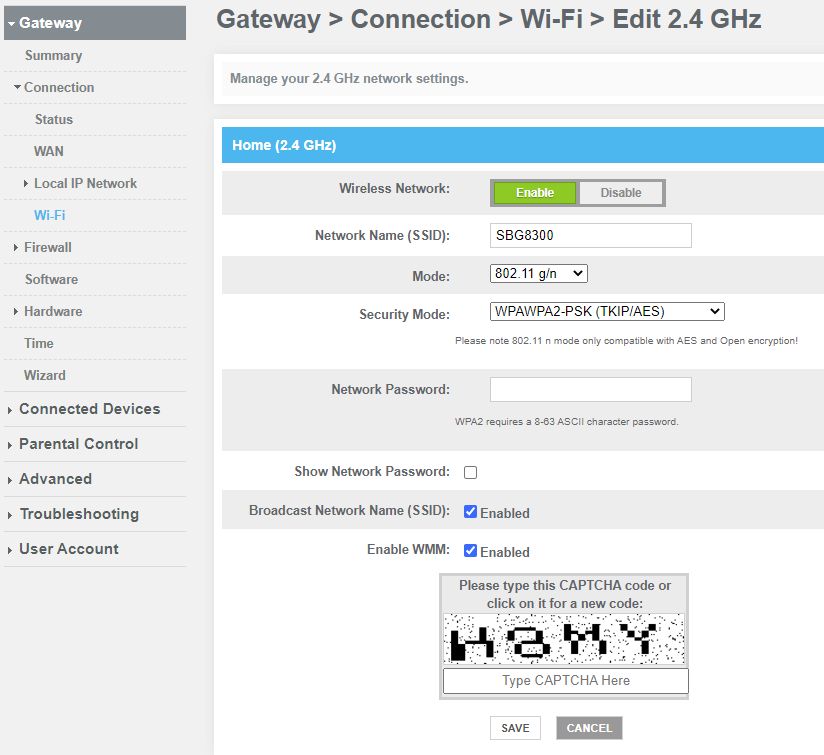
Protect your router to keep logs meaningful. Change default usernames and passwords right away. Use strong, unique passwords with letters and numbers. Enable WPA3 or WPA2 encryption for Wi-Fi security. Turn off remote management unless you need it. Keep your router’s firmware updated for safety. Secure routers stop hackers and keep logs accurate.
Credit: community.surfboard.com
Frequently Asked Questions
How Do I Access Dual Band Router Logs?
To access dual band router logs, log into your router’s web interface. Use its IP address and admin credentials. Navigate to the “Logs” or “System” section. Here you can view real-time and historical network activities and errors.
Why Should I Check My Dual Band Router Logs?
Checking router logs helps identify network issues and unauthorized access. Logs show connection attempts, errors, and device activities. This improves security and troubleshooting by tracking network performance and possible intrusions.
Can I Export Dual Band Router Logs For Analysis?
Yes, many dual band routers allow exporting logs. You can download logs as text or CSV files via the router’s web interface. Exporting helps in detailed offline analysis or sharing with technical support.
What Information Is Recorded In Dual Band Router Logs?
Router logs record device connections, IP addresses, connection times, errors, and security events. They provide insight into network usage, potential threats, and troubleshooting details for your dual band router.
Conclusion
Checking your dual band router logs helps you see important details. You learn about devices connected and any unusual activity. This keeps your network safe and working well. Accessing logs is simple with the right steps. Regularly review logs to catch issues early.
Stay aware of your network’s health and security. Small actions can prevent big problems later. Keep your internet running smooth and secure every day.