If you’ve ever struggled with connecting multiple devices to a hotel or public Wi-Fi, cloning your MAC address on a travel router can be a game-changer. It lets your router mimic the unique ID of your device, helping you bypass network restrictions and enjoy a smoother connection.
In this guide, you’ll learn exactly how to clone your MAC address step-by-step, so you can take control of your internet access wherever you go. Keep reading to unlock a simple trick that makes your travel router work smarter for you.

Credit: www.youtube.com
What Is Mac Address Cloning
Understanding MAC address cloning is essential if you want to get the most out of your travel router. It’s a technique that lets your device mimic the unique identifier of another device on a network. This can help bypass restrictions or maintain a stable connection when moving between networks.
Think about a time when your internet connection suddenly stopped working after switching routers. That happened to me until I learned about MAC address cloning—it fixed the issue instantly. It’s a simple trick but can save you from a lot of frustration while traveling.
What Is A Mac Address?
A MAC (Media Access Control) address is a unique identifier assigned to network devices like your laptop or smartphone. It’s like a digital fingerprint that tells routers and networks exactly which device is connecting. Every device has its own MAC address, which is usually fixed and cannot be changed without special tools or settings.
Why Clone A Mac Address?
Some internet service providers or public networks restrict access based on MAC addresses. If your travel router has a different MAC address than your original device, the network may block it. Cloning the MAC address helps your travel router appear as the original device, allowing uninterrupted access.
How Does Mac Address Cloning Work?
MAC address cloning copies the MAC address from your original device to your travel router. When the router connects to the network, it presents the cloned address instead of its own. This tricks the network into thinking the original device is still connected, avoiding any access issues.
When Should You Use Mac Address Cloning?
- If your ISP binds service to a specific MAC address
- When a public Wi-Fi network limits access to known devices
- To maintain connection continuity while switching devices
Have you ever been stuck unable to connect to Wi-Fi because your new device wasn’t recognized? MAC address cloning can solve exactly that problem.
Why Clone Mac Address On Travel Router
Cloning the MAC address on your travel router can solve connectivity issues and help you maintain a seamless internet experience, especially when you’re on the move. It’s not just a technical trick; it’s a smart way to make your travel router behave like your primary device in networks that restrict access based on MAC addresses.
Understanding why you might need to clone your MAC address helps you avoid frustrating connection blocks and ensures your devices stay connected without constant intervention. Let’s look at some key reasons why cloning the MAC address matters for your travel router.
Access Networks With Mac Address Restrictions
Many hotels, airports, and public Wi-Fi networks limit access to devices with approved MAC addresses. If your travel router has a different MAC address from your main device, it might get blocked.
By cloning the MAC address of your laptop or smartphone onto the travel router, you trick the network into thinking it’s the same approved device. This simple change can save you time and hassle when connecting to restricted networks.
Avoid Paying For Multiple Device Connections
Some networks charge per connected device or allow only one device at a time. If you connect multiple devices through a travel router, the network may block additional connections.
Cloning your main device’s MAC address makes the travel router appear as a single device. This way, you can connect multiple gadgets without extra fees or restrictions.
Maintain Consistent Network Settings
Networks often assign IP addresses based on your device’s MAC address. Changing devices or routers can cause IP conflicts or require reconfiguration.
When you clone the MAC address, your travel router inherits the same IP assignment, reducing connection issues. This keeps your network settings stable and your internet access smooth.
Improve Security And Privacy
Using your travel router’s original MAC address can expose it to tracking or profiling on public networks. Cloning a different MAC address adds a layer of privacy.
You control which MAC address is visible, allowing you to protect your travel router from unwanted attention. This simple act can enhance your online security while traveling.
Have you ever faced sudden internet blocks in a hotel or airport? Cloning the MAC address could be the key to staying connected effortlessly during your next trip.
Check Your Current Mac Address
Checking your current MAC address is the first step in cloning it on a travel router. The MAC address is a unique identifier assigned to your device’s network interface. Knowing this address helps you copy it accurately to the travel router. This process ensures seamless network access, especially if your internet provider restricts connections by MAC address.
Finding the MAC address varies by device type. Different systems have different ways to display this important information. Below are simple instructions for common devices and operating systems.
Find Mac Address On Windows
- Open Command Prompt by typing
cmdin the search bar. - Type
ipconfig /alland press Enter. - Look for the “Physical Address” under your active network adapter.
Find Mac Address On Macos
- Click the Apple menu and open “System Preferences.”
- Select “Network” and choose your active connection.
- Click “Advanced” and go to the “Hardware” tab to see the MAC address.
Find Mac Address On Android
- Open “Settings” and go to “About phone.”
- Select “Status” or “Hardware information.”
- Locate the Wi-Fi MAC address listed there.
Find Mac Address On Ios
- Open “Settings” and tap “General.”
- Go to “About” and scroll down to “Wi-Fi Address.”
- This is your device’s MAC address.
Access Travel Router Settings
Accessing your travel router’s settings is the first crucial step to clone its MAC address. Without entering the router’s configuration page, you can’t make any changes or customize your device to suit your travel needs. Understanding how to reach these settings quickly saves time and avoids unnecessary frustration.
Connect To Your Travel Router’s Network
Start by connecting your laptop or smartphone to the travel router’s Wi-Fi network. Usually, the network name (SSID) and password are printed on the device or included in its manual. If you’ve changed these details before, use your custom credentials instead.
Sometimes, travel routers create an unsecured network by default. Be cautious and connect only from a secure device to avoid potential risks. Once connected, you’re ready to access the router’s admin interface.
Open The Router’s Admin Page In A Browser
Open your preferred web browser and type the router’s IP address into the address bar. Common IP addresses for travel routers include 192.168.0.1or 192.168.1.1. If these don’t work, check your device’s label or manual for the correct address.
If you’re unsure about the IP address, you can find it by running a simple command:
- On Windows, open Command Prompt and type
ipconfig. Look for the “Default Gateway” under your network adapter. - On macOS or Linux, open Terminal and type
netstat -nr | grep defaultorip route.
Log In With Your Credentials
After loading the admin page, you’ll be prompted to enter a username and password. If you haven’t changed these, the default login is often adminfor both fields or adminand password. Check your router’s manual or sticker for specifics.
Don’t have the credentials? Resetting the router to factory settings can restore default login info, but this will erase all your custom configurations. Think about whether you want to proceed with a reset or find the login details another way.
Locate Mac Address Cloning Option
Locating the MAC address cloning option on a travel router is essential for changing your device’s identity on a network. This feature helps bypass restrictions set by some internet providers. Finding it can be simple if you know where to look.
Different travel routers have different interfaces. The MAC address cloning option may be hidden under various menus. Knowing common places to check saves time and effort.
Access The Router’s Web Interface
Open a web browser on your connected device. Enter the router’s IP address in the address bar. Common IPs include 192.168.0.1 or 192.168.1.1. Login using your router username and password. This step is necessary to change settings.
Navigate To Network Or Wan Settings
Look for tabs or menus labeled “Network,” “Internet,” or “WAN.” The MAC cloning option is often inside these sections. It controls how the router connects to the internet service.
Check For Advanced Or Mac Address Settings
Some routers place MAC cloning under “Advanced” or “MAC Address” settings. Explore these menus carefully. You might find options named “MAC Clone,” “MAC Spoofing,” or “MAC Address.”
Use The Router Manual Or Support Pages
If you cannot find the option, consult the router’s manual. Search online support pages for your specific router model. These resources often show exact steps and screenshots.
Step-by-step Mac Address Cloning Process
Cloning a MAC address on your travel router can simplify your connectivity. It helps in bypassing network restrictions at hotels or cafes. This step-by-step guide will walk you through the cloning process. You’ll be able to connect your devices seamlessly.
Find Mac Address Field
Log into your router’s web interface using a browser. Look for the settings menu. Navigate to the network settings section. Locate the MAC address field. This is where you’ll enter the new address. Take note of the existing MAC address for backup purposes.
Enter Desired Mac Address
In the MAC address field, delete the current address. Carefully enter the desired MAC address. Ensure it’s formatted correctly. Double-check each character. An incorrect address won’t work. Confirm the new address matches your intended device.
Save And Apply Changes
After entering the desired MAC address, look for the save button. Click to save the changes. The router may prompt for confirmation. Accept to proceed. Restart the router for the changes to take effect. Your router now uses the cloned MAC address.
Verify Cloned Mac Address
Verifying the cloned MAC address ensures the travel router uses the correct identity. This step confirms that the router communicates properly with the network. It helps avoid connection issues or device restrictions.
Checking the cloned MAC address is simple and quick. Use built-in tools on the router or connected devices to view the current MAC address. Verification prevents errors and saves time troubleshooting later.
Check Mac Address On Travel Router Interface
Log in to your travel router’s web interface. Locate the section showing network or WAN settings. The cloned MAC address should appear clearly there. Compare this address with the one you intended to clone.
Use Command Prompt Or Terminal
On a connected computer, open Command Prompt (Windows) or Terminal (Mac/Linux). Type ipconfig /allon Windows or ifconfigon Mac/Linux. Find the travel router’s network adapter and check its physical address. This is the MAC address currently in use.
Verify Mac Address On Connected Devices
Some devices display the router’s MAC address in their network info. Check the Wi-Fi details on smartphones or tablets. Confirm the router’s MAC matches the cloned address. This confirms the router broadcasts the new MAC correctly.
Use Network Scanning Tools
Network scanning apps can list all devices and their MAC addresses. Scan your network and find the travel router’s entry. Make sure its MAC matches the cloned one. This method is useful for quick verification across multiple devices.
Credit: dicloak.com
Troubleshooting Common Issues
Troubleshooting is a key part of cloning a MAC address on your travel router. Issues can pop up even if you follow all instructions carefully. Understanding common problems helps you fix them quickly and keeps your connection smooth.
Connection Problems
One common issue is losing internet connection after cloning the MAC address. This usually happens if the cloned address conflicts with another device on the network. Try changing the MAC address slightly and see if the connection stabilizes.
Also, check if your ISP restricts connections to certain MAC addresses. If so, you might need to contact them or reset the router to the original MAC. Have you tested connecting with the original MAC to isolate the problem?
Incorrect Mac Address Format
Entering a MAC address in the wrong format is a frequent mistake. Remember, a MAC address consists of 12 hexadecimal digits, often separated by colons or hyphens (e.g., 00:1A:2B:3C:4D:5E).
Some routers require a specific format without separators. If your changes don’t save, double-check the input format in your router’s manual or online support. Are you sure your MAC address input matches the required pattern exactly?
Router Not Applying Changes
Sometimes, after cloning the MAC address, your router might not apply the changes immediately. This can happen if you forget to save the settings or if the router needs a reboot.
Try saving the configuration, then restart your router. If the problem persists, clearing the router’s cache or performing a factory reset might help. Have you confirmed the cloned MAC address is visible in the router’s status page after reboot?
Tips For Safe Mac Address Cloning
Cloning a MAC address on a travel router requires careful steps to avoid network issues. Always verify the address you copy and keep your device firmware updated. Using secure connections helps protect your data during the cloning process.
When cloning a MAC address on a travel router, safety is crucial. Protect your network and device by following these essential tips. Understanding these precautions helps in maintaining a secure internet connection while traveling.Understand The Purpose
Know why you’re cloning the MAC address. It usually helps bypass network restrictions. Ensuring you clone with a clear reason avoids unnecessary risks.Research Router Capabilities
Verify if your travel router supports MAC address cloning. Check the user manual or official website for this feature. Using unsupported methods may harm the device.Secure Your Connection
Always use a secure connection while cloning. Avoid public Wi-Fi during the process. This reduces the risk of unauthorized access.Backup Settings
Save your current router settings before cloning. This allows easy restoration if issues arise. Most routers have a backup feature in their settings menu.Regularly Update Firmware
Keep your travel router’s firmware updated. Updates often include security patches. These prevent vulnerabilities during MAC address cloning.Change Default Password
Change the router’s default password before cloning. A strong password enhances security. Use a mix of letters, numbers, and symbols.Monitor Network Activity
Regularly check your network activity post-cloning. Look for unusual devices connected. This helps in spotting unauthorized access quickly.Consult Support
Contact the manufacturer’s support if unsure. They provide guidance specific to your router model. This ensures safe and correct cloning procedures.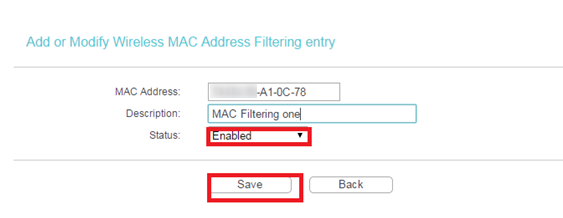
Credit: www.tp-link.com
Frequently Asked Questions
What Is Mac Address Cloning On A Travel Router?
MAC address cloning copies your device’s unique MAC to the router. It helps bypass network restrictions tied to specific MAC addresses. This ensures seamless internet access when traveling or using public networks.
Why Should I Clone Mac Address On A Travel Router?
Cloning avoids connection blocks on networks that limit access by MAC. It helps maintain consistent internet service across different locations. This is especially useful in hotels or public Wi-Fi environments.
How Do I Find The Mac Address To Clone?
Check your device’s network settings or label on hardware. The MAC address is a 12-digit hexadecimal number. Use this exact address to clone on your travel router.
Can Cloning Mac Address Improve Network Security?
No, cloning MAC address mainly helps connectivity, not security. It does not encrypt data or protect against hackers. Use additional security measures like VPNs and strong passwords.
Conclusion
Cloning a MAC address on your travel router is simple and useful. It helps you connect to networks that limit access by device ID. Just follow the steps carefully to avoid errors. This trick can save time and reduce connection problems.
Keep your router settings safe and check them when needed. Stay confident using your travel router anywhere you go.