Are you tired of dead zones and slow internet in your home? Setting up a mesh WiFi system can fix those frustrating issues and give you fast, reliable coverage everywhere.
The best part? You don’t have to spend a fortune. In this guide, you’ll learn how to configure a powerful mesh WiFi network for under $200. By the end, you’ll enjoy seamless internet on every device without breaking the bank.
Ready to boost your WiFi and make buffering a thing of the past? Let’s get started.

Credit: dongknows.com
Choosing Budget Mesh Wifi Systems
Mesh wifi systems improve home internet coverage. They use multiple devices to spread signals evenly.
Finding a mesh system under $200 means balancing price and features. This guide helps you choose wisely.
Top Affordable Brands
Several brands offer reliable mesh wifi systems at budget prices. These brands focus on simple setup and good coverage.
- TP-Link: Known for solid performance and easy setup.
- Google Nest Wifi: Offers user-friendly controls and decent speed.
- Netgear Orbi: Provides good range for bigger homes.
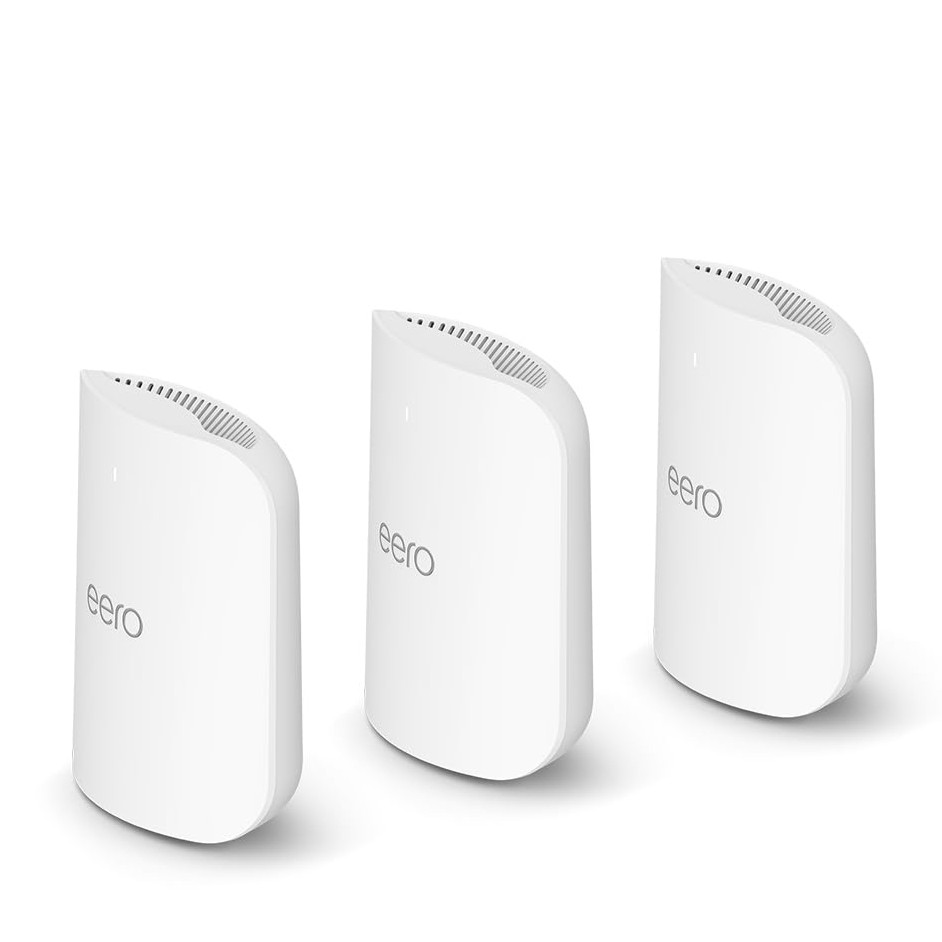
- Amazon Eero: Simple design with good app support.
Key Features To Look For
Check certain features to get the best mesh wifi within budget. These features affect speed, range, and ease of use.
- Coverage Area: Make sure the system covers your whole home.
- Speed: Look for wifi 5 (802.11ac) or wifi 6 (802.11ax) for faster internet.
- Number of Units: More units mean better coverage but higher cost.
- App Control: A good app helps manage devices and settings easily.
- Ethernet Ports: Useful for wired connections to TVs or computers.
Comparing Performance And Price
| Brand | Approximate Price | Max Coverage | Wifi Standard |
| TP-Link Deco M4 | $150 | 4,000 sq ft | Wifi 5 |
| Google Nest Wifi (2-pack) | $180 | 3,800 sq ft | Wifi 5 |
| Netgear Orbi RBK13 | $190 | 3,000 sq ft | Wifi 5 |
| Amazon Eero 3-pack | $170 | 5,000 sq ft | Wifi 5 |

Credit: www.reddit.com
Preparing For Setup
Setting up a mesh WiFi system under $200 can improve your home internet. Proper preparation makes the process smooth and efficient.
Before starting, you need to check your current internet and gather the right tools. Good placement of nodes is also important for strong coverage.
Checking Your Internet Connection
Make sure your internet service is active and stable. Test your current modem and router to confirm they work well with the mesh system.
Check the internet speed using online tools. This helps to know if your plan matches your needs before adding mesh nodes.
Placement Tips For Nodes
Good placement of mesh nodes increases WiFi coverage and speed. Place nodes where the signal is weak but still reachable from the main router.
- Put the main node near your modem.
- Place additional nodes in open areas, not behind walls.
- Avoid placing nodes near metal objects or microwaves.
- Keep nodes at about the same height, like on shelves or tables.
- Try to place nodes within 30 feet of each other for best connection.
Gathering Necessary Equipment
| Equipment | Purpose | Notes |
| Mesh WiFi Kit | Provides the nodes | Check for compatibility with your ISP |
| Modem | Connects to the internet | May be rented or owned |
| Ethernet Cable | Connects modem to main node | Use a Cat5e or higher cable |
| Power Adapter | Powers each node | Usually included with the kit |
| Smartphone or Tablet | Controls setup via app | Must have WiFi and app installed |
Step-by-step Mesh Wifi Setup
Setting up a mesh wifi system under $200 is easy and improves your home internet.
This guide helps you connect your devices for better coverage and speed.
Connecting The Primary Router
Start by placing the primary router near your modem. Connect it using an Ethernet cable.
Power on the router and wait for the lights to become stable. This shows it is ready.
- Plug the router into a power source.
- Use an Ethernet cable to connect to your modem.
- Turn on the router and wait for the connection light.
- Open the router app or website for setup.
Adding Satellite Nodes
Place satellite nodes in areas where wifi is weak. Keep them within range of the main router.
Power on each satellite and follow instructions in the app to add it to your network.
- Choose a central spot for each satellite.
- Plug satellites into power outlets.
- Use the app to find and connect each satellite.
- Wait for the confirmation light before moving to the next node.
Configuring Network Settings
Adjust network settings to secure your wifi and improve performance. Set a strong password.
| Setting | Recommended Option |
| Network Name (SSID) | Unique and easy to remember |
| Password | At least 12 characters with letters and numbers |
| Security Type | WPA2 or WPA3 |
| Auto Updates | Enabled for latest fixes |
Save changes and reboot the system if needed. Test the wifi in all areas for strong signals.
Credit: www.tomsguide.com
Optimizing Your Mesh Network
Setting up a mesh WiFi system under $200 can improve your home internet. Optimizing it helps get the best speed and coverage.
Small changes in settings and management can fix slow connections and dead zones. This guide helps you optimize your mesh network easily.
Adjusting Channel And Band Settings
Choose the right WiFi channels to avoid interference from neighbors’ networks. Use 2.4 GHz for long range and 5 GHz for faster speeds nearby.
Switching bands can improve your connection quality. Many mesh systems let you set which band each device uses.
- Check for crowded WiFi channels using a scanner app
- Set your mesh nodes to different channels if possible
- Use 5 GHz band for devices needing high speed
- Use 2.4 GHz for devices far from mesh nodes
Using Mobile Apps For Management
Most mesh WiFi systems include a mobile app. These apps help you control settings and see device status easily.
You can check signal strength, run speed tests, and update firmware. The app shows connected devices and lets you pause internet access if needed.
- Use app to place mesh nodes in the best spots
- Monitor network health and device connections
- Update system software to fix bugs and improve speed
- Set parental controls and guest networks
Troubleshooting Common Issues
If your mesh network is slow or disconnects, try restarting the nodes. Check that each node is powered and connected properly.
Reset the network if devices do not connect. Move nodes to reduce walls or interference. Firmware updates often fix bugs.
- Restart mesh nodes and your modem/router
- Move nodes closer to areas with weak signal
- Check for firmware updates in the app
- Reset network if problems continue
- Limit devices connected to avoid overload
Maintaining And Upgrading
Setting up a mesh WiFi system under $200 is only the start. Keeping it updated and secure ensures the best performance. Upgrading your network coverage can help you stay connected as your needs grow.
Learn how to maintain your mesh WiFi with regular updates, expand its coverage, and keep your network safe from threats.
Regular Firmware Updates
Firmware updates fix bugs and add new features. They keep your mesh WiFi running smoothly and securely. Check for updates often on your device’s app or website.
- Open the mesh WiFi app on your phone
- Go to the settings or system section
- Look for firmware or software updates
- Download and install any available updates
- Restart your devices if needed
Expanding Coverage In The Future
You can add more nodes to your mesh system to cover larger areas. This keeps your home or office fully connected without dead spots.
| Node Type | Recommended Area Coverage | Price Range |
| Basic Node | 500-700 sq ft | $50-$70 |
| Advanced Node | 700-1000 sq ft | $80-$120 |
| Outdoor Node | Up to 1200 sq ft | $90-$130 |
Choose nodes that fit your space and budget. Place new nodes evenly to avoid signal overlap and ensure strong connections.
Maximizing Network Security
Securing your mesh WiFi protects your data and devices. Use strong passwords and enable encryption to keep intruders out.
- Set a unique, strong WiFi password
- Enable WPA3 or WPA2 encryption
- Disable WPS to prevent easy access
- Turn on guest networks for visitors
- Regularly check connected devices for unknown users
Frequently Asked Questions
What Is The Best Mesh Wifi System Under $200?
The best mesh WiFi system under $200 balances performance and price. Look for brands like TP-Link Deco or Google Nest Wifi. These offer good coverage, easy setup, and reliable speeds for most homes without breaking the bank.
How Do I Set Up A Mesh Wifi Network Cheaply?
To set up a mesh WiFi cheaply, choose affordable kits, place nodes strategically, and follow the app-guided setup. Connect the primary node to your modem, then add satellites in dead zones to improve coverage efficiently.
Can Mesh Wifi Improve Home Internet Speed?
Yes, mesh WiFi can improve speed by reducing dead zones and providing consistent coverage. It uses multiple nodes to spread the signal evenly, ensuring faster and more reliable internet throughout your home.
Is Diy Mesh Wifi Setup Difficult Under $200?
No, DIY mesh WiFi setup under $200 is usually simple. Most systems come with easy-to-use apps and clear instructions. Even beginners can follow steps to connect nodes and optimize placement for best performance.
Conclusion
Setting up a mesh WiFi system under $200 is simple and effective. It improves your home internet without extra cost. Follow clear steps to connect all devices easily. Enjoy stronger signals in every room of your house. A good mesh network means fewer dead spots and faster speeds.
Spend less and get more reliable WiFi coverage today. This small upgrade makes a big difference in daily online use. Give your internet the boost it needs now.