Are slow internet speeds and lagging connections driving you crazy? You rely on your network every day, whether for work, gaming, or streaming.
That’s why setting up Quality of Service (QoS) on your high-end router can make a huge difference. With the right QoS configuration, you can prioritize the traffic that matters most to you, ensuring smooth and fast performance when you need it.
You’ll discover simple steps to configure QoS on your router, helping you take control of your internet experience like a pro. Keep reading to unlock the full potential of your network!
Credit: community.broadvoice.com
Qos Basics
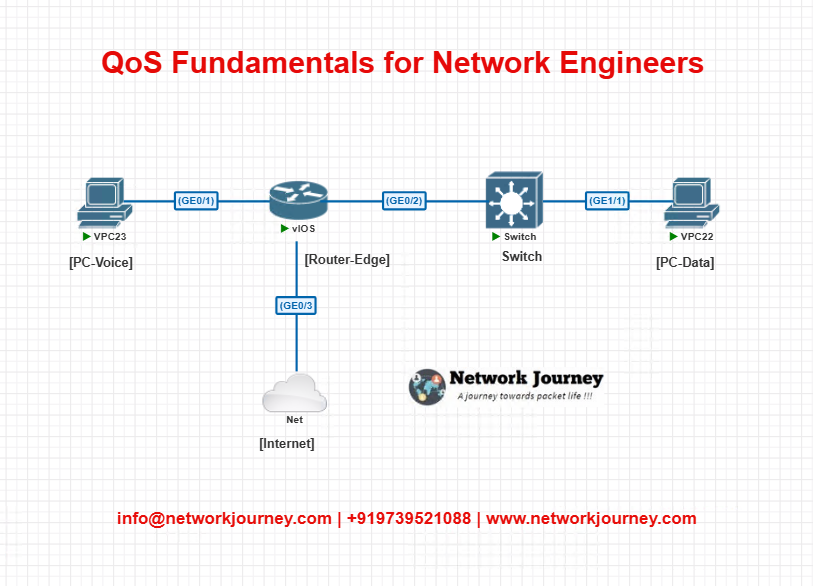
QoSmeans Quality of Service. It helps control internet traffic on a router. QoS makes sure important data gets priority. This keeps your connection stable and fast.
Benefits of QoSinclude better video calls, smooth gaming, and quick downloads. It stops slow internet caused by too many devices. QoS also reduces delays and buffering.
| Type of QoS | Description |
|---|---|
| Bandwidth Allocation | Limits how much bandwidth each device or app can use. |
| Traffic Prioritization | Gives priority to important traffic like video calls or games. |
| Rate Limiting | Controls the speed of less important traffic to save bandwidth. |
Credit: networkjourney.com
Preparing Your Router
Access the router’s settings by typing its IP address in a web browser. Use the username and password to log in. This opens the control panel where you can change settings.
Check for the latest firmware updates to keep your router running smoothly. Updated firmware fixes bugs and improves security.
Before making changes, save your current router configuration. This backup helps restore settings if something goes wrong.
| Task | Purpose |
|---|---|
| Access Router Settings | Login to control panel for configuration |
| Firmware Updates | Improve performance and security |
| Backup Configurations | Save current settings for recovery |
Traffic Classification
Identifying traffic types is key to managing network flow. Different traffic needs different treatment. Common types include voice calls, video streaming, and file downloads. Each type has unique needs for speed and reliability.
Marking and tagging packets helps routers recognize traffic. Packets get labels like DSCPor VLAN tags. These labels guide the router on how to prioritize each packet. Proper tagging ensures important data moves faster.
Creating traffic policies sets rules for packet handling. Policies decide which traffic gets priority. For example:
| Traffic Type | Policy | Priority |
|---|---|---|
| Voice Calls | Low latency, high priority | High |
| Video Streaming | Medium priority, smooth playback | Medium |
| File Downloads | Low priority, no rush | Low |
Setting Qos Rules
Bandwidth allocationsets how much internet speed each device or app can use. It helps keep important tasks fast and stops slowdowns. You can give more bandwidth to video calls or games and less to downloads or updates.
Priority levelsdecide which data goes first on the network. High priority means faster service for that data. Medium and low priorities wait their turn. This keeps critical work smooth and avoids delays.
| Priority Level | Description | Example Uses |
|---|---|---|
| High | Data sent first with least delay | Video calls, online games |
| Medium | Sent after high priority data | Web browsing, streaming videos |
| Low | Sent last, can wait longer | File downloads, software updates |
Scheduling methodsorganize how data moves on the network. They control timing and order. Common methods include first-come-first-served and weighted round robin. These keep traffic fair and efficient.
Advanced Qos Features
Queue Managementcontrols how data packets wait before sending. It helps avoid network delaysand packet loss. Routers use different queue types to handle traffic priority. This keeps important data flowing smoothly.
| Policing | Shaping |
|---|---|
| Limits traffic to a set rate instantly. | Delays excess traffic to fit set rate. |
| Drops packets that exceed limits. | Buffers packets instead of dropping them. |
| Good for strict bandwidth control. | Better for smooth traffic flow. |
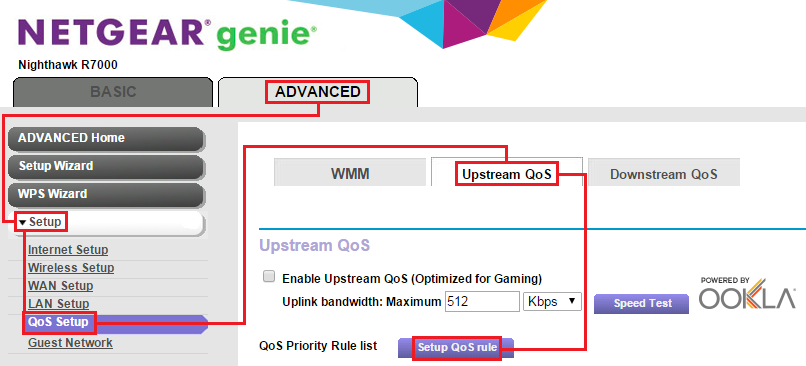
Application-Based QoSlets the router treat different apps uniquely. Games, video calls, and downloads get different priorities. This ensures important appswork well even when network is busy.
Credit: medium.com
Testing And Monitoring
QoS performance toolshelp check if the network runs smoothly. Use tools like speed tests, traffic analyzers, and latency monitors. These tools show if data moves fast and without delays.
Changing QoS settings might be needed after tests. Adjust bandwidth limitsor priority levelsto fit your needs better. Small changes can improve network speed and stability.
Troubleshootingcommon issues is key. Watch for slow connections, dropped packets, or high latency. Restart the router or reset QoS settings if problems persist.
| Issue | Possible Cause | Solution |
|---|---|---|
| Slow Internet | Incorrect bandwidth limits | Adjust limits in QoS settings |
| High Latency | Too many high-priority devices | Lower priority for some devices |
| Packet Loss | Network congestion | Reduce traffic or increase bandwidth |
Frequently Asked Questions
What Is Qos And Why Configure It On Routers?
QoS prioritizes network traffic to ensure critical applications run smoothly. Configuring it on high-end routers improves bandwidth management and reduces latency for important data streams.
How To Set Qos Rules On A High-end Router?
Access the router’s admin panel, locate the QoS settings, and create rules by assigning priorities to specific devices or services based on bandwidth needs.
Which Traffic Types Benefit Most From Qos?
Real-time applications like VoIP, video conferencing, and online gaming benefit most, as QoS minimizes lag and packet loss for these sensitive traffic types.
Can Qos Improve Overall Network Performance?
Yes, QoS optimizes bandwidth allocation, reduces congestion, and ensures important applications get priority, leading to a smoother and more reliable network experience.
Conclusion
Configuring QoS on a high-end router improves your network performance. Prioritize essential tasks like video calls and gaming. Ensure smoother, uninterrupted connectivity. Follow the steps carefully for optimal results. Test your settings and adjust as needed. This process enhances your online experience.
Feel confident in managing your network traffic. Embrace the benefits of a well-configured router. Stay informed and keep your network running smoothly. Boost your efficiency with effective QoS settings. Enjoy a seamless internet connection with minimal effort. Happy browsing!