Imagine this: you’re in the middle of an epic battle on your gaming console, adrenaline pumping, and suddenly, the game lags. Frustrating, right?
You might have the latest console and the best games, but if your WiFi connection isn’t up to par, your gaming experience can quickly become a nightmare. That’s where a tri-band WiFi extender comes in. It’s designed to boost your internet signal, ensuring seamless gameplay without those annoying interruptions.
In this guide, you’ll discover how to connect your gaming console to a tri-band WiFi extender. By the end, you’ll be able to enjoy a smoother, lag-free gaming experience that keeps you in the action. Ready to level up your connection? Let’s get started!
Credit: www.wavlink.com
Choosing The Right Tri Band Wifi Extender
Choose a tri band WiFi extenderthat supports your gaming console. Check if it works with popular consoles like PlayStation, Xbox, or Nintendo Switch. This ensures smooth and stable connection without interruptions.
Look for featuressuch as high-speed data transfer, low latency, and strong signal range. These features help reduce lag and improve gaming experience. Some extenders come with a dedicated gaming band for better performance.
| Feature | Why It Matters |
|---|---|
| Compatibility | Ensures the extender works well with your console |
| Speed | Faster speeds reduce lag during online games |
| Signal Range | Covers more area, prevents connection drops |
| Dedicated Gaming Band | Prioritizes gaming traffic for smooth play |
Place the extender near your gaming consolebut not too close to the router. Avoid walls or objects that block signals. Higher placement, like on a shelf, helps cover wider area and gives better speed.
Preparing Your Gaming Console And Network
Check your gaming console’s network settings to see if Wi-Fi is turned on. Make sure the console is searching for wireless networks. Note the type of connection it uses, like Wi-Fi or Ethernet.
Ensure your router is placed in a central location for a strong signal. Avoid walls or large objects blocking the signal. The tri-band extender should connect to the router’s main band.
| Device | Firmware Update | Why Update? |
|---|---|---|
| Gaming Console | Check in system settings | Improves connection and fixes bugs |
| Router | Use router’s web interface | Enhances speed and security |
| Tri-band Extender | Access extender’s settings page | Boosts performance and compatibility |
Setting Up The Tri Band Wifi Extender
Plug the tri band WiFi extender into a power outlet near your main router. Wait until the power LED lights up. This means the extender is on and ready for setup.
Use a smartphone or computer to find the extender’s default WiFi network name (SSID). Connect to this network to start the configuration.
Open a browser and enter the extender’s IP address shown in the manual. Follow the on-screen instructions to connect the extender to your main router’s WiFi network. Select the correct 2.4 GHz or 5 GHz band for better performance.
Set a strong password for the extender’s new network. This keeps your connection safe from others. Use a mix of letters, numbers, and symbols. Avoid simple or easy-to-guess passwords.
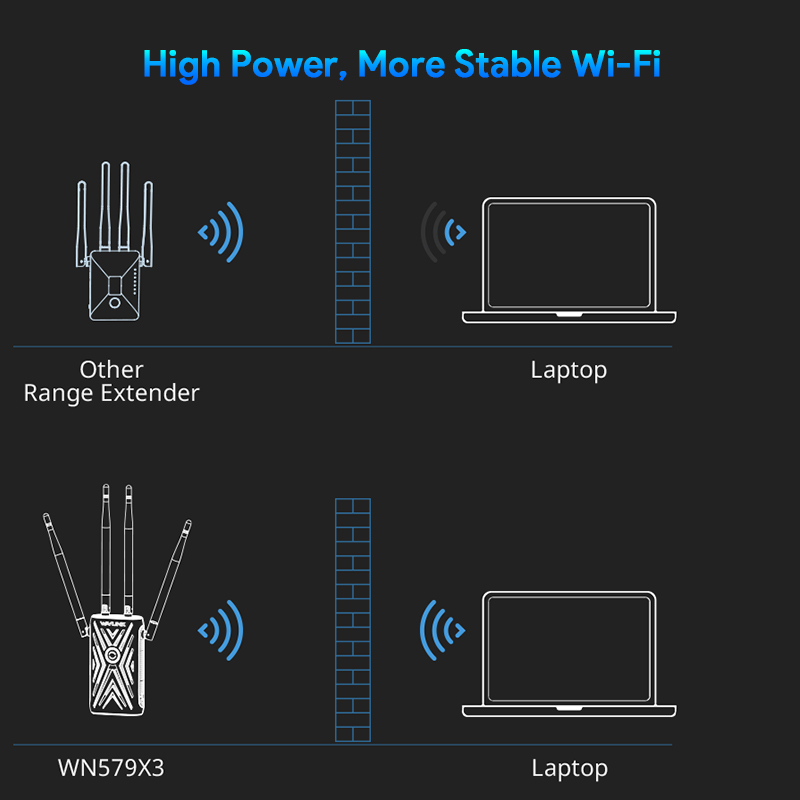
- Place the extender halfway between the router and your gaming console.
- Ensure the extender’s signal strength is strong.
- Test the connection speed before gaming.
Credit: www.wavlink.com
Connecting The Gaming Console To The Extender
To connect your gaming console manually, open the network settings. Select your Tri Band Wifi Extender’s networkfrom the list. Enter the passwordexactly as it is on the extender. Save the settings and wait for the console to connect. This method works well if your console does not support WPS.
Using WPS is faster. Press the WPS buttonon your extender. Then, within two minutes, press the WPS option on your console. The devices will pair automatically without typing a password.
| Check | What to Do |
|---|---|
| Connection Strength | Go to console’s network settings and check signal bars. More bars mean better connection. |
| Speed Test | Run the speed test option on your console. Make sure speeds match your extender’s rating. |
Troubleshooting Common Issues
Slow speedscan ruin gaming. Check the distance between console and extender. Move them closer if needed. Other devices using the WiFi can also slow it down. Limit the number of active devices during gaming. Changing the extender’s channel may reduce interference from neighbors’ networks.
Connection drops often happen due to weak signals. Restart the console and extender to refresh connections. Keep the extender away from thick walls or metal objects. Firmware updates for the extender can fix bugs causing drops.
| Action | How to Do It | Why It Helps |
|---|---|---|
| Reset Extender | Press the reset button for 10 seconds | Clears old settings and fixes errors |
| Reconfigure Extender | Use the setup guide to connect again | Ensures proper connection and settings |
Optimizing Gaming Performance
Prioritizing gaming traffichelps reduce interruptions. Set your tri-band WiFi extender to give higher priority to your console’s connection. This means the extender treats gaming data as more important than other devices. It can lower lag and make gameplay smoother.
Reducing latency and lagis key for better gaming. Place the extender close to your console. Avoid walls or big objects between them. Use a 5 GHz band for faster speed and less interference. This cuts down delays in your game.
Keep the extender and console software updated. Updates fix bugs and improve performance. Regularly restart your devices to clear temporary issues. This simple step helps maintain stable connections and less lag.
Credit: www.pocket-lint.com
Frequently Asked Questions
How Do I Connect My Gaming Console To A Tri Band Wifi Extender?
First, power on your tri band WiFi extender and gaming console. Then, connect the console to the extender’s WiFi network using the console’s network settings. Enter the extender’s password if prompted. Finally, test the connection for stability and speed.
Can A Tri Band Wifi Extender Improve Gaming Performance?
Yes, a tri band WiFi extender can improve gaming performance by reducing lag and increasing signal strength. It uses separate bands for devices, minimizing interference and providing a stable, faster connection ideal for online gaming.
What Frequency Band Should I Use For Gaming Consoles?
Use the 5 GHz band for gaming consoles when connecting through a tri band WiFi extender. This band offers faster speeds and lower latency compared to 2. 4 GHz, enhancing your gaming experience with less lag.
Is Ethernet Better Than Wifi With A Tri Band Extender?
Ethernet is generally better for gaming because it offers a stable, wired connection. However, tri band WiFi extenders provide strong wireless signals that can be sufficient if running Ethernet cables is inconvenient.
Conclusion
Connecting your gaming console to a tri-band WiFi extender improves your online play. It reduces lag and keeps your connection strong. Follow simple steps to set up your devices quickly. Check that your extender is close enough to the console.
Test the connection before starting any game. This setup helps you enjoy smoother gameplay without interruptions. Keep your network secure by using strong passwords. Enjoy faster speeds and better coverage in your gaming space. Gaming becomes more fun with a reliable WiFi connection.