Are you tired of lag and slow connections ruining your gaming experience? Connecting your gaming PC directly to your router can make a huge difference in speed and stability.
But if you’re not sure how to do it, don’t worry – this guide will walk you through the simple steps to get your setup right. By the end, you’ll enjoy smoother gameplay and faster downloads. Ready to boost your connection and dominate your games?
Let’s get started.

Credit: www.reddit.com
Choose The Right Connection Type
Choosing the right connection type between your gaming PC and router is crucial for a smooth, lag-free gaming experience. The type of connection you pick affects speed, stability, and overall gameplay quality. Understanding the differences between wired and wireless connections helps you make the best choice for your setup and gaming needs.
Wired Vs Wireless Options
Wired connections use Ethernet cables to link your PC directly to the router. This setup provides a stable, consistent connection with minimal interference. Wireless connections rely on Wi-Fi signals, offering more flexibility but often at the cost of speed and reliability.
Think about your gaming environment. Do you have the option to run cables easily? Are you okay with a little signal drop here and there for the freedom to move your PC? Your answers will guide your choice.
Benefits Of Ethernet For Gaming
Ethernet connections reduce latency, which means faster response times during gameplay. This is especially important in fast-paced games like first-person shooters or real-time strategy titles where every millisecond counts.
Cable connections also avoid interference from other wireless devices. This creates a more reliable experience, reducing frustrating disconnects or lag spikes. If you’ve ever faced sudden lag during a critical game moment, switching to Ethernet might solve that problem.
When To Use Wi-fi
Wi-Fi is the better option if your gaming PC is far from the router or you want to avoid cable clutter. Modern routers with strong signals and the latest Wi-Fi standards (like Wi-Fi 6) can offer decent speeds for casual gaming.
Consider Wi-Fi when mobility matters more than absolute speed. If you mostly play less demanding games or aren’t in a competitive environment, Wi-Fi can work well. But be mindful of signal strength and interference from walls or other electronics.
Prepare Your Gaming Pc
Preparing your gaming PC before connecting it to a router ensures smooth online gameplay. This step reduces lag and prevents connection issues. Follow simple checks and updates to get the best network performance.
Check Network Adapter Compatibility
Verify your PC has a network adapter compatible with your router. Most modern routers support Ethernet and Wi-Fi connections. Confirm your adapter supports the same Wi-Fi standards, like 802.11ac or 802.11ax (Wi-Fi 6). If you use Ethernet, ensure your PC’s Ethernet port matches the router speed, such as Gigabit Ethernet.
Update Network Drivers
Keep your network drivers updated for better speed and stability. Visit your PC manufacturer’s website or use device manager to find the latest drivers. Updated drivers fix bugs and improve connectivity. Regular updates also protect your PC from security risks.
Configure Network Settings
Adjust your PC’s network settings to optimize connection quality. Set the IP address to obtain automatically via DHCP unless you need a static IP. Disable any proxy settings that might block your connection. Check firewall settings to allow gaming traffic. These simple adjustments help keep your connection fast and stable.
Set Up Your Router
Setting up your router properly is a crucial step in connecting your gaming PC for the best online experience. The way you position your router, prioritize your gaming traffic, and keep your device updated can dramatically improve your connection speed and stability. Let’s dive into how you can optimize your router settings to get the most out of your gaming setup.
Position Router For Optimal Signal
Where you place your router affects your gaming PC’s signal strength more than you might think. Avoid hiding it inside cabinets or behind large objects that block the signal.
Try positioning the router in a central location, elevated off the floor, and away from walls. This helps the signal reach your gaming PC without interference.
Have you noticed lag spikes when your router is tucked away? Moving it even a few feet can make a big difference in maintaining a strong, stable connection.
Enable Quality Of Service (qos)
Quality of Service (QoS) settings allow your router to prioritize gaming traffic over other network activities. This means downloads, streaming, or other devices won’t slow down your gaming connection during critical moments.
Access your router’s control panel and look for QoS settings. Enable it and add your gaming PC’s IP address or MAC address to the priority list.
If you’ve ever lost a match because your connection lagged while someone else streamed videos, QoS can help prevent that from happening again.
Update Router Firmware
Firmware updates often contain important bug fixes and performance improvements that can enhance your router’s stability and speed.
Check your router’s admin interface regularly for firmware updates. Many routers even offer automatic update options to keep you protected without extra effort.
Ignoring firmware updates can leave your network vulnerable or cause unnecessary slowdowns. Keeping your router updated ensures your gaming sessions stay smooth and secure.
Credit: shopsmarttech.medium.com
Connect Your Pc To The Router
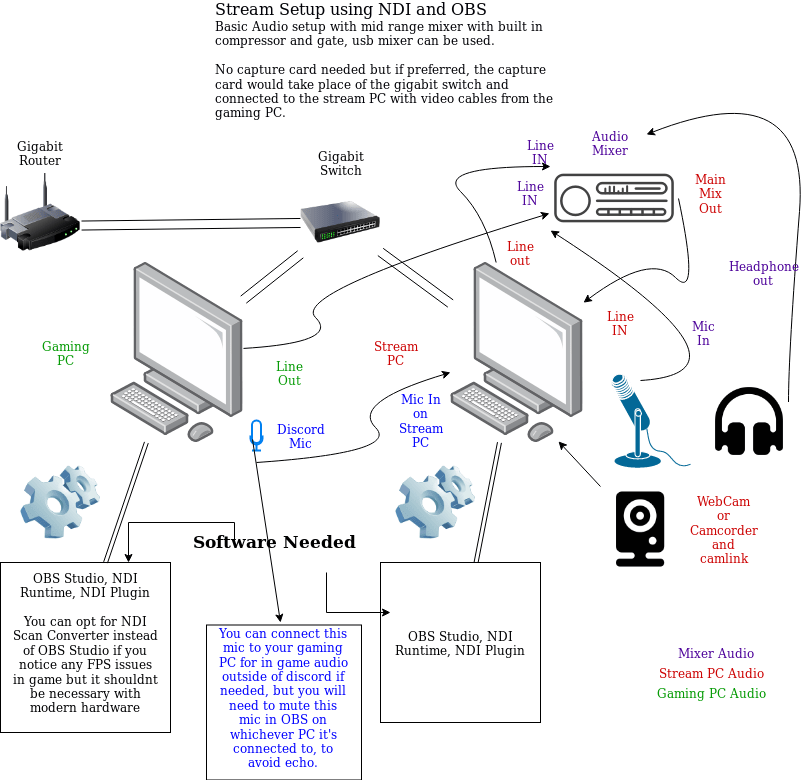
Connect your gaming PC to the router using an Ethernet cable for a stable and fast connection. Plug one end into the PC’s network port and the other into the router’s LAN port. This setup ensures smooth online gaming with minimal lag.
Connecting your gaming PC to a router is essential for a seamless online experience. A stable and fast connection enhances your gaming performance. There are two primary methods to connect your PC to the router: using an Ethernet cable and connecting via Wi-Fi. Each method has its own advantages. Below, we break down these methods and offer tips for troubleshooting connection issues.Using Ethernet Cable
An Ethernet cable provides a stable and fast connection. To connect:- Locate the Ethernet port on your PC and router.
- Plug one end of the cable into your PC’s Ethernet port.
- Connect the other end to an open port on the router.
- Wait for your PC to recognize the connection.
Connecting Via Wi-fi
Wi-Fi offers flexibility and convenience. To connect:- Click the network icon on your PC’s taskbar.
- Select the desired Wi-Fi network from the list.
- Enter the network password if prompted.
- Ensure the connection is secured and stable.
Troubleshooting Connection Issues
Sometimes, connections face issues. Here are tips to resolve them:- Restart your router and PC to reset connections.
- Check cables for any signs of damage.
- Ensure your Wi-Fi signal is strong and not obstructed.
- Update your network drivers for optimal performance.
Optimize Network For Lag-free Gaming
Optimizing your network is key to achieving lag-free gaming on your PC. Even if you have a high-end gaming rig and a fast internet plan, poor network management can ruin your experience. Simple adjustments can significantly reduce latency and keep your connection stable during intense gameplay.
Close Background Applications
Many apps run in the background without you noticing, quietly using up your bandwidth and slowing down your gaming connection. Before you start playing, check your task manager and shut down any non-essential programs like streaming services, cloud backups, or software updates.
This frees up resources for your game and reduces network congestion. Have you ever noticed sudden lag spikes and wondered why? Background apps are often the hidden culprits.
Limit Bandwidth Usage
If multiple devices are connected to your router, they compete for bandwidth. Streaming videos, downloads, or video calls on other devices can cause your game to stutter. You can limit bandwidth usage by setting Quality of Service (QoS) rules in your router’s settings.
QoS lets you prioritize gaming traffic over other internet activities. This way, your gaming PC gets the fastest and most reliable connection possible even if others are online.
Choose The Best Server Location
Game servers are spread worldwide, and the distance between you and the server affects your ping. Connecting to a server far away adds delay, making your game feel sluggish. Always select the server closest to your geographic location for the lowest latency.
Many games let you manually pick servers—try switching and testing your ping. Does the game feel smoother when you connect to a nearby server? That small change can make a big difference in your gaming performance.
Credit: www.ibuypower.com
Test And Monitor Connection Quality
Testing and monitoring your gaming PC’s connection quality helps keep your gameplay smooth. It shows if your internet speed and stability meet gaming needs. Regular checks catch problems early. You can fix issues before they affect your experience.
Use Speed Test Tools
Speed test tools measure your download and upload speeds. They also show your current internet bandwidth. Popular tools include Ookla Speedtest and Fast.com. Run tests at different times to see speed changes. Record results to track your connection over time.
Monitor Ping And Latency
Ping measures how fast data travels to the server and back. Low ping means less delay during gameplay. Latency shows delay in data transmission. Use programs like PingPlotter or command prompt to check ping. Aim for ping under 50 ms for good gaming.
Adjust Settings Based On Results
Use test results to improve connection quality. Change your PC’s network settings or router placement. Prioritize gaming traffic through Quality of Service (QoS) settings. Reduce background app usage that consumes bandwidth. Restart your router to refresh the connection if needed.
Frequently Asked Questions
How Do I Connect My Gaming Pc To A Router?
To connect your gaming PC to a router, use an Ethernet cable for a wired connection or Wi-Fi for wireless. Plug the cable into your PC’s Ethernet port and router. For Wi-Fi, select your network and enter the password on your PC’s settings.
Is A Wired Or Wireless Connection Better For Gaming?
A wired connection is better for gaming. It offers lower latency, faster speeds, and more stable performance. Wireless connections can suffer from interference and signal drops, affecting gameplay quality. For competitive gaming, Ethernet is the preferred choice.
Can I Use A Gaming Pc With Any Router?
Yes, most gaming PCs work with any modern router. Ensure your router supports high-speed internet and gigabit Ethernet ports for optimal performance. Update router firmware and configure QoS settings to prioritize gaming traffic for the best experience.
How Do I Improve My Gaming Pc’s Connection To The Router?
To improve connection, use a high-quality Ethernet cable, place the router near your PC, and reduce interference. Update your router’s firmware and adjust Quality of Service (QoS) settings to prioritize gaming. Restart your router regularly for stable performance.
Conclusion
Connecting your gaming PC to a router is simple and quick. Just follow the steps carefully for a stable internet connection. A strong connection helps reduce lag and improve your gaming experience. Remember to check your cables and router settings.
Stay patient if something does not work right away. Enjoy smooth gameplay with a reliable network setup. Keep your system updated for best results. Gaming online becomes more fun with steady internet access.