Struggling with spotty Wi-Fi signals that interrupt your favorite tunes on Google Home? You’re not alone.
Many face the same issue when trying to connect their smart devices to a dual-band Wi-Fi extender. But here’s the good news: there’s a simple solution. Imagine having uninterrupted music streaming, seamless voice commands, and a smoother smart home experience.
Intrigued? In this blog post, you’ll discover the step-by-step process to effortlessly connect your Google Home to a dual-band Wi-Fi extender. Say goodbye to connectivity issues and hello to a smarter, more efficient home setup. Keep reading, and unlock the secrets to a seamless smart home experience.
Prepare Your Devices
Check if your Google Home device supports the dual band WiFi extender. Most Google Home models work with both 2.4 GHz and 5 GHz networks. Make sure your device firmware is up to date for better compatibility.
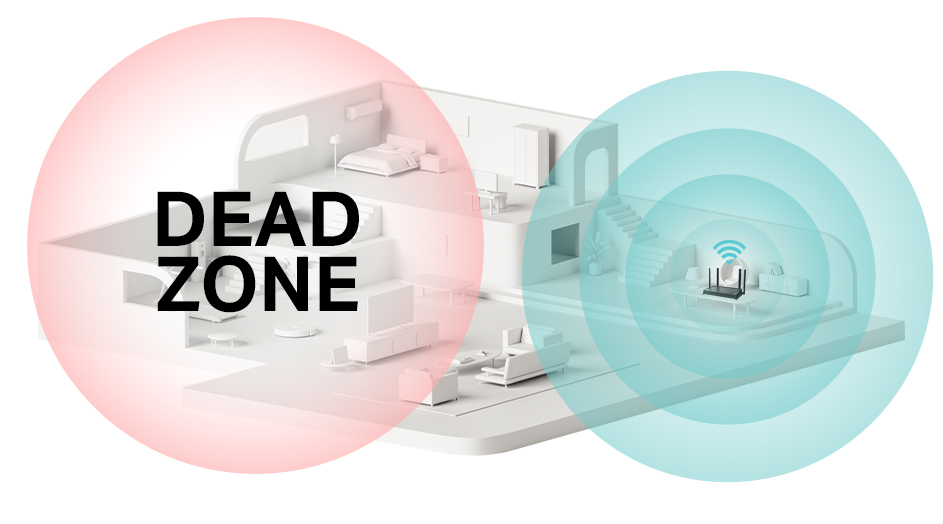
Verify the WiFi extender is set up correctly. It should be connected to your main router and broadcasting both bands. The extender must have a strong signal in the area where Google Home will be used.
- Ensure the WiFi extender is powered on and near the router during setup.
- Confirm the extender creates two separate networks or a single combined network.
- Test the internet speed on both bands to confirm stable connections.
Set Up Dual Band Wifi Extender
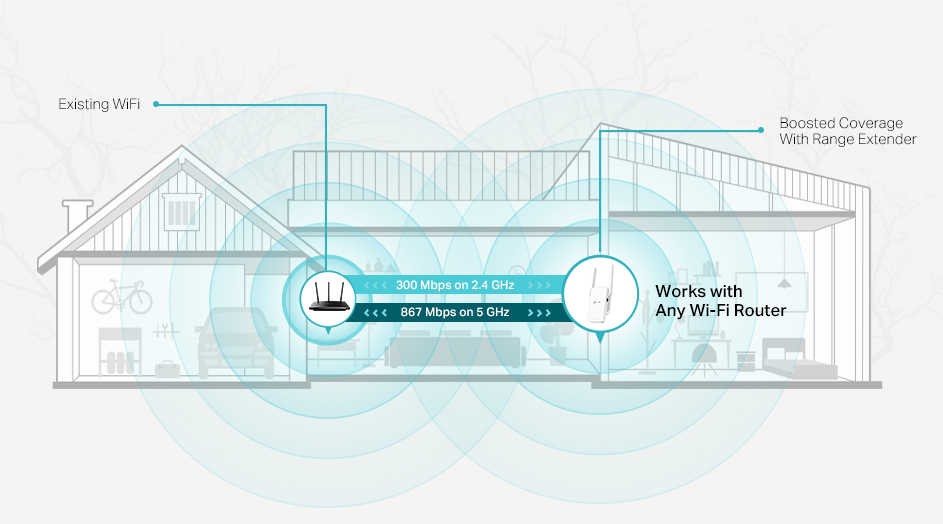
Place the wifi extender where the router’s signal is still strong. Avoid walls and metal objects. The spot should be halfway between the router and your Google Home device for best coverage.
Connect the extender to the main router using WPS or the extender’s app. Follow the instructions to link the devices. This ensures the extender gets internet from your router.
| Frequency Band | Purpose | Setup Tips |
|---|---|---|
| 2.4 GHz | Better range, slower speed | Use for devices far from the router |
| 5 GHz | Faster speed, shorter range | Use for devices close to the router |
Enable both 2.4 GHz and 5 GHz bands on the extender. This allows Google Home to connect to the strongest signal. Name each band clearly to avoid confusion during setup.
Connect Google Home To Wifi
Open the Google Home appon your phone or tablet. Make sure your device is connected to the same WiFinetwork you want Google Home to use.
Find and select your Google Home devicein the app. Tap on it to open its settings.
Look for the option to change the WiFi network. Choose the dual band WiFi extender’s networkfrom the list. It may have a name similar to your main WiFi but with a different suffix.
Enter the network passwordcarefully. Confirm the details and wait for Google Home to connect. A successful connection message will show in the app.
Credit: www.tp-link.com
Troubleshoot Connection Issues
Restart all devicesincluding Google Home and the WiFi extender. This can fix many common issues. Unplug them, wait 30 seconds, and plug them back in.
Check the signal strengthfrom your dual band WiFi extender. Place Google Home near the extender for a better signal. Walls and furniture can block signals.
Try to reset Google Homeif problems continue. Hold down the factory reset button until you hear a sound. This erases old settings and can solve connection errors.
Make sure your extender and Google Home have the latest firmware updates. Updates often fix bugs and improve connectivity. Use the app or website to check and install updates.
Optimize Wifi Performance
Using separate network names(SSIDs) for the 2.4 GHz and 5 GHz bands helps devices connect to the best signal. This avoids confusion and keeps your Google Home stable.
Placing the wifi extender away from other electronics can minimize interference. Keep it clear of microwaves, cordless phones, and thick walls for a better signal.
Regularly updatingyour Google Home and wifi extender keeps them working well. Updates fix bugs and improve performance.

Credit: www.youtube.com
Credit: www.tp-link.com
Frequently Asked Questions
How Do I Connect Google Home To A Dual Band Wifi Extender?
To connect, first link your WiFi extender to your router. Then, use the Google Home app to connect your device to the extender’s network. Ensure both 2. 4 GHz and 5 GHz bands are visible and select the preferred band during setup.
Can Google Home Work With Both 2.4 Ghz And 5 Ghz Bands?
Yes, Google Home supports both 2. 4 GHz and 5 GHz WiFi bands. Choose the band with the strongest and most stable signal for better performance when connecting through a dual band extender.
Why Isn’t Google Home Connecting To My Wifi Extender?
Common issues include incorrect network selection, weak signal, or outdated firmware. Restart your extender and Google Home, check network credentials, and update device software to fix connection problems.
Does Using A Dual Band Wifi Extender Improve Google Home’s Performance?
Yes, a dual band extender enhances WiFi coverage and reduces interference. It provides a stable connection, improving Google Home’s responsiveness and streaming quality in areas with weak signals.
Conclusion
Connecting your Google Home to a dual band WiFi extender is simple. It helps improve your device’s signal and performance. Just follow the steps carefully and check your connection. A stronger WiFi means better voice commands and smart home control.
Keep your network stable for the best results. Enjoy seamless use of Google Home in every corner of your home. Easy setup leads to a smarter, more connected space. Give it a try and feel the difference today.