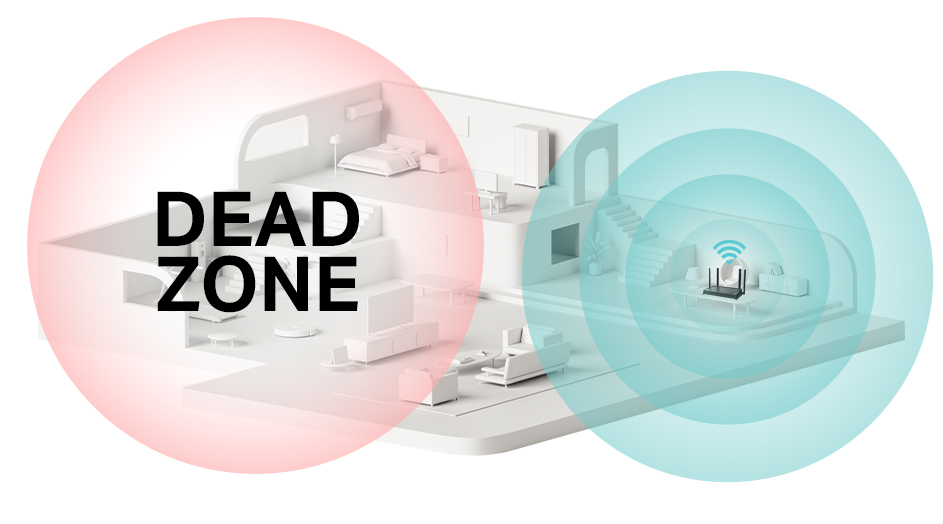
Imagine seamless internet coverage across every corner of your home or office. No more frustrating dead zones or weak signals.
If you’ve already set up a WiFi extender but still experience patchy connectivity, you might wonder if connecting another extender could solve the problem. The good news is, it can! By learning how to connect one WiFi extender to another, you can expand your network’s reach and enjoy uninterrupted browsing, streaming, and gaming wherever you are.
This guide is designed with you in mind, offering simple steps to ensure your network is stronger and more reliable than ever. Dive in to discover how to maximize your WiFi performance and eliminate those pesky dead spots once and for all.
Choosing The Right Extenders
Choosing the right extenders is key for a strong WiFi network. Compatibilitymatters most. Both extenders should support the same WiFi standards like 802.11ac or 802.11n. This ensures they work well together without slowdowns or connection drops.
Range and frequency also play a big role. Pick extenders that can cover the needed distance. Extenders working on the same frequency band(2.4 GHz or 5 GHz) will connect better. Using dual-band extenders helps avoid interference and improves speed.
| Factor | Why It Matters | What to Check |
|---|---|---|
| Compatibility | Ensures smooth connection between extenders | WiFi standards (802.11ac, 802.11n) |
| Range | Covers the distance between extenders and devices | Max distance supported by extender |
| Frequency | Reduces interference and improves speed | Same band (2.4 GHz or 5 GHz) or dual-band support |
Credit: www.tp-link.com
Preparing Your Network Setup
Place the first extender where the main router’s signal is still strong and stable. The second extender should be halfway between the first extender and the area with poor WiFi coverage. Avoid walls and large metal objects that can block signals. Keep extenders away from microwaves and cordless phones to reduce interference.
Use a smartphone or WiFi analyzer app to check the signal strengthat the extender’s location. A signal above 50% is usually good for stable connections. If the signal is too weak, try moving the extender closer to the router or the first extender.
- Place extenders in open spaces, not inside cabinets.
- Keep extenders at a height, like on a shelf.
- Test signal strength in different spots before final placement.
Connecting The First Extender
Plug in the first extender near your main router for setup. Connect it to your computer or phone using Wi-Fi or Ethernet cable. Open a browser and enter the extender’s IP address, usually found in the manual.
Follow the on-screen instructions to select your home Wi-Fi network. Enter the password carefully to avoid errors. The extender will copy your router’s settings and create a new network.
- Choose a clear channel to avoid interference.
- Set a unique network name (SSID) different from your main router.
- Use WPA2 or WPA3 security for best protection.
Change the default username and password of the extender’s login page. This step helps prevent unauthorized access. Check for firmware updates and install them if available. This keeps your device secure and stable.

Credit: m.youtube.com
Linking The Second Extender
Connect the second extender close enough to the first one. This keeps a strong signal between them. Use the same network name (SSID) for easy switching. Set a different channel than the first extender to avoid signal clashes.
Place both extenders away from walls and metal objects. These items can block or weaken the WiFi signal. Keep them high off the ground for better coverage.
- Check that both extenders use the same WiFi standard (like 802.11ac).
- Use a WiFi analyzer app to find less crowded channels.
- Keep extenders at least 10 feet apart to reduce interference.
Testing And Troubleshooting
Check the signal strength between both extenders to ensure stable connection. Use the extender’s app or web interface to monitor connection status.
Look for interferencefrom walls, appliances, or other devices. Place extenders away from thick walls and metal objects.
Restart both extenders if the connection drops or slows down. This can often fix minor network issues.
- Ensure both extenders use the same WiFi channelto avoid signal conflicts.
- Update the firmware on both extenders for better performance and bug fixes.
- Check that extenders are within the recommended rangeof each other.
- Reset extenders to factory settings if connection problems persist.
Optimizing Network Performance
Firmware updateskeep your wifi extenders running smoothly. They fix bugs and add new features. Check the manufacturer’s website regularly. Download and install updates carefully to avoid interruptions.
Channel settingshelp reduce interference from other networks. Use a wifi analyzer app to find the best channel. Set both extenders to the same channel for better connection. Avoid crowded channels to improve speed and stability.
Credit: www.screenbeam.com
Frequently Asked Questions
How Do I Connect A Long Range Wifi Extender To Another?
To connect two WiFi extenders, first set up the primary extender. Then, configure the second extender to connect to the first’s network using the same SSID and password for seamless coverage.
Can I Use Two Extenders To Boost Wifi Range?
Yes, using two extenders can increase WiFi coverage. Place them strategically to avoid overlapping signals and maintain stable connections for better range.
What Is The Best Placement For Multiple Extenders?
Place extenders halfway between the router and dead zones. Ensure each extender gets a strong signal from the previous device for optimal performance.
Will Connecting Two Extenders Slow My Wifi Speed?
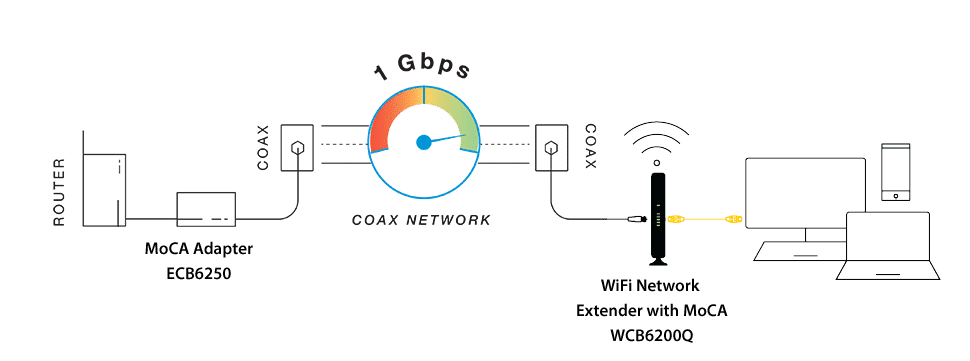
Connecting two extenders may reduce speed due to signal retransmission. Use wired backhaul or dual-band extenders to minimize speed loss and maintain fast connections.
Conclusion
Connecting one long-range WiFi extender to another can boost your home network. It helps cover large areas with a strong signal. Follow the steps carefully for smooth setup. Check both extenders’ settings to avoid conflicts. Place extenders where the signal is still good.
Test the connection after setup to ensure it works well. This way, you enjoy better internet in every corner. Keep your devices updated for steady performance. Small effort brings big WiFi improvements. Simple and smart solutions make your network stronger.