Are you tired of weak WiFi signals disrupting your online experience? Imagine effortlessly streaming your favorite shows or working from home without any connectivity hiccups.
A long-range WiFi extender could be the game-changer you need, especially when paired with a mesh network. This duo promises seamless, uninterrupted internet coverage across your entire home. But how exactly do you connect these two powerful tools for optimal performance?
We’ll guide you step-by-step on how to connect a long-range WiFi extender to your mesh network, ensuring that every corner of your home enjoys fast and reliable internet. Keep reading to unlock the secrets to flawless connectivity and take control of your online world.
Benefits Of Long Range Wifi Extenders
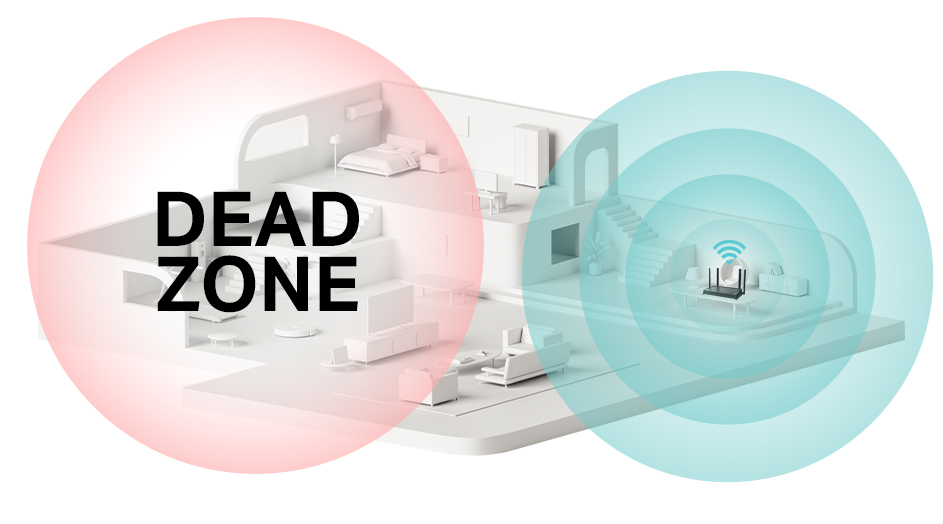
Long Range Wifi Extendershelp cover large areas by spreading signals far. They reduce dead spots and make sure all corners get internet.
They also boost signal strength, so devices connect faster and stay online without drops. Strong signals help with smooth video calls and fast downloads.
Using these extenders is a cost-effective solutioncompared to buying a new router or more expensive gear. They save money and are easy to set up.

Credit: www.youtube.com
Basics Of Mesh Networks
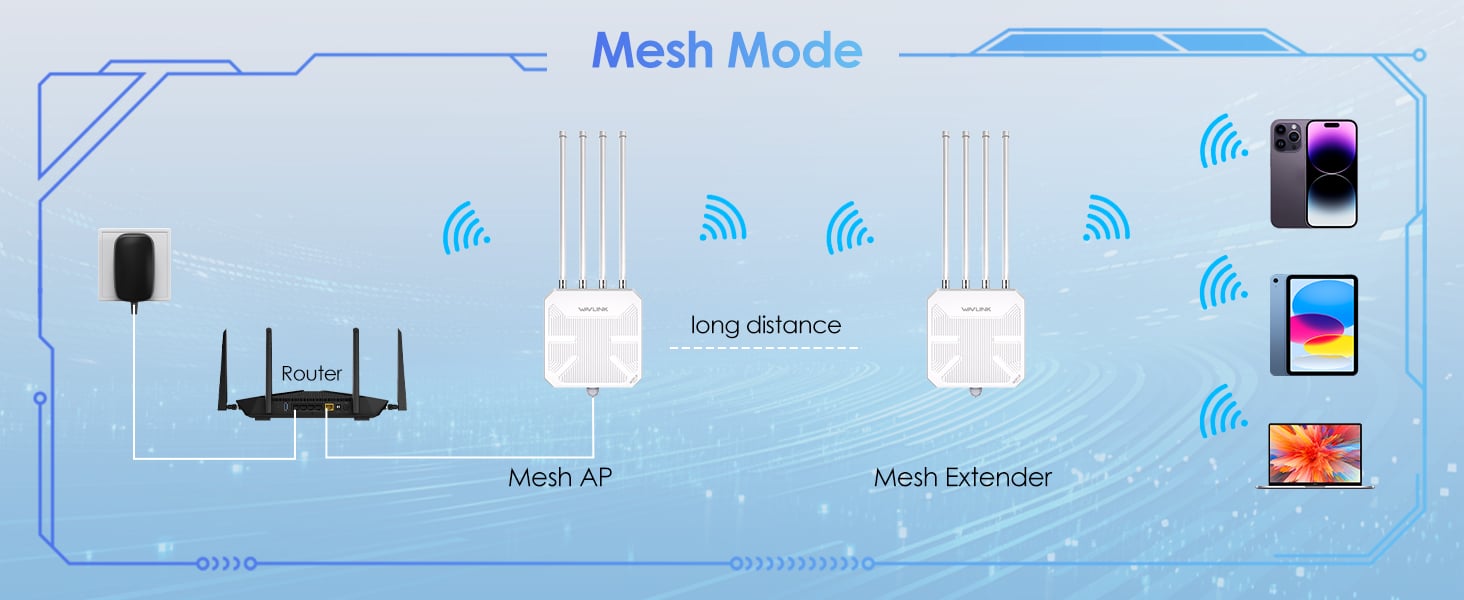
Mesh networksuse multiple devices called nodes to spread WiFi signals. Each node talks to others, creating a strong and wide network. This way, WiFi reaches every corner of your home or office.
The nodes work together to send data along the best path. If one node has trouble, the system finds another route. This keeps your connection steady and fast.
| Advantages | Details |
|---|---|
| Better Coverage | Nodes spread WiFi far, covering dead spots. |
| Easy to Expand | Add more nodes without rewiring or complex setup. |
| Smart Connections | Devices connect to the strongest node automatically. |
| Stable Network | If one node fails, others keep network alive. |
Choosing The Right Wifi Extender
Compatibilityis key for connecting a long range WiFi extender to a mesh network. Choose extenders that support your mesh system’s protocol for smooth integration. Check if the extender can work with your router’s brand and model.
Range and speedare crucial. The extender should cover the distance you need without losing signal strength. Look for extenders with speeds matching or exceeding your internet plan to avoid slow connections.
| Brand | Model | Key Features |
|---|---|---|
| Netgear | EX8000 | Tri-band, works with many mesh routers, long range |
| TP-Link | RE650 | Dual-band, high speed, easy setup |
| Linksys | RE7000 | Seamless roaming, compact design, good range |
Credit: www.newegg.com
Preparing Your Mesh Network
Check your mesh network’s SSID and password. These must match the extender’s settings for smooth connection.
Ensure your mesh router’s firmware is up to date. Updates fix bugs and improve performance.
- Go to the router’s admin page.
- Find the firmware update section.
- Download and install the latest version.
Place your router in a central spotfor best coverage. Avoid walls and metal objects that block signals.
Keep the router away from microwaves and cordless phones to reduce interference.
Connecting The Long Range Extender
Connecting a long range WiFi extender to a mesh network can be done using wiredor wirelessmethods.
- Wired connectionuses an Ethernet cable for stable, fast data transfer.
- It reduces interference and ensures strong signal quality.
- Wireless connectionis simpler and offers more flexibility in placement.
- It may face some signal loss due to distance or obstacles.
- Choosing the right method depends on your home’s layout and needs.
Follow these steps to set up your extender:
- Plug in the extender near your router for initial setup.
- Connect to the extender’s network on your device.
- Open the setup page using the extender’s IP address.
- Select your mesh network and enter the password.
- Choose wired or wireless mode as per your setup.
- Move the extender to a new spot where signal is weak.
- Check connection strength and adjust placement if needed.
Common issues include no signal, slow speed, or connection drops.
- Make sure the extender is within range of the mesh network.
- Restart both the router and extender to refresh connections.
- Check cables and power supply if using wired connection.
- Update the extender’s firmware for better performance.
- Reset the extender if problems continue, then repeat setup.
Optimizing Extender Performance
Choosing the best locationfor your extender boosts signal strength. Place it halfway between your router and the area with poor coverage. Avoid walls, metal objects, and microwaves that block signals. High and open spots work best for clear connections.
Adjusting channel and frequencyhelps reduce interference. Use 5 GHz for faster speeds and less noise, but 2.4 GHz covers longer distances. Check your router settings to pick less crowded channels. This keeps your network stable and fast.
Regular maintenance tipskeep your extender working well. Restart the device often to clear glitches. Update firmware to fix bugs and improve performance. Clean dust from vents to avoid overheating. Test signal strength now and then to spot issues early.
Testing And Verifying Connection
Speed test tools help check the internet speedafter connecting the extender. Run tests near the extender and main router to compare speeds. This shows if the extender boosts your connection well.
Signal strength matters for a strong WiFi link. Use apps or router settings to see the signal levels. A good signal means the extender is placed right and working properly.
Seamless roaming lets devices switch between router and extender without dropping WiFi. Walk around your home with a phone or laptop. Notice if the connection stays stable or drops when moving.
Credit: www.tp-link.com
Advanced Tips For Network Expansion
Adding multiple extenders can boost your mesh network’s reach. Place each extender where the signal is still strong. Avoid placing extenders too far from the main router to keep speed steady.
Integrate extenders with other devices like routers and access points carefully. Use the same network name (SSID) for easy switching. Check device compatibility to avoid conflicts.
Security matters. Use strong passwords for extenders and your main router. Enable WPA3 or WPA2 encryption to keep your network safe. Regularly update firmware to fix security flaws.
Frequently Asked Questions
How Do I Connect A Long Range Wifi Extender To Mesh?
To connect, first ensure your WiFi extender supports mesh networking. Then, sync it with your mesh router via WPS or app setup. Position the extender within range but away from obstructions for optimal coverage.
Can A Long Range Wifi Extender Improve Mesh Network Speed?
Yes, a long range WiFi extender can boost mesh network speed. It extends the signal to dead zones and reduces congestion. However, choose an extender compatible with your mesh system for best performance.
What Is The Best Placement For A Wifi Extender In Mesh?
Place the WiFi extender halfway between your router and the weak signal area. Avoid physical obstructions like walls or metal objects. Proper placement ensures stronger signals and better mesh network coverage.
Will A Wifi Extender Cause Interference In A Mesh Network?
If improperly placed, a WiFi extender can cause interference and reduce performance. Use different channels or bands if possible. Always follow manufacturer guidelines to minimize interference within your mesh network.
Conclusion
Connecting a long-range WiFi extender to a mesh network boosts your home’s internet reach. It helps remove dead spots and keeps your devices online smoothly. Follow each step carefully for the best signal strength. Test the connection to ensure everything works well.
With the right setup, you enjoy faster speeds and wider coverage. This simple upgrade can improve your WiFi experience significantly. Stay connected, no matter where you are in your home.