Are you struggling to keep all your smart devices connected without losing speed or signal? When you have multiple gadgets—like smart TVs, security cameras, phones, and speakers—working smoothly together, it can feel overwhelming.
But what if there was a simple way to make sure every device stays online and runs fast, no matter where you are in your home? This guide will show you exactly how to connect all your smart devices to a mesh WiFi system, so you can enjoy seamless, reliable internet everywhere.
Keep reading, and you’ll discover easy steps that will transform your home network for good.

Credit: www.reddit.com
Mesh Wifi Basics
Mesh wifi helps you connect many smart devices in your home or office. It spreads wifi signals evenly across large areas.
This system uses multiple devices called nodes. They work together to give you better wifi coverage.
What Is Mesh Wifi
Mesh wifi is a network made of several nodes. Each node acts like a mini router.
Nodes connect to each other to share internet signals. This creates a strong wifi network everywhere.
- Nodes work as one system
- They cover dead spots in wifi
- Devices switch nodes automatically
Benefits Of Mesh Systems
Mesh systems give you better wifi in large spaces. They stop slow internet in far rooms.
They also make it easy to add more nodes. This helps if you get more devices later.
- Strong wifi signals everywhere
- Easy to expand network
- Seamless connection for smart devices
- Simple setup and management
Preparing Your Devices
Connecting multiple smart devices to your mesh WiFi network needs some preparation. Making sure your devices are ready helps avoid connection problems later.
This guide covers how to check if your devices work with mesh WiFi and how to update their software for smooth setup.
Check Device Compatibility
Not all smart devices support mesh WiFi networks. Check your device manuals or online support pages to confirm compatibility.
- Look for WiFi standards supported (e.g., 802.11ac or 802.11ax)
- Confirm if the device supports WPA3 or WPA2 security
- Check if the device can connect to 2.4 GHz or 5 GHz bands
- Verify if the device firmware mentions mesh network support
- Ensure your device’s maximum WiFi range fits your mesh system
Update Firmware And Software
Keep your devices’ firmware and apps up to date. Updates fix bugs and improve network connection stability.
| Device Type | How to Update | Why Update |
| Smartphone | Go to Settings > Software Update | Fix bugs and improve WiFi performance |
| Smart Speaker | Use device app or voice commands | Add new features and security fixes |
| Smart TV | Access System Settings > Update | Improve streaming and network stability |
| Security Camera | Update via manufacturer app | Enhance connection and fix issues |
Setting Up Your Mesh Network
Connecting many smart devices needs a strong wifi signal. Mesh wifi helps spread the signal evenly.
This guide shows how to set up your mesh network for the best connection.
Choosing The Right Mesh System
Pick a mesh system that fits your home size and device needs. Some systems handle more devices well.
Check if the system supports the latest wifi standards. This keeps your network fast and secure.
- Look for systems supporting Wi-Fi 6 or later
- Consider the number of devices in your home
- Choose a system with easy setup features
Placement Of Nodes For Optimal Coverage
Place nodes where wifi is weak to improve coverage. Avoid walls and metal objects that block signals.
Keep nodes in open areas and not too far from each other. This helps create a strong network.
- Place the main node near your modem
- Space other nodes evenly across your home
- Avoid placing nodes near microwaves or thick walls
Configuring The Mesh Network
Use the mesh system app to set up your network. Follow the app instructions to connect all nodes.
Set a strong wifi name and password. This keeps your network safe from intruders.
- Connect the main node to your internet modem
- Use the app to add and sync other nodes
- Change default network name and password
- Check for firmware updates regularly
Connecting Smart Devices
Smart devices make our lives easier and more connected. To get the best from them, connect them to a mesh wifi network.
Mesh wifi provides strong and reliable internet coverage. It is perfect for homes with many smart devices.
Adding Devices Via Wifi
Ensure your smart device is compatible with your wifi network. Open the wifi settings on your device.
Select your mesh wifi network from the list. Enter the password to connect.
- Check the device manual for wifi setup instructions
- Use the correct wifi password
- Ensure device is within range of the router
Using Manufacturer Apps
Many smart devices come with their own apps. Download the app from the app store.
Open the app and follow the setup instructions. Connect the device to your mesh wifi through the app.
- Install the app on your smartphone
- Ensure your phone is connected to the same wifi
- Follow the app’s step-by-step guide
Managing Device Connections
Use your router’s app or web interface to manage devices. Check which devices are connected to your network.
Set device priorities for better performance. Disconnect devices that are not in use.
| Device Name | Status |
| Smart Light | Connected |
| Smart Thermostat | Disconnected |
Troubleshooting Connection Issues
Connecting many smart devices to mesh WiFi can cause problems. These problems may slow down your network or drop connections.
Fixing these issues helps your smart devices work smoothly. This guide shows common problems and ways to improve your network.
Common Problems And Fixes
Smart devices may lose connection or run slowly on mesh WiFi. Some causes include signal interference, device limits, and outdated software.
Check these fixes to solve common problems and keep your devices connected.
- Weak Signal:Move devices closer to mesh nodes or add more nodes.
- Device Limit Reached:Disconnect unused devices or upgrade your mesh system.
- Firmware Outdated:Update your mesh router and devices regularly.
- Interference:Keep mesh nodes away from microwaves, cordless phones, and thick walls.
- IP Conflicts:Restart your router to refresh device IP addresses.
Optimizing Network Performance
Good network setup improves device connection and speed. Organize your mesh system for better coverage and less interference.
Try these tips to optimize your network performance for many smart devices.
- Place mesh nodes evenly in your home for full coverage.
- Use Ethernet backhaul if possible for faster node connection.
- Separate devices by frequency band: use 2.4 GHz for smart devices and 5 GHz for fast devices.
- Limit bandwidth-heavy activities during peak use times.
- Regularly restart your mesh system to clear memory and improve speed.
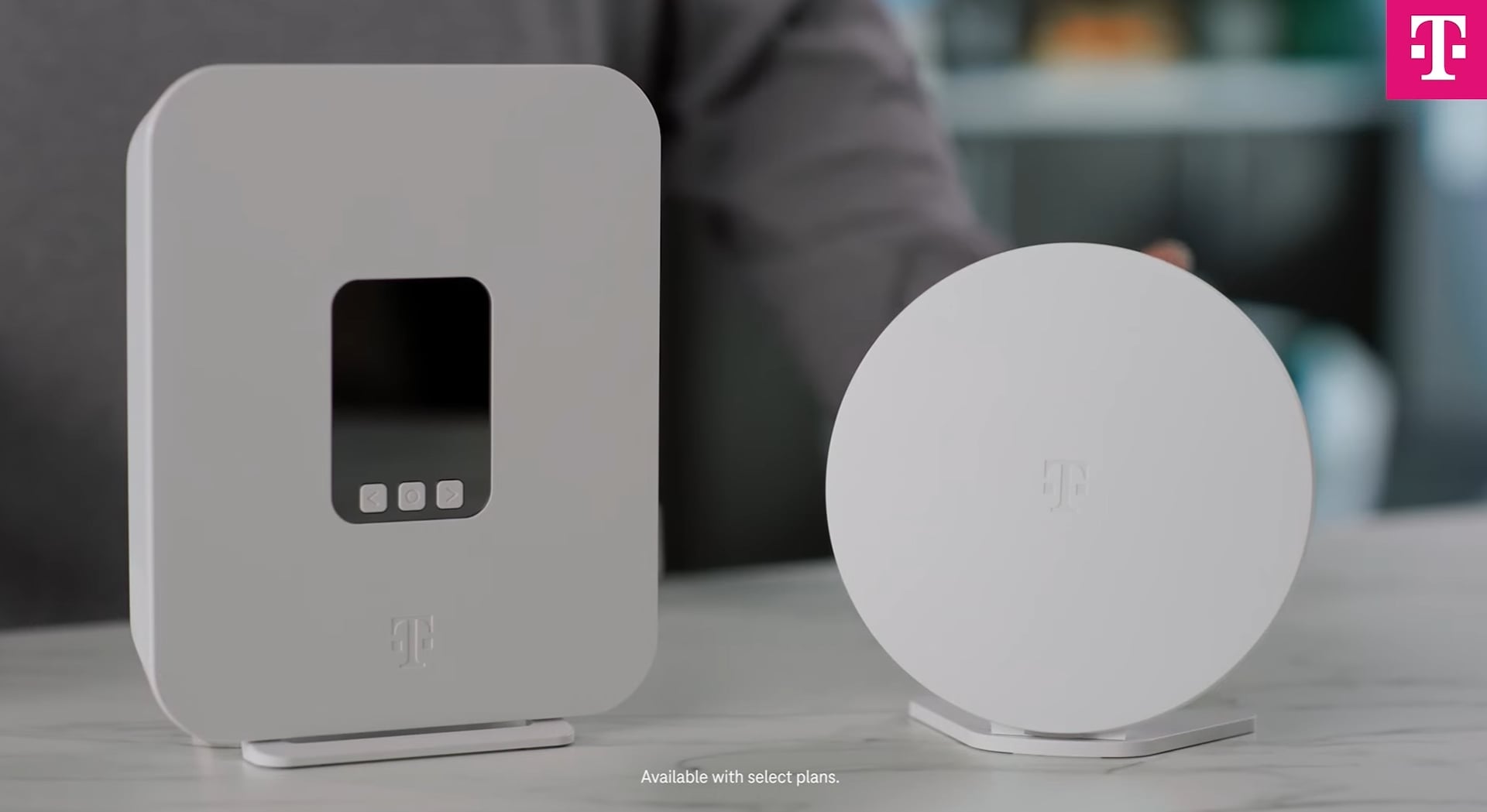
Credit: www.t-mobile.com
Enhancing Security
Connecting multiple smart devices to a mesh WiFi improves connectivity. Ensuring security is key to protecting your data.
Mesh networks offer strong coverage, but they require careful security measures. This guide helps you secure your mesh network and manage device permissions effectively.
Securing Your Mesh Network
Securing your mesh network is essential to keep your data safe. Follow these steps to enhance your network security.
- Change default passwords on your router and devices.
- Enable network encryption, preferably WPA3.
- Regularly update firmware for all network devices.
- Disable WPS to prevent unauthorized access.
- Use a strong, unique WiFi password.
Managing Device Permissions
Controlling device permissions ensures only trusted devices connect to your network. Manage permissions to enhance security.
Consider these steps to manage device permissions:
- Identify all devices connected to your network.
- Set up guest networks for visitors to limit access.
- Regularly review connected devices and remove unknown ones.
- Use MAC address filtering for added control.
Advanced Tips
Connecting many smart devices to mesh WiFi can slow your network. Advanced tips help keep fast and steady connections.
Use smart settings and extra hardware to improve your mesh WiFi performance for all devices.
Prioritizing Devices
Not all devices need the same internet speed. You can tell your mesh system which devices matter most.
Prioritizing devices helps important gadgets like work laptops or streaming players get faster speeds.
- Open your mesh WiFi app or settings page.
- Find the device priority or Quality of Service (QoS) section.
- Select devices that need better speed or low delay.
- Set these devices to high priority or top tier.
- Save changes and test the connection.
Expanding Your Mesh Network
Adding more mesh nodes covers bigger areas and supports more devices. Place new nodes where WiFi is weak.
Use wired backhaul if possible. It connects nodes with cables for stronger, faster links.
- Check signal strength in different rooms before adding nodes.
- Place new nodes halfway between the main router and weak spots.
- Use Ethernet cables to link nodes for best speed.
- Keep nodes away from walls and metal objects.
- Restart your mesh system after adding nodes.

Credit: www.youtube.com
Frequently Asked Questions
How Many Devices Can A Mesh Wifi Support?
A mesh WiFi system can support dozens of devices simultaneously. The exact number varies by system model and bandwidth. High-end mesh routers handle over 50 devices efficiently. This makes them ideal for smart homes with multiple connected gadgets.
How To Add Smart Devices To Mesh Wifi Network?
To add smart devices, connect them to your mesh WiFi’s SSID. Use the device’s app or setup guide for connection steps. Ensure your mesh network is active and within range for smooth setup.
Can Mesh Wifi Improve Smart Device Connection Speed?
Yes, mesh WiFi improves connection speed by providing stronger signals. It reduces dead zones and balances device traffic. This ensures smart devices maintain stable, fast connections throughout your home.
Do Mesh Wifi Systems Automatically Manage Multiple Device Connections?
Mesh WiFi systems often include smart traffic management features. They prioritize bandwidth and optimize device connections automatically. This helps maintain performance when many smart devices are connected.
Conclusion
Connecting multiple smart devices to mesh WiFi is simple and effective. Start by setting up the mesh system properly. Then, add each device one by one to the network. Keep devices close to mesh nodes for strong signals. This setup helps avoid slow connections and dropouts.
Enjoy smooth internet on all your smart gadgets. A reliable mesh WiFi network makes daily tasks easier. Try these steps and experience better home connectivity today.