Are you tired of dealing with weak WiFi signals while trying to enjoy the outdoors or work from your garden? Imagine streaming your favorite shows, joining video calls, or simply browsing the internet without any interruptions, all while being surrounded by nature.
Connecting an outdoor WiFi booster to your laptop might just be the solution you’ve been searching for. This guide will walk you through the simple steps to ensure you have a strong, reliable internet connection wherever you need it. By the end, you’ll not only enjoy seamless connectivity but also unleash the full potential of your outdoor spaces.
Ready to transform your online experience? Let’s dive in!

Credit: manuals.plus
Choosing The Right Outdoor Wifi Booster
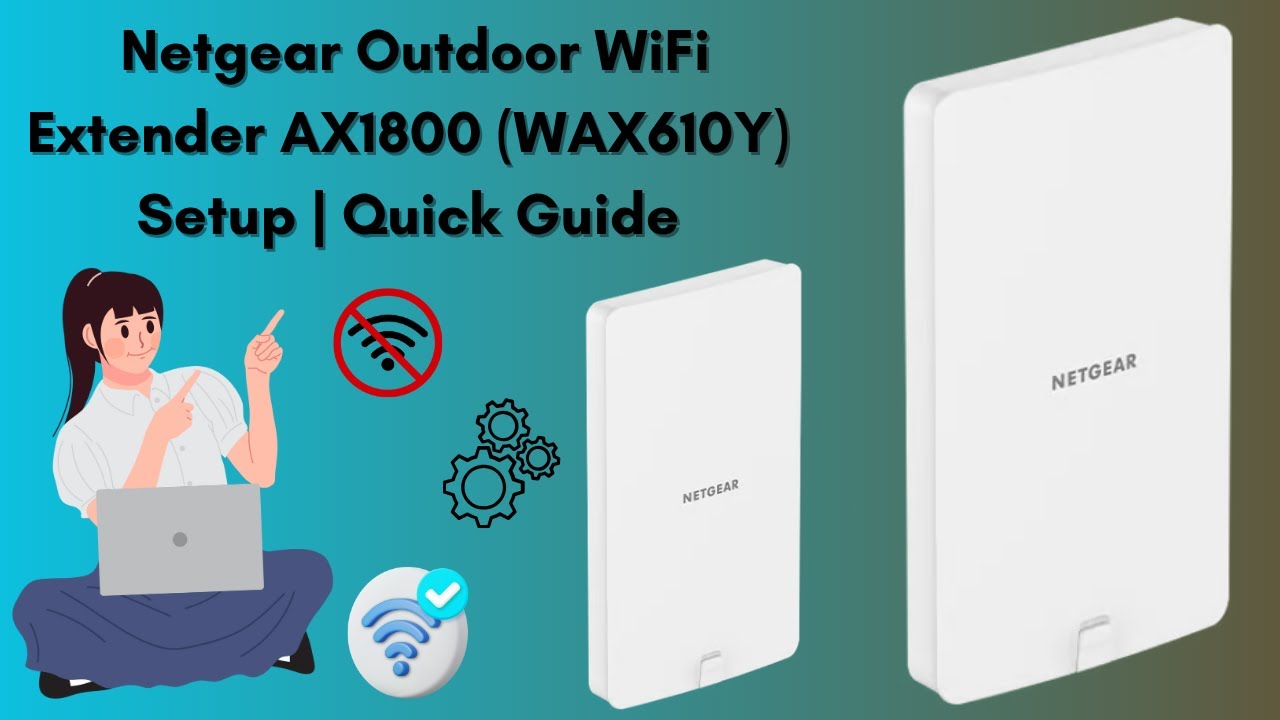
Outdoor WiFi boosters come in different typesto suit various needs. Some are omnidirectional, spreading signal all around. Others are directional, focusing signal to one area. Pick one based on where you need coverage.
Important featuresto check include signal range, weather resistance, and speed support. A good booster should handle bad weather and offer strong, stable signals. Look for easy setup and energy efficiency too.
Ensure the booster is compatiblewith your laptop’s WiFi standards, like 802.11ac or 802.11n. Check if it supports the same frequency bands your laptop uses. This helps avoid connection problems and slow speeds.
Credit: www.youtube.com
Preparing Your Laptop For Connection
Start by checking your laptop’s network settings. Ensure that the Wi-Fi is turned on and airplane mode is off. Look for the available networks list and see if your outdoor WiFi booster appears there.
Keep your WiFi drivers updated. Outdated drivers can cause connection issues. Visit the laptop manufacturer’s website or use device manager to check for the latest driver updates.
Disable any conflicting connectionssuch as VPNs or Ethernet cables. These can interfere with the WiFi booster connection. Disconnect or turn off other network adapters temporarily for a smooth setup.
Setting Up The Outdoor Wifi Booster
Place the outdoor wifi boosterin an open area. Avoid walls and metal objects. Higher spots work best for signal reach. Face the booster toward the wifi source for stronger reception.
Connect the booster to a power source using the supplied adapter. Turn on the device by pressing the power button. Wait for the indicator lights to show it is ready.
Use your laptop to find the booster’s network name (SSID). Open a browser and enter the IP address provided in the manual. Log in with the default username and password shown on the device label.
Connecting The Booster To Your Laptop
Connect the outdoor wifi booster to your laptop using an Ethernet cable. Plug one end into the booster’s Ethernet port. Plug the other end into your laptop’s Ethernet port. This creates a stable and fast connectionbetween devices.
To connect via wifi, search for the booster’s wifi network name (SSID)on your laptop. Select the network and enter the passwordprovided with the booster. This allows you to connect wirelesslywithout cables.
| Network Setting | Action |
|---|---|
| IP Address | Set to automatic (DHCP)or enter the IP from booster manual |
| Subnet Mask | Usually 255.255.255.0 |
| Default Gateway | Use the booster’s IP address |
| DNS Server | Set to automaticor use a public DNS |
Open your laptop’s network settings to configure the above. This helps your laptop recognize and communicatewith the booster properly.
Troubleshooting Common Issues
Signal interferencecan disrupt your outdoor WiFi booster connection. Keep the booster away from walls, microwaves, and cordless phones. These items often block the signal.
Resetting the booster can fix many problems. Unplug it, wait 30 seconds, then plug it back in. This clears temporary glitches and refreshes the device.
Checking your laptop’s network settings is important. Make sure WiFi is turned on and airplane mode is off. Also, verify that your laptop connects to the correct network name (SSID).
Optimizing Performance
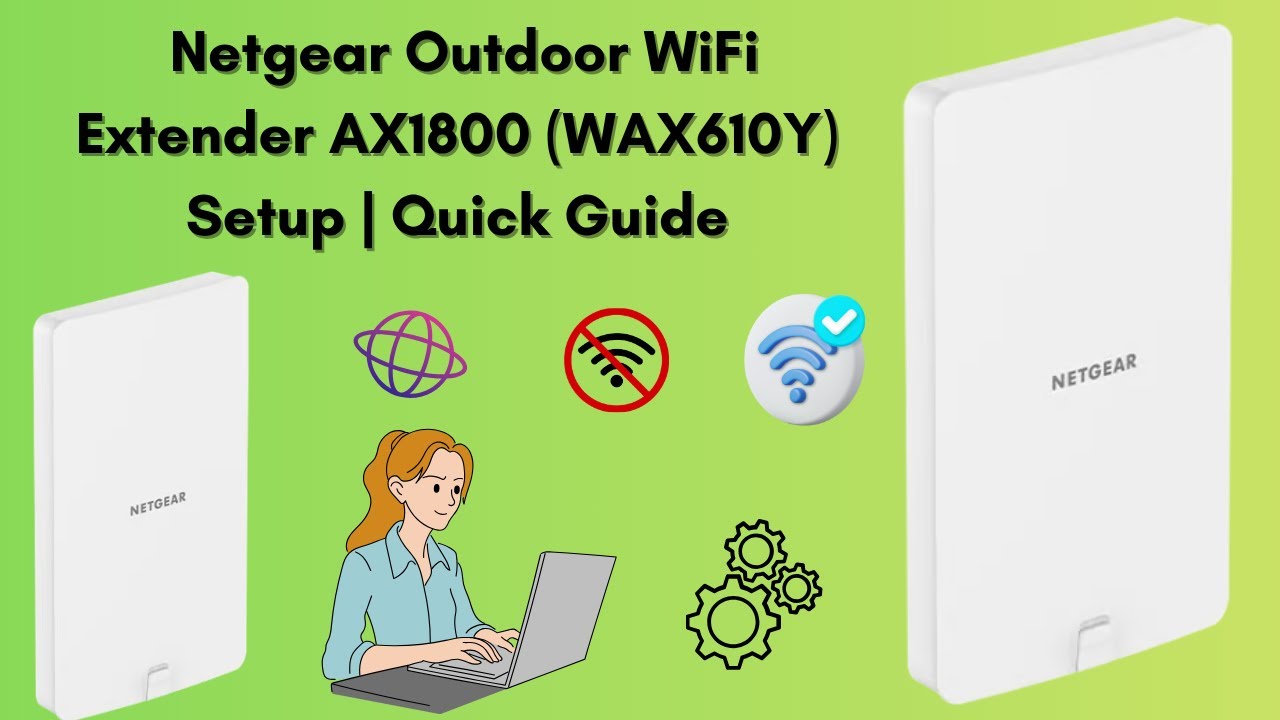
Placing the boosteris key to better WiFi. Keep it high and clear of walls. Avoid metal objects and thick barriers. Try moving it until the signal is strong.
Updating the booster’s firmwarecan fix bugs and improve speed. Check the manufacturer’s website for updates. Use a secure connection during updates to avoid errors.
Use signal monitoring toolsto see where the WiFi is weak or strong. These tools show signal strength and help find the best spot for your booster. Some apps can even show interference from other devices.
Credit: www.youtube.com
Frequently Asked Questions
How Do I Connect An Outdoor Wifi Booster To My Laptop?
To connect, first power on the outdoor WiFi booster. Use your laptop to find its network name (SSID). Select the SSID and enter the password. Once connected, your laptop will use the booster to extend WiFi range and improve signal strength.
Can I Use Any Laptop With An Outdoor Wifi Booster?
Yes, most laptops with WiFi capability can connect to an outdoor WiFi booster. Ensure your laptop supports the WiFi frequency (2. 4GHz or 5GHz) used by the booster for compatibility. No special hardware is usually required.
What Settings Should I Configure On My Laptop?
Usually, no special settings are needed. Just connect to the booster’s WiFi network. For advanced use, access the booster’s web interface via its IP address to configure security or signal preferences. Always use WPA2 or WPA3 encryption.
Why Is My Laptop Not Detecting The Wifi Booster?
Check the booster’s power and antenna connections. Ensure it is within range and broadcasting its SSID. Restart the booster and your laptop’s WiFi adapter. Update your laptop’s network drivers if needed to resolve detection issues.
Conclusion
Connecting your outdoor WiFi booster to a laptop is easy and fast. Just follow the steps carefully. This will help improve your internet signal outside. A strong connection means smoother browsing and better work or fun time. Keep your device settings updated to avoid problems.
Remember to place the booster in a good spot for best results. Now, enjoy faster and more reliable WiFi outdoors without stress or hassle. Simple and effective.