Are you tired of slow or unreliable internet when you’re on the go? Connecting your phone to a travel router can change everything.
Imagine having a strong, stable Wi-Fi signal wherever you are—whether in a hotel, airport, or café. In this guide, you’ll learn simple steps to link your phone to a travel router quickly and easily. By the end, you’ll enjoy faster browsing, smoother streaming, and better online calls no matter where you travel.
Ready to boost your mobile internet experience? Let’s get started!
Choose The Right Travel Router
Choosing the right travel router is crucial for a smooth and reliable connection between your phone and the router. Not all travel routers are created equal, and picking one that fits your needs can save you from frustrating connectivity issues on the go. Think about how you plan to use it and what features matter most to you before making a purchase.
Key Features To Look For
Look for a travel router that offers strong signal strength and supports multiple devices at once. Battery life is another key factor—some routers come with rechargeable batteries, which are perfect if you’re traveling without easy access to power outlets.
Security features such as WPA3 encryption keep your data safe while using public Wi-Fi networks. Also, consider routers with easy setup options and compact designs that fit neatly in your bag. Would you prefer a router that can also act as a power bank for your phone? Some models offer this dual function, adding extra value to your travel gear.
Compatibility With Your Phone
Not every travel router works seamlessly with every phone. Check if the router supports your phone’s operating system, whether it’s Android or iOS. This ensures the connection process is straightforward and reliable.
Some routers offer dedicated apps to manage settings directly from your phone, making it easier to customize your network on the fly. Have you ever struggled with confusing setup processes? Choosing a router with user-friendly interfaces can make all the difference.
Set Up Your Travel Router
Setting up your travel router is the first step to enjoying seamless internet access on the go. It might seem technical, but with clear guidance, you’ll have it ready in no time. Let’s break down the process into simple parts so you can connect your phone effortlessly.
Powering On And Initial Configuration
Start by plugging your travel router into a power source. Most models come with a USB cable, so you can use a power bank, laptop, or wall adapter. Once powered, look for a small indicator light—this usually means the router is on and ready.
Next, connect your phone or laptop to the router’s default Wi-Fi network. This network name and password are often found on a sticker at the bottom of the router or in the user manual. Once connected, open your browser and type the router’s IP address (commonly 192.168.0.1 or 192.168.1.1) to access the setup page.
Here, you’ll be prompted to change the router’s default settings. Choose a new network name and a strong password to keep your connection secure. Have you ever skipped this step and faced connection issues or security risks? Taking these few minutes now saves you headaches later.
Connecting To The Internet Source
Your travel router needs to link to an internet source to share connectivity with your phone. This source could be a hotel’s Ethernet port, a public Wi-Fi, or even a mobile data SIM card inserted into the router.
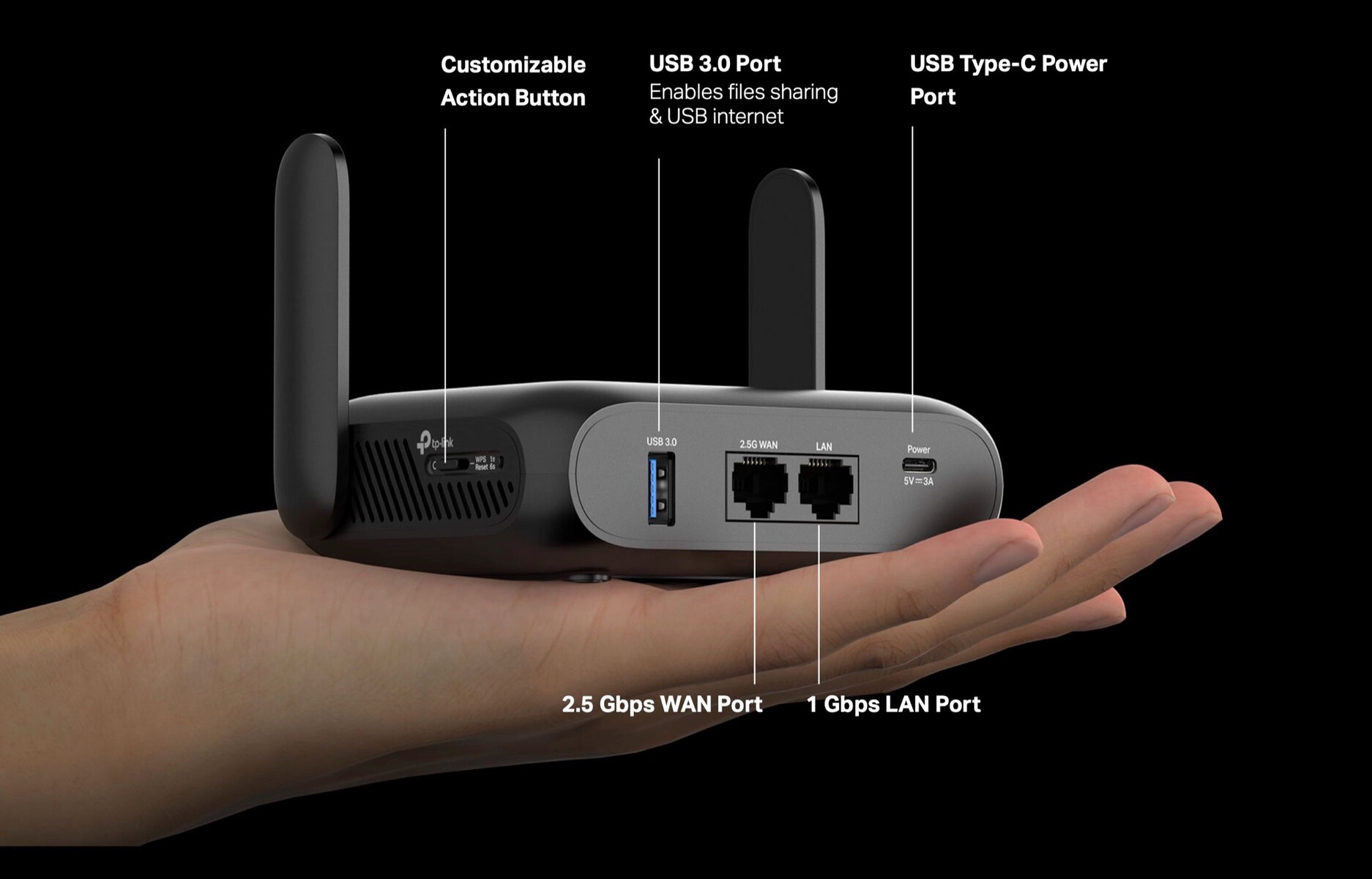
If you’re using an Ethernet cable, plug it into the router’s WAN port. The router will automatically detect the connection and provide internet access to your devices. In cases where you want to connect via Wi-Fi, use the router’s setup page to scan for available networks and select the one you want to join.
For mobile data users, insert the SIM card into the router’s slot. Then, configure the APN settings as per your carrier’s instructions. This setup lets you create your own personal hotspot anywhere, ideal for remote locations or crowded airports.
Each internet source requires slightly different steps, but your travel router’s manual covers these clearly. Have you checked if your router supports all these connection types before traveling? Knowing this upfront ensures you’re never left offline.
Connect Your Phone To The Router
Connecting your phone to a travel router is simple and quick. This allows you to share one internet source among multiple devices. Follow easy steps to link your phone and enjoy steady Wi-Fi wherever you go.
Finding The Wi-fi Network
First, open your phone’s settings and tap on Wi-Fi. Your phone will scan for nearby networks automatically. Look for the name of your travel router’s network. It usually matches the router brand or model. Tap the network name to select it.
Entering The Password
Next, enter the password for the travel router’s Wi-Fi. This password is often on a label on the router itself or in the user manual. Type it carefully, paying attention to uppercase and lowercase letters. Then, tap “Connect” or “Join.” Your phone will now link to the router’s internet.
Credit: www.notebookcheck.net
Troubleshoot Common Issues
Check the router’s settings and ensure your phone’s Wi-Fi is turned on. Restart both devices if connection issues persist. Verify the password and network name to avoid common errors.
Connecting your phone to a travel router can be a game-changer on your trips, allowing you to stay connected regardless of where you are. However, the process isn’t always seamless. Sometimes, you might encounter issues that leave you scratching your head. Let’s delve into some common problems and how you can address them effectively.No Internet Connection
Nothing is more frustrating than connecting to a router only to find there’s no internet access. Start by checking if the travel router is correctly connected to the internet source. Ensure the cable or modem you’re using is secure and functioning. Have you tried rebooting the router? A simple restart can often resolve connectivity issues.Slow Speeds
Experiencing slow speeds can make browsing unbearable. First, confirm that no other devices are hogging the bandwidth. Consider reducing the number of connected devices. Is your travel router placed in an open space? Obstacles like walls or furniture can interfere with signals.Router Not Detected
If your phone can’t detect the router, check the Wi-Fi settings to see if the network is hidden. Make sure your travel router is powered on and the Wi-Fi signal is broadcasting. Sometimes, simply toggling the Wi-Fi on your phone off and back on can help it find the router. Have you ever faced these issues while traveling? Don’t let them ruin your adventure. Equip yourself with these solutions and travel with confidence.Optimize Wi-fi For Better Performance
Optimizing your Wi-Fi connection when using a travel router can make a huge difference in your online experience. It’s not just about plugging in and connecting your phone; the way you set up and manage your router impacts speed, stability, and overall performance. Small tweaks can prevent slowdowns and keep your connection steady, especially in busy environments like hotels or airports.
Positioning The Router
Where you place your travel router matters more than you might think. Keep it in a central, elevated spot away from walls and metal objects to reduce interference. Avoid placing it near microwaves, cordless phones, or other electronics that can disrupt the signal.
If you’re in a hotel room, try to position the router close to a window or open space. This often helps the signal reach your phone better, especially if the building has thick walls. Have you noticed how your signal improves just by moving a few feet? That’s the power of good placement.
Managing Connected Devices
Too many devices sharing your travel router can drag down the speed for everyone. Check how many devices are connected and disconnect any that aren’t in use. This simple step frees up bandwidth, giving your phone a faster, smoother connection.
Some travel routers allow you to prioritize certain devices. If yours does, set your phone as a high-priority device. This ensures your phone gets the best possible speed even when others are online. Think about your last trip—did you struggle with slow Wi-Fi because of multiple devices? Managing connections can fix that.

Credit: tech.yahoo.com
Secure Your Travel Router
Securing your travel router is vital for safe internet use while on the move. Public places often have many connected devices, which can expose your data. A travel router without protection leaves your phone and information at risk. Simple security steps make your connection safer and keep hackers away. Protect your router before connecting your phone.
Changing Default Passwords
Default passwords are easy to guess. Most travel routers come with simple, common passwords. Changing these passwords is the first step to secure your device. Use a strong password with letters, numbers, and symbols. Avoid using names or common words. A strong password stops unauthorized users from entering your router settings.
Enabling Encryption
Encryption protects data sent between your phone and the router. Without encryption, hackers can easily see your information. Choose WPA2 or WPA3 encryption in your router settings. These are the most secure options available. Encryption creates a safe tunnel for your internet traffic. It keeps your data private and secure during travel.
Credit: www.eiotclub.com
Frequently Asked Questions
How Do I Connect My Phone To A Travel Router?
Turn on your travel router and enable its Wi-Fi. On your phone, open Wi-Fi settings, find the router’s network, and enter the password. Once connected, your phone will use the router’s internet connection.
Can I Use Any Phone With A Travel Router?
Yes, most smartphones support Wi-Fi connections with travel routers. Ensure your phone’s Wi-Fi is enabled and compatible with the router’s frequency band (2. 4GHz or 5GHz).
Why Won’t My Phone Connect To The Travel Router?
Check if the router is powered on and Wi-Fi is active. Verify you entered the correct password. Restart both devices and try reconnecting to resolve common issues.
Is Connecting To A Travel Router Secure For My Phone?
Travel routers usually offer WPA2 encryption, making connections secure. Always use strong passwords and avoid public or unsecured networks to protect your data.
Conclusion
Connecting your phone to a travel router is simple and quick. Just follow the steps carefully and check your settings. This helps you enjoy stable internet on the go. No need to worry about weak signals or limited data. A travel router keeps you connected during trips.
Try it yourself and stay online wherever you are. Safe travels and happy browsing!