Struggling to get your portable router connected to your laptop? You’re not alone.
Whether you want faster internet on the go or a backup connection during outages, knowing how to set up your portable router quickly can save you time and frustration. In this guide, you’ll find simple, step-by-step instructions that anyone can follow.
By the end, you’ll have a smooth and reliable connection ready whenever you need it. Keep reading—you’re just moments away from hassle-free internet access.
Choose The Right Portable Router
Choosing the right portable router is crucial to ensure seamless connectivity between your device and the internet. The right choice depends on how and where you plan to use it. Let’s look at the types available and what features really matter to you.
Types Of Portable Routers
Portable routers come in several forms, each suited for different needs. Understanding these types helps you match a router to your lifestyle.
- Mobile Hotspot Routers:These use cellular networks to provide internet on the go. Ideal if you travel often or don’t have fixed Wi-Fi access.
- Travel Routers:Compact devices that create a Wi-Fi network using a wired or wireless connection. Great for hotel rooms or cafes where you want to share a single connection.
- Battery-Powered Routers:Perfect for outdoor use or places without easy access to power. They offer freedom but check battery life carefully.
- USB-Powered Routers:These draw power from your laptop or a USB source. They are lightweight but depend on your device’s power availability.
Features To Consider
Not all portable routers are built equal. Consider these features to find one that fits your needs perfectly.
| Feature | Why It Matters | Example |
|---|---|---|
| Network Compatibility | Make sure the router supports your mobile carrier’s bands or Wi-Fi standards. | Supports 4G LTE if you rely on cellular data. |
| Speed | Faster speeds reduce buffering and improve downloads. | AC1200 routers offer decent speed for streaming and browsing. |
| Battery Life | Longer battery means fewer interruptions when you’re away from power. | 10+ hours of use keeps you connected during a full day out. |
| Security Features | Protect your data from hackers especially on public networks. | Look for WPA3 encryption and built-in firewalls. |
| Ease of Setup | Quick and simple setup saves time and frustration. | Routers with mobile apps and clear instructions are user-friendly. |
Think about where you use your laptop most. Does your router need to support multiple devices? Will you rely on cellular data or existing Wi-Fi? Your answers guide which router fits best.

Credit: www.theverge.com
Prepare Your Laptop
Preparing your laptop is essential before connecting it to a portable router. It ensures a smooth and stable internet connection. Taking a few simple steps can help avoid connection issues and improve performance. Start by checking your laptop’s network settings and updating necessary drivers.
Check Network Settings
First, verify your laptop’s network settings. Open the network control panel to review active connections. Confirm that Wi-Fi is enabled and airplane mode is turned off. Remove any saved networks that could interfere with the portable router. Set your laptop to obtain IP addresses automatically for easier connection. This setup helps your laptop communicate with the router without manual configuration.
Update Drivers
Outdated drivers can cause connection problems. Check for the latest network adapter drivers on your laptop’s manufacturer website. Download and install updates to ensure compatibility with the portable router. Updated drivers improve signal strength and overall connection stability. Restart your laptop after installation to apply changes effectively.
Power On And Connect Router
Getting your portable router powered on is the first step to connect it to your laptop. This process ensures your device has enough energy to work properly. After powering it up, the router will broadcast a wireless signal for your laptop to join. Follow these simple actions to prepare your router for connection.
Charge Or Insert Batteries
Check if your portable router uses batteries or a built-in rechargeable battery. If it uses removable batteries, insert them correctly into the compartment. Match the positive and negative ends as shown inside the battery slot.
For routers with a rechargeable battery, plug the charging cable into the router’s power port. Connect the other end to a power source. Allow the router to charge fully before turning it on. A full charge ensures longer usage time.
Turn On The Router
Locate the power button on your portable router. It is usually on the side or front panel. Press and hold the button for a few seconds until indicator lights turn on.
Wait for the lights to stabilize. This means the router is ready to connect. The wireless signal should now be active and visible to your laptop’s Wi-Fi list.
Connect Via Wi-fi
Connecting your portable router to your laptop via Wi-Fi is one of the easiest and most convenient ways to get online. This wireless connection frees you from cables and allows you to move your laptop freely without losing access to the internet. To get started, you need to identify the router’s network and then securely enter the password to establish a stable connection.
Find The Router’s Network Name
Every portable router broadcasts a unique network name, also known as the SSID (Service Set Identifier). This name helps you recognize your router from the list of available Wi-Fi networks on your laptop.
To find it, look at the label on your router or check the packaging. The network name might be something generic like “TP-Link_1234” or customized by the previous user. When you open your laptop’s Wi-Fi settings, scan through the list of networks and select the one matching your router’s SSID.
Enter The Password
After selecting the network, your laptop will prompt you to enter the Wi-Fi password. This password is essential for securing your connection and preventing unauthorized access.
Check the router’s label or documentation for the default password, often called a WPA key. Type it carefully, paying attention to uppercase and lowercase letters, as passwords are case-sensitive. Once entered correctly, your laptop should connect quickly, and you can start browsing without interruption.
Connect Via Ethernet Cable
Connecting a portable router to a laptop with an Ethernet cable ensures a stable internet connection. Simply plug one end into the router and the other into the laptop’s Ethernet port. This direct link often provides faster and more reliable speeds than Wi-Fi.
Connecting your portable router to a laptop with an Ethernet cable is simple. This method offers a stable and fast connection. Follow these straightforward steps for a hassle-free setup.Locate Ethernet Port On Laptop
First, find the Ethernet port on your laptop. It looks like a wider phone jack. Most laptops have this port on the side. Check your laptop’s manual if you have trouble finding it.Plug In The Cable
Once you locate the port, plug in the Ethernet cable. Ensure it clicks into place securely. Connect the other end to your portable router. This establishes a direct connection. Your laptop should now detect the network automatically. If the connection is not detected, check the cable. Ensure it is firmly connected at both ends. Restart your laptop if needed. This refreshes the network settings. Enjoy a stable internet connection without interruptions.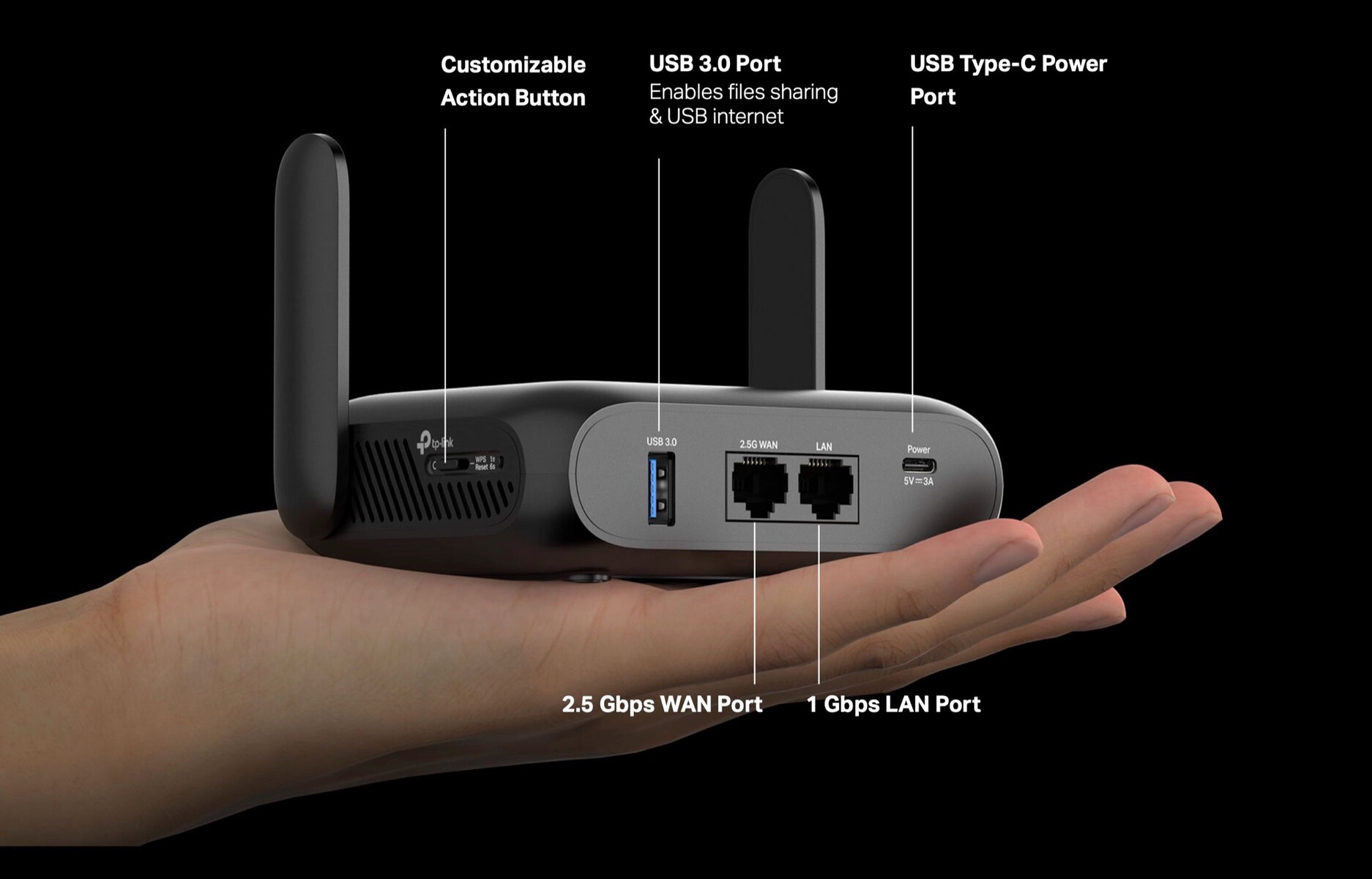
Credit: www.notebookcheck.net
Configure Router Settings
Configuring your portable router settings is essential to establish a smooth and secure connection between your router and laptop. This step lets you customize the network to fit your needs, ensuring fast and reliable internet access. Proper setup can also protect your data and improve device compatibility.
Access Router Dashboard
To start configuring, you need to access the router’s dashboard. Connect your laptop to the router using Wi-Fi or an Ethernet cable. Open a web browser and enter the router’s IP address, often something like 192.168.0.1or 192.168.1.1, into the address bar.
Login with the default username and password, usually found on the router’s label or in its manual. If you’ve changed these credentials before, use the updated ones. Have you ever struggled to find these details? Keeping them handy saves a lot of frustration.
Set Up Network Preferences
Once inside the dashboard, navigate to the wireless settings section to set your network preferences. Start by choosing a unique SSID (network name) that’s easy to recognize. Avoid generic names like “Linksys” or “NETGEAR” to prevent confusion, especially in crowded areas.
Next, secure your network by selecting a strong password using WPA2 or WPA3 encryption. A strong password keeps unauthorized users out and protects your data. Remember, even a simple password can be effective if it’s a mix of letters, numbers, and symbols.
You can also adjust settings such as the Wi-Fi band (2.4 GHz or 5 GHz) based on your needs. The 5 GHz band offers faster speeds but shorter range, while 2.4 GHz covers a wider area but at slower speeds. Would you rather prioritize speed or coverage?
Finally, save your changes and reboot the router if needed. This ensures all settings take effect and your laptop can connect seamlessly. If you encounter any issues, double-check each setting or consult the router’s help section.
Troubleshoot Connection Issues
Connection issues with a portable router can be frustrating, especially when you need to get online quickly. Troubleshooting these problems involves a few straightforward checks and simple actions. Let’s look at some practical ways to get your laptop connected smoothly again.
Check Signal Strength
First, assess the signal strength of your portable router. Weak signals often cause slow or dropped connections. Move your router closer to your laptop or to a location with fewer physical obstacles like walls or electronic devices.
Have you noticed certain spots in your home where the connection is always worse? That’s a sign your signal is struggling there. Using a Wi-Fi analyzer app can also help you identify the best position for your router.
Restart Devices
Sometimes, the simplest fix is to restart both your laptop and the portable router. This action clears temporary glitches and refreshes network settings. I’ve found that after a long day of use, a quick restart often restores a stable connection instantly.
Turn off your laptop and router, wait about 30 seconds, then power them back on. Check if your laptop reconnects and the internet speed improves. It’s a quick step that saves a lot of hassle.
Reset Router
If restarting doesn’t help, try resetting your portable router to its factory settings. This step erases any misconfigured settings that might be blocking your connection. Be sure to back up any custom settings before you reset.
Locate the reset button, usually a small hole requiring a pin press for about 10 seconds. After resetting, you’ll need to set up your router again, including the Wi-Fi name and password. Have you saved your login details handy? This makes the process faster and less frustrating.
Secure Your Connection
Connecting a portable router to a laptop creates a safe internet link. Use Wi-Fi or a USB cable to join the devices quickly. Secure settings help protect your data during use.
Securing your connection when linking a portable router to your laptop is crucial for safeguarding your data. With cyber threats ever-evolving, a secured network ensures that your personal information remains confidential. By following a few simple steps, you can significantly enhance your wireless security and have peace of mind while browsing.Change Default Password
The first step you should take is changing the default password of your portable router. Many routers come with generic passwords that are easily accessible online, making them vulnerable to unauthorized access. Create a unique password that combines letters, numbers, and symbols. Think of a phrase or combination that you can remember but would be hard for others to guess. Regularly updating your password can further enhance your security. Set a reminder to change it every few months.Enable Encryption
Encryption is your best friend when it comes to protecting your data. Most modern routers offer encryption protocols like WPA2 or WPA3. These protocols ensure that any data transmitted over your network is scrambled and unreadable to intruders. Access your router settings and look for the wireless security section. Choose the highest level of encryption available, preferably WPA3 if your router supports it. If you’re unsure about the technical terms, don’t hesitate to consult your router’s manual or look up online guides specific to your model. Understanding these features can make a significant difference in your network security. By taking these steps, you can enjoy a secure browsing experience on your laptop without worrying about prying eyes. What measures have you taken to secure your connection lately?
Credit: smart.dhgate.com
Frequently Asked Questions
How Do I Connect A Portable Router To My Laptop?
To connect, power on the portable router and enable its Wi-Fi. Then, find the router’s network on your laptop’s Wi-Fi settings and enter the password. This establishes a wireless connection for internet access.
Can I Use A Portable Router Without An Internet Cable?
Yes, portable routers can create a Wi-Fi hotspot using cellular data or share an existing Wi-Fi connection. This allows internet access without needing a direct cable connection.
What Settings Should I Configure On My Laptop?
Ensure your laptop’s Wi-Fi is enabled. Select the portable router’s network from available connections. Enter the correct password. Confirm the IP and DNS settings are set to automatic for smooth connectivity.
Why Is My Laptop Not Detecting The Portable Router?
Check if the router is powered on and broadcasting Wi-Fi. Ensure you are within signal range. Restart both devices if needed. Verify the router’s network is not hidden or blocked by security settings.
Conclusion
Connecting a portable router to your laptop is simple and quick. Just follow the steps carefully. Make sure your router is charged and turned on. Use Wi-Fi or a cable to link both devices. Check your laptop settings to confirm the connection.
This setup helps you stay online anywhere. Enjoy fast internet on the go. Keep your devices updated for better performance. With these tips, you can connect without trouble. Stay connected, work, or play with ease.