Are you tired of your smart home devices losing connection or working slowly? Connecting them to your mesh WiFi can change everything.
Imagine every corner of your home having strong, steady internet, so your devices respond instantly and without frustration. This guide will show you exactly how to link your smart gadgets to your mesh network, making your home smarter and your life easier.
Keep reading, and you’ll soon enjoy seamless control over your entire smart home setup.
Benefits Of Mesh Wifi For Smart Homes
Smart homes have many devices that need strong internet. Mesh WiFi helps connect all devices easily. It covers the entire home with good signal.
This system uses several devices to spread the WiFi signal. It gives better coverage than regular routers.
Improved Coverage And Reliability
Mesh WiFi has many nodes that work together. These nodes spread WiFi across your home. This stops dead zones and weak signals.
- Each node sends signal to hard-to-reach spots
- If one node fails, others keep network working
- Large homes get even WiFi coverage
- Less chance of devices losing connection
Seamless Device Connectivity
Mesh WiFi lets devices switch smoothly between nodes. Your smart devices stay connected without dropping signals.
| Feature | Benefit |
|---|---|
| Automatic Hand-off | Devices move between nodes without disconnecting |
| Unified Network Name | Same WiFi name for all nodes, easier to connect devices |
| Multiple Device Support | Handles many smart devices at once |
Enhanced Network Speed
Mesh WiFi improves speed by using several nodes. The data flows faster, so smart devices work better.
- Nodes share the load for faster internet
- Less interference from walls or floors
- Good speed for streaming and smart controls
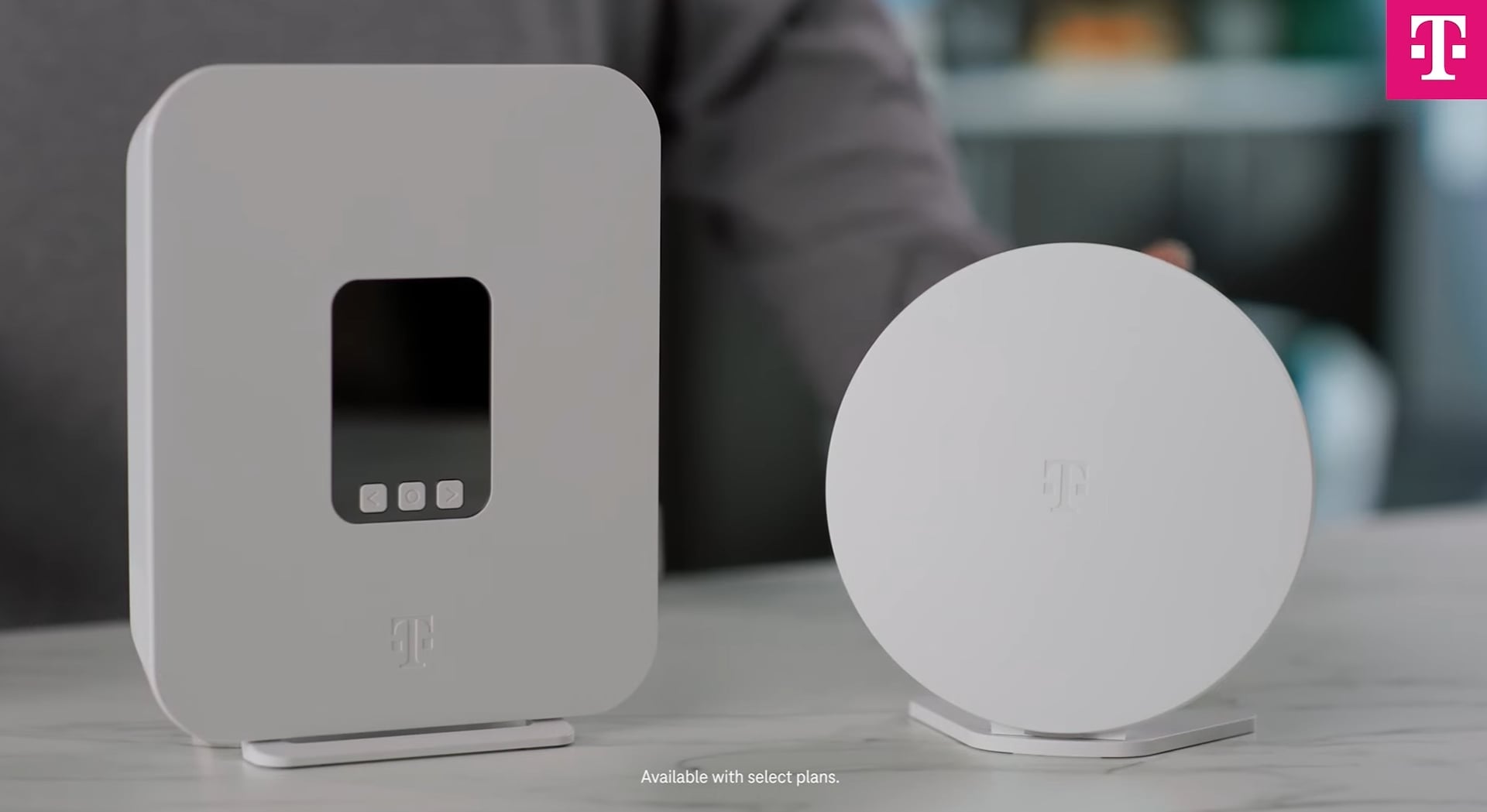
Credit: www.t-mobile.com
Preparing Your Mesh Wifi Network
Connecting smart home devices to a mesh WiFi network starts with proper preparation. A well-prepared network improves device performance and coverage.
This guide covers key steps to set up your mesh WiFi system for smart device connection.
Choosing The Right Mesh System
Select a mesh system that fits your home size and device needs. Consider speed, coverage, and compatibility with your smart devices.
- Check maximum coverage area
- Look for systems with easy app control
- Ensure compatibility with your smart home devices
- Consider security features like automatic updates
- Review the number of nodes included or available
Setting Up The Mesh Router
Place the main mesh router near your modem. Connect it using an Ethernet cable to ensure fast internet access.
- Unbox and power on the main router
- Connect the router to your modem with an Ethernet cable
- Download the mesh system app on your smartphone
- Follow app instructions to configure network name and password
- Update the router firmware if prompted
Positioning Mesh Nodes For Optimal Coverage
Place nodes to cover dead zones and large rooms. Avoid placing nodes near metal or thick walls to reduce signal loss.
| Node Location | Recommended Distance | Tips |
| Living Room | 30-50 feet from main router | Keep away from large metal objects |
| Bedroom | 20-40 feet from nearest node | Place on a higher shelf for better signal |
| Kitchen | Within 30 feet of node or router | Avoid placing near microwave or refrigerator |
Getting Smart Home Devices Ready
Connecting smart home devices to mesh WiFi makes your home smarter and more connected. Before setup, prepare your devices for a smooth connection.
This guide helps you get your devices ready by checking compatibility, updating firmware, and resetting devices.
Checking Device Compatibility
Make sure your smart home devices work with your mesh WiFi system. Not all devices support all WiFi types.
Look for devices that support the same WiFi standard as your mesh router. This avoids connection problems.
- Check the device manual or packaging for WiFi details
- Confirm support for 2.4 GHz or 5 GHz bands
- Verify if the device needs a separate hub
- Ensure the device supports WPA2 or WPA3 security
Updating Device Firmware
Firmware updates fix bugs and improve device performance. Updated devices connect better to mesh WiFi.
Use the device app or website to check for updates before setup. Follow instructions to install the latest firmware.
- Open the device’s app or control panel
- Find the firmware update section
- Download and install any available updates
- Restart the device after updating
Resetting Devices For Setup
Reset devices to clear old settings and prepare for a fresh connection. This avoids conflicts with your mesh WiFi.
Follow the device manual to perform a factory reset. Usually, this involves holding a reset button for a few seconds.
- Locate the reset button on the device
- Press and hold it for 5 to 10 seconds
- Wait for the device to restart
- Ensure the device is in setup mode before connecting
Credit: help.firewalla.com
Connecting Devices To Mesh Wifi
Connecting smart home devices to mesh WiFi improves your home’s internet coverage. It helps devices work better in all rooms.
This guide explains how to connect your devices using apps, manual settings, and how to fix common problems.
Using The Device’s App For Setup
Most smart devices come with an app for easy setup. The app guides you through connecting to your mesh WiFi network.
Open the app and follow the instructions to find your network name. Enter your WiFi password to connect the device.
- Download and open the device app
- Turn on the smart device
- Select your mesh WiFi network in the app
- Enter the WiFi password when asked
- Wait for the device to connect
Manual Network Configuration
Some devices need manual setup. You enter the network name and password in the device settings.
Use your device’s screen or control panel to find WiFi settings. Then type your mesh network’s name and password carefully.
- Access device settings menu
- Find WiFi or network options
- Enter mesh WiFi network name (SSID)
- Type the correct WiFi password
- Save settings and restart device if needed
Troubleshooting Connection Issues
If your device does not connect, check your WiFi signal strength. Move the device closer to a mesh WiFi node.
Restart your router and the device to fix temporary problems. Make sure your WiFi password is correct and up to date.
- Check device distance to mesh node
- Restart the router and device
- Verify WiFi password accuracy
- Update device firmware if possible
- Reset device and try setup again
Managing Your Smart Home Network
Connecting smart home devices to a mesh WiFi system helps improve coverage and reliability. Managing this network well keeps your devices responsive and secure.
Use tools and strategies to control devices, boost performance, and protect your smart home from threats.
Using Mesh Network Apps For Device Control
Most mesh WiFi systems include an app for managing your network. These apps let you see all connected devices in one place.
- View device status and connection quality
- Pause internet access for specific devices
- Set schedules to limit device usage
- Update firmware for better performance
- Rename devices for easy identification
Prioritizing Devices For Better Performance
Some smart devices need faster connections than others. Prioritizing them helps keep your home running smoothly.
| Device Type | Priority Level |
| Security Cameras | High |
| Smart Thermostats | Medium |
| Smart Lights | Low |
| Voice Assistants | Medium |
| Streaming Devices | High |
Securing Your Smart Home Network
Protect your smart home by keeping your mesh WiFi network secure. This stops hackers from accessing your devices.
- Change default router passwords
- Use strong, unique WiFi passwords
- Enable network encryption (WPA3 if available)
- Keep your router firmware updated
- Turn off remote management unless needed
- Set up a guest network for visitors
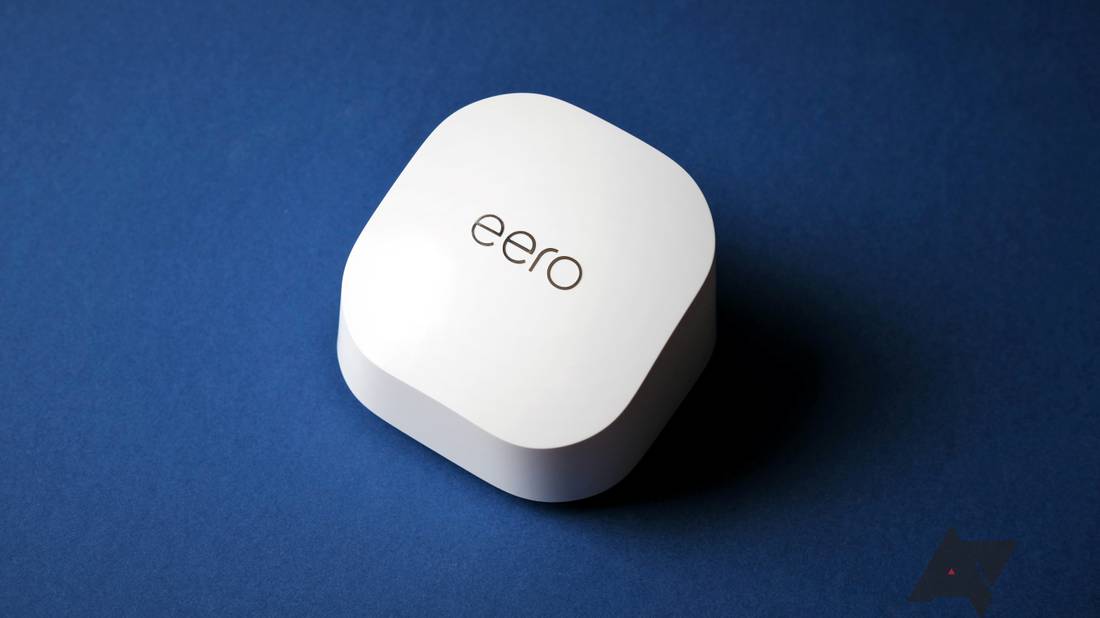
Credit: www.androidpolice.com
Optimizing Performance And Coverage
Smart home devices work best with strong and stable Wi-Fi. Mesh networks help achieve this by spreading the signal.
Connecting your smart home devices to a mesh Wi-Fi system can improve performance. Learn how to optimize coverage by adding nodes and adjusting settings.
Adding More Mesh Nodes
Adding nodes can enhance your network’s reach. Place nodes in different parts of your home.
- Place nodes in central locations for better coverage.
- Keep nodes away from electronic devices to avoid interference.
- Ensure nodes are not blocked by large objects.
Adjusting Network Settings
Proper settings can boost your network’s efficiency. Access your router’s settings through a browser.
Consider enabling Quality of Service (QoS) features to prioritize smart devices. This ensures important devices have the bandwidth they need.
Monitoring Network Health
Regular checks on network health are important. Use apps provided by your mesh network brand for insights.
| Tool | Function |
| Network Map | Shows connected devices |
| Speed Test | Measures connection speed |
| Signal Strength | Indicates node placement |
Frequently Asked Questions
How Do I Connect Smart Devices To Mesh Wifi?
To connect smart devices, join them to your mesh WiFi network using the device’s app. Ensure the mesh network is active and devices are in range. Follow setup prompts for each device to complete connection quickly and securely.
Can Mesh Wifi Improve Smart Home Device Performance?
Yes, mesh WiFi provides strong, consistent coverage throughout your home. This reduces dead zones and drops. It helps smart devices maintain stable connections, improving response times and reliability for smoother smart home operation.
What Are Common Issues Connecting Smart Devices To Mesh Wifi?
Common issues include weak signal, device incompatibility, or incorrect network settings. Restarting devices and mesh routers can help. Ensure firmware is updated and smart devices support your WiFi frequency band for optimal connection.
Should I Use 2.4ghz Or 5ghz For Smart Devices?
Most smart home devices work better on 2. 4GHz because it offers longer range. However, 5GHz provides faster speeds but shorter coverage. Use 2. 4GHz for devices far from the mesh router and 5GHz for closer, high-bandwidth devices.
Conclusion
Connecting smart home devices to mesh WiFi is simple with the right steps. A strong mesh network keeps your devices working smoothly. Place mesh nodes well for better coverage. Use the app to add each device easily. Check device compatibility before starting.
This setup helps your smart home stay fast and reliable. Enjoy better control and fewer connection problems. Keep your devices updated to improve performance. Smart homes and mesh WiFi work well together. Simple actions lead to a smarter, connected home.