Are you tired of guests connecting to your mesh WiFi network without your permission? Having a guest network is convenient, but sometimes you want full control over who accesses your internet.
Disabling the guest network on your mesh WiFi can boost your security and improve your network’s performance. In this guide, you’ll learn simple steps to turn off the guest network quickly and easily. Keep reading to take charge of your WiFi and protect your home connection like a pro.
Access Router Settings
Accessing your router settings is the first crucial step to disable the guest network on your mesh WiFi system. This allows you to control and customize your network features directly from the source. Without logging into the router’s admin panel, you won’t be able to make any changes to the guest network settings.
Connect To Your Mesh Network
Make sure your device—whether it’s a laptop, tablet, or smartphone—is connected to your mesh WiFi network. This connection can be either via WiFi or an Ethernet cable for more stable access. Without being connected to your mesh network, your device won’t be able to communicate with the router’s settings.
One time, I tried to log in while connected to a different network and kept wondering why the admin page wouldn’t load. Ensuring the right network connection saved me a lot of frustration.
Find The Router’s Ip Address
You need to know your router’s IP address to access its settings. This is usually something like 192.168.1.1or 192.168.0.1. You can find this by checking your network details on your device or looking at the back of your router where it’s often printed.
If you’re unsure, you can:
- On Windows, open Command Prompt and type
ipconfig. Look for the “Default Gateway” under your active network connection. - On Mac, go to System Preferences > Network, select your network, then click Advanced > TCP/IP to see the router’s IP address.
Login To Admin Panel
Open a web browser and type your router’s IP address into the address bar. This will take you to the login page of your router’s admin panel. You’ll need the username and password, which are often “admin” and “admin” by default unless you’ve changed them.
If you’ve never changed these credentials, check your router’s manual or the sticker on the device. If you’ve lost your password, a quick reset of the router might be necessary—but be aware this resets all settings to factory defaults.
Locate Guest Network Options
Before you can disable your mesh WiFi guest network, you need to find where those settings live in your router’s interface. Locating the guest network options can sometimes feel like a scavenger hunt, especially if you’re using a new or unfamiliar mesh system.
Knowing exactly where to look saves you time and frustration. It also helps you avoid accidentally changing other important settings. Let’s break down how to pinpoint these guest network controls.
Navigate To Wireless Settings
Start by logging into your router’s web interface or mobile app. This usually involves typing your router’s IP address into a browser or opening the brand’s app on your phone.
Once logged in, look for a section labeled Wireless Settingsor something similar like Network Settings. This is often where all WiFi-related options are grouped.
Keep an eye out for tabs or menus that separate the main network from guest network controls. Sometimes, guest networks are listed under a sub-menu of wireless or advanced settings.
Identify Guest Network Section
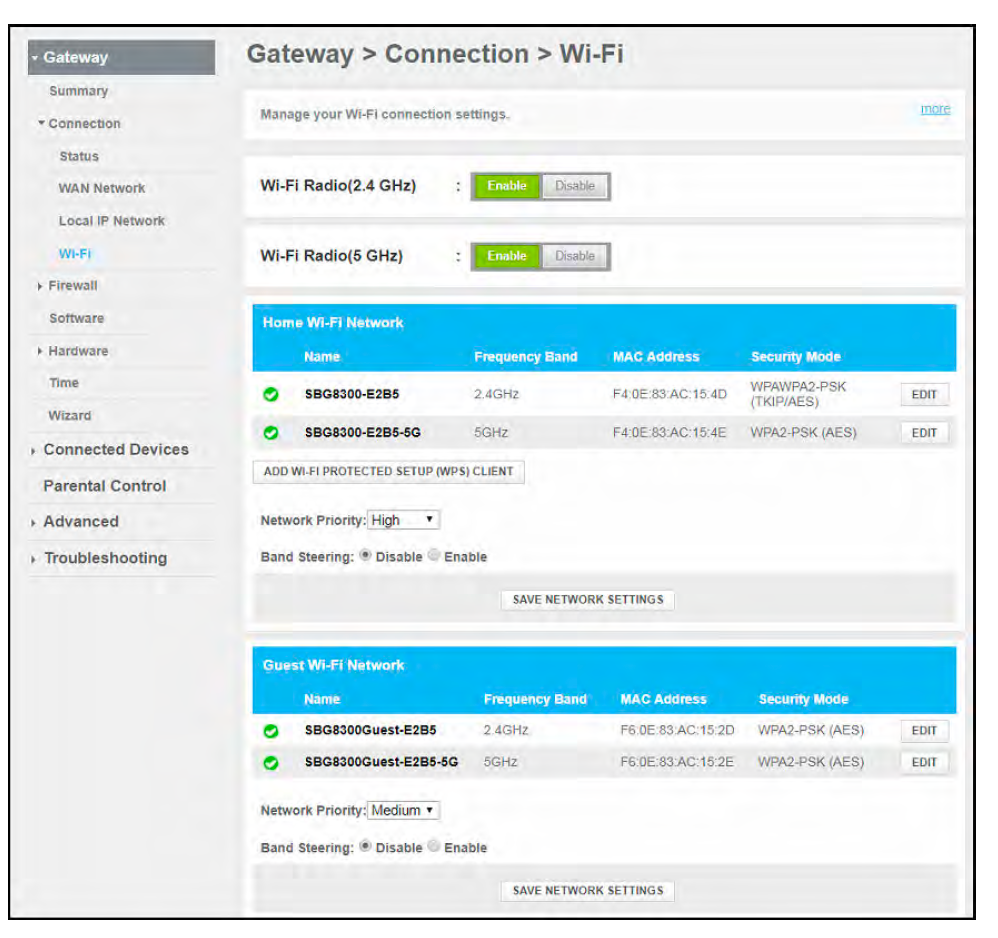
Within the wireless settings, scan for a dedicated Guest Networksection. This area lets you manage the guest WiFi, including enabling, disabling, or changing its password.
You might see options such as:
- Toggle switch to turn the guest network on or off
- SSID name field, showing the guest network’s name
- Security settings specific to the guest network
If you don’t see a clear guest network option, check under advanced wireless features or separate tabs like Guest Access. Some mesh systems hide guest network controls deeper than expected.
Have you ever missed a setting because it was buried under a confusing menu? Finding the guest network section quickly is key to managing your WiFi environment effectively.
Disable Guest Network
Disabling the guest network on your mesh WiFi system can enhance your home network’s security and reduce unnecessary bandwidth usage. If you rarely have visitors or prefer to keep all devices on a single network, turning off the guest network is a straightforward way to simplify your setup.
Let’s walk through the essential steps to disable the guest network effectively.
Turn Off Guest Network Toggle
Access your mesh WiFi’s admin panel through a web browser or the dedicated app. Look for the “Guest Network” section in the settings menu—this is where you control the availability of the guest WiFi.
You’ll find a toggle switch or checkbox labeled something like “Enable Guest Network.” Simply switch this toggle off to disable the guest network feature.
Have you noticed how some routers keep confusing menu layouts? Staying patient here pays off, as some systems hide guest network controls under “Wireless Settings” or “Advanced” tabs.
Save And Apply Changes
After turning off the guest network toggle, don’t forget to save your changes. There’s usually a “Save,” “Apply,” or “Confirm” button at the bottom or top of the page.
Clicking this button ensures your router registers the change and disables the guest network immediately. Sometimes, the system might reboot or take a moment to update.
Have you ever left settings unsaved and wondered why changes didn’t take effect? This simple step prevents that frustration and secures your network as intended.

Credit: www.youtube.com
Restart Your Mesh System
Restarting your mesh system can help apply changes when disabling the guest network. Power off the devices, wait a few seconds, then turn them back on. This refreshes connections and ensures settings take effect properly.
Restarting your mesh system can be a simple yet effective way to troubleshoot and ensure that your guest network settings are correctly applied. Power cycling the devices involved in your mesh network not only refreshes the system but also aids in resolving minor technical glitches. Sometimes, a fresh start is all your tech needs to operate smoothly and as intended.Power Cycle Devices
Begin by unplugging the power cable from your primary mesh router. Wait for about 10 seconds before plugging it back in. This pause allows the device to reset and clear temporary memory, ensuring a clean start. Next, perform the same power cycle on any additional mesh nodes or satellites. This ensures that all parts of your network are refreshed and synced properly. If you’re like me, you might be tempted to skip this step, thinking it’s too simple to make a difference. However, this quick process can often solve connectivity issues and disable any unwanted network settings, including the guest network.Verify Guest Network Is Disabled
Once your mesh system is back online, it’s crucial to check if the guest network is indeed disabled. Open your mesh network management app or web interface, which is typically accessible via your mobile device or computer. Navigate to the network settings and look for the guest network option. Ensure that it is turned off or not broadcasting. You might wonder why this step is necessary. Well, settings can sometimes revert or fail to apply correctly after a restart. Verifying ensures peace of mind and confirms that your network is secure. Use a Wi-Fi analyzer app to scan for active networks around you. This can help double-check that your guest network is not appearing in the list. Isn’t it satisfying to know you’ve taken control over your home network’s security and functionality? By following these practical steps, you’re not just disabling a guest network; you’re ensuring a seamless and safe Wi-Fi environment for your household.Troubleshooting Tips
Troubleshooting issues with disabling your mesh WiFi guest network can be straightforward if you know where to look. Sometimes, the solution is simpler than you expect. Don’t get frustrated—many users face similar challenges, and a few quick checks can save you time and effort.
Reset Router If Needed
If disabling the guest network doesn’t work through the usual settings, try resetting your router. This can clear temporary glitches that block changes from taking effect.
Remember to back up your current settings before the reset. After resetting, you’ll need to reconfigure your network, but this often resolves stubborn issues.
Check For Firmware Updates
Outdated firmware can prevent changes from saving properly. Check your router’s admin panel or app for available updates.
Updating firmware improves stability and adds fixes for known bugs. Have you checked your router’s update status recently? It might be overdue.
Contact Support For Help
If you’ve tried everything and the guest network still won’t disable, reach out to the manufacturer’s support team. They can provide specific guidance or remote troubleshooting.
Support teams often have insight into device-specific quirks you won’t find in manuals. Don’t hesitate to ask for their help—it could save hours of guesswork.
Credit: community.surfboard.com

Credit: www.reddit.com
Frequently Asked Questions
How Do I Disable The Guest Network On Mesh Wifi?
Access your mesh WiFi app or web interface. Locate the guest network settings. Toggle off or disable the guest network option. Save changes to deactivate it immediately.
Can Disabling Guest Networks Improve Wifi Security?
Yes, disabling guest networks reduces unauthorized access risks. It limits network exposure and helps protect your main network devices and data.
Will Disabling Guest Networks Affect My Main Wifi?
No, disabling the guest network only turns off the separate guest access. Your main WiFi network remains active and unaffected.
How To Find Guest Network Settings On Mesh Wifi?
Open your mesh WiFi app or router web portal. Look for “Guest Network” or “Guest Access” in the settings menu. Here you can manage guest network options.
Conclusion
Disabling your mesh WiFi guest network can improve security and control. It helps keep your main network private and safe from unknown users. The process is simple and quick once you know the steps. Regularly check your settings to keep your network secure.
Small changes like this make a big difference in home internet safety. Stay in charge of who accesses your WiFi. Now, you can enjoy a safer and more reliable connection.