Are you struggling with slow internet or constant connection drops on your dual band router? Sometimes, disabling one band can help boost your network’s performance and stability.
Whether you want to focus on the faster 5 GHz band or the more reliable 2. 4 GHz, learning how to turn off one band can make a big difference. In this guide, you’ll discover simple steps to disable a band on your router, improve your Wi-Fi experience, and take control of your home network like a pro.
Keep reading to unlock the secret to a smoother, faster connection.
Credit: community.surfboard.com
Dual Band Router Basics
Dual band routers offer two frequency bands for wireless connections. These bands are 2.4 GHz and 5 GHz. Each band has unique features that affect speed, range, and device compatibility. Understanding these basics helps you decide which band to use or disable. This knowledge can improve your home or office network performance.
2.4 Ghz Vs 5 Ghz Bands
The 2.4 GHz band has a longer range but slower speed. It works well through walls and floors. Many older devices use this band. It can get crowded because many gadgets share it.
The 5 GHz band provides faster speeds but shorter range. It is less crowded and offers better performance for activities like streaming and gaming. However, it does not pass through obstacles as easily.
Benefits Of Disabling A Band
- Reduce interference from other devices on the network.
- Improve connection stability for devices on the active band.
- Limit access to specific devices to one frequency for better control.
- Simplify network management by focusing on one band.
Accessing Router Settings
Accessing your router settings is the first step to disable one band on a dual band router. This process allows you to change how your router works. You can control the 2.4 GHz or 5 GHz bands through the admin panel. Accessing these settings is simple with the right instructions.
Finding Router Ip Address
The router IP address is the key to open the settings page. It is usually a set of numbers like 192.168.1.1 or 192.168.0.1. You can find this address on the back or bottom of your router.
Another way to find the IP address is through your computer:
- On Windows, open Command Prompt and type
ipconfig. Look for “Default Gateway.” - On Mac, go to System Preferences, then Network. Select your connection and click “Advanced.” Check under TCP/IP.
Logging Into Router Admin Panel
After finding the IP address, open your web browser. Type the IP address in the address bar and press Enter. This opens the router login page.
You need a username and password to log in. These are often “admin” and “admin” or “admin” and “password” by default. Check your router label for these details.
Once logged in, you can access settings to disable one band and customize your network. Be careful while changing settings to avoid connection issues.
Disabling A Band
Disabling one band on your dual-band router can help improve your network’s performance by reducing interference or dedicating resources to the band that works best for your devices. Whether you want to disable the 2.4 GHz band or the 5 GHz band, the process usually involves accessing your router’s settings and toggling the wireless options. Let’s walk through how you can do this quickly and safely.
Locating Wireless Settings
Start by logging into your router’s admin panel. Usually, this means typing your router’s IP address into a web browser—common addresses include 192.168.0.1or 192.168.1.1.
Once logged in, look for sections labeled Wireless, Wi-Fi Settings, or Network Settings. This is where you’ll find controls for both the 2.4 GHz and 5 GHz bands. If you struggle to find it, your router’s manual or online support site can guide you.
Turning Off 2.4 Ghz Band
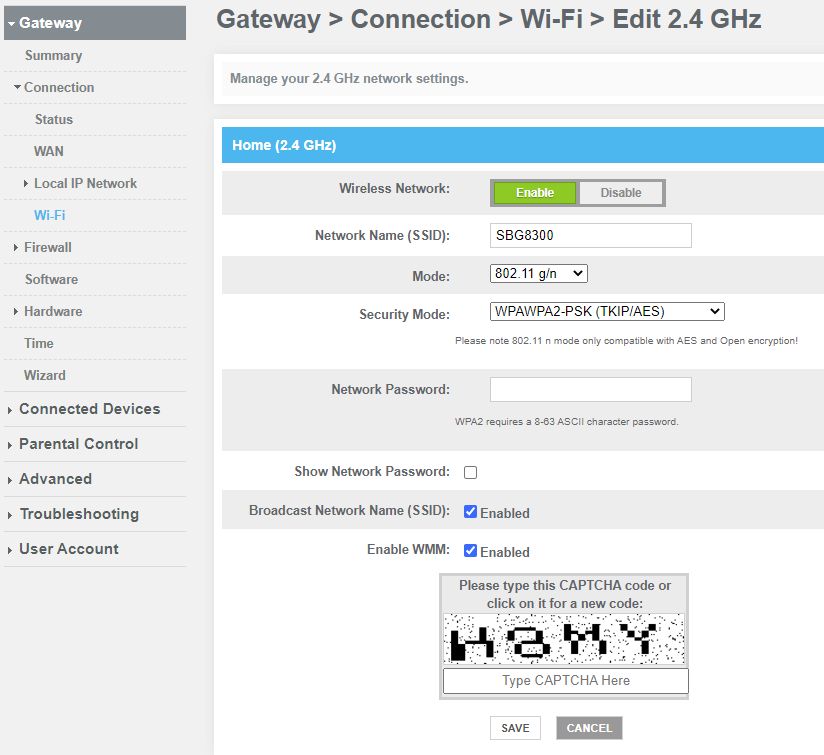
In the wireless settings, locate the options related to the 2.4 GHz band. You’ll often see a checkbox or toggle switch labeled something like Enable 2.4 GHzor Wireless Network 2.4 GHz.
Simply uncheck or switch off this option to disable the 2.4 GHz band. After saving your changes, devices will no longer connect using this frequency, which can reduce congestion if many neighboring networks are on 2.4 GHz.
Turning Off 5 Ghz Band
Similarly, find the section for the 5 GHz band within the wireless settings. Look for an option such as Enable 5 GHzor Wireless Network 5 GHz.
Turn this option off and save the settings. This can be useful if you want to force all devices onto the 2.4 GHz band, which sometimes offers better range. After disabling, test your connection to make sure your devices behave as expected.

Credit: www.reddit.com
Saving Changes And Restarting
Save your settings after disabling one band in your dual band router. Restart the router to apply the changes and ensure proper connection. This helps your device run smoothly on the selected band.
Saving changes and restarting your dual-band router is crucial. These steps ensure your network settings apply correctly. Once you’ve disabled one band, it’s time to finalize.Applying Settings
After making changes, locate the “Save” button. It might be at the bottom of the page. Click it to store your new settings. Without saving, changes won’t take effect. Some routers might have a confirmation prompt. Confirm your choice if asked. This step ensures settings are applied.Rebooting The Router
Next, reboot your router. This refreshes the system and applies changes. Some routers offer a “Reboot” button on the settings page. Click it for an automatic restart. If there’s no button, manually unplug the router. Wait 10 seconds, then plug it back in. This manual restart can resolve any issues. Once restarted, check your network. Ensure only the desired band is active. This confirms successful configuration.Troubleshooting Tips
Disabling one band on your dual-band router can sometimes lead to unexpected issues. These troubleshooting tips will help you identify and fix common problems quickly. Don’t let small glitches stop you from optimizing your network setup.
Can’t Access Router Panel
Not being able to access your router’s control panel is frustrating. First, check if your device is connected to the router’s network—either via Wi-Fi or Ethernet cable.
Try entering the router’s IP address correctly in your browser. Common addresses are 192.168.0.1or 192.168.1.1. If these don’t work, you can find the correct IP on your device’s network settings.
Clearing your browser’s cache or trying a different browser can also help. Sometimes, firewall or antivirus settings block access, so temporarily disable them to test.
Changes Not Taking Effect
Have you saved your settings after disabling one band? Forgetting to hit the save or apply button is a common oversight.
After applying changes, reboot your router to ensure they take effect. Some routers need a restart to finalize settings.
If the problem persists, clear your device’s Wi-Fi list and reconnect to the desired band. This can refresh the connection and recognize the new configuration.
Restoring Default Settings
If you feel stuck, resetting your router to factory defaults can give you a clean slate. Use a paperclip to press the reset button for about 10 seconds until the lights blink.
Keep in mind, restoring defaults erases all custom settings, including your Wi-Fi name and password. You’ll need to set up your network again from scratch.
Consider backing up your current settings before resetting. This way, you can restore your preferred configuration without starting over entirely.
Credit: olshansky.medium.com
Frequently Asked Questions
How Do I Disable One Band On A Dual Band Router?
Access your router’s settings via its IP address. Navigate to wireless settings, then disable either the 2. 4 GHz or 5 GHz band. Save changes and reboot the router to apply the new configuration.
Why Disable One Band On A Dual Band Router?
Disabling one band can reduce interference and improve connection stability. It also helps in managing network devices that only support one frequency band.
Can Disabling A Band Improve Wi-fi Speed?
Yes, disabling a congested band can enhance speed on the active band. It reduces channel overlap and interference, leading to better performance.
Will Disabling One Band Affect All Connected Devices?
Only devices connected to the disabled band will lose connection. Devices using the active band will continue to function normally without interruption.
Conclusion
Disabling one band on your dual band router can improve network focus. It helps reduce interference and boost device connection. The process is simple and takes only a few minutes. Just access your router settings and choose the band to turn off.
This can help older devices work better on the remaining band. Remember to check your internet speed after changes. Adjust settings as needed for the best experience. Keep your router firmware updated for smooth performance. Managing bands gives you more control over your home network.