If you want faster, stronger Wi-Fi signals that reach every corner of your home, enabling beamforming on your high-end router is the key. Beamforming helps your router focus its signal directly to your devices, giving you smoother streaming, quicker downloads, and fewer dropped connections.
You’ll learn exactly how to turn on beamforming step-by-step, so you can get the most out of your powerful router. Ready to boost your Wi-Fi experience? Let’s dive in.
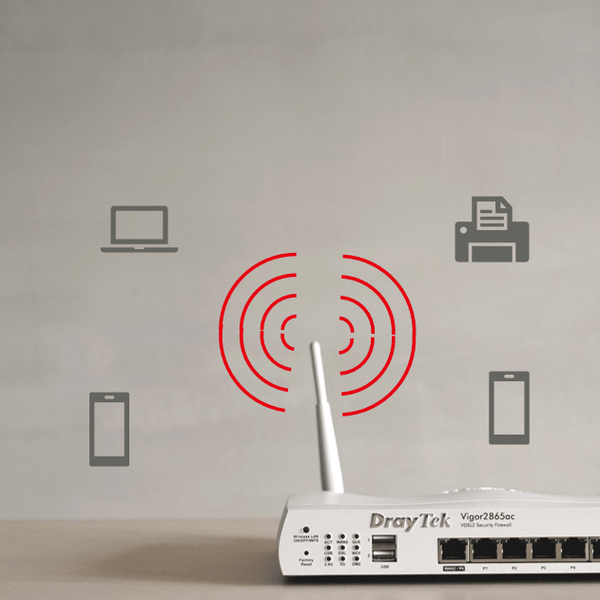
Credit: networkwarehouse.co.uk
What Is Beamforming
Beamforming directs Wi-Fi signals to your device for a stronger connection. Access your router’s settings to turn on beamforming. This improves speed and reduces interference for better wireless performance.
How Beamforming Works
Beamformingis a technology used in routers to send WiFi signals directly to devices. Instead of spreading signals in all directions, the router focuses the signal toward a specific device. This makes the connection stronger and more reliable.
The router detects where the device is located. Then, it adjusts the signal to reach that device better. This helps reduce interference from other devices or walls.
Benefits For Wifi Performance
- Stronger signal:Devices get a clearer and more powerful connection.
- Better range:WiFi works well even farther from the router.
- Improved speed:Faster internet for streaming, gaming, and downloads.
- Less interference:Reduced signal drops and buffering.
- More reliable:Stable connection for multiple devices at once.

Credit: cyberraiden.wordpress.com
Check Router Compatibility
Not all routers support beamforming. Check your router’s modeland firmware versionfirst. Most high-end routersfrom top brands include this feature.
Look in the router’s manual or on the official website for beamforming support. Some routers need a firmware update to enable it. Make sure your firmware is up to date.
| Router Brand | Model Examples | Beamforming Feature | Firmware Update Needed |
|---|---|---|---|
| Netgear | R7000, R8000, Nighthawk Series | Supported | Yes, check latest version |
| Asus | RT-AC86U, RT-AX88U | Supported | Recommended |
| Linksys | WRT3200ACM, EA8300 | Supported | Usually pre-installed |
- Beamforming boosts Wi-Fi signals toward devices.
- Look for terms like “Explicit Beamforming” or “MU-MIMO.”
- Check router settings for beamforming options.
- Some routers enable beamforming automatically.
Access Router Settings
Start by connecting your computer or phone to the router’s network. Open a web browser and enter the router’s IP address, usually something like 192.168.1.1or 192.168.0.1. Enter the admin username and passwordto log in. These details are often on a label on the router or in the manual.
Once logged in, find the section called Wireless Settingsor Wi-Fi Settings. This area controls your router’s wireless features. Look for a tab or menu related to advanced wireless options. Here, you will find options to enable beamforming or similar settings. Make sure to save changes after enabling beamforming to improve your Wi-Fi signal strength and coverage.
Enable Beamforming
Begin by logging into your router’s web interface. Usually, enter the router’s IP address in a browser. Use your username and password to access settings.
Look for the Wireless Settingsor Advanced Settingssection. The Beamforming optionmight be under these menus. It could be labeled as Beamformingor Transmit Beamforming.
Once found, enable the beamforming feature by selecting the checkbox or toggle switch. Save the changes to activate it.
- Adjust related settings such as Channel Widthfor better performance.
- Set the Frequency Bandto 5 GHz if available, as beamforming works better there.
- Check for firmware updates to ensure latest features and fixes.
Optimize Wifi Performance
Place your router in a central locationof your home. Avoid walls and metal objects that block signals. Keep it higher, like on a shelf, for better reach.
- Move devicesthat cause interference away from your router.
- Avoid placing the router near microwaves and cordless phones.
- Try to use the 5 GHz bandfor less interference.
Check your router’s website often for firmware updates. Updates fix bugs and improve performance. Updating keeps your router secureand fast.

Credit: cyberraiden.wordpress.com
Troubleshooting Tips
Beamformingmay not work well due to firmware bugsor outdated software. Check if the router has the latest updates installed. Sometimes, interferencefrom other devices can weaken the signal. Make sure the router is placed away from microwaves, cordless phones, or thick walls.
Incorrect router settings can also stop beamforming from working. Double-check the router’s control panel to ensure beamforming is enabled. Some routers may have separate settings for 2.4 GHz and 5 GHz bands.
Resetting the router can help fix many issues. Use the reset button or the router’s interface to restore factory settings. This will clear any wrong configurations but will also erase custom settings like Wi-Fi names and passwords.
- Save your settings before resetting.
- Reconfigure the router after reset.
- Test beamforming function again.
Frequently Asked Questions
What Is Beamforming On A Router?
Beamforming is a technology that enhances Wi-Fi signal strength by directing signals towards connected devices. This improves connectivity and speeds, especially in larger homes. It allows high-end routers to provide more efficient and stable connections, ensuring devices receive optimal bandwidth and reducing interference.
How Does Beamforming Improve Wi-fi Performance?
Beamforming focuses the Wi-Fi signals directly at your devices rather than spreading them uniformly. This targeted approach strengthens the connection, boosts speed, and reduces interference. By optimizing signal direction, beamforming enhances overall network performance, ensuring devices maintain stable and faster internet access.
Is Beamforming Enabled By Default?
Beamforming is typically enabled by default on most high-end routers. However, it’s advisable to check your router’s settings to confirm. Consult the router’s manual or manufacturer’s website for specific instructions, ensuring you’re utilizing this feature for optimal Wi-Fi performance.
Can All Devices Benefit From Beamforming?
Not all devices support beamforming technology. To benefit, both your router and the connected device must support it. Most modern smartphones, tablets, and laptops are compatible. Check device specifications to ensure beamforming compatibility and enjoy improved connectivity and speeds.
Conclusion
Enabling beamforming can improve your Wi-Fi signal strength. It helps your router focus signals on your devices. This reduces dead spots and boosts connection quality. Most high-end routers offer easy settings to turn it on. Just follow the steps in your router’s menu.
Better Wi-Fi means smoother streaming and faster downloads. Take a moment to check your router’s options today. Enjoy a stronger, more reliable wireless network at home. Simple changes can make a big difference in your internet experience.