Are you tired of lag ruining your gaming sessions? Imagine playing your favorite game without sudden delays or frustrating slowdowns.
Enabling QoS (Quality of Service) on your gaming router can make that happen. It prioritizes your game’s traffic over other internet activities, giving you a smoother, faster experience. In this guide, you’ll learn exactly how to set up QoS on your router step-by-step.
Keep reading, and take control of your gaming connection like a pro.
Benefits Of Qos For Gaming
Quality of Service (QoS) can transform your gaming experience by managing how your router handles internet traffic. It ensures your gaming data gets the priority it deserves, cutting down interruptions and keeping your gameplay smooth. Understanding the benefits of QoS helps you see why it’s a must-have for serious gamers.
Reduce Lag And Latency
Lag and latency are the enemies of any gamer. QoS reduces these by giving gaming packets faster routes through your network. This means your commands reach the game server quicker, and responses come back without delay.
I noticed a huge drop in lag after enabling QoS on my router. Suddenly, my game sessions felt more responsive, and frustrating pauses disappeared. Have you ever experienced a moment where a tiny delay cost you the match? QoS helps avoid that.
Prioritize Gaming Traffic
Not all internet data is equal, especially when gaming is involved. QoS lets you prioritize gaming traffic above other activities like streaming or downloads. This way, your game gets bandwidth first, even if others are using the network.
Imagine your family watching videos while you’re in a critical game moment. Without QoS, your connection might slow down. But with it enabled, your gaming traffic jumps to the front of the line, keeping you in the game without interruptions.
Improve Overall Network Performance
QoS doesn’t just help gaming; it improves your entire network’s performance. By managing traffic efficiently, it prevents network congestion and packet loss. This leads to smoother connections for everyone on your network.
After setting up QoS, I found that even when multiple devices were online, my streaming and browsing stayed stable. It’s like giving each device a fair share of the internet pie, so no one hogs all the bandwidth. Could your home network use this kind of balance?
Check Router Compatibility
Before you can enable Quality of Service (QoS) on your gaming router, it’s crucial to confirm that your router supports this feature. Not all routers come with built-in QoS capabilities, and trying to enable it on an incompatible device can lead to frustration and wasted time.
Checking compatibility ensures that you can prioritize your gaming traffic effectively and enjoy smoother gameplay without interruptions. Have you ever tried tweaking settings only to find the options missing? That’s usually a compatibility issue.
Identify Supported Models
Start by checking your router’s model number, usually found on a sticker at the back or bottom of the device. Once you have the model, visit the manufacturer’s official website to see if QoS is listed among the features.
You can also look for user manuals or support forums where gamers share their experiences with QoS on specific models. Some popular gaming routers known for QoS include ASUS ROG, Netgear Nighthawk, and TP-Link Archer series.
- Check the product specifications page for your model.
- Search for “QoS support” or “gaming mode” in the manual.
- Read user reviews focusing on network performance.
Update Router Firmware
Firmware updates can add new features like QoS or improve existing ones. Even if your router initially didn’t support QoS, a firmware upgrade might change that.
Log into your router’s web interface and look for the firmware update option. It’s often found under “Administration” or “System” settings.
- Download the latest firmware from the manufacturer’s site if auto-update isn’t available.
- Follow instructions carefully to avoid bricking your router.
- After updating, check again for QoS settings in the menu.
Have you checked your router’s firmware lately? Sometimes the missing QoS option is just waiting behind an update.
Access Router Settings
Accessing your router settings is the first step to enable Quality of Service (QoS) for better gaming performance. This allows you to prioritize gaming traffic over other types of data. You need to connect to your router’s admin panel through a web browser.
Start by finding the router’s IP address. This address is essential to reach the settings page. Then, log in to the admin panel using the correct username and password. These details are often found on the router or in the manual.
Find Router Ip Address
To find the router IP address, check your device’s network settings. On Windows, open Command Prompt and type ipconfig. Look for the “Default Gateway” entry. This is your router’s IP address.
On Mac, open System Preferences, select Network, then Advanced. Go to the TCP/IP tab to find the router’s IP.
Login To Admin Panel
Open a web browser and enter the router IP address in the address bar. Press Enter to load the login page. Use the router’s default username and password to sign in.
Common usernames include “admin” or “user.” Passwords might be “admin,” “password,” or printed on the router. Change these after the first login for security.

Credit: dongknows.com
Enable Qos Feature
Enabling the QoS feature on your gaming router can improve your gaming experience. QoS, or Quality of Service, prioritizes gaming traffic over other types. This ensures a smoother and more responsive gaming session. Below, we explain how to enable this feature effectively.
Locate Qos Settings
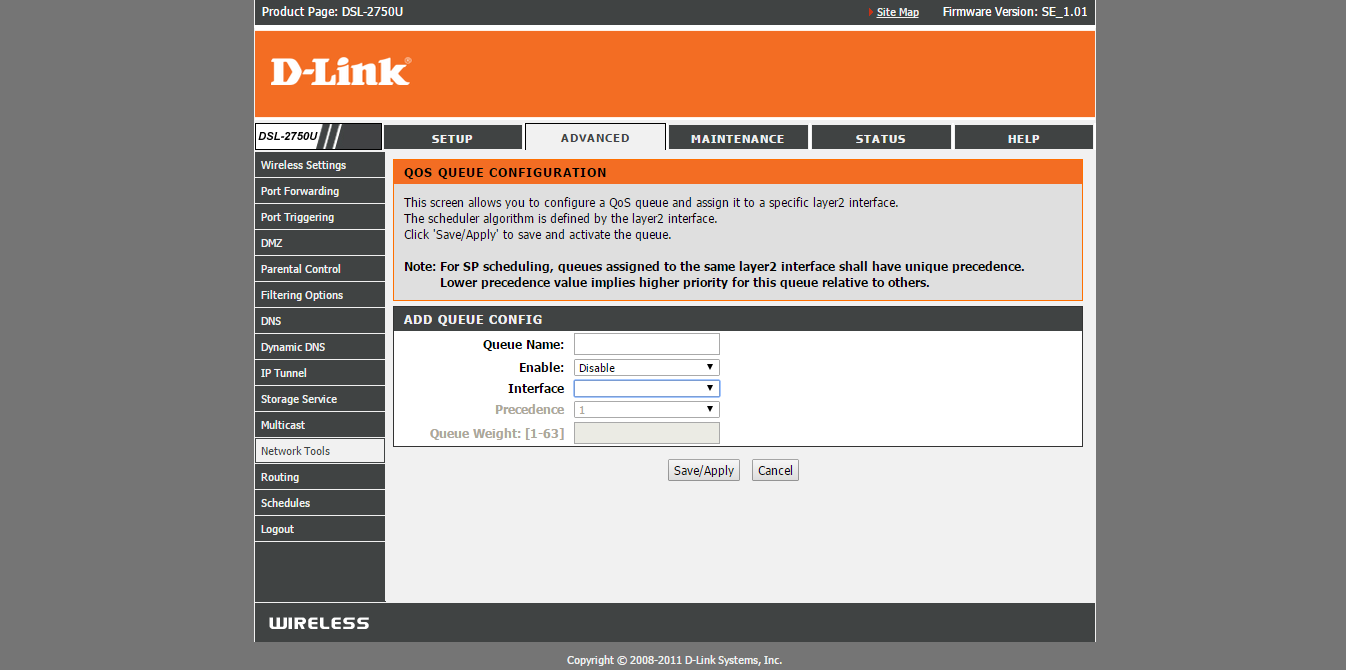
First, access your router’s admin panel. Use a web browser and enter the router’s IP address in the URL bar. Log in with your credentials. Once inside, find the QoS settings. It is usually under the ‘Advanced’ or ‘Network’ tab. Look for a section labeled ‘QoS’ or ‘Traffic Management’. This is where you can adjust settings for better gaming performance.
Turn On Qos Functionality
After locating the QoS section, enable the QoS option. There might be a toggle switch or a checkbox. Ensure it is turned on. Some routers allow you to prioritize devices or applications. Select your gaming device or input the game’s application to prioritize. Save the changes to apply the new settings. Restart your router to ensure the settings take effect. This should enhance your online gaming experience.
Configure Qos Rules
Configuring QoS rules on your gaming router lets you take control of your network traffic. This setup ensures your gaming devices get the bandwidth and priority they need for a smooth experience. You’ll want to focus on key aspects like device priority, bandwidth limits, and gaming ports to get the best results.
Set Device Priority
Start by identifying which devices on your network are used for gaming. Most routers allow you to assign a priority level to each device, such as high, medium, or low.
Giving your gaming console or PC the highest priority means these devices get bandwidth preference over others. Have you noticed lag when someone streams videos while you’re gaming? Setting device priority helps avoid that problem.
Assign Bandwidth Limits
Next, assign bandwidth limits to other devices that share your network. This prevents them from hogging all the bandwidth and slowing down your gaming session.
You can set a maximum upload and download speed for devices like smartphones or smart TVs. This way, your gaming device won’t compete for bandwidth against background downloads or streaming.
Prioritize Gaming Ports
Many routers allow you to prioritize specific ports used by your games. Each game communicates over certain ports, so prioritizing them ensures game data flows smoothly.
Look up the ports your game uses and add them to the QoS settings with high priority. This step can reduce lag and improve response times during multiplayer battles or online matches.
Credit: medium.com
Test And Optimize Performance
Testing and optimizing your gaming router’s QoS settings is crucial to ensure your online games run smoothly. Without checking how your adjustments affect speed and ping, you might miss out on the full benefits of QoS. Taking the time to measure and tweak will give you a noticeable improvement in your gaming experience.
Run Speed And Ping Tests
Start by running speed tests to check your upload and download rates. Use tools like Ookla’s Speedtest or Fast.com for quick results. Keep an eye on your ping or latency, which shows how fast your connection responds—lower ping means less delay.
Run tests before and after enabling QoS to see real differences. Test multiple times and at different times of day to catch any network fluctuations. Are your ping times stable, or do they spike during peak hours? This insight tells you how well QoS is prioritizing your gaming traffic.
Adjust Settings Based On Results
Use your test results to fine-tune your QoS settings. If your ping is still high, try prioritizing your gaming device or game application even more. Some routers let you assign bandwidth limits to non-gaming devices to prevent them from hogging the connection.
Don’t be afraid to experiment with different priority levels and bandwidth allocations. Small changes can have a big impact on lag and stability. Ask yourself: Is your gaming experience smoother, or do you notice any new issues like buffering or slow downloads?
Keep testing after each adjustment. Your goal is a balance where gaming traffic flows freely without starving other devices. This step-by-step approach helps you create a custom QoS setup that fits your home network perfectly.
Troubleshooting Common Issues
Enabling QoS on your gaming router can dramatically improve your gaming experience by prioritizing game traffic. However, it doesn’t always work perfectly right away. If you run into issues, troubleshooting common problems can save you time and frustration.
Qos Not Working
If QoS seems inactive, the first thing to check is whether it’s properly enabled in the router’s settings. Sometimes routers require a restart after changes, so don’t skip that step.
Also, verify you’ve assigned the correct devices or applications to receive priority. Misconfigured rules often cause QoS to appear non-functional.
Have you checked if your router’s firmware is up to date? Outdated firmware can prevent QoS features from working correctly.
Slow Speeds Despite Qos
QoS manages traffic priority but doesn’t increase your overall internet speed. If your speeds are slow, it might be due to network congestion or your ISP’s limitations.
Check if other devices are hogging bandwidth. Sometimes background updates or streaming services slow down gaming even with QoS enabled.
Try adjusting the QoS settings to limit bandwidth for non-gaming devices. This can improve your gaming speed without needing extra bandwidth.
Resetting Router Settings
If nothing else works, resetting your router to factory settings can clear any conflicting configurations. Remember to back up your current settings before doing this.
After reset, re-enable QoS and carefully reconfigure your priorities. This fresh start often resolves hidden issues.
Is resetting a hassle? It’s worth it if you’ve tried everything else and still face problems. It can restore your router’s performance and make QoS effective again.

Credit: www.reddit.com
Frequently Asked Questions
What Is Qos On A Gaming Router?
QoS (Quality of Service) prioritizes gaming traffic on your router. It reduces lag by managing bandwidth efficiently. This helps maintain smooth gameplay even with multiple devices connected.
How Do I Enable Qos On My Gaming Router?
Access your router’s settings via its IP address. Locate the QoS section, enable it, and set gaming devices as priority. Save changes and restart the router for best results.
Does Qos Improve Online Gaming Performance?
Yes, QoS reduces latency and packet loss by prioritizing gaming traffic. This ensures a stable connection and smoother gameplay, especially during heavy network usage.
Can Qos Work With All Gaming Routers?
Most modern gaming routers support QoS. However, features may vary by brand and model. Check your router’s manual or website for specific QoS instructions.
Conclusion
Enabling QoS on your gaming router helps keep your connection steady. It reduces lag and lets your games run smoother. You can prioritize game traffic over other devices easily. Just follow the steps carefully and adjust settings as needed. A better gaming experience is within your reach.
Keep your router updated for best results. Enjoy playing without interruptions or delays. Simple changes can make a big difference. Try it today and feel the improvement yourself.