Are you tired of slow internet speeds when you need them most? Imagine streaming your favorite shows, joining video calls, or gaming online without any interruptions.
Enabling QoS (Quality of Service) on your tri-band router can make that happen. It puts your important devices and apps first, so you get the best performance exactly when you need it. You’ll discover simple steps to set up QoS on your tri-band router and take full control of your home network.
Keep reading to unlock faster, smoother internet right now.
Credit: community.surfboard.com
Benefits Of Qos On Tri Band Routers
Enabling Quality of Service (QoS) on your tri-band router can significantly enhance your home network experience. It helps you manage traffic more effectively, making sure important tasks get the bandwidth they need. Understanding the benefits of QoS can help you decide how to set it up to match your lifestyle and demands.
Improved Network Speed
QoS lets you allocate bandwidth to devices or applications that matter most. This means your video calls or downloads won’t slow down just because someone else is streaming movies. You’ll notice faster load times and smoother browsing even during peak usage hours.
Reduced Latency For Gaming And Streaming
Lag can ruin a gaming session or a live stream. QoS prioritizes these activities, reducing delays and buffering. This way, you get a more responsive gaming experience and uninterrupted streaming without constant buffering interruptions.
Prioritizing Critical Devices
Not all devices need equal priority. QoS allows you to prioritize work laptops, smart home devices, or security cameras over less critical gadgets. Have you ever missed an important video call because the Wi-Fi was too crowded? QoS can prevent that by ensuring your essential devices get the connectivity they need.
Credit: www.tp-link.com
Preparing Your Tri Band Router
Preparing your tri band router for Quality of Service (QoS) setup is essential. This preparation ensures your router works efficiently and prioritizes traffic correctly. Follow these steps to get your router ready.
Accessing The Router Interface
Start by connecting your device to the router’s network. Open a web browser and enter the router’s IP address. Common addresses include 192.168.0.1 or 192.168.1.1.
Log in using your router’s username and password. These details are often on a sticker under the router or in the manual. Accessing the interface lets you change settings easily.
Checking Firmware Updates
Check if your router firmware is up to date. Firmware updates improve performance and security. Look for the update section in the router interface.
Download and install any available updates. Keep your router current to avoid bugs and get the latest features, including better QoS support.
Identifying Connected Devices
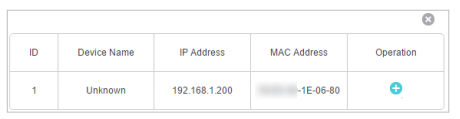
List all devices connected to your tri band router. The interface shows device names and IP addresses. Identifying devices helps prioritize important traffic.
Note devices that use a lot of bandwidth, such as streaming or gaming systems. This knowledge makes QoS settings more effective and tailored to your needs.
Setting Up Qos On Your Router
Setting up Quality of Service (QoS) on your tri-band router can significantly improve your network performance. It helps you manage bandwidth by prioritizing traffic, so important devices or applications get the speed they need. Let’s walk through how to configure QoS effectively to make your internet experience smoother.
Locating Qos Settings
First, you need to find the QoS settings in your router’s admin panel. Usually, you can access this by typing your router’s IP address into a web browser and logging in with your credentials. Look for sections labeled “QoS,” “Traffic Management,” or “Advanced Settings.”
If you don’t see QoS immediately, check under tabs like “Bandwidth Control” or “Network Settings.” Some routers hide these options in less obvious menus, so take a moment to explore. Have you noticed how some routers make it easy while others feel like a maze?
Choosing The Qos Type
Once you find the QoS settings, you’ll need to select the type of QoS to use. The most common types are:
- IP-based QoS:Prioritizes devices by their IP addresses.
- MAC-based QoS:Uses the unique hardware address of devices for prioritization.
- Application-based QoS:Prioritizes certain apps or services like gaming or streaming.
Think about what matters most to you. Do you want your gaming console to always get top priority, or do you want video calls to stay smooth? Choosing the right type can save you a lot of frustration later.
Assigning Priority Levels
After selecting the QoS type, it’s time to assign priority levels to your devices or applications. Most routers allow you to set priorities like High, Medium, or Low.
Start by marking devices that need the most bandwidth, such as your laptop for work or your smart TV for streaming. Then, assign lower priority to devices that don’t require constant speed, like smart home gadgets or guests’ phones.
Have you ever experienced lag during a video call because someone else was downloading large files? Assigning priority can prevent that by ensuring your call gets the bandwidth it needs.
Optimizing Qos For Maximum Performance
Optimizing QoS on your tri-band router ensures the best use of available bandwidth. It helps assign priority to different devices and activities. This way, important tasks get smooth and fast internet. Setting QoS correctly reduces lag, buffering, and interruptions. Understanding how to balance traffic across bands is key. Here is how you can optimize QoS for maximum performance.
Prioritizing Bandwidth For Streaming
Streaming video and music needs steady bandwidth. Assign high priority to streaming apps in the QoS settings. This prevents buffering and keeps video quality high. Make a list of devices used for streaming. Set their traffic to high or highest priority. This ensures smooth playback even when other devices are busy.
Managing Bandwidth For Gaming
Online gaming requires low latency and fast response times. Mark gaming consoles and PCs with high priority in QoS. Limit bandwidth for background apps on gaming devices. This reduces lag and improves gameplay. You can also set specific ports used by games to priority. This makes gaming traffic faster and more stable.
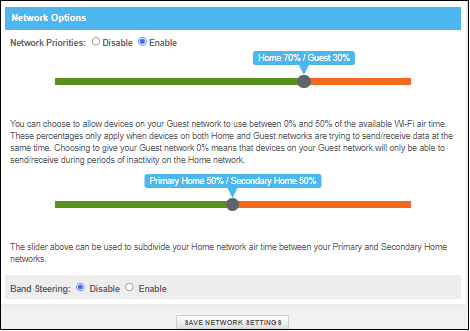
Balancing Load Across Bands
Tri-band routers have one 2.4 GHz and two 5 GHz bands. Distribute devices across these bands evenly. Assign high-demand devices to less crowded bands. Use QoS to balance traffic load and avoid congestion. Monitor which bands have heavy traffic and adjust settings. Proper load balancing improves overall network speed and stability.
Troubleshooting Common Qos Issues
QoS settings on a tri-band router can sometimes cause problems. Knowing how to fix these issues is important. Here, we look at common problems users face.
Qos Not Improving Speed
Many users expect QoS to boost internet speed. QoS doesn’t increase speed; it prioritizes traffic. Ensure your internet speed matches your needs. Check if high-priority devices get more bandwidth. Test your connection with and without QoS.
Conflicts With Other Router Settings
QoS settings may conflict with other router features. Check for overlapping functions like parental controls or guest networks. Review your router’s manual for feature compatibility. Adjust or disable conflicting features if needed.
Resetting Qos Configurations
Sometimes, resetting QoS settings is necessary. Access your router’s control panel. Locate the QoS settings section. Click the reset or default button. Reconfigure the settings to suit your needs. This can solve many issues quickly.
Credit: www.tp-link.com
Advanced Tips For Tri Band Router Qos
Getting the most out of your tri-band router’s QoS settings means moving beyond the basics. Advanced tweaks can make a noticeable difference in your network’s performance, especially when multiple devices compete for bandwidth. These tips help you tailor your internet experience precisely to your household or office needs.
Using Device Mac Addresses
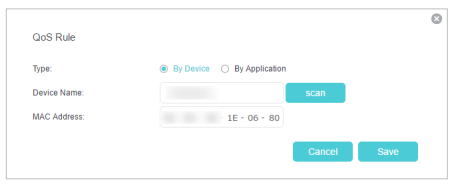
Assigning QoS priorities by device MAC addresses lets you control bandwidth on a granular level. Each device has a unique MAC address, so you can ensure critical devices like your work laptop or gaming console get top priority.
Instead of just prioritizing by device name, which can be unreliable if devices disconnect or change IPs, using MAC addresses keeps your settings stable. Have you ever noticed your streaming device struggling during a video call? Prioritizing its MAC address can prevent that lag.
Scheduling Qos Rules
Not all devices need priority all the time. Scheduling QoS rules lets you boost bandwidth for specific devices or applications only when you need it. For example, you can prioritize your laptop during work hours and switch priority to gaming consoles in the evening.
This approach avoids wasting bandwidth and keeps your network balanced throughout the day. Does your router’s interface allow you to set time-based rules? If so, experiment with schedules to see how your network responds.
Combining Qos With Parental Controls
Using QoS alongside parental controls can give you double the power over your network. You can restrict bandwidth for certain devices during homework or bedtime while still ensuring your own devices have smooth access.
For instance, slow down streaming on kids’ tablets during study hours while keeping your video conference stable. This combo not only manages bandwidth but also enforces healthy internet habits at home. Have you tried pairing these features yet? It could simplify managing both speed and access.
Frequently Asked Questions
What Is Qos On A Tri-band Router?
QoS (Quality of Service) prioritizes internet traffic on tri-band routers. It ensures important devices or applications get faster speeds. This improves streaming, gaming, and video calls by reducing lag and buffering.
How Do I Enable Qos On My Tri-band Router?
Access your router’s admin panel via a browser. Find the QoS settings under advanced or traffic management. Enable QoS, assign priority rules, and save changes to optimize your network performance.
Can Qos Improve Gaming On Tri-band Routers?
Yes, QoS prioritizes gaming traffic over other data. This reduces latency and lag during online gameplay. It enhances your gaming experience by providing smoother and faster connections.
Does Qos Affect Wi-fi Speed On Tri-band Routers?
QoS manages bandwidth allocation but doesn’t increase total Wi-Fi speed. It prioritizes critical devices or apps for better performance. This prevents network congestion and improves overall user experience.
Conclusion
Enabling QoS on your tri-band router improves internet speed for important tasks. It helps reduce lag during video calls and gaming. Prioritize devices or apps to get smoother connections. The setup is simple and takes just a few minutes. A better network experience is worth the small effort.
Keep your router’s firmware updated for best results. Enjoy faster and more reliable internet every day.