Are you tired of dead zones and weak signals in your home? You rely on your WiFi for everything—from streaming movies to working remotely—but sometimes it just doesn’t reach where you need it most.
What if you could easily boost your mesh WiFi coverage without complicated setups or expensive equipment? You’ll discover simple, effective ways to extend your mesh WiFi so every corner of your space stays connected. Keep reading to transform your internet experience and say goodbye to frustrating slowdowns for good.

Credit: www.youtube.com
Benefits Of Mesh Wifi Systems
Mesh WiFi systems improve your internet experience in many ways. They provide strong, steady signals throughout your home. This system uses multiple devices to spread WiFi evenly. It removes weak spots where the signal usually drops. Mesh networks are easy to set up and manage. They keep your devices connected smoothly as you move around. These benefits make mesh WiFi a smart choice for better coverage.
Seamless Coverage Across Large AreasMesh WiFi covers every corner of your home. It links several nodes to create one network. This setup avoids dead zones and weak signals. You enjoy strong internet in all rooms. It works well in big houses or offices. No more moving closer to the router for a better signal.
Easy to Expand and CustomizeAdding more coverage is simple with mesh WiFi. Just add extra nodes to cover new areas. No complex wiring or settings needed. The system adjusts itself to keep the network stable. This flexibility suits changing needs and spaces.
Stable Connections for Multiple DevicesMesh WiFi handles many devices at once. It shares bandwidth efficiently without slowing down. Streaming, gaming, and video calls stay smooth. The system balances load across nodes for steady speed. It supports smart home devices and gadgets easily.
Simple Setup and ManagementSetting up mesh WiFi is user-friendly. Most systems use apps for quick installation. You control settings, monitor devices, and run speed tests. Updates happen automatically to keep security tight. No advanced tech skills are needed to manage it.
Common Causes Of Poor Wifi Coverage
Poor WiFi coverage can cause slow internet and dropped connections. Many factors affect how far your mesh WiFi signal reaches. Understanding these common causes helps improve your network’s performance. Simple issues often reduce WiFi strength and speed.
Physical barriers block or weaken wireless signals. Electronic devices nearby may cause interference. Incorrect router placement limits coverage. Network congestion slows down data transfer.
Obstacles And Physical Barriers
Walls, floors, and furniture block WiFi signals. Thick walls with metal or concrete cause the most problems. Large objects absorb or reflect signals, reducing range. Open spaces allow better signal flow.
Electronic Interference
Other wireless devices use similar frequencies. Microwaves, cordless phones, and baby monitors interfere with WiFi. Bluetooth devices can also cause signal disruptions. Interference lowers connection quality and speed.
Poor Router Placement
Routers placed in corners or behind objects limit coverage. Low placement reduces signal spread. Central, elevated locations improve reach. Avoid placing routers near metal or glass surfaces.
Network Congestion
Many devices using the same network slow down WiFi. High traffic on one channel causes interference. Overlapping signals from neighbors can reduce speed. Changing channels or limiting devices helps performance.
Optimal Placement Of Mesh Nodes
Placing mesh nodes correctly is key to broad WiFi coverage. Nodes work best when spread evenly across the space. Poor placement causes weak signals and dead zones. Follow simple tips to get strong, consistent coverage.
Choosing Central Locations
Place each node near the center of the area it serves. This helps the signal reach every corner. Avoid putting nodes too close to walls or corners. Central spots reduce signal loss and improve speed. Think about where you use WiFi most and place nodes nearby.
Avoiding Signal Interference
Keep nodes away from devices that cause interference. Microwaves, cordless phones, and Bluetooth gadgets can weaken signals. Metal objects and thick walls also block WiFi. Place nodes in open spaces free from heavy electronics. Clear paths help signals travel farther and stronger.
Height And Obstruction Considerations
Set nodes at an elevated height, like on shelves or tables. Signals spread better from higher points. Avoid placing nodes on the floor or behind furniture. Obstructions like cabinets and appliances reduce signal strength. Keep nodes visible and free from blockage for best results.
Using Wired Backhaul For Stability
Using wired backhaul improves mesh WiFi stability and speed. It connects mesh nodes with Ethernet cables instead of relying on wireless signals alone. This reduces interference and boosts network performance.
Wired backhaul is ideal for larger homes or areas with many obstacles. It ensures consistent connection between mesh points, making your WiFi more reliable.
Benefits Of Wired Backhaul
- Reduces signal interference from walls or devices
- Provides faster and more stable data transfer
- Improves overall network reliability
- Allows better performance for multiple devices
How To Set Up Wired Backhaul
- Connect each mesh node to your router with Ethernet cables
- Use wall Ethernet ports if available in your home
- Ensure cables are Cat5e or higher for better speeds
- Check mesh system settings for wired backhaul options
Tips For Optimizing Wired Backhaul
- Place mesh nodes near Ethernet ports or switches
- Keep cables organized to avoid damage
- Use network switches if you have many mesh points
- Test connections after setup to ensure stability
Expanding With Additional Nodes
Expanding your mesh WiFi coverage by adding extra nodes is a smart way to boost signal strength. Each new node helps reach areas with weak or no WiFi. This setup creates a strong, seamless network around your home or office. It is easy to scale your mesh system by placing nodes in key locations.
When To Add More Nodes
Consider adding nodes if WiFi signals drop in certain rooms. Large houses often need extra nodes for full coverage. Dead zones, slow internet, or frequent disconnections also signal the need for more nodes. Adding nodes improves speed and reliability in these problem areas. Watch your mesh app or device alerts to spot weak spots.
Types Of Compatible Nodes
Use nodes designed for your mesh system brand to avoid issues. Most mesh networks support nodes from the same model or series. Some brands allow mixing older and newer nodes for better coverage. Check the manufacturer’s website or manual for compatibility details. Options include:
- Standard mesh nodes with WiFi radios
- Nodes with built-in Ethernet ports for wired backhaul
- Outdoor nodes for external coverage
- Specialized nodes with extra antennas for extended range

Credit: simplewifi.com
Adjusting Network Settings
Adjusting your mesh WiFi network settings can significantly boost coverage and performance. Small tweaks often lead to noticeable improvements without extra hardware. Let’s look at how you can optimize your network by choosing the right channels and enabling band steering.
Selecting Best Channels
WiFi channels can get crowded, especially in apartment buildings or dense neighborhoods. Choosing the best channel reduces interference and improves signal clarity.
Most mesh systems allow you to scan for the least busy channels. Use your router’s app or web interface to identify channels with fewer competing signals.
For 2.4 GHz frequency, channels 1, 6, and 11 are typically the best choices. Avoid overlapping channels to prevent signal clashes.
On 5 GHz bands, you’ll find more channel options, but some may be restricted or experience interference from other devices like microwaves or cordless phones.
Have you checked which channels your neighbors use? Sometimes a quick scan reveals a clear path for your network.
Enabling Band Steering
Band steering helps your devices connect to the best frequency band automatically. It pushes capable devices to the faster 5 GHz band, while others stay on 2.4 GHz for better range.
This feature reduces congestion on the crowded 2.4 GHz band, improving overall network speed and stability.
Most modern mesh routers have band steering enabled by default, but it’s worth double-checking in your settings.
Turning it on can simplify your network by using a single SSID for both bands. This means your devices switch bands seamlessly without you lifting a finger.
Have you noticed your phone or laptop sticking to the slower 2.4 GHz band? Enabling band steering might fix that automatically.
Leveraging Wifi Extenders And Repeaters
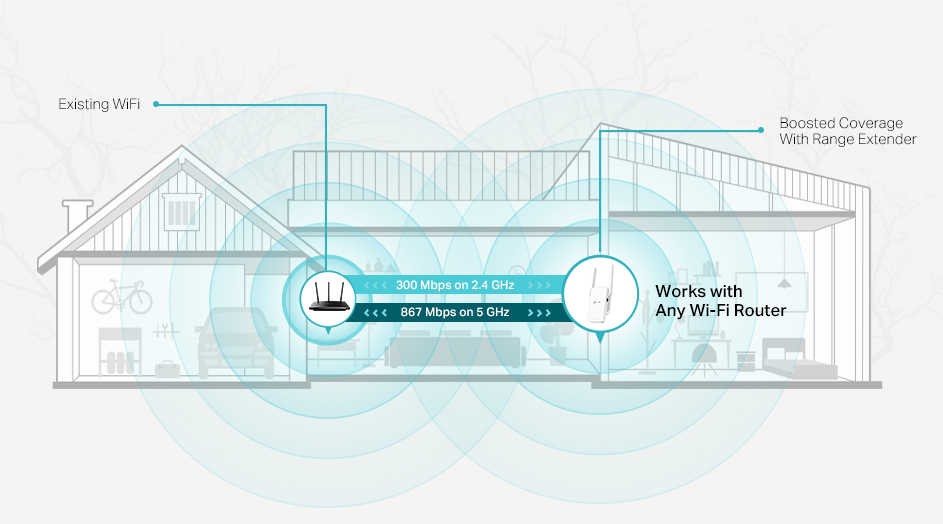
Expanding your mesh WiFi coverage can be a game-changer, especially in larger homes or spaces with tricky layouts. Leveraging WiFi extenders and repeaters offers a straightforward way to boost your signal without overhauling your entire network. These devices catch your existing signal and push it further, helping eliminate those annoying dead zones.
What Are Wifi Extenders And Repeaters?
WiFi extenders and repeaters are often talked about as if they’re the same, but they have subtle differences. A repeater receives your wireless signal and rebroadcasts it on the same channel, while an extender often creates a new network name (SSID) and connects back to your router with a wired or wireless link.
Understanding these differences helps you decide which fits your setup better. Have you noticed your internet lag in certain rooms? These tools can directly address that issue by strengthening the signal exactly where you need it.
Choosing The Right Location For Maximum Coverage
Placement makes all the difference. Position your extender or repeater halfway between your router and the dead zone. If it’s too close to the router, it won’t extend far enough; too far, and it won’t get a strong enough signal to repeat.
Try to avoid physical barriers like thick walls or appliances that can block signals. Think about your daily routines—where do you use the internet most? Placing devices near those spots ensures a smooth experience.
Setting Up Your Wifi Extender Or Repeater Effectively
Most extenders and repeaters come with simple setup wizards, but some fine-tuning can improve performance. Connect the device to your existing WiFi network and check if it assigns the same or a different network name. Choose what works best for your devices—using the same name usually makes switching seamless.
After setup, test the signal strength in different rooms. Sometimes, a small shift in position can drastically improve coverage. Have you ever moved an extender just a few feet and noticed a big difference? It’s worth experimenting until you find the sweet spot.
Limitations And When To Consider Alternatives
Extenders and repeaters can slow down your network because they retransmit data on the same channel. If you need high-speed connections for work or streaming, this might become a bottleneck. They also might not handle multiple devices well in busy households.
If you find your extenders aren’t keeping up, consider upgrading to a mesh WiFi system designed to manage coverage and speed more efficiently. But as a quick fix, extenders and repeaters often provide excellent value and convenience.
Regular Firmware Updates
Keeping your mesh WiFi system updated ensures it runs smoothly and fixes bugs. Updates often improve signal strength and coverage areas. Regular firmware updates help maintain a strong, reliable connection throughout your home.
Keeping your mesh WiFi system up-to-date with regular firmware updates is crucial for extending its coverage and performance. Firmware updates often bring improvements that enhance signal strength, provide security patches, and introduce new features. Many people overlook this simple but effective way to boost their WiFi network.Why Firmware Updates Matter
Firmware updates are not just about fixing bugs. They also optimize the network’s efficiency, allowing your devices to connect more seamlessly. By ensuring your system is current, you maximize the potential of your mesh network to cover every corner of your home.How To Check For Updates
Most mesh WiFi systems have user-friendly apps that alert you when a new update is available. Make it a habit to check these notifications regularly. You can usually find the update option in the settings menu of the app.Steps To Update Your Firmware
Updating your firmware is generally straightforward. Here’s a simple guide:- Open the mesh network app on your smartphone.
- Navigate to the settings or system section.
- Look for the firmware update option and follow the prompts.
Benefits Of Keeping Firmware Updated
Updated firmware enhances security by closing vulnerabilities that hackers might exploit. It also improves connection stability, reducing the chances of dropped signals. You might even notice faster speeds after an update.Common Mistakes To Avoid
Ignoring update notifications is a common pitfall. Don’t delay updates, as this can leave your network exposed and underperforming. Also, ensure that your devices are on a stable power source during updates to prevent interruptions.Personal Experience
I once ignored a firmware update, thinking it was unnecessary. My network started dropping connections during important Zoom meetings. After updating, not only did my connection stabilize, but I also noticed my devices connected faster. Have you had similar experiences where a simple update made a significant difference? Regular firmware updates are a simple yet effective way to optimize your mesh WiFi coverage. Keep your system updated and enjoy seamless connectivity throughout your home.Using Apps And Tools For Signal Analysis
Apps and tools help check WiFi signal strength in different areas of your home. This shows where to place mesh nodes for better coverage. Using them makes extending your mesh WiFi easier and more effective.
Using apps and tools for signal analysis can greatly enhance your mesh WiFi coverage. These tools help identify weak spots and optimize your network. Analyzing WiFi signals ensures a smoother internet experience. Below are some effective methods to utilize these tools.Understanding Signal Strength With Wifi Analyzer Apps
WiFi analyzer apps provide real-time data on signal strength. They show how strong or weak your WiFi signal is. This helps in identifying areas needing improvement. These apps are easy to install on smartphones or tablets.Identifying Interference With Spectrum Analyzers
Spectrum analyzers detect wireless interference in your network. Interference can come from other devices or networks. These tools help pinpoint the source of interference. Reducing interference improves WiFi performance.Mapping Coverage With Heatmap Tools
Heatmap tools create a visual map of your WiFi coverage. They show areas with strong and weak signals. You can adjust router placement based on this data. Heatmaps make it easy to visualize coverage across your home.Optimizing Network Channels
Some tools help optimize network channels. They suggest the best channel for your WiFi. This reduces congestion and improves speed. Choosing the right channel enhances overall connectivity.Utilizing Built-in Router Tools
Many routers come with built-in tools for signal analysis. These tools offer insights into network performance. Access these tools via the router’s web interface. They can guide adjustments to improve coverage.Tips For Reducing Wifi Interference
Wifi interference can seriously affect the performance of your mesh network. It causes slow speeds and frequent drops, making your internet experience frustrating. Reducing interference is key to getting the most out of your mesh system and extending its coverage effectively.
Identify Common Sources Of Wifi Interference
Many household devices emit signals that disrupt your wifi. Microwaves, cordless phones, baby monitors, and Bluetooth gadgets often share frequencies with your router.
Try moving your mesh nodes away from these devices. Even a few feet can make a noticeable difference in signal quality.
Choose The Best Wifi Channel
Your router broadcasts on a specific channel within the 2.4GHz or 5GHz band. If neighbors use the same channel, signals clash and slow down your connection.
Use apps like WiFi Analyzer to find the least crowded channel. Switching to a clearer channel can improve speed without extra hardware.
Limit Physical Obstructions
Walls, furniture, and appliances block wifi signals more than you might expect. Dense materials like concrete or metal are the worst offenders.
Place your mesh units in open spaces, preferably elevated and away from thick walls. This simple adjustment can extend your coverage significantly.
Reduce Signal Overlap Between Nodes
Sometimes, mesh nodes placed too close cause interference with each other. This overlap can confuse your devices and degrade performance.
Space your nodes evenly and avoid clustering. Aim for a balance where nodes remain within range but don’t compete for the same airspace.
Switch To 5ghz Band When Possible
The 5GHz band is less crowded and offers faster speeds over shorter distances. It also suffers less from interference than the 2.4GHz band.
If your devices support it, prioritize 5GHz connections for bandwidth-heavy tasks. This can free up the 2.4GHz band and reduce overall interference.
Credit: www.tp-link.com
Frequently Asked Questions
How Can I Improve Mesh Wifi Coverage At Home?
Place mesh nodes evenly and avoid obstructions. Use higher nodes for better signal. Reduce interference by keeping devices away from microwaves or thick walls.
What Is The Best Location For Mesh Wifi Nodes?
Place nodes in open, central areas with minimal walls. Avoid basements and corners. Elevate nodes on shelves for optimal signal distribution.
Can Adding More Mesh Nodes Extend Wifi Coverage?
Yes, adding nodes increases coverage and reduces dead zones. Ensure proper placement and avoid overlapping signals for best performance.
How Do I Troubleshoot Weak Mesh Wifi Signals?
Restart nodes and check firmware updates. Reposition nodes to reduce interference. Use mesh system apps to analyze signal strength.
Conclusion
Extending your mesh WiFi coverage helps keep your whole home connected. Place nodes in open spaces for better signal reach. Avoid walls or metal objects that block WiFi signals. Regularly update your mesh system’s software for best performance. Test different node locations to find the strongest connection spots.
A stable WiFi network makes streaming, gaming, and browsing smoother. Small changes can greatly improve your internet experience. Keep your mesh system simple and efficient for lasting results.