Are you worried about strangers finding and connecting to your Wi-Fi? Hiding your SSID on your tri-band router is a simple way to add an extra layer of privacy and security to your home network.
If you want to keep your Wi-Fi name invisible to others while still enjoying fast, reliable internet, this guide is for you. In the next few minutes, you’ll learn exactly how to hide your SSID step-by-step, so no one else can see your network—only you.
Ready to take control of your Wi-Fi privacy? Let’s dive in.

Credit: www.reddit.com
What Is Ssid And Why Hide It
Before you hide the SSID on your tri-band router, it’s important to understand what SSID is and why you might want to hide it. SSID stands for Service Set Identifier. It’s the name your router broadcasts to identify your Wi-Fi network to devices nearby.
Hiding your SSID can add an extra layer of privacy by preventing casual users from seeing your network name. But does hiding it truly enhance your security? Let’s break down what SSID really means and why hiding it might be useful for you.
What Is Ssid?
SSID is essentially the public name of your Wi-Fi network. When you look for Wi-Fi on your phone or laptop, the list of networks you see are all SSIDs broadcasted by routers around you.
Each router has a default SSID, but you can change it to something unique. This name helps devices know which network to connect to.
Why Would You Want To Hide Your Ssid?
Hiding the SSID stops your network name from appearing in the list of available Wi-Fi networks. This means your network won’t show up unless someone already knows the exact name.
Many people hide their SSID to reduce the chance of unauthorized users trying to connect. While it’s not a foolproof security measure, it can deter casual Wi-Fi scanners.
Does Hiding Ssid Improve Network Security?
Hiding the SSID does not encrypt your data or block skilled hackers. The network can still be detected using specialized tools.
But if you combine hiding the SSID with strong WPA3 or WPA2 encryption and a solid password, you make your network much harder to access.
When Hiding Ssid Might Cause Problems
Some devices or applications may have trouble connecting to hidden networks. You might have to manually enter the SSID on each device.
This can be inconvenient if you frequently add new devices or guests who want to use your Wi-Fi.
Is Hiding Ssid Worth It For Your Tri-band Router?
Tri-band routers offer multiple frequency bands for faster speeds and less interference. Hiding the SSID on all three bands can help keep your network less visible.
Think about your environment: Are you in a crowded apartment complex? Hiding your SSID may make sense. But if you prefer easy device setup, you might skip hiding it.
What’s your priority: convenience or a small extra layer of privacy?
Benefits Of Hiding Ssid
Hiding the SSID on your tri-band router offers several practical benefits that can improve your network’s security and user experience. It helps keep your Wi-Fi less visible to outsiders while still allowing your devices to connect easily. Understanding these benefits can help you decide if hiding your SSID is the right move for your home or office setup.
Enhances Network Security
By hiding the SSID, your Wi-Fi network won’t show up in the list of available networks on nearby devices. This adds an extra layer of protection by making it harder for unauthorized users to find your network. Although it’s not a foolproof security measure, it discourages casual attempts to access your Wi-Fi.
Reduces Unauthorized Access Attempts
Networks that broadcast their SSID openly are more likely to attract unwanted connection attempts. When your SSID is hidden, only devices with the network name already saved can connect. This can reduce the number of hacking attempts or accidental connections from neighbors or passersby.
Keeps Your Network Less Cluttered
In busy areas with many Wi-Fi networks, hiding your SSID helps keep your network list cleaner. You won’t see your network repeatedly popping up on other devices’ Wi-Fi lists, which can be distracting. This makes managing and connecting to known networks easier for you and your family.
Improves Privacy In Shared Spaces
If you live in an apartment or a densely populated area, hiding your SSID can protect your privacy. Your network won’t be as visible to strangers in the building or nearby public areas. This small step helps keep your internet activity more private and controlled.
Does It Really Stop Hackers?
While hiding your SSID adds a layer of stealth, it isn’t a full-proof way to block determined hackers. Tools exist that can detect hidden networks. So, ask yourself: Are you relying solely on hiding your SSID, or do you also use strong passwords and encryption? Combining these measures will give you better overall protection.
Accessing Your Tri Band Router Settings
Accessing your tri band router settings is the first step to customizing your network, including hiding your SSID for added security. You need to connect to your router’s interface, which acts like the control panel for all your network’s features. Understanding how to navigate this interface will make managing your router much easier and more efficient.
Finding Your Router’s Ip Address
Most tri band routers use a default IP address to access their settings. Common addresses include 192.168.0.1or 192.168.1.1. You can find this IP by checking your device’s network details or the router’s manual.
On Windows, open Command Prompt and type ipconfig. Look for the “Default Gateway” under your active network connection—that’s your router’s IP.
On macOS, go to System Preferences > Network > Advanced > TCP/IP tab to see the router’s IP next to “Router.”
Logging Into Your Router’s Admin Panel
After you enter the IP address into your browser, you’ll reach the login page. This page asks for a username and password, usually found on a sticker on the router or in the manual.
- Default usernames are often “admin” or “user.”
- Default passwords could be “admin,” “password,” or left blank.
If you changed these credentials before and forgot them, you might need to reset your router. But be careful, as resetting will erase all your settings.
Navigating The Router Interface
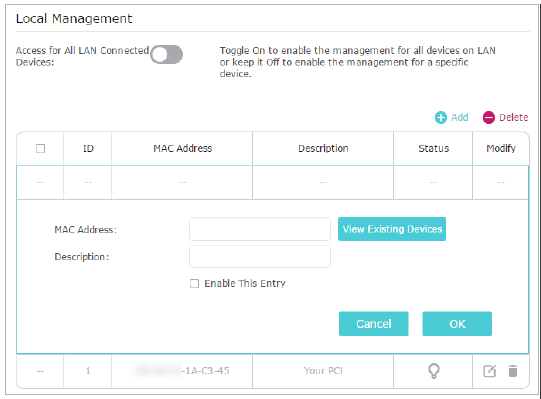
Once logged in, the interface might look intimidating, but it’s organized into sections like Wireless Settings, Security, and Network Setup. Your goal is to find the Wireless or Wi-Fi settings where SSID controls are located.
Tri band routers might list each band (2.4 GHz, 5 GHz, and additional 5 GHz) separately. You’ll need to adjust settings for each band if you want to hide all SSIDs.
Have you noticed how many options your router offers? Take time to explore—they can improve your network’s performance and security beyond just hiding the SSID.
Steps To Hide Ssid On Tri Band Router
Hiding your SSID on a tri-band router adds an extra layer of privacy to your wireless network. It prevents your network name from appearing in the list of available Wi-Fi connections, making it harder for unauthorized users to find and attempt to access your network. The process is straightforward and can be done through your router’s admin panel.
Log Into Router Admin Panel
Start by opening a web browser and typing your router’s IP address into the address bar. Most tri-band routers use common IPs like 192.168.0.1or 192.168.1.1. Enter your username and password—if you haven’t changed these, check the default credentials on the router label or manual.
Accessing this panel gives you full control over your network settings. Have your login details ready, and ensure you’re connected to your router’s network before trying to log in.
Locate Wireless Settings
Once inside the admin panel, look for the Wireless or Wi-Fi settings section. This is usually found under “Advanced Settings” or “Network Settings.” Since tri-band routers handle multiple frequencies, you might see separate options for 2.4 GHz, 5 GHz, and 6 GHz bands.
Make sure to select the band where you want to hide the SSID. This lets you control which network names will be visible to devices around you.
Disable Ssid Broadcast
In the wireless settings, find the option labeled “SSID Broadcast” or “Enable SSID Broadcast.” To hide your network, uncheck or toggle off this option. This action stops your router from broadcasting your network name to nearby devices.
Remember, hiding the SSID doesn’t increase security by itself, but it reduces casual detection. You will need to manually enter the network name on your devices to connect after hiding the SSID.
Save And Apply Changes
After disabling the SSID broadcast, look for the “Save” or “Apply” button at the bottom or top of the settings page. Click it to ensure your changes take effect. Your router might reboot or briefly disconnect devices during this process.
Once saved, test your network visibility by searching for Wi-Fi connections on a device. If done correctly, your network name should no longer appear in the list. Are you ready to make your network a little less visible to passersby?
Connecting Devices To Hidden Ssid
Hiding the SSID on a tri-band router keeps your network name private from others. Connecting to a hidden SSID requires manually entering the network name and password on your device. This helps improve network security by reducing visibility to nearby devices.
Connecting your devices to a hidden SSID can feel like a mysterious task, but it’s simpler than you might think. Once your SSID is hidden, it’s crucial to know how to manually connect your devices. This ensures that your network remains secure and accessible only to those who know the details.Understanding Hidden Ssid
A hidden SSID won’t show up in the list of available networks. This means you need to manually input the network details into your device. Begin by ensuring you have the exact SSID name and the correct password at hand.Manual Configuration On Windows
– Go to your network settings. – Select “Manually connect to a wireless network.” – Enter the network name (SSID) and choose the security type. – Input the security key (password) and check the option to “Connect even if the network is not broadcasting.”Connecting On Mac
– Click the Wi-Fi icon in the menu bar. – Choose “Join Other Network.” – Enter the SSID and select the appropriate security type. – Type in the password and click “Join.”Using Mobile Devices
– Open Wi-Fi settings on your smartphone. – Tap “Add Network” or “Other.” – Input the SSID and select the security type. – Enter the network password and connect.Troubleshooting Connection Issues
If you encounter issues, double-check the SSID and password. Ensure your device’s Wi-Fi is on and functioning. Sometimes, a simple restart of your router or device can resolve connection problems.Benefits Of A Hidden Ssid
While connecting to a hidden SSID might take a few extra steps, it enhances your network’s security. By not broadcasting your network name, you reduce the risk of unauthorized access. Is the added security worth the extra effort for you?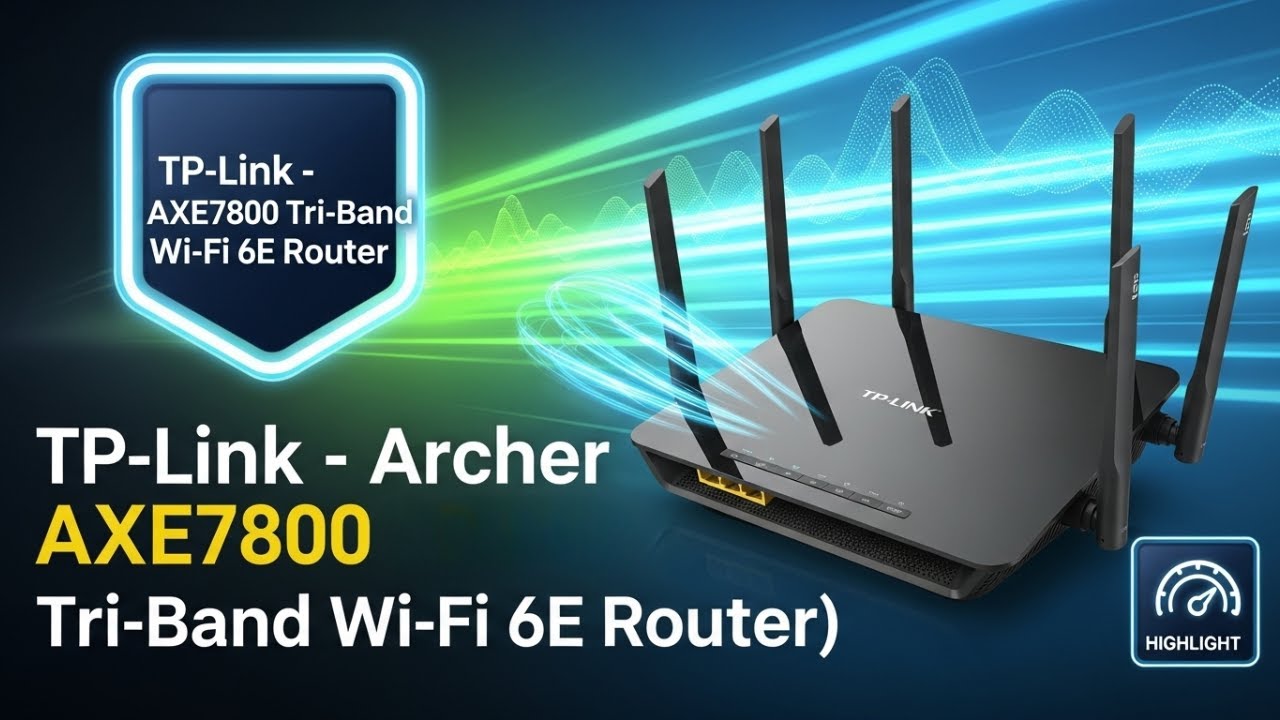
Credit: www.youtube.com
Potential Drawbacks Of Hiding Ssid
Hiding your SSID on a tri-band router might seem like a smart way to boost your network’s security. But it’s important to understand the potential drawbacks before you decide to turn off your network name broadcast. This choice can affect not just your security but also your convenience and device connectivity.
Increased Difficulty In Connecting Devices
When you hide your SSID, your devices can’t see your network name in the usual list. This means you have to manually enter the network name and password every time you want to connect a new device. It’s easy to mistype the name or forget it, which leads to frustration and wasted time.
Limited Security Benefits
Hiding the SSID is often mistaken for a strong security measure. However, hackers can still detect hidden networks using simple scanning tools. So, relying on this method alone won’t protect your tri-band router from unauthorized access.
Possible Connectivity Issues
Some devices might struggle to maintain a stable connection with a hidden SSID. This can cause frequent disconnects or slow speeds, especially with smart home gadgets or older devices. Have you noticed your smart TV or printer dropping the Wi-Fi connection unexpectedly? Hiding your SSID could be the culprit.
Impact On Network Management
Managing your network becomes trickier when the SSID is hidden. Troubleshooting connection problems or adding new devices requires extra steps. This can be a hassle, especially if multiple people need to connect to your network regularly.
Additional Tips For Network Privacy
Hiding your SSID on a tri-band router is just one step to protect your network. Strengthening your network privacy further keeps your connection safe from unwanted access. These extra tips help secure your wireless setup more effectively.
Use Strong Passwords
Create passwords with a mix of letters, numbers, and symbols. Avoid common words or easy patterns. Change passwords regularly to reduce risks. Strong passwords stop unauthorized users from entering your network.
Enable Wpa3 Encryption
WPA3 is the latest security protocol for Wi-Fi. It offers better protection than older versions. Turn on WPA3 in your router settings for safer data transmission. This keeps hackers from easily intercepting your connection.
Keep Firmware Updated
Router manufacturers release updates to fix security flaws. Check for firmware updates often and install them promptly. Updated firmware improves router performance and blocks new threats. Staying current is key to strong network defense.
Credit: www.tp-link.com
Frequently Asked Questions
How Do I Hide Ssid On A Tri Band Router?
Access your router’s admin panel via its IP address. Locate the wireless settings, then disable the “SSID Broadcast” option for each band. Save changes to hide your network name from nearby devices.
Why Should I Hide Ssid On My Tri Band Router?
Hiding SSID improves network security by making your Wi-Fi less visible. It reduces unauthorized access risks and limits network discovery by nearby devices.
Can Hiding Ssid Affect My Tri Band Router’s Performance?
Hiding SSID does not impact router speed or range. It only prevents your network name from showing in device lists but keeps all functions intact.
How To Connect Devices If Ssid Is Hidden On Tri Band Router?
Manually enter the hidden SSID name and password in your device’s Wi-Fi settings. Devices won’t detect the network automatically but will connect once details are provided.
Conclusion
Hiding your SSID on a tri-band router helps keep your network private. It stops others from easily seeing your Wi-Fi name. This small step adds a layer of security to your home internet. Always remember to save your settings after hiding the SSID.
You can still connect your devices by entering the network name manually. Keeping your Wi-Fi less visible reduces unwanted access. Try this simple tip to protect your connection today.