Are you frustrated by weak Wi-Fi signals when using your travel router? You’re not alone.
Whether you’re in a hotel, a café, or on the move, a limited range can slow down your connection and cause constant interruptions. But what if you could boost your travel router’s range without buying expensive equipment? You’ll discover simple and effective ways to increase your travel router’s reach.
Keep reading, and you’ll soon enjoy faster, more reliable internet wherever you go.
Choose Optimal Router Placement
Choosing the right spot for your travel router can make a huge difference in how far its signal reaches. The placement affects not only the strength but also the quality of your connection. Let’s break down how you can position your router to get the best range and performance.
Avoid Obstacles And Interference
Walls, furniture, and even appliances can block or weaken your router’s signal. Thick walls made of concrete or metal are especially problematic. Try to place your router where there are fewer barriers between it and your devices.
Also, other electronic devices like microwaves, cordless phones, and Bluetooth gadgets can interfere with the signal. Keep your router away from these sources to reduce interruptions. Have you noticed your Wi-Fi dropping near the kitchen? That could be the microwave’s doing.
Elevate Your Router
Signals spread out and downwards, so placing your router higher can boost coverage. Put it on a shelf or mount it on a wall rather than hiding it on the floor or inside a cabinet. Even a small lift can help the signal travel further and avoid obstacles.
I once moved my router from the floor to a top shelf, and the difference was clear—fewer dead zones and faster speeds in rooms that used to struggle. Don’t underestimate the power of elevation in extending your router’s reach.
Centralize Location
Think about where you use your devices the most and position the router near the center of those areas. A router tucked in a corner of a house might give strong signal nearby but weak or no signal on the opposite side.
If your travel router supports it, consider a location that balances coverage for all your devices. This might mean moving it away from windows or exterior walls. What’s the point of a powerful router if it only works well in one spot?
Upgrade Router Antennas
Upgrading your travel router’s antennas can significantly boost its range and signal strength. Many travel routers come with basic antennas that don’t fully tap into the device’s potential. By swapping these out for better options, you can extend your coverage and enjoy a more reliable connection wherever you go.
Select High-gain Antennas
High-gain antennas focus the signal in specific directions, rather than broadcasting it equally in all directions. This means your router can send and receive signals over longer distances. When choosing antennas, look for those labeled “high-gain” with gain values of 5dBi or more.
Make sure your travel router supports external antennas before purchasing. Some models have detachable antennas with standard connectors like RP-SMA, making upgrades straightforward. Imagine being able to connect from a different room or even outside your hotel — high-gain antennas make this possible.
Adjust Antenna Positioning
Once you have better antennas, how you position them matters a lot. Instead of pointing antennas straight up, try different angles to find where the signal is strongest. A simple tilt or rotation can sometimes double your effective range.
Consider the environment around you too. Walls, furniture, and even your own body can block signals. Experiment by moving the router and antennas around to avoid obstacles and maximize coverage.
Use Range Extenders And Repeaters
Using range extenders and repeaters can significantly boost the coverage of your travel router, helping you stay connected even in large spaces or tricky environments. These devices work by capturing your existing Wi-Fi signal and rebroadcasting it to areas where the signal is weak or unavailable. Understanding the right type of extender and where to place it can make a huge difference in your network’s performance.
Types Of Extenders
There are several types of range extenders and repeaters to choose from, each with its own advantages depending on your setup and needs.
- Wi-Fi Range Extenders:These devices connect wirelessly to your travel router and expand its Wi-Fi coverage without needing cables.
- Powerline Extenders:They use your home’s electrical wiring to transmit internet signals, ideal when Wi-Fi signals struggle to reach certain areas.
- Mesh Network Nodes:If you want seamless coverage, mesh nodes work with your travel router to create a single, unified network with multiple access points.
Choosing the right extender depends on your environment and how far you need the signal to reach. Have you checked which option fits your travel setup best?
Proper Extender Placement
Placement can make or break your extender’s effectiveness. It’s tempting to put the extender at the edge of your current Wi-Fi range, but this often results in a weak signal being rebroadcast.
Instead, position the extender roughly halfway between your travel router and the area with poor coverage. This ensures it receives a strong signal to amplify.
- Avoid physical obstructions like walls or large metal objects between the router and extender.
- Keep extenders away from microwaves, cordless phones, and other devices that cause interference.
- Test different spots by checking signal strength on your device before finalizing the location.
Have you ever noticed your Wi-Fi gets worse after adding an extender? It’s often due to poor placement. Moving the extender just a few feet can solve that problem.
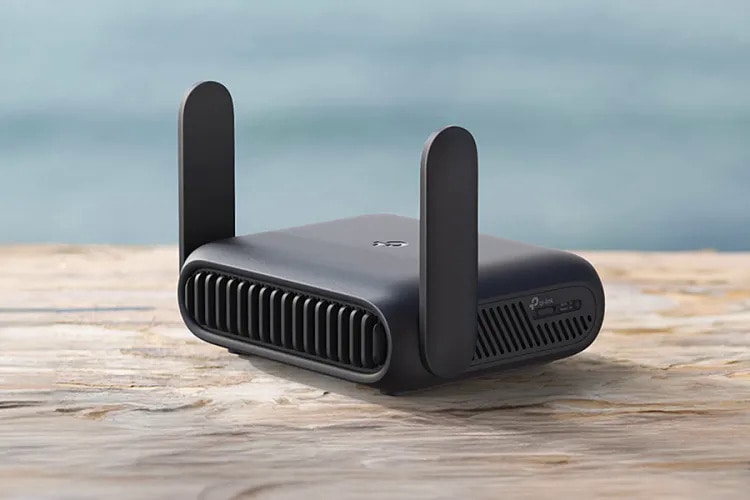
Credit: www.trendhunter.com
Optimize Router Settings
Adjusting your router’s channel and frequency can reduce interference and boost signal reach. Enabling features like QoS prioritizes important devices, improving connection strength throughout your travel area.
Optimizing your router settings can significantly enhance your travel router’s range and performance. With a few tweaks, you can enjoy a more reliable connection during your travels. This section will guide you through simple yet effective adjustments to maximize your router’s capabilities.Change Wireless Channel
Many routers default to the same wireless channel, leading to interference. You can change your wireless channel to one that is less crowded. Use a Wi-Fi analyzer app to identify which channels have less traffic. By choosing a less congested channel, you can experience faster speeds and a more stable connection.Enable Quality Of Service
Quality of Service (QoS) prioritizes traffic, ensuring important data like video calls and streaming get the bandwidth they need. Log into your router’s settings and find the QoS option. Enable it, and set the priority for different types of traffic based on your usage needs. With QoS, your internet activities won’t compete for bandwidth, enhancing your overall experience.Adjust Transmission Power
Adjusting the transmission power of your router can extend its range. If your travel router has this feature, try increasing the power setting. This can help cover larger areas or penetrate thicker walls. However, balance is key, as too much power can cause interference with other devices. Adjust gradually and test to find the optimal setting for your environment. Taking these steps can transform your travel router from a basic necessity into a powerful tool. Remember, every small tweak counts when you’re on the go. How will you optimize your router’s settings to make the most of your travels?Update Firmware Regularly
Keeping your travel router’s firmware up to date is a simple yet powerful way to boost its range and overall performance. Firmware updates often include fixes for bugs that could be limiting your device’s reach. They also introduce new features and optimize the router’s wireless signals.
I once struggled with weak Wi-Fi signals during a trip, even though I positioned my travel router perfectly. After updating the firmware, the range improved noticeably, allowing me to connect devices in distant rooms without interruptions. This experience made me realize how much a firmware update can impact your router’s capabilities.
How Firmware Updates Improve Signal Strength
Firmware updates often fine-tune the router’s hardware settings. This can lead to better antenna performance and stronger signal transmission. Sometimes, manufacturers adjust power output limits or improve how the router handles interference.
Have you noticed your router struggling in crowded places like airports or hotels? Updates can help your router adapt to these challenging environments by optimizing frequency channels and reducing signal drops.
Steps To Check And Update Your Travel Router’s Firmware
- Connect to your router’s network and open its admin page (usually through a web browser).
- Look for a “Firmware Update” or “System Update” section in the settings menu.
- Check if a newer firmware version is available and follow the prompts to download and install it.
- Ensure your device stays powered on and connected during the update to avoid issues.
Why You Should Avoid Skipping Firmware Updates
Ignoring updates can leave your router vulnerable to security risks, which may affect your privacy and data safety. Outdated firmware might also cause slower speeds and weaker signals compared to newer versions. Regular updates keep your travel router running smoothly and reliably.
Think about the last time you updated your phone or laptop software—didn’t the improvements make a difference? Your travel router deserves the same attention to keep your connection strong wherever you go.
Switch To Better Frequency Bands
Switching to better frequency bands can significantly boost your travel router’s range and performance. Different frequency bands have unique strengths and weaknesses that affect how far and how well your signal travels. Understanding these can help you choose the best settings for your specific travel needs.
2.4 Ghz Vs 5 Ghz
The 2.4 GHz band offers a longer range but usually at slower speeds. It penetrates walls and obstacles better, making it ideal for larger spaces or places with many barriers. However, it’s often crowded because many devices use this frequency, leading to interference.
On the other hand, the 5 GHz band provides faster speeds but covers a shorter distance. It’s less prone to interference and works well in open spaces or close to the router. If you’re in a hotel or a busy area with many networks, 5 GHz can offer a clearer connection.
Ask yourself: Are you prioritizing speed or coverage? If you need reliable coverage over distance, 2.4 GHz might suit you better. But if you want higher speeds and are close to your router, 5 GHz is the way to go.
Use Dual-band Routers
Dual-band routers broadcast both 2.4 GHz and 5 GHz signals simultaneously. This gives you the flexibility to switch between bands based on your location and needs. You can connect devices that need speed to 5 GHz and those needing range to 2.4 GHz.
Many travel routers now come with dual-band support. This means no need to choose one frequency over the other; you get the best of both worlds. When I traveled with a dual-band router, I noticed fewer dropped connections and smoother streaming, even in crowded places.
- Check if your travel router supports dual-band before buying.
- Use 2.4 GHz for devices far from the router or behind walls.
- Connect devices needing speed or low latency to 5 GHz.
- Switch bands manually if your router doesn’t automatically optimize connections.
Reduce Wireless Interference
Wireless interference can dramatically reduce the range and performance of your travel router. It disrupts the signal, causing slower speeds and dropped connections. Reducing interference is key to getting the most out of your device’s range.
Limit Electronic Device Clutter
Too many electronic devices around your travel router can create a noisy environment for the Wi-Fi signal. Devices like laptops, tablets, and smart gadgets emit signals that overlap and interfere. Try to keep your router away from clusters of electronics.
Think about your last trip—did you place your router near a pile of devices? Moving it to a clear spot often makes a surprising difference. A simple desk or a shelf with fewer gadgets can improve your connection.
Avoid Microwave And Cordless Phones
Microwaves and cordless phones operate on frequencies close to Wi-Fi signals, especially 2.4 GHz. This overlap causes significant interference that shrinks your router’s effective range.
Have you noticed your Wi-Fi slow down when the microwave runs? That’s the interference at work. Keep your travel router at least a few feet away from these appliances to maintain a stronger signal.
Try using your router on the 5 GHz band if possible—this frequency is less crowded and avoids many common household interferences. Small adjustments like these can extend your travel router’s reach without extra cost or equipment.

Credit: tech.yahoo.com
Use External Antenna Adapters
Using external antenna adapters can boost your travel router’s signal strength. These adapters let you connect bigger or more powerful antennas. Bigger antennas catch and send signals better, which means wider coverage and fewer dead spots.
External antennas work well in open spaces and places with many walls. They improve both the range and the stability of your connection. Travel routers often come with small antennas that limit their reach. Adding an external antenna adapter changes that.
Types Of External Antenna Adapters
- SMA Adapters:Most common type. Easy to find and install.
- RP-SMA Adapters:Similar to SMA but with a reverse pin. Check your router’s port.
- TS9 Adapters:Used in some portable routers. Smaller size but effective.
How To Choose The Right Adapter
- Match the adapter type to your router’s antenna port.
- Look for adapters with good build quality for durability.
- Choose adapters that support dual-band if your router uses 2.4 GHz and 5 GHz.
Installing External Antenna Adapters
- Power off your router before connecting the adapter.
- Unscrew the existing antenna carefully.
- Attach the adapter firmly to avoid loose connections.
- Connect the external antenna to the adapter securely.
- Turn on the router and test the signal strength.
Consider Mesh Network Systems
Travel routers are handy devices that ensure you stay connected wherever you go. But, what happens when your range is limited? One effective solution is to consider mesh network systems. These systems can significantly enhance the range and reliability of your travel router. Let’s dive into how mesh networks can benefit you and some useful setup tips to get you started.
Benefits Of Mesh Networks
Mesh networks provide seamless coverage by using multiple nodes that communicate with each other. This means you can move around without losing connection. Imagine being able to roam freely in a large space without worrying about dead zones.
They also offer self-healing capabilities. If one node fails, the system automatically reroutes data through another node. This ensures you have a steady internet connection even when there’s a hiccup.
Mesh networks are also scalable. You can easily add more nodes as needed, customizing the network to fit your specific needs. This flexibility makes it ideal for both small and expansive areas.
Setup Tips
Start by choosing the right mesh network system compatible with your travel router. Check reviews and specifications to ensure compatibility and performance.
Position your nodes strategically. Place them in central locations to maximize coverage and avoid obstacles that could interfere with the signal.
Regularly update the firmware of your mesh network system. This keeps your network secure and efficient, giving you peace of mind while on the go.
Consider setting up guest networks. This feature allows you to share your connection with others without compromising your main network’s security.
With these tips, you’ll maximize your travel router’s range, ensuring a reliable connection wherever your adventures take you. Have you tried a mesh network system before? What was your experience?
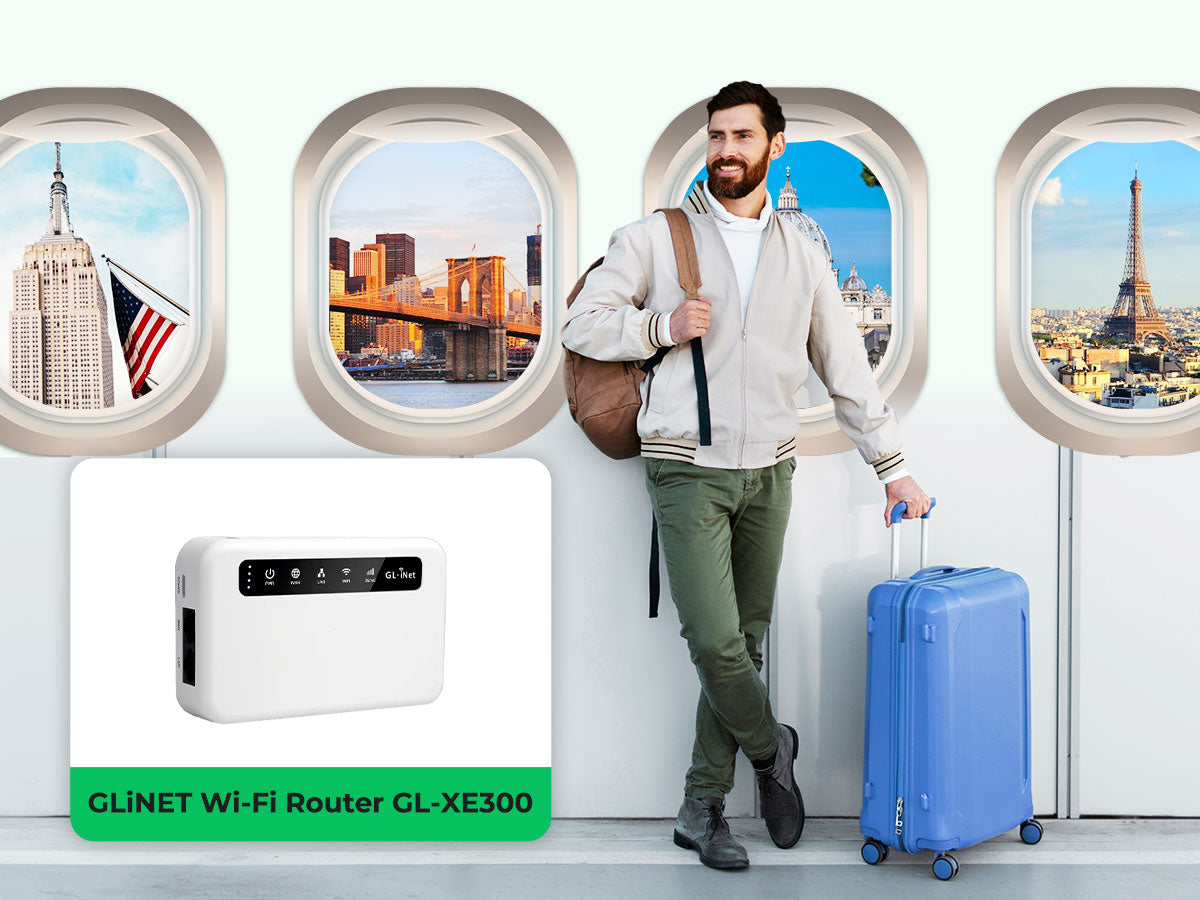
Credit: www.eiotclub.com
Frequently Asked Questions
How Can I Boost My Travel Router’s Signal Range?
Place your travel router in a central, open location. Avoid obstacles like walls and metal objects. Use high-gain antennas if available. Updating firmware can also enhance performance. Consider using a Wi-Fi extender for larger areas.
What Settings Improve Travel Router Range?
Adjust your travel router’s channel to a less crowded frequency. Enable 5 GHz band for faster speeds but shorter range. Lower transmission power can save battery but reduce coverage. Increasing transmit power boosts range but drains battery faster.
Does Upgrading Router Firmware Increase Range?
Yes, upgrading firmware can improve performance and signal stability. Manufacturers often fix bugs and optimize hardware through updates. Regularly check your router’s official website for the latest firmware. Always follow update instructions carefully to avoid issues.
Can External Antennas Extend Travel Router Coverage?
Yes, external high-gain antennas significantly increase signal reach. They focus the Wi-Fi signal in specific directions. Replace your router’s built-in antennas with compatible external ones. This upgrade enhances signal strength and stability over longer distances.
Conclusion
Improving your travel router’s range makes a big difference. Place the router in an open space. Use external antennas for better signal strength. Adjust settings to avoid channel interference. Keep the router’s firmware up to date. These steps help you enjoy stable internet anywhere.
Small changes can boost your connection easily. Stay connected on the go without hassle. Try these tips and see the results yourself.