Are you tired of slow internet because someone on your network is using too much bandwidth? Controlling how much data each device or user consumes can make a huge difference in your online experience.
If you have a dual band router, you have more control than you might think. This guide will show you exactly how to limit bandwidth on your dual band router, so you get faster speeds and a smoother connection. Keep reading, and you’ll learn simple steps that anyone can follow to take charge of your Wi-Fi right now.
Dual Band Router Basics
Understanding dual band routers helps manage your internet better. These routers send signals on two frequencies. This means you get more options for connecting devices. Knowing how these bands work makes it easier to limit bandwidth effectively. Controlling bandwidth keeps your network fast and smooth for all users.
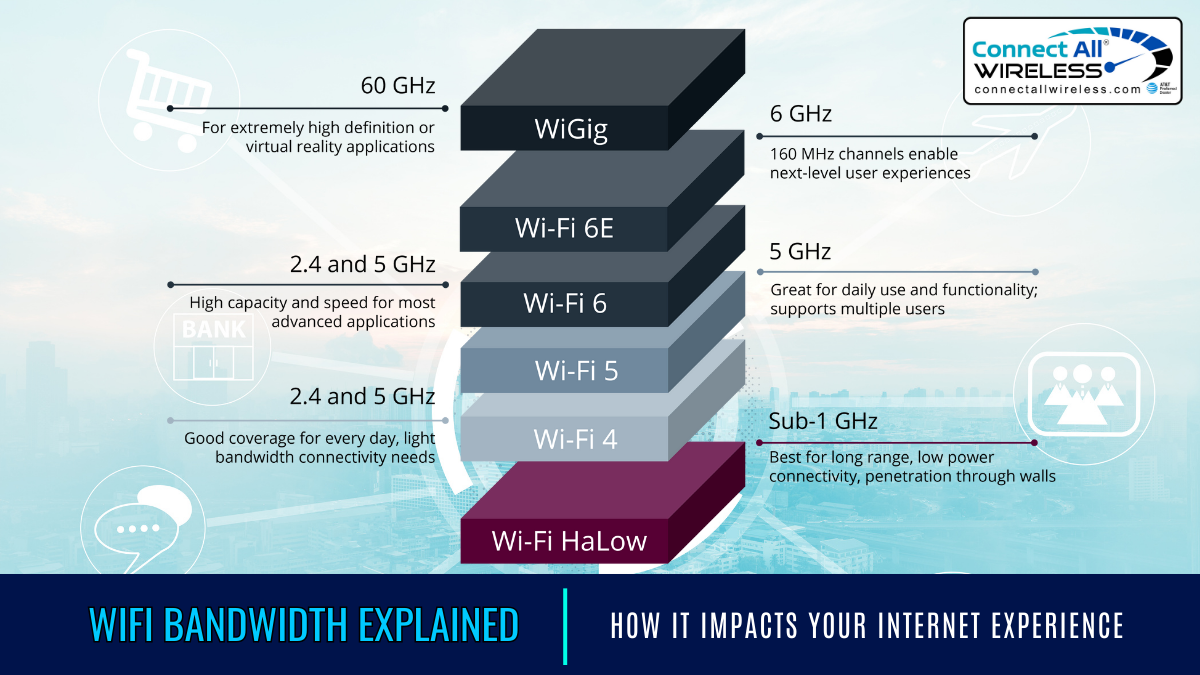
Difference Between 2.4 Ghz And 5 Ghz Bands
The 2.4 GHz band covers a larger area but is slower. It works well through walls and floors. This band often has more interference from other devices. The 5 GHz band is faster but covers a smaller area. It faces less interference, making it better for high-speed tasks. Choosing the right band depends on your needs for speed and range.
Benefits Of Dual Band Routers
- Allows multiple devices to connect without slowing down.
- Supports both older and newer devices smoothly.
- Reduces interference by using two separate bands.
- Improves overall network performance and reliability.
- Helps manage bandwidth by assigning devices to different bands.
Credit: medium.com
Reasons To Limit Bandwidth
Limiting bandwidth on your dual band router is more than just a technical tweak—it’s a way to take control of your internet experience. Understanding why you might want to set these limits helps you make smarter decisions about managing your network. Whether it’s keeping your internet fast or making sure critical devices get the attention they deserve, bandwidth control can be a game changer.
Preventing Network Congestion
Network congestion happens when too many devices use up all the available bandwidth at once. This slows down your internet for everyone, causing buffering, delays, and dropped connections. By limiting bandwidth, you stop a few devices from hogging all the speed, keeping your whole network running smoothly.
Think about a busy evening when everyone is streaming videos and playing games. Without limits, your router struggles to keep up. Setting bandwidth caps helps balance the load, so no one’s experience suffers.
Prioritizing Important Devices
Not all devices on your network need the same amount of bandwidth. You might want to prioritize your work laptop over a guest’s phone or give your smart TV more bandwidth during movie night. By limiting bandwidth on less critical devices, you ensure important ones get the speed they need without interruptions.
Have you ever noticed your video call freezing while someone else downloads a large file? That’s a sign your router isn’t prioritizing traffic correctly. Controlling bandwidth lets you assign priorities, so your essential tasks stay smooth.
Managing Data Caps
Many internet plans come with data caps that limit how much you can use each month. Exceeding those caps can lead to extra charges or slower speeds. Limiting bandwidth on certain devices helps you stay within your data allowance.
For instance, you can restrict bandwidth on devices that stream a lot of videos or download big files, preventing unexpected overages. This way, you keep your bill predictable and avoid surprises.
Accessing Router Settings
Accessing your router’s settings is the first step to limit bandwidth on a dual band router. You need to open the router’s admin panel on your web browser. This panel controls all the network settings, including bandwidth management. Accessing it requires finding your router’s IP address and logging in with the correct credentials.
Finding Your Router’s Ip Address
The router’s IP address is the key to reach the admin panel. It is usually a series of numbers like 192.168.1.1or 192.168.0.1. You can find it on the back or bottom of the router on a label. Alternatively, use your computer or smartphone to find it:
- On Windows, open Command Prompt and type
ipconfig. Look for the “Default Gateway.” - On Mac, go to System Preferences > Network, select your connection, and click Advanced. The IP is under TCP/IP tab.
- On Android or iPhone, check the Wi-Fi details for the router’s gateway address.
Logging Into The Admin Panel
Open a web browser and enter the router’s IP address in the address bar. Press Enter to open the login page. You will need a username and password to continue. These credentials are often set to default values like “admin” and “password.”
Check the router label or user manual for defaults. Change the login details after the first access for security. If you cannot log in, try resetting the router to factory settings. After logging in, you can find the bandwidth control options under different menus depending on your router model.
Setting Bandwidth Limits
Setting bandwidth limits on a dual band router helps manage internet speed for different devices. This improves overall network performance and prevents one device from using too much data. Adjusting these limits ensures fair internet use across all connected gadgets.
Dual band routers operate on two frequencies: 2.4 GHz and 5 GHz. Each band can have different speed limits. Controlling bandwidth per band helps balance network traffic and avoid congestion.
Using Quality Of Service (qos)
Quality of Service (QoS) lets you control internet speed for devices or apps. It prioritizes traffic based on rules you set. This stops heavy users from slowing down the network.
- Access your router’s admin page.
- Find the QoS settings section.
- Enable QoS and create rules for devices or services.
- Set maximum bandwidth limits to control speed.
This setup manages traffic smoothly and keeps important apps fast.
Creating Device Priority Rules
Device priority rules assign internet speed based on device importance. Important devices get more bandwidth, while others get less. This keeps essential tasks running smoothly.
- Log in to your router’s control panel.
- Locate the device priority or bandwidth control area.
- Select devices and assign priority levels (high, medium, low).
- Save the settings to apply limits automatically.
Prioritizing devices improves performance for work, streaming, or gaming.
Setting Bandwidth Limits Per Band
Dual band routers offer separate settings for 2.4 GHz and 5 GHz bands. You can limit bandwidth on each band to balance load and optimize speed.
- Open the router’s admin interface.
- Go to wireless settings for each band.
- Set maximum upload and download speeds for 2.4 GHz and 5 GHz.
- Apply changes and restart the router if needed.
Limiting bandwidth per band prevents slowdowns and keeps connections stable.
Using Third-party Firmware
Using third-party firmware on a dual-band router can help manage network traffic efficiently. It allows users to set bandwidth limits, ensuring fair internet distribution. This approach helps prevent any single device from consuming too much data, enhancing overall network performance.
Using third-party firmware on a dual-band router can enhance control over bandwidth. It provides advanced features not available in the router’s original software. This option suits those wanting more customization and control. With third-party firmware, users can manage bandwidth limits effectively. It requires replacing the original software with a custom version.Popular Firmware Options
Several third-party firmware options are available for routers. Here are some popular choices:- DD-WRT: Known for its user-friendly interface and advanced features.
- Tomato: Offers a sleek interface and robust tools for bandwidth control.
- OpenWRT: Highly customizable for tech-savvy users.
Steps To Install Custom Firmware
Installing custom firmware involves several steps. Follow these carefully to avoid issues:- Download the firmware compatible with your router model.
- Connect your computer to the router via Ethernet cable.
- Access the router’s web interface using its IP address.
- Find the firmware upgrade section in the settings.
- Upload the downloaded firmware and start the installation.
- Wait for the process to complete, then reboot the router.
Advantages Of Third-party Firmware
Third-party firmware offers several benefits:- Enhanced bandwidth control features.
- Improved performance and stability.
- Access to advanced security settings.
- Ability to monitor network traffic in detail.
Credit: edgeup.asus.com
Monitoring Bandwidth Usage
Keeping an eye on your bandwidth usage is essential for managing your dual band router effectively. It helps you understand which devices or applications consume the most data, allowing you to make informed decisions about limiting bandwidth. Without proper monitoring, you might face slow internet speeds or unexpected data caps.
Built-in Router Tools
Most dual band routers come with built-in tools that let you track bandwidth consumption right from the admin dashboard. These tools usually display real-time data and historical usage per device or band, making it easier to spot heavy users. Have you checked your router’s settings lately? You might find detailed graphs and options to set limits without installing anything extra.
Accessing these tools often requires logging into your router’s IP address via a web browser. Once inside, look for sections named “Traffic Meter,” “Bandwidth Control,” or “Device List.” From there, you can monitor usage and sometimes even set rules to restrict bandwidth for specific devices.
Third-party Monitoring Apps
If your router’s built-in tools feel limited or hard to use, third-party apps offer a more user-friendly experience. Apps like NetBalancer, GlassWire, or Paessler PRTG provide detailed insights and customizable alerts for bandwidth use. These tools often support multiple routers and devices, giving you a broader view of your network.
Many third-party apps allow you to track bandwidth on a per-application basis, helping you identify which programs eat up your data. Would knowing exactly what’s slowing your network help you control it better? These apps can also send notifications when usage exceeds your set limits, so you stay informed without constant checking.
Troubleshooting Common Issues
Troubleshooting common issues when limiting bandwidth on a dual band router can save time and frustration. Problems may arise due to settings not applying correctly or outdated software. Understanding simple fixes helps keep your network running smoothly.
When Limits Aren’t Working
Bandwidth limits may fail because of incorrect settings or device conflicts. Double-check the device list and ensure the limits apply to the right devices. Some routers need a restart to activate new rules. Also, verify that parental controls or Quality of Service (QoS) features do not interfere with bandwidth limits.
Resetting Your Router
Resetting the router clears temporary glitches affecting bandwidth controls. Use a soft reset by turning the router off and on again first. If issues continue, a factory reset might help but will erase all custom settings. Back up your configuration before a factory reset to restore it later easily.
Firmware Updates
Router manufacturers release firmware updates to fix bugs and improve features. Outdated firmware can cause bandwidth controls to malfunction. Check your router’s admin panel for update notifications. Download and install updates carefully, following the instructions. Updated firmware often enhances network performance and stability.

Credit: www.reddit.com
Frequently Asked Questions
How Do I Limit Bandwidth On A Dual Band Router?
Access your router’s admin panel, usually via a web browser. Find bandwidth control or QoS settings. Set limits for each band or device as needed. Save changes and restart the router if required to apply limits effectively.
Can I Prioritize Devices On A Dual Band Router?
Yes, use Quality of Service (QoS) settings in the router’s admin panel. Assign higher priority to important devices or applications. This ensures better bandwidth allocation for prioritized devices, improving their internet performance.
Is Bandwidth Limiting Different For 2.4 Ghz And 5 Ghz Bands?
Yes, bandwidth limits can be set separately for each band. This helps manage traffic on 2. 4 GHz and 5 GHz individually. It optimizes network performance based on device capabilities and usage needs.
Will Limiting Bandwidth Improve My Internet Speed?
Limiting bandwidth doesn’t increase total speed but manages usage. It prevents any device from hogging bandwidth, reducing network congestion. This leads to a smoother internet experience for all connected devices.
Conclusion
Controlling bandwidth on a dual band router keeps your internet stable. You can set limits for each device or band easily. This helps avoid slow connections during busy times. Small steps make a big difference in your online experience. Try adjusting settings to fit your needs.
Stay in control of your network with simple actions. Your devices will share bandwidth fairly and work better. Managing bandwidth does not need to be hard or confusing. Take charge today and enjoy smoother internet at home.