Are you tired of slow internet when multiple devices are connected to your tri-band router? You’re not alone.
When everyone in your home or office uses the internet heavily, it can slow down your connection and cause frustration. But what if you could control how much bandwidth each device or user gets? Limiting bandwidth on your tri-band router can help you take charge, ensuring smooth streaming, gaming, and browsing for everyone.
You’ll learn simple and effective steps to manage your network’s bandwidth like a pro—no technical jargon, just clear instructions you can follow right now. Keep reading to unlock the full potential of your router and enjoy faster, fairer internet access.
Why Limit Bandwidth
Limiting bandwidth on your tri-band router isn’t just a technical tweak—it’s a smart way to control how your network behaves. If you’ve ever experienced slow internet or interruptions during important tasks, you know how frustrating it can be. Understanding why to limit bandwidth helps you take charge and improve your overall online experience.
Impact On Network Speed
When one device hogs too much bandwidth, it drags down the speed for everyone else. Imagine trying to stream a movie while someone else is uploading huge files—your video might buffer endlessly. Limiting bandwidth ensures every device gets a fair share, keeping your network fast and responsive.
Preventing Congestion
Too many devices using maximum bandwidth at the same time can create network congestion, leading to lag and dropped connections. Think about a busy highway during rush hour; the traffic slows down for everyone. By setting limits, you reduce bottlenecks and maintain smoother data flow.
Prioritizing Devices
Not all devices need the same amount of bandwidth. Your work laptop might need priority over a smart TV streaming cartoons. By limiting bandwidth, you can prioritize important devices and activities, ensuring critical tasks run without interruption.
Accessing Router Settings
Accessing your tri band router settings is the first step to manage bandwidth effectively. This process allows you to control how much internet speed each device or user can use. The settings interface is user-friendly and offers various options to customize your network.
Connecting to the router interface requires a device and a web browser. You need to be connected to your router’s Wi-Fi or use an Ethernet cable for a stable connection. Entering the router’s IP address in the browser’s address bar opens the login page.
Connecting To The Router Interface
- Ensure your device is connected to the router’s network.
- Open any web browser like Chrome, Firefox, or Edge.
- Type the router’s IP address, commonly 192.168.1.1 or 192.168.0.1, into the address bar.
- Press Enter to load the router’s login page.
Login Credentials
- Use the default username and password found on the router label or manual.
- Common defaults are “admin” for both username and password.
- Change these credentials later for better security.
- Click the login button to access the dashboard.
Navigating To Bandwidth Controls
- Look for menu options like “Advanced,” “QoS,” or “Bandwidth Control.”
- QoS stands for Quality of Service, which helps manage bandwidth.
- Select the bandwidth control section to set limits.
- Follow on-screen instructions to apply changes.
Setting Bandwidth Limits
Setting bandwidth limits on your tri-band router helps you control how much internet speed each device or application can use. This prevents any single user or device from hogging your connection, ensuring a smoother online experience for everyone. Let’s look at how you can set these limits effectively using your router’s built-in tools.
Locating Qos Features
Quality of Service (QoS) settings are where you start to manage bandwidth on your router. These features prioritize traffic and allow you to allocate specific bandwidth amounts to devices or services.
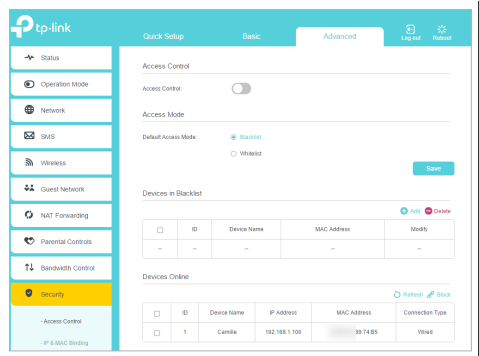
Access your router’s admin panel by typing its IP address into your browser. Look for sections labeled “QoS,” “Traffic Control,” or “Bandwidth Management.” If you can’t find them, check the user manual or your router’s online support page.
Assigning Bandwidth Caps
After locating QoS, you can set bandwidth caps for devices that consume too much data. This means you can limit a device to, say, 10 Mbps, preventing it from slowing down your entire network.
Use the device’s MAC address or IP address to assign these limits. Some routers allow you to set caps per device, while others let you specify caps for certain applications like streaming or gaming.
Configuring Device Priorities
Not all devices need the same priority on your network. Assign higher priority to devices that require stable connections, such as work laptops or smart home hubs.
Lower the priority for gadgets used mainly for downloads or background updates. This helps maintain a balanced network where critical tasks get the bandwidth they need without interruption.
Credit: www.tp-link.com
Using Third-party Tools
Third-party tools help manage bandwidth on tri-band routers easily. They offer simple settings to control internet speed for each device. This approach keeps your network fast and fair for all users.
To effectively manage your internet usage, third-party tools can be invaluable. These tools help control and limit bandwidth on your tri-band router. They offer flexibility and advanced features. Many users find them essential for optimizing network performance.Recommended Software Options
Several third-party software options are available. Each offers unique features. Popular choices include:- NetLimiter: Known for its user-friendly interface.
- GlassWire: Offers both security and bandwidth monitoring.
- PRTG Network Monitor: Comprehensive tool with detailed reports.
Integration With Tri Band Routers
Integrating third-party tools with tri-band routers is usually straightforward. Most software comes with clear instructions. Follow them carefully for seamless setup. Compatibility is key, so check the software’s support for your router model. Using third-party tools enhances your router’s existing features. This ensures better bandwidth management.Monitoring Bandwidth Usage
Monitoring bandwidth usage becomes easier with these tools. They provide real-time data. Track which devices use the most bandwidth. Set alerts for unusual spikes. This helps in identifying potential issues quickly. Regular monitoring ensures optimal network performance. Keep your internet running smoothly with minimal disruptions.Tips For Optimal Speed
Maintaining optimal speed on your tri-band router ensures smooth internet for all devices. Small adjustments can lead to better bandwidth management and faster connections. Focus on key areas to keep your network running efficiently.
Regular Firmware Updates
Keep your router’s firmware up to date. Updates fix bugs and improve performance. They also enhance security, protecting your network from threats. Check the router’s admin panel for update options. Set automatic updates if available. This keeps your device running at its best.
Channel Selection Strategies
Choose the right channels to reduce interference. Tri-band routers have multiple channels across three frequencies. Use a Wi-Fi analyzer tool to find less crowded channels. Switching to these channels lowers congestion and boosts speed. Avoid overlapping channels on the 2.4 GHz band. This simple step improves overall network quality.
Managing Connected Devices
Limit the number of devices connected at once. Too many devices slow down your network. Prioritize important devices for better speed. Use Quality of Service (QoS) settings to allocate bandwidth. This ensures critical devices get enough speed. Disconnect inactive devices to free up bandwidth. This helps maintain steady internet performance.
Credit: edgeup.asus.com

Credit: blog.jazzcybershield.com
Frequently Asked Questions
How Do I Limit Bandwidth On A Tri Band Router?
Access your router’s settings via its IP address. Locate the QoS or bandwidth control section. Set limits for each band or device to manage usage effectively.
Can I Prioritize Devices On A Tri Band Router?
Yes, tri band routers usually offer QoS settings. You can assign higher priority to specific devices or applications for better performance.
What Tools Help Monitor Bandwidth On Tri Band Routers?
Most tri band routers have built-in traffic monitoring tools. Alternatively, use third-party software like NetBalancer or GlassWire for detailed bandwidth insights.
Does Limiting Bandwidth Affect Wi-fi Speed On Other Bands?
Yes, restricting bandwidth on one band can improve overall network balance. It prevents any device from hogging all the bandwidth across bands.
Conclusion
Controlling bandwidth on a tri-band router helps keep your internet steady. It stops one device from using too much data. This way, all devices get fair access. Setting limits is simple and saves frustration. Check your router’s settings to start.
Regularly adjust limits as your needs change. A balanced network means smoother streaming and gaming. Keep your internet fast and reliable for everyone. Try these steps and enjoy better online use today.