Are you tired of slow internet because too many devices are connected to your mesh WiFi? You’re not alone.
When too many gadgets hog your network, everything slows down—streaming buffers, video calls drop, and work gets frustrating. But what if you could control exactly how many devices connect to your mesh WiFi? Imagine having the power to limit devices and boost your internet speed instantly.
You’ll discover simple, effective ways to take control of your mesh WiFi and enjoy faster, smoother connections every time. Keep reading to find out how.
Benefits Of Limiting Devices
Limiting the number of devices connected to your mesh WiFi brings many benefits. It helps keep your network fast and reliable. Controlling device access reduces slowdowns and connection drops. This simple step improves your overall internet experience.
Improved Network Speed
Fewer devices mean less data traffic. Your mesh WiFi can send and receive data faster. Speed stays high for all connected devices. Streaming, gaming, and browsing become smoother. No more buffering or lagging during important tasks.
Enhanced Connection Stability
Too many devices can cause your network to become unstable. Limiting devices helps keep connections steady. Each device gets enough bandwidth to work well. It reduces the chance of disconnections or weak signals. You get a more consistent and reliable internet connection.
Reduced Interference
Devices on the same network can interfere with each other. This slows down the WiFi and causes drops. Fewer devices create less interference and noise. Your mesh system can manage signals more efficiently. This leads to better coverage and fewer dead zones.
Credit: www.tp-link.com
Identifying Connected Devices
Knowing which devices connect to your mesh WiFi helps control network traffic. It also improves security and speeds up your internet. Identifying connected devices is the first step to managing your network effectively.
Using The Mesh Wifi App
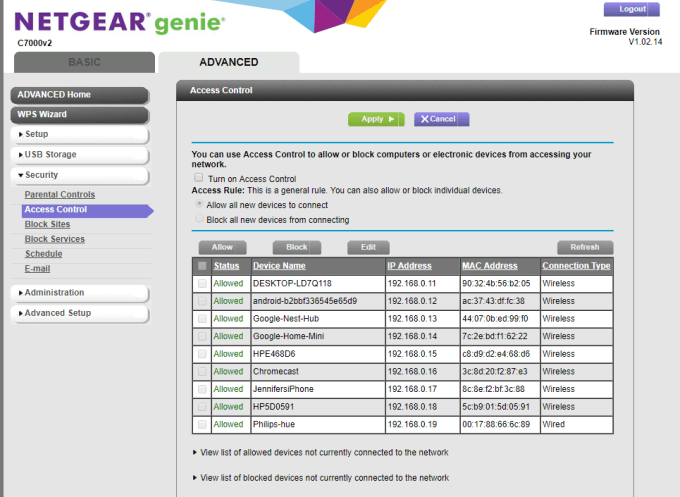
Most mesh WiFi systems have an app for easy management. Open the app and find the section for connected devices. It shows device names, IP addresses, and connection status.
You can often see device types and usage data here. The app lets you block or limit devices directly. This tool is user-friendly and works on smartphones.
Accessing Router Admin Panel
Access the router’s admin panel through a web browser. Enter the router’s IP address in the address bar. Login with your username and password.
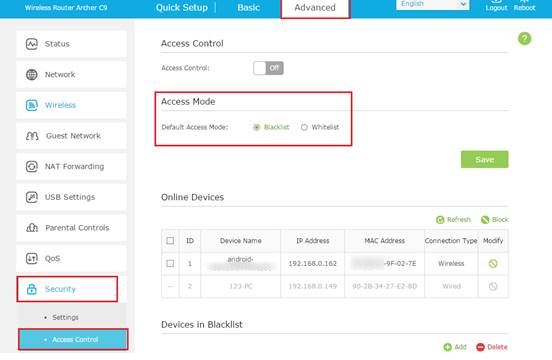
Look for a menu labeled “Connected Devices” or “Device List.” This panel provides detailed information about every device. You may also find options to set limits or block devices.
Recognizing Device Types
Devices connect using different names and icons. Identify phones, laptops, smart TVs, and other gadgets. Device names can sometimes be unclear or generic.
Match IP addresses or MAC addresses with your known devices. This helps spot unknown or unauthorized devices. Knowing device types helps decide which to limit or block.
Setting Device Limits
Setting device limits on your mesh WiFi helps manage network traffic efficiently. It prevents slowdowns caused by too many connected devices. You gain control over who can access your internet and how much bandwidth they use. This keeps your WiFi fast and stable for important tasks.
Configuring Maximum Connections
Most mesh WiFi systems allow you to set a maximum number of connected devices. This limit stops new devices from joining once the cap is reached. It ensures the network does not get overloaded. Check your router’s app or web interface to find this option. Adjust the number based on your household needs and device count.
Prioritizing Important Devices
Prioritize devices that need a strong connection. These include work laptops, smart TVs, or gaming consoles. Mesh WiFi apps often let you assign priority levels. High-priority devices get better bandwidth and less lag. This keeps your important devices running smoothly even during peak usage.
Creating Device Groups
Group devices by type or user to manage them easily. For example, create groups for family members, guests, or smart home gadgets. Assign different limits or priorities to each group. This method helps balance the network load and controls guest access. Grouping improves organization and network performance.
Credit: www.tp-link.com
Blocking Unwanted Devices
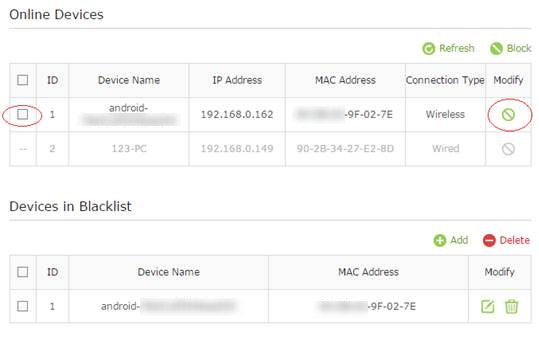
Limiting devices on your mesh WiFi helps keep your network secure and fast. Block unwanted devices by accessing your router’s settings and managing connected devices. This control ensures only trusted gadgets use your internet.
Managing your home WiFi network can sometimes feel like juggling multiple devices, each vying for a piece of the bandwidth pie. By blocking unwanted devices, you ensure that your internet is not only faster but also more secure. You might wonder, how can I effectively keep unwanted devices off my network without constantly monitoring every connection? Let’s dive into some practical strategies to make this task easier.Mac Address Filtering
MAC Address Filtering is a straightforward way to control which devices can access your network. Every device has a unique identifier known as a MAC address, much like a digital fingerprint. By allowing only specific MAC addresses to connect, you prevent unauthorized devices from accessing your network. To use this feature, log into your router’s settings and find the MAC Filtering option. Add the MAC addresses of trusted devices and block others. Have you ever noticed your internet slowing down mysteriously? This method could be the key to regaining control.Guest Network Restrictions
Creating a guest network can significantly limit access to your main WiFi. This not only keeps your primary network secure but also provides a separate connection for visitors. You can customize this guest network to restrict bandwidth usage and prevent access to certain resources. Activate the guest network option through your router’s settings. Set a strong password and share it selectively. This way, when friends visit, they can enjoy the internet without compromising your main network’s security.Scheduling Access Times
Scheduling access times allows you to decide when devices can connect to your network. This is particularly useful if you have children and want to limit their online time. You can set specific hours during which devices are allowed to connect, ensuring a balanced digital lifestyle. Access your router settings and look for the scheduling feature. Create a timetable that suits your household’s needs. Imagine having uninterrupted family dinners without the distraction of notifications—sounds peaceful, right? By implementing these strategies, you take the reins of your WiFi network, ensuring it remains efficient and secure. Have you tried any of these tactics yet? If not, now might be the perfect time to give them a go.Optimizing Network Performance
Optimizing your mesh WiFi network helps improve speed and reliability. Limiting devices on the network reduces congestion and interference. This leads to a smoother internet experience for every user. Simple actions can keep your network running at its best.
Updating Firmware Regularly
Keep your mesh WiFi system’s firmware up to date. Updates fix bugs and improve performance. Manufacturers release new versions to enhance security and add features. Regular updates help your devices work efficiently and avoid slowdowns.
Placing Nodes Strategically
Place mesh nodes in open areas for better signal reach. Avoid thick walls and metal objects that block signals. Position nodes evenly throughout your space to cover dead zones. Good placement reduces device competition and boosts network speed.
Using Quality Of Service (qos)
Enable Quality of Service on your mesh router. QoS prioritizes important traffic like video calls and gaming. It limits bandwidth for less critical devices or apps. This keeps your network stable and fast, even with many connected devices.
Credit: helpdeskgeek.com
Troubleshooting Common Issues
Troubleshooting common issues on a mesh WiFi system helps keep your network stable. Problems like slow speeds or connection failures can stop devices from working well. Fixing these issues quickly improves your internet experience. This section guides you through simple fixes for frequent mesh WiFi problems.
Dealing With Slow Speeds
Slow speeds often occur when many devices use the network at once. Check if any device is downloading large files or streaming videos. Pause heavy internet use to see if speed improves. Place mesh nodes in open areas for better coverage. Avoid walls and metal objects that block signals. Restart your mesh router to clear temporary glitches. Update the firmware to get the latest fixes and features.
Handling Device Connection Failures
Devices may fail to connect due to weak signals or wrong passwords. Move the device closer to a mesh node. Verify the WiFi password is correct. Forget the network on the device and reconnect. Check if the device is blocked or limited in the router settings. Restart the device to refresh its network settings. Ensure your device supports the WiFi frequency band used by the mesh system.
Resetting Network Settings
Resetting network settings clears errors causing connection issues. Back up important network information before resetting. Use the mesh system’s app or web interface to reset. This action removes custom settings and limits device connections. After reset, set up the mesh network again from scratch. Reconnect devices with updated passwords and settings. Resetting often solves persistent network problems quickly.
Frequently Asked Questions
How Can I Limit Devices On Mesh Wifi?
You can limit devices by accessing your mesh router’s settings. Use the app or web portal to set device limits or block specific devices. This helps manage bandwidth and enhances network performance.
Why Should I Restrict Connected Devices On Mesh Wifi?
Restricting devices prevents network congestion and improves speed. It also enhances security by controlling who accesses your WiFi. Limiting devices ensures a stable and efficient internet experience.
Can I Prioritize Certain Devices On Mesh Wifi?
Yes, most mesh systems allow device prioritization. You can assign higher bandwidth to important devices like work laptops or gaming consoles. This ensures critical devices get the best performance.
Is There A Way To Block Unknown Devices On Mesh Wifi?
Yes, you can block unknown devices via your router’s management app. Look for connected devices and remove or block any unfamiliar ones. This keeps your network secure and private.
Conclusion
Controlling how many devices connect keeps your mesh WiFi fast. Too many devices can slow your internet down. Setting limits helps avoid frustration and buffering. You can manage devices using your router’s app or settings. This keeps your network safe and reliable.
Simple steps make a big difference in your WiFi experience. Stay in control and enjoy smooth internet every day.