Are you curious about who’s using your Wi-Fi and how much data they’re consuming? Monitoring traffic on your dual band router can give you clear insights into your network’s activity.
Whether you want to boost your internet speed, secure your connection, or simply understand your data usage better, knowing how to track traffic is a game-changer. You’ll learn simple steps to monitor your router’s traffic effectively—no tech jargon, just easy guidance that puts you in control of your home network.
Keep reading to discover how to make your internet work smarter for you.
Dual Band Router Basics
Understanding the basics of a dual band router is key to monitoring your network traffic effectively. These routers operate on two frequency bands, which helps manage devices and data flow better. Knowing how dual band routers work allows you to track traffic and optimize your internet use.
What Is A Dual Band Router
A dual band router uses two separate frequency bands: 2.4 GHz and 5 GHz. Each band carries data independently, letting more devices connect without slowing down. The 2.4 GHz band covers a larger area but offers slower speeds. The 5 GHz band provides faster speeds but works best over shorter distances. This setup helps balance network traffic and reduce interference.
Benefits Of Dual Band Routers
Dual band routers offer several advantages for home and office networks. They improve speed by splitting traffic between bands. This reduces congestion and keeps connections stable. Devices that need more bandwidth can use the 5 GHz band, while others stay on the 2.4 GHz band. They also help avoid interference from other wireless devices. Overall, dual band routers create a smoother internet experience for everyone.
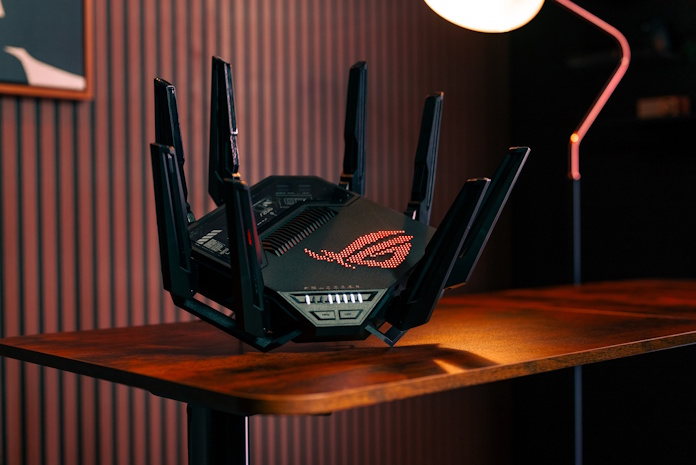
Credit: edgeup.asus.com
Preparing For Traffic Monitoring
Preparing to monitor traffic on your dual band router means getting familiar with its settings and understanding how your network operates. This groundwork is crucial because it helps you track traffic accurately and avoid confusion between different Wi-Fi bands. Before diving into data and analytics, setting up correctly saves time and headaches later on.
Accessing Router Settings
You need to log into your router’s admin panel to start monitoring traffic. Usually, this involves typing the router’s IP address into a web browser—common addresses are 192.168.0.1or 192.168.1.1. If you’ve never done this before, check the label on your router or the user manual for the exact address and login details.
Once logged in, explore the dashboard carefully. Some routers have a clear “Traffic Monitor” or “Statistics” section, while others hide it under “Advanced Settings.” Don’t be afraid to click around; you won’t break anything by just browsing.
Identifying Network Bands
Dual band routers broadcast on two frequencies: 2.4 GHz and 5 GHz. Each has different strengths—2.4 GHz covers longer distances but is slower, while 5 GHz is faster but has a shorter range. Knowing which devices connect to which band is key for accurate traffic monitoring.
Check your router’s interface for separate sections or labels like “Wireless 2.4 GHz” and “Wireless 5 GHz.” Sometimes, you might see device lists sorted by band, which helps you spot where your traffic is coming from. Have you noticed any devices sticking to one band? This insight can guide your monitoring and troubleshooting efforts.
Using Router’s Built-in Tools
Using your router’s built-in tools is one of the most straightforward ways to keep an eye on the traffic flowing through your dual-band network. These tools are designed to give you direct access to data without needing extra software. They often provide detailed insights right from the router’s dashboard, making traffic monitoring practical and efficient.
Checking Traffic Logs
Traffic logs store a record of all data packets passing through your router. By accessing these logs, you can see which devices are using the most bandwidth and when. This helps you spot unusual activity, like unexpected spikes in traffic that might indicate unauthorized access.
To check these logs, log into your router’s admin panel through a web browser. Look for sections labeled “Logs,” “Traffic History,” or “System Monitor.” The information might be displayed as a list or a graph, showing the amount of data sent and received over time.
Have you ever noticed a sudden slowdown in your internet speed? Reviewing these logs can reveal if a specific device or application is hogging bandwidth. This insight lets you manage your network more effectively by setting limits or scheduling heavy usage for off-peak times.
Real-time Traffic Monitoring
Real-time traffic monitoring offers a live view of data moving across your network. It’s useful for identifying which devices are active and how much bandwidth they’re consuming at any given moment. This immediacy helps you make quick decisions about managing your connection.
Many dual-band routers provide a dashboard with real-time graphs and device lists. You can often see separate stats for the 2.4 GHz and 5 GHz bands, letting you compare their usage side by side. This clarity helps you balance the load between bands to improve overall performance.
Imagine you’re streaming a movie, and your video keeps buffering. Real-time monitoring can show if another device suddenly started downloading large files, causing congestion. Wouldn’t it be handy to pause or limit that activity right away? Using these built-in tools gives you that control.
Third-party Monitoring Software
Third-party monitoring software helps track traffic on both 2. 4 GHz and 5 GHz bands of a dual-band router. It offers clear insights into device connections and data usage. This makes managing your network easier and more effective.
Third-party monitoring software can be a game-changer for anyone looking to keep an eye on their dual-band router’s traffic. These tools offer a more detailed view of your network usage, providing insights that your router’s default settings might not. Imagine being able to see exactly which devices are hogging bandwidth or even pinpointing peak usage times—empowering, right?Popular Tools For Traffic Analysis
Several third-party tools have earned a reputation for their robust traffic analysis capabilities. Wireshark is a popular choice, offering deep packet inspection that can help identify network issues in real time. NetFlow Analyzer is another great option, providing intuitive traffic reports and even security threat detection. GlassWire combines network monitoring with firewall capabilities, making it ideal for users who want an extra layer of security. With these tools, you’re not just monitoring traffic—you’re gaining a comprehensive understanding of your network’s behavior.Setting Up External Software
Setting up external software for traffic monitoring might sound daunting, but it’s simpler than you think. Most tools offer step-by-step guides to help you through the installation process. Generally, you’ll need to download the software, install it on a computer connected to the network, and configure it to start analyzing traffic. Before diving in, ensure your router supports the protocols needed by your chosen software. For example, some tools require SNMP (Simple Network Management Protocol) to gather data. Checking compatibility upfront saves you from troubleshooting headaches later. Have you ever wondered how these insights could transform your online experience? Imagine optimizing your internet usage, stopping lag dead in its tracks, and never being surprised by a slowdown again.Interpreting Traffic Data
Interpreting traffic data on your dual band router is key to managing your network effectively. It helps you understand how your internet is being used and identify any problems early. Knowing what the numbers mean can save you time, money, and frustration.
Understanding Bandwidth Usage
Bandwidth usage shows how much data flows through your router on each band—2.4 GHz and 5 GHz. The 2.4 GHz band often handles devices farther away or older gadgets, while the 5 GHz band serves devices needing faster speeds nearby.
Look at the data in terms of upload and download rates for each band separately. This helps you spot which band is overloaded or underused. For example, if your 2.4 GHz band is maxed out but the 5 GHz band is free, consider shifting some devices to the faster band.
Ask yourself: Are my devices balanced across both bands? If not, you might be slowing down your network without realizing it.
Spotting Unusual Activity
Sudden spikes in data or continuous high usage can signal unusual activity on your network. This might be unauthorized users, malware, or background apps consuming bandwidth without your knowledge.
Check your router’s traffic logs regularly and compare normal usage times with current data. Unexpected traffic late at night or during periods when you’re not using the internet is a red flag.
Keep an eye on IP addresses and connected devices. Unknown devices appearing in your list could mean someone is piggybacking on your Wi-Fi.
- Set alerts if your router supports them to notify you of abnormal traffic.
- Change your Wi-Fi password immediately if you detect unfamiliar devices.
- Run security scans on connected devices to rule out malware.
Optimizing Network Performance
Optimizing network performance on a dual band router helps maintain fast and stable internet connections. It balances traffic across the 2.4 GHz and 5 GHz bands to reduce congestion. Careful monitoring and adjustments keep all devices running smoothly without interruptions.
Focus on how bandwidth is shared and which devices or services get priority. This ensures the best experience for work, streaming, and gaming.
Managing Bandwidth Allocation
Bandwidth allocation controls how much data each device or application can use. Set limits to prevent one device from slowing down the entire network. Many routers offer settings to divide bandwidth between the two frequency bands.
Use the router’s interface to:
- Assign specific bandwidth limits for devices
- Separate high-demand apps from regular browsing
- Monitor real-time bandwidth use on each band
This approach stops network overload and keeps speeds balanced across devices.
Prioritizing Devices And Services
Prioritizing devices and services ensures critical tasks get more bandwidth. For example, video calls and gaming need faster speeds and less delay.
Set priority rules in your router settings. Assign high priority to:
- Work laptops or desktop computers
- Streaming devices like smart TVs
- Online gaming consoles
Lower priority can go to less urgent devices, such as smart home gadgets. This method improves the overall network performance where it matters most.
Troubleshooting Monitoring Issues
Monitoring traffic on a dual band router can sometimes face issues. These problems disrupt tracking and cause confusion. Troubleshooting is key to fix these monitoring challenges. Understanding common problems and knowing when to update firmware helps maintain smooth monitoring.
Common Problems And Fixes
- Dashboard not loading:Clear your browser cache and try again.
- Incorrect traffic data:Restart the router to refresh data collection.
- Missing devices:Check if devices are connected to the correct band (2.4 GHz or 5 GHz).
- Slow updates:Reduce the number of connected devices or increase router bandwidth.
- Monitoring tool not responding:Disable any conflicting firewall or antivirus temporarily.
When To Update Firmware
Firmware updates improve router performance and fix bugs. Check the router’s admin panel regularly for updates. Update firmware if monitoring tools stop working properly. Updates can add new features for better traffic tracking. Always backup settings before starting the update. Avoid interrupting the update process to prevent damage.

Credit: www.reddit.com

Credit: cyberraiden.wordpress.com
Frequently Asked Questions
How Do I Check Traffic On My Dual Band Router?
Log in to your router’s admin panel using its IP address. Navigate to the traffic or bandwidth monitoring section. Here, you can view real-time data usage for both 2. 4 GHz and 5 GHz bands separately, helping you track connected devices and their bandwidth consumption.
Can I Monitor Traffic For Each Band Separately?
Yes, most dual band routers allow separate traffic monitoring. You can view usage statistics for the 2. 4 GHz and 5 GHz bands independently. This helps identify which band is busier and optimize your network performance by managing connected devices accordingly.
What Tools Help Monitor Dual Band Router Traffic?
Router’s built-in admin panel offers basic traffic monitoring. For advanced features, use third-party software like GlassWire or Wireshark. These tools provide detailed insights into bandwidth usage, device activity, and network performance across both frequency bands efficiently.
Why Is Monitoring Dual Band Router Traffic Important?
Monitoring helps identify bandwidth hogs and optimize network usage. It ensures balanced load distribution between the 2. 4 GHz and 5 GHz bands. This improves connection speed, reduces interference, and enhances overall Wi-Fi experience for all connected devices.
Conclusion
Monitoring traffic on your dual band router keeps your network safe and fast. You can see which devices use the most data. This helps you manage your internet better. Regular checks prevent slow speeds and unwanted access. Use your router’s tools often for best results.
Stay aware of your network’s activity every day. Simple steps make a big difference. Keep your connection strong and reliable with easy monitoring.