Are you tired of sluggish internet speeds and dead zones in your home? If you’ve invested in a tri-band WiFi extender, you’re already a step ahead in boosting your connectivity.
But how do you ensure it’s performing at its best? Monitoring your tri-band WiFi extender’s performance is crucial for maintaining a seamless online experience. Imagine streaming your favorite shows without buffering, enjoying smooth video calls, or having uninterrupted gaming sessions.
Sounds amazing, right? We’ll guide you through simple yet effective ways to monitor your WiFi extender’s performance. Let’s dive in and unlock the full potential of your internet connection!
Tri Band Wifi Extender Basics
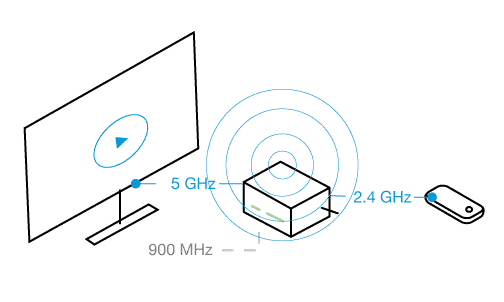
A Tri Band Wifi Extenderuses three separate frequency bands to boost your internet signal. It has one band to connect to your router and two bands to connect to your devices. This setup helps reduce traffic and keeps your connection fast and stable.
Compared to a Dual Band Extender, a Tri Band offers better performance. Dual Band extenders have only two frequency bands, which can get crowded when many devices connect. Tri Band extenders spread the load across three bands, reducing interference and improving speed.
- More bandwidth:Allows more devices to connect without slowing down.
- Less interference:Signals don’t overlap as much, so connection is more reliable.
- Better speed:Faster internet for streaming, gaming, and browsing.

Credit: www.youtube.com
Setting Up Performance Monitoring
Access the extender dashboard by typing its IP address into your browser. Log in using the username and password given in the manual or on the device label. The dashboard shows real-time data like signal strength and connected devices.
Mobile apps simplify monitoring. Download the app from your device’s app store. Connect it to your extender by following the app’s setup instructions. The app displays performance stats and alerts for easy checking.
- Check signal strength to know coverage quality.
- View connected devices to monitor network use.
- Update firmware through the dashboard or app for better performance.
- Set alerts to get notified about issues quickly.
Key Metrics To Track
Signal strengthshows how well your extender reaches your devices. A strong signal means better coverage and fewer drops. Check this often to keep your WiFi stable.
Connection speedtells how fast data moves between your device and the extender. Higher speeds mean smoother streaming and faster downloads. Test this regularly to find slow spots.
Device connectivitytracks how many devices are connected at once. Too many devices can slow down your network. Keep an eye on this number to balance connections and maintain good speed.
Tools For Monitoring
Built-in firmware toolsoffer easy access to your tri-band WiFi extender’s status. You can check signal strength, connected devices, and band usage. These tools often include speed testsand error logs. They help spot problems quickly without extra software.
Third-party software provides advanced features. Many apps show detailed network maps, traffic analysis, and performance history. Some popular tools include:
- Wireshark– for deep packet analysis
- NetSpot– for WiFi heatmaps and surveys
- PingPlotter– to check network stability
| Tool Type | Main Features | Benefits |
|---|---|---|
| Built-in Firmware | Signal strength, device list, speed tests | No extra installation, easy to use |
| Third-Party Software | Network mapping, traffic analysis, history | More detailed info, better troubleshooting |
Troubleshooting Performance Issues
Interferencecan cause poor performance in tri band WiFi extenders. Common sources include other wireless devices, thick walls, and microwaves. Check if any devices are near your extender that use the same frequency. Move or turn off these devices to see if performance improves.
Extender placement is key. Place it where it can get a strong signalfrom your main router. Avoid corners, metal objects, and appliances. A central location often works best. Try different spots and test the signal strength.
| Firmware Update | Why It Matters |
|---|---|
| Check for latest firmware | Fixes bugs and improves performance |
| Automatic updates | Ensures your extender stays up to date |
| Manual update option | Useful if automatic updates fail |

Credit: www.ebay.com
Improving Extender Efficiency
Choosing the right channelis key to better WiFi extender performance. Many devices use common channels, causing interference and slow speeds. Select a channel with less trafficto reduce interruptions.
Use tools or apps to scan for the least crowded channels. Switching channels can improve your connection without extra cost.
| Channel Type | Best Use | Notes |
|---|---|---|
| 2.4 GHz | Long range, slower speed | More interference |
| 5 GHz | Faster speed, shorter range | Less crowded |
| 6 GHz | Newest band, very fast | Limited device support |
- Limit bandwidth usefor devices that need less speed.
- Prioritize important devices like laptops or work phones.
- Check extender settings to set bandwidth limits.
- Keep software updated for best management tools.
Credit: www.screenbeam.com
Frequently Asked Questions
How Do I Check My Tri Band Wifi Extender’s Signal Strength?
You can check signal strength via the extender’s app or web interface. Look for signal bars or dBm values to evaluate performance. Stronger signals mean better connectivity and faster speeds.
What Tools Help Monitor Tri Band Wifi Extender Performance?
Network analyzer apps like NetSpot or WiFi Analyzer help track signal quality and speed. Router management software also provides real-time performance data for your extender.
How Often Should I Monitor My Wifi Extender’s Performance?
It’s best to check performance weekly or after any network changes. Regular monitoring ensures your tri band extender works optimally and helps spot issues early.
Can Slow Internet Indicate Wifi Extender Problems?
Yes, slow internet can result from weak signals or interference. Monitoring performance helps identify if the extender needs repositioning or firmware updates to improve speed.
Conclusion
Monitoring your tri-band WiFi extender helps keep your network strong. Check signal strength and speed often for best results. Use simple tools to track performance without stress. Fix issues quickly to avoid slow connections or dropouts. Regular checks make sure all devices stay connected smoothly.
Stay aware of your extender’s health and settings. This keeps your internet fast and reliable every day. Easy steps, big difference. Keep your WiFi working well for all your needs.