Are you tired of lagging or getting kicked out of games because of your NAT type? If your connection keeps blocking you from joining matches or chatting with friends, it’s time to open your NAT type for smoother gaming.
Imagine playing without interruptions, faster matchmaking, and better communication with your team. This guide will show you simple steps to unlock your NAT type and level up your gaming experience. Keep reading to find out how you can fix this common issue and get back to playing like a pro.

Credit: www.reddit.com
What Is Nat Type
NAT Type affects how your gaming device connects to other players online. It controls the flow of data between your console or PC and the internet. A proper NAT Type ensures smooth and faster multiplayer gaming.
Understanding NAT Type helps improve your online game experience. It influences matchmaking, voice chat, and game downloads. Knowing its role helps you fix connection issues.
What Does Nat Mean?
NAT stands for Network Address Translation. It is a process used by routers to manage internet traffic. NAT allows multiple devices to share one public IP address. This protects your home network from external threats.
Types Of Nat
- Open NAT:Allows all connections, best for gaming.
- Moderate NAT:Allows some connections, may cause delays.
- Strict NAT:Blocks many connections, can cause issues.
NAT Type affects your ability to join games quickly. It also impacts voice chat and multiplayer matches. Open NAT Type offers the best gameplay experience. Strict NAT may cause lag and connection failures.
How Nat Works In Your Router
Your router assigns private IP addresses to devices. NAT translates these to a public IP for internet use. It controls which data packets pass through. This process helps manage security and connectivity.
Why Nat Type Matters In Gaming
NAT type plays a key role in online gaming. It affects how your console or PC connects to other players. The NAT type controls the flow of data between your device and game servers. A strict or moderate NAT type can cause delays and limit your ability to join games.
Understanding NAT type helps improve your gaming experience. It reduces connection problems and matchmaking issues. A good NAT type means smoother gameplay and better communication with other players.
What Is Nat Type?
NAT stands for Network Address Translation. It is a process that manages your device’s connection to the internet. NAT type shows how open or restricted your network is for gaming traffic. There are three main NAT types:
- Open – allows easy communication with all players
- Moderate – allows communication with some players but with restrictions
- Strict – limits communication and blocks many players
Impact Of Nat Type On Multiplayer Gaming
Multiplayer games depend on smooth data exchange. A strict NAT type can cause:
- Longer matchmaking times
- Inability to join certain games
- Voice chat problems
- Lag and disconnections
Open NAT type reduces these problems. It allows quick matches and better interaction with friends.
How Nat Type Affects Game Matchmaking
Matchmaking pairs you with other players online. NAT type affects who you can connect with. Strict NAT type may block connections with many players. This limits your pool of opponents and teammates. Open NAT type increases connection options. It improves your chances to find games faster.
Benefits Of Having An Open Nat Type
- Faster game matchmaking
- Better voice and video chat quality
- Stable online connection
- Ability to host games and invite friends
Open NAT type creates a smoother and more enjoyable gaming experience.
Identifying Your Current Nat Type
Understanding your current NAT type is the first step to improving your gaming connection. NAT (Network Address Translation) controls how your gaming device connects to other players online. Knowing whether your NAT is open, moderate, or strict helps you figure out what changes are needed to get better multiplayer performance.
Many gamers struggle with slow matchmaking or connection drops without realizing that their NAT type is the root cause. I once faced hours of frustration trying to join a friend’s game until I checked my NAT type. That simple check changed everything.
What Is Nat Type And Why Does It Matter?
NAT type determines how easily your console or PC can communicate with other players. An open NAT type means fewer restrictions, allowing smooth connections. Moderate or strict types limit your ability to join games or voice chat effectively.
Knowing your NAT type helps you decide if you need to adjust your router settings or contact your internet service provider. Without this knowledge, you might waste time trying random fixes that don’t address the real issue.
How To Check Your Nat Type On Different Devices
Each gaming platform has a built-in way to reveal your NAT type. Here’s how to check it:
- PlayStation:Go to Settings > Network > View Connection Status.
- Xbox:Navigate to Settings > Network > Network Settings.
- PC (Windows):Use the command prompt to run “ipconfig” and check your network details, or use online tools designed for NAT detection.
Checking your NAT type takes only a few minutes but saves hours of guessing why your connection feels off.
Interpreting Nat Types: Open, Moderate, And Strict
| NAT Type | What It Means | Impact on Gaming |
|---|---|---|
| Open | Your device communicates freely with others. | Best for gaming; fast matchmaking and stable voice chat. |
| Moderate | Some restrictions exist on connections. | Occasional delays, possible connection issues in some games. |
| Strict | Highly restricted connection to other players. | Frequent matchmaking problems and limited multiplayer access. |
Seeing a strict NAT type can be frustrating. But it also tells you exactly what needs fixing.
Why You Should Regularly Check Your Nat Type
Internet setups can change without notice. Firmware updates, ISP changes, or even new devices on your network can affect NAT type. Regular checks ensure you stay ahead of connection problems.
Have you ever noticed your game connection suddenly worsening? Checking your NAT type might reveal an unexpected shift causing the issue.
Common Nat Types And Their Effects
NAT types include Open, Moderate, and Strict, each affecting gaming connections differently. Open NAT allows smooth multiplayer access, while Strict NAT limits game invites and chat. Adjusting NAT settings can improve your gaming experience by reducing lag and connection issues.
Understanding NAT types is crucial for gamers seeking smooth online experiences. NAT, or Network Address Translation, affects how your console connects to other players. It influences your ability to join games, hear other players, and connect with friends online. Let’s explore the common NAT types and their effects on gaming.Open Nat
Open NAT is the most desirable type for gamers. It allows your console to connect easily. Players with Open NAT can join games and chat freely. This type ensures the least connection issues, offering a seamless experience.Moderate Nat
Moderate NAT offers a balance between security and connectivity. It allows connections, but with restrictions. Gamers with Moderate NAT may face slower match-making. Communication might be limited with some players.Strict Nat
Strict NAT is the least favorable for gaming. It restricts your console’s ability to connect. Gamers with Strict NAT might struggle to join games. Communication with players may be severely limited. Understanding these NAT types helps in diagnosing gaming issues. Adjusting your NAT type can improve your gaming experience significantly.Preparing For Nat Type Setup
Preparing your network for NAT type setup helps improve your gaming experience. It ensures smooth connections and reduces lag. Before changing settings, gather all necessary information and access your router. These steps help avoid mistakes and save time.
Gathering Network Information
Start by collecting key details about your network. You need your IP address, subnet mask, and default gateway. These help identify your device on the network. Also, note your router model and firmware version. This information is useful when adjusting settings.
- Find your local IP address on your device.
- Check the subnet mask and default gateway.
- Write down your router’s brand and model number.
- Look for the current firmware version in router settings.
Having this information ready makes the next steps easier. It ensures you know what to change and where.
Accessing Your Router Settings
Open your web browser on a device connected to your network. Enter your router’s IP address into the address bar. This usually is the default gateway found earlier. Log in with your username and password. If you don’t know these, check the router label or manual.
Once logged in, explore the interface carefully. Look for sections like “Port Forwarding,” “NAT,” or “Firewall.” These areas control your network’s NAT settings. Keep your network information nearby to enter details correctly.
Port Forwarding For Nat Type
Port forwarding is a crucial technique to open your NAT type for a smoother gaming experience. It directs specific game traffic through your router to your device, reducing connection issues and improving matchmaking. If you’ve struggled with lag or inability to join multiplayer sessions, setting up port forwarding might be the fix you need.
Finding Required Ports For Your Game
Every game uses specific ports to communicate with its servers. Without knowing these ports, forwarding won’t work. You can usually find this information on the game’s official website or support forums.
Look for terms like “TCP”and “UDP”ports followed by numbers. For example, Call of Duty often requires ports like 3074 (UDP). Write down all the ports listed to ensure you cover every one.
Have you ever wondered why your favorite game lags even on a strong internet connection? It’s often because necessary ports are closed, blocking smooth data flow. Getting these ports right is the first step to fix that.
Setting Up Port Forwarding On Router
Access your router’s settings by typing its IP address into your browser—usually something like 192.168.1.1. Log in with your username and password; these are often found on the back of your router or in its manual.
Navigate to the Port Forwardingor Virtual Serversection. Here, you will add new rules that open the ports you noted earlier.
- Enter a name for the rule (e.g., “GameName Ports”)
- Specify the port range (single port or range, depending on the game)
- Choose the protocol (TCP, UDP, or both)
- Input your gaming device’s local IP address
- Save the settings and reboot the router if needed
Remember, your device’s local IP might change after a restart, so setting a static IP is often helpful. This keeps the forwarding consistent without needing to update settings repeatedly.
Have you tried these steps and still face connection issues? Double-check your ports and IP address to ensure everything matches exactly. Small errors here are common but easy to fix.
Using Dmz To Open Nat Type
Using DMZ (Demilitarized Zone) to open your NAT type can be a quick way to improve your gaming experience. If you’ve struggled with strict or moderate NAT settings, DMZ might help you achieve an open NAT, allowing smoother connections and fewer matchmaking issues. However, it’s important to understand what DMZ does and when it’s appropriate to use it.
What Is Dmz And When To Use It
DMZ is a feature on your router that exposes one device directly to the internet. This means the device bypasses most firewall restrictions, which can help with NAT-related problems in gaming.
You should consider using DMZ if your gaming console or PC consistently struggles with NAT type issues despite trying port forwarding. However, exposing your device can increase security risks, so it’s best used only when you trust the network and understand the implications.
Think about whether you need this level of openness or if port forwarding specific ports could be a safer alternative. Are you willing to trade some security for better connectivity?
Configuring Dmz On Your Router
To set up DMZ, first find your gaming device’s local IP address. You can usually find this in the device’s network settings or in your router’s connected devices list.
Next, log into your router’s admin panel by entering its IP address into a web browser. Look for the DMZ section, often found under Firewall or Advanced settings.
- Enter the local IP address of your gaming device in the DMZ host field.
- Enable the DMZ option and save the changes.
- Restart your router and gaming device to apply the new settings.
Once done, check your NAT type in your game’s network settings. You should see an open NAT, which means your device can communicate more freely with game servers and other players.
Keep in mind, if you notice any unusual activity or connectivity issues, disable DMZ and look for other solutions like port forwarding or UPnP.

Credit: www.youtube.com
Enabling Upnp For Easy Nat Management
Enabling UPnP (Universal Plug and Play) on your router can simplify the process of managing NAT types for gaming. It allows your gaming devices to communicate with your router automatically, opening the necessary ports without manual intervention. This can lead to a smoother online experience and reduce connection issues that often arise from strict NAT settings.
How Upnp Works
UPnP is a protocol that lets devices on your network request port forwarding dynamically. Instead of manually opening ports, your game or console asks the router to open the specific ports it needs for multiplayer sessions.
This automatic communication reduces the hassle of configuring your router manually. However, it’s important to know that UPnP only works if both your router and device support it.
Activating Upnp On Your Router
To enable UPnP, start by logging into your router’s admin panel. This usually involves typing the router’s IP address into your web browser.
Look for settings labeled “UPnP” or “Universal Plug and Play.” Once found, enable the feature and save your changes. Some routers may require a restart to apply the new settings.
After enabling UPnP, test your game’s connection to see if your NAT type improves. If you still face issues, check for firmware updates or consider combining UPnP with manual port forwarding for better results.
Static Ip Address Setup
Assigning a static IP address helps keep your device’s network identity fixed. This stability is key to opening NAT type for better gaming connections. It ensures your router forwards the right ports consistently, reducing connection issues.
Setting up a static IP address is crucial for opening NAT type for gaming. It ensures a stable connection and minimizes lag. A static IP address remains constant, unlike a dynamic one that changes. This stability is key for a seamless gaming experience.Why Static Ip Is Important
A static IP reduces connection dropouts during gameplay. Gamers experience fewer interruptions. It helps with maintaining a consistent connection to game servers. With a static IP, your console or PC can communicate efficiently. This leads to smoother online interactions. It also simplifies port forwarding, a vital step in opening your NAT type. A consistent IP ensures settings remain unchanged, even after a reboot.Assigning A Static Ip To Your Console Or Pc
Setting a static IP is straightforward. Start by accessing your router’s settings. Usually, this involves entering an IP address in a web browser. Look for a section labeled “DHCP” or “LAN Setup.” Here, you can assign a specific IP to your device. For consoles like Xbox or PlayStation: – Navigate to the network settings. – Locate the option for IP address settings. – Choose “Manual” and enter the desired IP. For PCs: – Open the network and sharing center. – Select your connection and click “Properties.” – Choose “Internet Protocol Version 4 (TCP/IPv4).” – Enter your chosen IP and subnet mask. Once set, restart your device. Check the network settings to confirm the static IP is active. This process ensures your device maintains the same IP. This consistency is essential for effective port forwarding and a stable gaming session.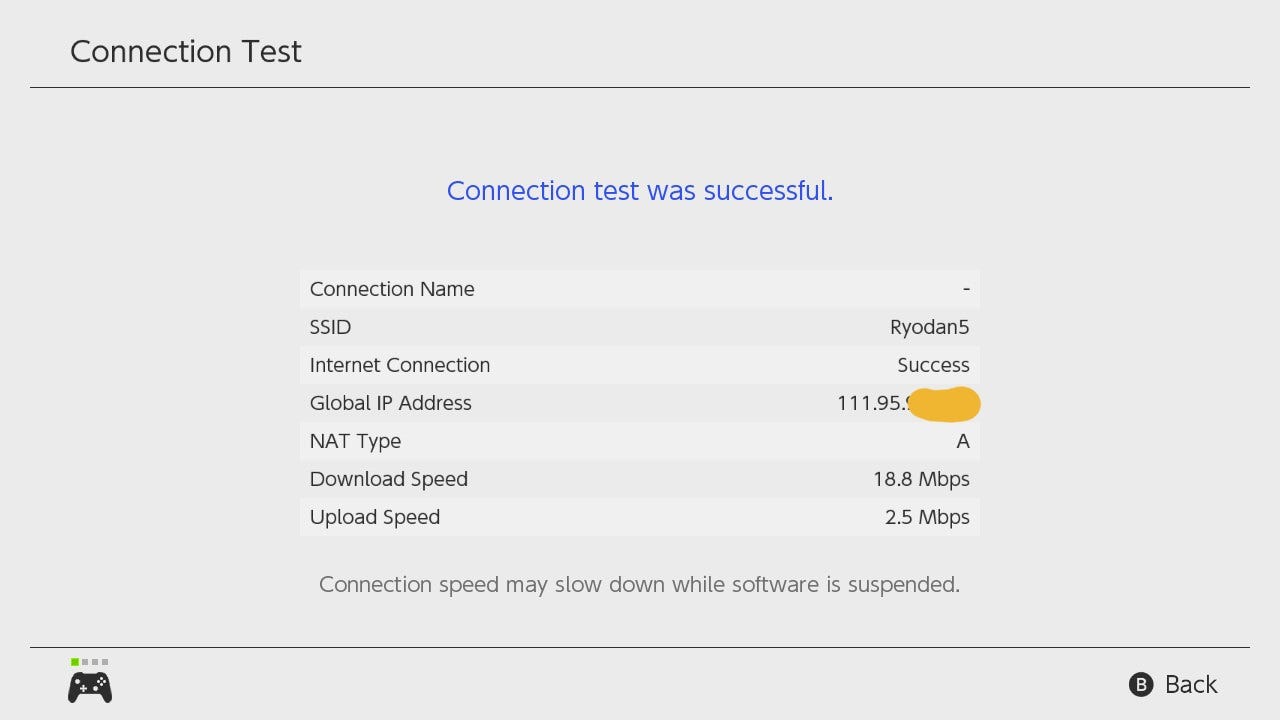
Credit: hariesef.medium.com
Troubleshooting Nat Type Issues
Troubleshooting NAT type issues is key to improving your online gaming experience. NAT (Network Address Translation) controls how your console or PC connects to other players. A strict or moderate NAT type can cause lag, disconnections, or limit multiplayer access. Identifying and fixing these issues ensures smoother gameplay and better matchmaking.
Many factors can affect NAT type, such as router settings, firewall rules, or your internet service provider. This section highlights common problems and simple fixes. It also explains how to test NAT type after making changes to confirm success.
Common Problems And Fixes
- Strict NAT type:Limits connections to other players. Fix by enabling UPnP or forwarding specific ports.
- Disabled UPnP:Universal Plug and Play helps devices communicate. Enable UPnP in your router settings.
- Port blocking:Some routers block gaming ports. Open or forward ports needed for your game.
- Double NAT:Occurs if multiple routers are in use. Use bridge mode or connect directly to the main router.
- Firewall restrictions:Firewalls may block game traffic. Allow your game or console through the firewall.
Testing Nat Type After Changes
After adjusting your router or firewall, test your NAT type to check improvement. Most gaming consoles and PCs offer a network test tool. Follow these steps:
- Run the network test feature on your device.
- Check NAT type result—ideally, it should be “Open.”
- Test multiplayer connection by joining a game session.
- Restart your router and gaming device if NAT type is unchanged.
Repeat adjustments as needed until you achieve an open NAT type. This process ensures better connectivity and gaming performance.
Tips For Maintaining Open Nat Type
Maintaining an open NAT type is essential for smooth online gaming. It ensures better connections and fewer interruptions. Keeping your NAT type open requires some simple habits and settings checks.
Regularly updating your router firmware helps maintain an open NAT type. Updates fix bugs and improve performance. Restarting your router occasionally clears network issues that may block ports.
Assign a static IP address to your gaming device. This prevents IP conflicts and keeps port forwarding stable. Use port forwarding rules to keep necessary gaming ports open at all times.
Check your firewall settings to allow traffic for your games. Firewalls can block incoming connections, causing strict NAT types. Adjusting firewall rules can keep your NAT type open and gaming smooth.
Keep your network devices organized. Avoid multiple routers or modems in your setup, as they can cause double NAT issues. Single-router setups simplify NAT management and reduce connectivity problems.
Enable Upnp On Your Router
Universal Plug and Play (UPnP) allows devices to open ports automatically. Enabling UPnP keeps ports open as needed for your games. It reduces manual setup and helps maintain an open NAT type.
Use Port Forwarding For Stable Connections
Port forwarding directs game traffic through specific router ports. Set port forwarding for the ports your game requires. This ensures a stable and open NAT type for consistent gaming.
Assign A Static Ip Address
Static IP keeps your gaming device’s address fixed. It prevents port forwarding from breaking due to IP changes. This simple step supports a reliable open NAT type.
Regularly Restart Your Router
Restarting clears temporary network issues. It refreshes your connection and router settings. This simple action helps maintain an open NAT type during gaming sessions.
Check Firewall And Security Settings
Firewalls can block game connections. Adjust settings to allow your game traffic. This keeps NAT open and prevents connection drops.
Avoid Double Nat Issues
Using multiple routers can create double NAT problems. It restricts open NAT types and causes lag. Use a single router or set one to bridge mode for best results.
Frequently Asked Questions
What Is Nat Type In Gaming?
NAT type defines how your console connects to other players. It affects online game compatibility and matchmaking speed. Open NAT allows seamless connections, while strict NAT limits multiplayer interactions. Understanding NAT types helps improve gaming experience and reduces connectivity issues.
How To Check My Nat Type On Console?
Go to your console’s network settings and run a connection test. The NAT type will be displayed as Open, Moderate, or Strict. This quick check helps identify if you need to adjust your router or firewall settings for better gaming performance.
Why Is Open Nat Important For Gaming?
Open NAT ensures the best multiplayer experience by allowing unrestricted connections. It reduces lag, improves matchmaking, and enables voice chat with other players. Having Open NAT minimizes connection errors and lets you fully enjoy online gaming without restrictions.
How Can I Open Nat Type On My Router?
Access your router’s admin panel via its IP address. Enable UPnP, or manually forward gaming ports required by your console. This process allows your console to communicate freely, changing your NAT type to Open and enhancing online game connectivity.
Conclusion
Opening your NAT type can improve your gaming experience a lot. It helps reduce lag and lets you connect with more players. Follow the simple steps carefully to change your NAT settings. You can enjoy smoother matches and join different game rooms easily.
Keep your router and game system updated for best results. Play with friends without connection issues. Try these tips today and see the difference in your game. Simple changes bring better online gaming fun.