If you want to get the best gaming experience, your router plays a bigger role than you might think. A high-end router has the power to boost your speed, reduce lag, and keep your connection stable when every millisecond counts.
But just owning a fancy router isn’t enough—you need to optimize it properly. Imagine cutting down those frustrating delays and enjoying smoother gameplay every time you log in. You’ll discover simple, effective steps to tune your high-end router specifically for gaming.
Ready to take your setup to the next level? Keep reading, because what you learn here could change the way you play forever.
Choosing The Right Router
Choosing the right routeris key for smooth gaming. Focus on low latencyand high speed. A router with Quality of Service (QoS)lets you prioritize gaming traffic. Look for support of dual-band or tri-band frequenciesto reduce interference. Good rangehelps if your gaming setup is far from the router.
Wired connectionsusually offer more stable and faster speeds. Use Ethernet cablesfor the best gaming experience. Wireless is more convenient but can face signal dropsand interference. Choose a router with Wi-Fi 6for better wireless performance and less lag.
| Model | Features | Price Range |
|---|---|---|
| ASUS RT-AX88U | Wi-Fi 6, 8 LAN ports, QoS | High |
| Netgear Nighthawk XR500 | Gaming dashboard, QoS, Dual-band | Medium-High |
| TP-Link Archer AX50 | Wi-Fi 6, Good range, Affordable | Medium |
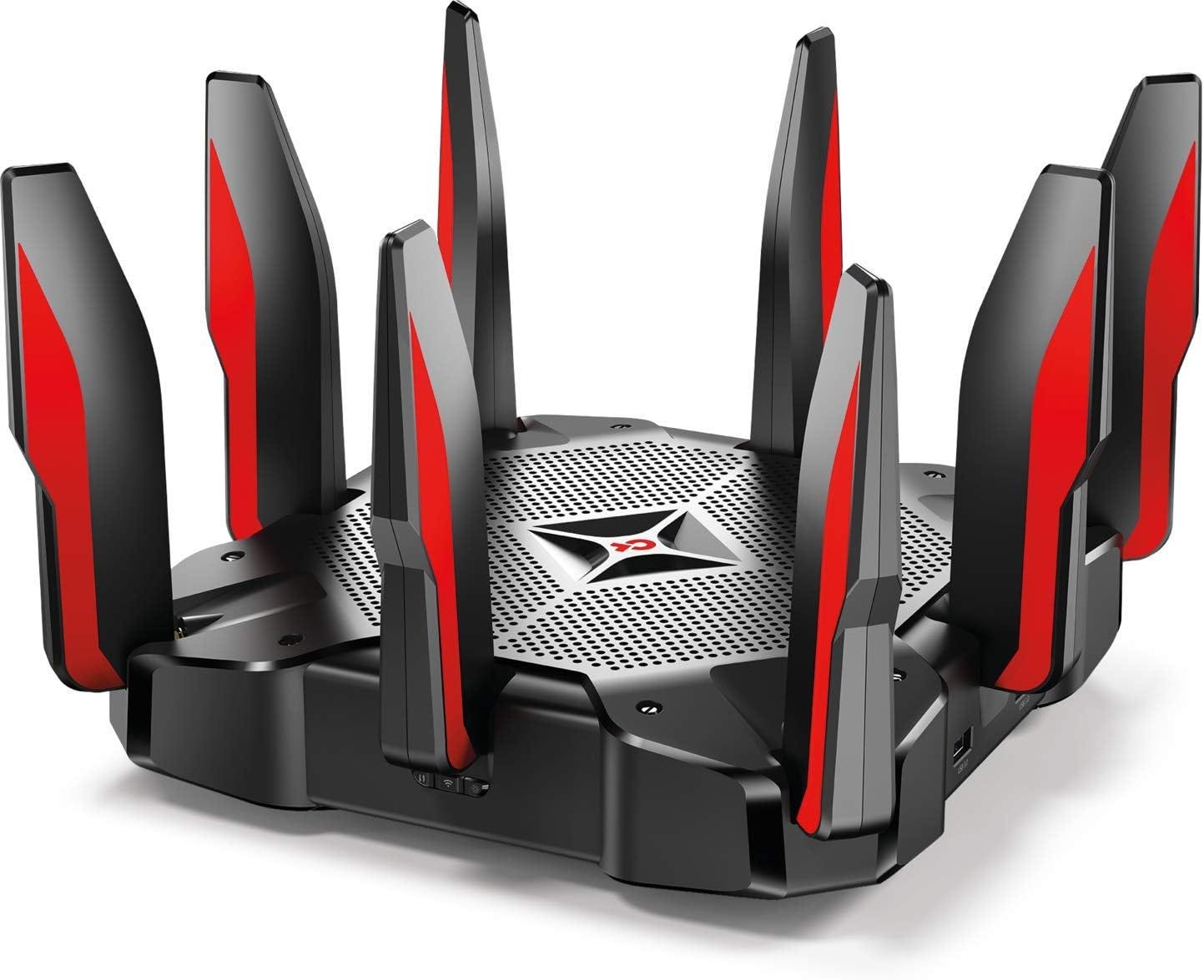
Credit: medium.com
Configuring Router Settings
Updating firmwarekeeps the router secure and fast. Check the router’s website for the latest version. Download and install updates regularly. This fixes bugs and improves performance.
Adjusting Quality of Service (QoS)helps prioritize gaming traffic. Set your gaming device to high priority. This lowers lag and avoids slow speeds during play. It makes sure games get the best bandwidth.
Enabling Gaming Modereduces delays and interference. Many routers have a special gaming mode to boost speed. Turn it on to get smoother gameplay and fewer drops. It helps the router focus on your games.
Network Optimization Techniques
Choosing the right channelcan reduce interference from other networks. Use channels with the least traffic for better speed. Dual-band routers offer 2.4 GHz and 5 GHz bands. The 5 GHz band is faster but has shorter range. The 2.4 GHz band covers longer distance but is slower.
Latency and jitteraffect gaming quality. Lower latency means less delay. Jitter causes uneven delays, making games lag. Use Quality of Service (QoS) settings to prioritize gaming traffic. This ensures smoother and faster gameplay.
| Bandwidth Allocation | Effect |
|---|---|
| Limit background downloads | Prevents slowdowns during gaming |
| Set priority for gaming devices | Ensures stable connection for gaming |
| Use bandwidth control tools | Manage data flow efficiently |
Improving Wireless Performance
Place your router in a central locationin your home. Avoid walls and metal objects that block signals. Keep it off the floor for better reach.
Use the 5GHz bandfor faster speeds and less interference. The 2.4GHz band covers longer distances but is slower and crowded.
- Keep the router away from microwaves and cordless phones.
- Reduce the number of devices connected at once.
- Change the Wi-Fi channel to avoid nearby networks.
Advanced Security Settings
WPA3 encryptionprovides stronger security than older methods. It protects your network from hackers and keeps data safe. Enable WPA3 in your router’s security settings for better protection.
Setting up a guest networklets visitors use the internet without accessing your main devices. This keeps your gaming devices safe and private. You can set limits on speed and usage for guests.
Blocking unwanted devicesstops unknown gadgets from joining your network. Use your router’s device list to find and block suspicious connections. This keeps your bandwidth free and prevents slowdowns during gaming.

Credit: helpdeskgeek.com
Monitoring And Maintenance
Router analytics toolshelp track network speed and device use. They show which devices use most bandwidth. This helps find slow connections or unknown devices. Using these tools regularly keeps the network healthy.
Regular reboots clear temporary data and fix minor bugs. Updating router firmware ensures security and better performance. Set a schedule for reboots and updates to avoid issues.
- Check cables and connections for damage or looseness.
- Restart router if connection drops or slows.
- Reset router settings if problems persist.
- Contact support when issues can’t be fixed easily.
Credit: medium.com
Frequently Asked Questions
How Do I Prioritize Gaming Traffic On My Router?
To prioritize gaming traffic, enable Quality of Service (QoS) in your router settings. Assign higher priority to gaming devices or applications to reduce lag and improve response time during gameplay.
What Are The Best Wi-fi Settings For Gaming?
Use 5GHz frequency for faster speeds and less interference. Set your channel to a less crowded one and enable WPA3 for secure, stable connections.
How Can Firmware Updates Improve Gaming Performance?
Firmware updates fix bugs, enhance security, and improve router efficiency. Regularly updating ensures your router runs optimally, reducing latency and connection drops during gaming.
Should I Use Wired Or Wireless For Gaming?
Wired connections offer lower latency and more stability than wireless. Use an Ethernet cable for critical gaming to minimize lag and packet loss.
Conclusion
Optimizing your high-end router boosts your gaming experience. It’s not complex. Adjust settings like bandwidth and prioritize gaming traffic. Ensure your firmware is up-to-date for best performance. Consider placing the router in a central location. This reduces lag and enhances connectivity.
Use a wired connection for stable gameplay. Test your settings often. This helps maintain smooth gaming. Remember, small tweaks can make a big difference. Happy gaming!