Are you tired of dead zones and slow internet in parts of your home? Your mesh WiFi system promises seamless coverage, but sometimes it falls short.
The good news is, you can fix this. By optimizing your mesh WiFi coverage, you’ll enjoy faster speeds, stronger signals, and a smoother online experience everywhere you go. Keep reading to discover simple, effective tips that will transform your WiFi and keep you connected without interruptions.
Your perfect wireless connection is closer than you think.
Choosing The Right Mesh System
Choosing the right mesh system is key to strong wifi throughout your home. It affects speed, coverage, and how many devices connect smoothly. Picking a system that fits your space and needs avoids weak signals and dead zones.
Focus on important factors before buying. This helps you get steady wifi in every corner.
Evaluating Router Compatibility
Check if the mesh system works with your current router. Some systems need you to replace your router entirely. Others can connect to your existing router. Matching brands or technology can improve performance. Confirm the system supports your internet speed and provider.
Considering Coverage Area
Measure your home’s size and layout. Large homes need more nodes to cover every room. Walls and floors block signals and reduce range. Choose a system that offers enough nodes for your space. Look for systems with flexible node placement options.
Assessing Device Capacity
Count how many devices connect to your wifi daily. Streaming, gaming, and smart home devices use bandwidth. Pick a system that supports multiple devices without slowing down. Some mesh systems list maximum device connections. Choose one that matches or exceeds your needs.
Ideal Router Placement
Getting your mesh WiFi to cover every corner of your home starts with placing the router in the right spot. The ideal router placement can dramatically improve your network’s reach and speed. Small changes in location often make a big difference in how well your devices connect.
Centralized Location Benefits
Placing your main router in the center of your home helps the signal reach all rooms evenly. This reduces dead zones and keeps your connection strong across different floors or areas.
Think about your own experience—if your router sits at one end of the house, do you notice slower speeds or dropped connections farther away? Moving it closer to the middle can solve this.
Try to avoid putting the router in a corner or behind thick walls, as these block signals and reduce coverage.
Avoiding Interference
Wireless signals can get easily interrupted by other electronics and metal objects. Keep your router away from microwaves, cordless phones, baby monitors, and Bluetooth devices to maintain a clean signal.
Even large metal furniture or mirrors can reflect or absorb WiFi signals, causing weak spots. Position your router where it has clear line-of-sight to the areas you use most.
Have you ever noticed your WiFi slowing down when you use the microwave? That’s interference in action, and placing your router in a different room can help prevent this.
Elevating For Better Signal
Placing your router at a higher position—like on a shelf or mounted on a wall—helps the signal travel farther and avoid obstacles on the floor.
Signals spread out more evenly when the router is elevated, similar to how a flashlight shines farther when raised above your head.
If your router sits on the floor or in a low cabinet, try raising it to see if your devices connect faster and with fewer drops.
Configuring Network Settings
Configuring your mesh WiFi network settings correctly can significantly improve coverage and performance. Small tweaks in the software setup often make a bigger difference than moving hardware around. Let’s look at some key settings that can help you get the most out of your mesh system.
Selecting Optimal Channels
Your mesh network operates on specific WiFi channels, but not all channels are equal. Choosing channels with less interference from neighbors or other electronics can reduce congestion and boost speeds.
Many routers default to automatic channel selection, but this doesn’t always pick the best option. Use a WiFi analyzer app to scan nearby networks and identify channels with the least traffic.
Once you find a clearer channel, manually set your mesh nodes to use it. This simple adjustment often results in a more stable connection and fewer dropped signals. Have you ever noticed better performance just by switching channels?
Enabling Band Steering
Band steering allows your mesh system to guide devices between 2.4 GHz and 5 GHz bands based on which one will deliver better speed and coverage. This helps balance the load and enhances overall network efficiency.
When band steering is turned off, your devices might stick to the slower 2.4 GHz band even when 5 GHz is available. Enabling this feature encourages devices to connect where they perform best without you lifting a finger.
Try turning on band steering and observe if your devices switch bands automatically during heavy use. You might find your streaming or video calls become smoother instantly.
Adjusting Transmit Power
Transmit power controls how strong your mesh nodes broadcast their WiFi signals. Too low, and your coverage shrinks; too high, and you risk interference between nodes or with other networks.
Start by setting transmit power to a medium level and test your network’s range and speed in different rooms. If you notice weak signals in far areas, increase the power gradually.
On the other hand, if your mesh nodes are too close and causing interference, lowering the power might improve stability. Finding the right balance can be a game-changer—have you experimented with this setting before?
Credit: blog.eero.com
Extending Coverage With Nodes
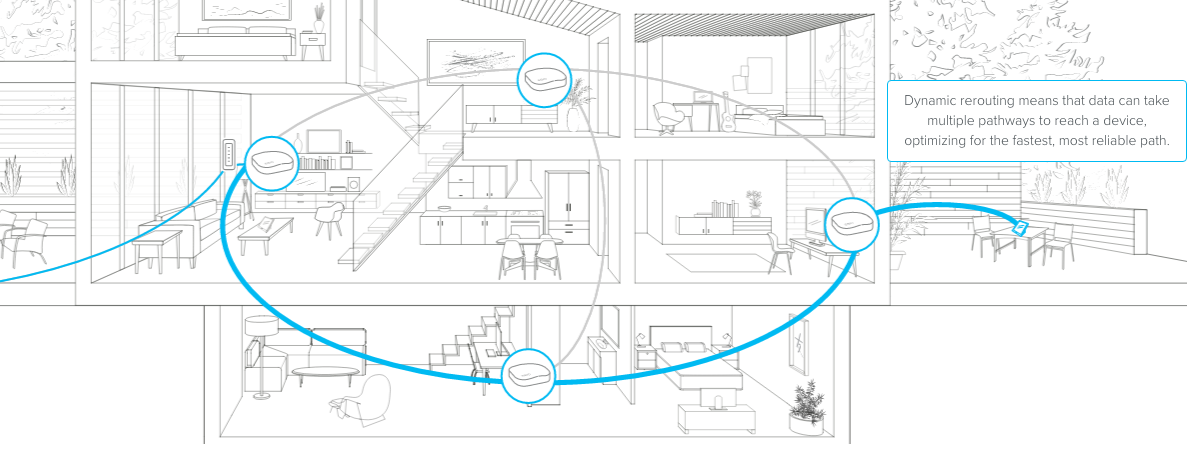
Extending your mesh WiFi coverage means placing more nodes to spread the signal. Each node acts like a mini router, helping the WiFi reach far corners of your home or office. Proper use of nodes avoids dead zones and keeps your connection strong everywhere.
Strategic Node Placement
Place nodes where the WiFi signal starts to get weak. Avoid walls and large metal objects between nodes. Open spaces work best for signal travel. Keep nodes visible and not tucked away in cabinets or behind furniture. Check signal strength with your phone to find the best spots.
Using Wired Backhaul
Connect nodes using Ethernet cables for faster and stable links. This reduces wireless interference and improves speed. Wired backhaul frees up wireless channels for devices. It works well in homes with thick walls or many floors. Use quality cables and keep connections secure.
Balancing Node Density
Too few nodes leave gaps in coverage. Too many nodes cause signal overlap and slow down the network. Find the right number of nodes based on your space size and layout. Spread nodes evenly to cover all areas without crowding. Monitor network performance and adjust node count as needed.
Minimizing Signal Interference
Minimizing signal interference is key to getting the most out of your mesh WiFi system. Interference can seriously weaken your connection, causing slow speeds and dropped signals. Understanding and controlling what disrupts your WiFi helps you create a stronger, more reliable network.
Identifying Common Sources
Many everyday devices can interfere with your WiFi signal. Microwaves, cordless phones, baby monitors, and Bluetooth gadgets all operate on similar frequencies and can cause interruptions. Even neighboring WiFi networks might overlap with yours, creating signal congestion.
Have you noticed your connection slow down during certain times of day? This could be due to your neighbor’s network activity or your own devices kicking in. Identifying these sources helps you take targeted action to reduce interference.
Reducing Electronic Noise
Electronic noise disrupts your mesh WiFi by creating random signals in the same frequency range. Keeping your mesh routers away from other electronics can lower this noise. Try to avoid placing nodes near TVs, gaming consoles, or wireless speakers.
Using devices with wired connections instead of wireless ones can also reduce electronic noise. For example, plugging in your smart TV or desktop computer directly to your router frees up wireless bandwidth for other devices. This small change can boost your network’s overall performance.
Managing Physical Obstacles
Walls, floors, and furniture block or weaken WiFi signals. Materials like concrete, metal, and brick are especially tough barriers. Position your mesh nodes in open areas, ideally on shelves or high surfaces, to improve signal flow.
Think about your home’s layout. Are nodes hidden behind thick walls or inside cabinets? Moving them to more visible spots can make a huge difference. Even something as simple as relocating a node a few feet can clear the path for stronger signals.

Credit: dongknows.com
Maintaining Mesh Network Health
Maintaining your mesh network’s health is key to keeping your wifi coverage strong and reliable. Just like any tech device, mesh systems need regular care to perform at their best. Paying attention to simple maintenance tasks can save you from frustrating slowdowns or dead zones.
Regular Firmware Updates
Keeping your mesh devices updated is one of the easiest ways to improve performance and security. Firmware updates often fix bugs, enhance speed, and add new features. You might not notice the difference immediately, but over time, updates prevent issues that slow your network down.
Check your mesh system’s app or web interface regularly for available updates. Some models even allow automatic updates, which takes the hassle off your plate. Have you ever ignored an update only to find your connection acting up later? Staying proactive can save you that headache.
Monitoring Network Performance
Keeping an eye on how your network performs helps you spot problems early. Many mesh systems offer built-in tools to monitor signal strength, connected devices, and data usage. Use these tools to identify weak spots or devices hogging bandwidth.
If you notice a specific area with poor coverage, consider repositioning nodes or adding another unit. Regular monitoring can also reveal if a device has gone offline or if interference is causing slowdowns. Ask yourself: when was the last time you checked your network’s health?
Restarting Devices Periodically
Restarting your mesh nodes might sound old-school, but it’s surprisingly effective. A reboot clears temporary glitches and refreshes connections between devices. If your network feels sluggish, a quick restart can often restore speed and stability.
Try scheduling a restart every few weeks or after a power outage. This small habit can improve your wifi experience without any technical know-how. Have you tried rebooting your mesh nodes before calling for support? It might just fix the problem faster than you expect.
Advanced Optimization Techniques
Placing mesh nodes in open areas boosts signal strength and reduces dead zones. Adjusting channel settings helps avoid interference and improves coverage. Regularly updating firmware keeps the system running smoothly and efficiently.
Optimizing mesh WiFi coverage is crucial for a seamless online experience. While basic setup can significantly improve connectivity, advanced optimization techniques can take your network performance to the next level. Let’s dive into some strategies that can enhance your mesh WiFi system, ensuring you maximize its potential and enjoy uninterrupted service.Utilizing Qos Settings
Quality of Service (QoS) settings allow you to prioritize certain types of internet traffic. This means you can ensure that important activities, like video calls or online gaming, receive more bandwidth compared to less critical tasks. Adjusting these settings is like assigning VIP lanes for your data, helping prevent lag and buffering. Imagine streaming your favorite series in HD while your partner plays an online game. By prioritizing streaming and gaming through QoS, both activities can run smoothly without interference. Accessing these settings is usually done through your router’s app or web interface, and the process is simpler than you might think.Implementing Guest Networks
Creating a guest network is not just about offering a separate WiFi access for visitors. It also plays a significant role in network security and performance. By isolating guests on their own network, you prevent any potential impact on your main network’s speed and safety. Think about the last time you had friends over, all connecting their devices to your WiFi. A guest network keeps their devices isolated, meaning your primary devices maintain optimal connectivity. Setting up a guest network is a straightforward process, often just a few taps away in your router settings.Leveraging Network Analytics
Do you know how well your network is performing? Network analytics tools provide insights into your WiFi usage patterns and performance metrics. By understanding these, you can make informed decisions to enhance coverage and speed. These tools can show you which devices consume the most bandwidth, or if any devices are experiencing weak signals. Armed with this information, you can reposition nodes or adjust settings to fix issues. It’s like having a GPS for your network, guiding you to the best configuration for superior performance. Exploring these advanced optimization techniques can make a significant difference in your WiFi experience. Are you ready to take control of your network and enjoy a faster, more reliable connection?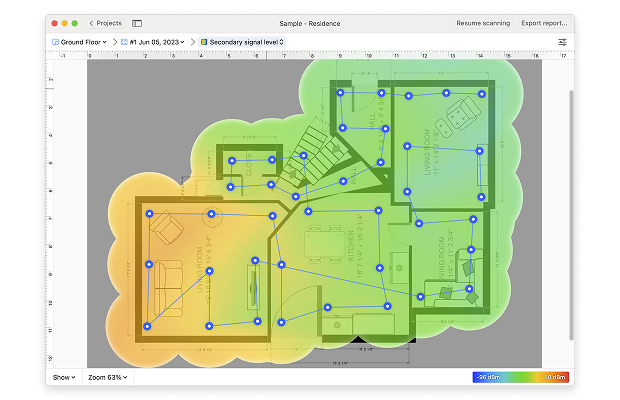
Credit: www.netspotapp.com
Frequently Asked Questions
How Do I Place Mesh Wifi Nodes For Best Coverage?
Place mesh nodes centrally and evenly throughout your space. Avoid physical obstructions and keep nodes away from electronics that cause interference. Optimal placement ensures strong signals and seamless coverage across your home or office.
Can I Use Mesh Wifi With My Existing Router?
Yes, mesh wifi can work with most routers. Use the mesh system in bridge mode to extend coverage. This setup enhances signal strength without replacing your current router.
How Many Mesh Nodes Do I Need For Large Homes?
For large homes, 3 to 5 mesh nodes usually suffice. Add more nodes for multi-story or complex layouts. Proper node count ensures consistent, strong wifi in every room.
What Frequency Bands Do Mesh Wifi Systems Use?
Mesh wifi systems use 2. 4 GHz and 5 GHz bands. 2. 4 GHz offers longer range; 5 GHz provides faster speeds. Dual-band support balances speed and coverage for optimal performance.
Conclusion
Optimizing mesh WiFi coverage improves your internet experience at home. Place nodes where signals travel best. Avoid walls and metal objects that block signals. Keep your system updated with the latest software. Regularly check your network for weak spots. Small changes bring stronger, more reliable connections.
Enjoy smoother streaming, faster downloads, and better calls. A strong mesh WiFi system supports all your devices well. Take these simple steps for better coverage today.