Are you tired of lag ruining your gaming sessions? You’re not alone.
When your internet slows down at the worst moments, it can be frustrating and ruin your focus. What if you could make your router work smarter, giving your games the priority they need to run smoothly? You’ll discover simple, effective ways to prioritize gaming traffic on your router.
By the time you finish reading, you’ll have the tools to reduce lag, improve connection stability, and enjoy a seamless gaming experience every time you play. Ready to take control of your network and level up your gameplay? Let’s get started.

Credit: www.youtube.com
Why Prioritize Gaming Traffic
Prioritizing gaming traffic on your router improves your online gaming experience. It reduces delays and keeps your connection steady. This step is important because gaming needs fast and reliable data flow.
Without prioritization, other activities like streaming or downloads can slow your game. Your gameplay might lag or freeze, causing frustration. Giving priority to gaming traffic helps avoid these issues and keeps your game smooth.
Impact Of Latency On Gaming
Latency means the delay between your action and the game’s response. High latency causes lag, making games hard to play. Quick reactions are crucial in many games.
Even small delays can affect your performance. Latency spikes can make you miss important moments. Keeping latency low ensures fast and smooth gameplay.
Benefits Of Traffic Prioritization
- Reduces lag and improves game response time
- Prevents interruptions during important gaming moments
- Keeps your connection stable even with other devices online
- Enhances overall gaming experience and enjoyment
Prioritizing gaming traffic makes your network smarter. It sends gaming data first, so your game stays fast. This helps you play without frustration or delays.
Credit: medium.com
Check Router Compatibility
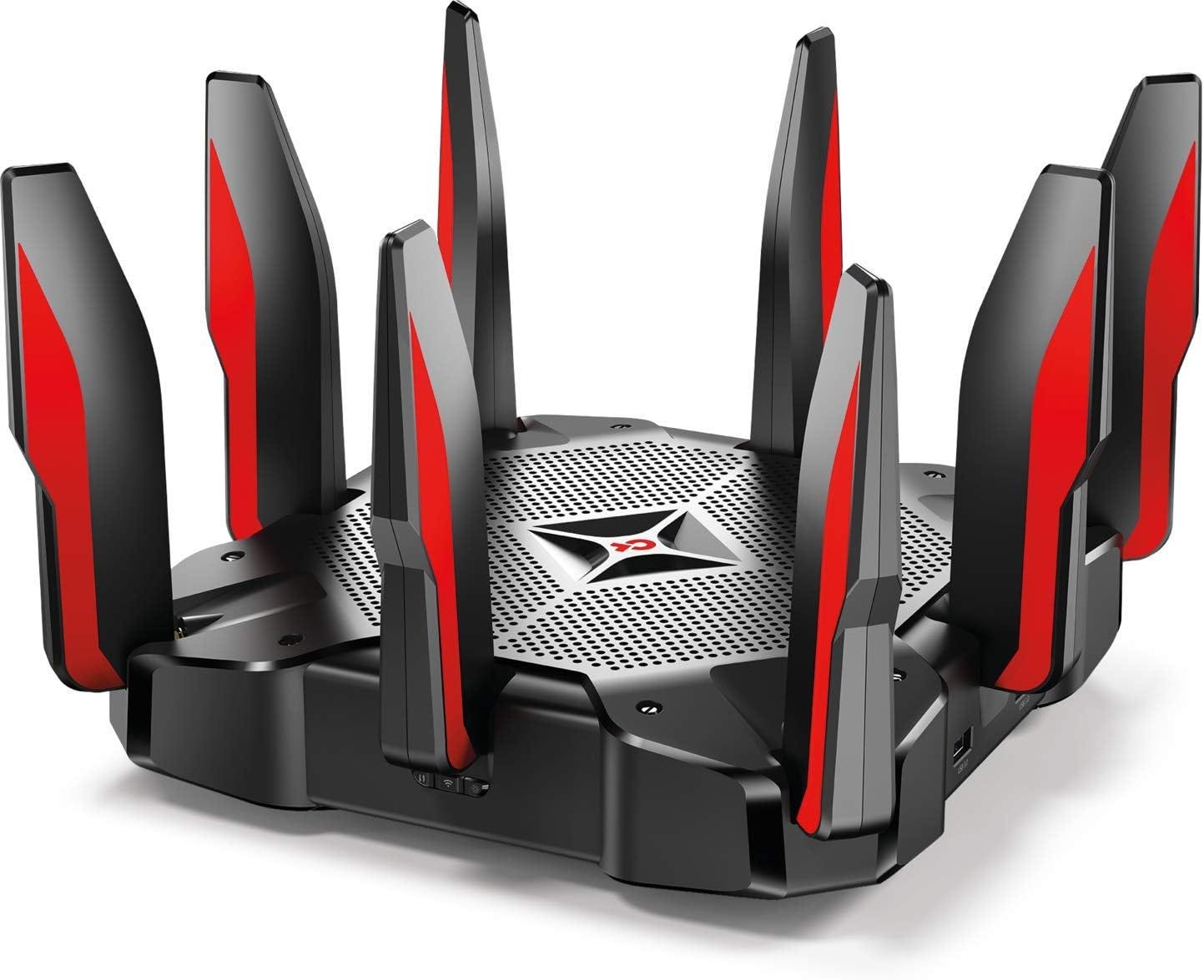
Before you dive into prioritizing gaming traffic on your router, it’s crucial to check if your device supports the necessary features. Not all routers are built the same, and without the right compatibility, your efforts might fall short. Understanding what your router can handle saves you time and helps you make smarter adjustments for smoother gameplay.
Supported Quality Of Service Features
Quality of Service (QoS) is the key to prioritizing gaming traffic. But not all routers offer the same QoS capabilities. Some provide basic traffic prioritization, while others let you customize settings for specific devices or applications.
Look for routers that mention:
- Game or Device Prioritization:Ability to prioritize traffic from your gaming console or PC.
- Application-based QoS:Prioritize traffic for specific games or gaming services.
- Dynamic QoS:Automatically adjusts bandwidth based on usage to keep gaming smooth.
If your router lacks these features, you might not get the low latency and stable connections you want. Ever noticed your game lagging when someone else starts streaming videos? That’s where QoS steps in to balance things out.
Firmware Updates For Gaming
Router manufacturers often release firmware updates that improve performance and add new features. These updates can enhance QoS functions or fix bugs that cause connection issues during gaming.
Regularly check your router’s admin panel or the manufacturer’s website for firmware updates. Installing the latest firmware can sometimes unlock gaming-specific optimizations that weren’t available when you first bought the router.
Ignoring updates might leave you stuck with outdated software that limits your ability to prioritize gaming traffic effectively. Have you ever experienced sudden spikes in ping? An update could be the fix you need.
Access Router Settings
Accessing your router settings is the first essential move to prioritize gaming traffic effectively. Without the right access, you won’t be able to tweak any settings or optimize your network for smoother gameplay. It might sound technical, but it’s easier than you think once you know where to look.
Finding Your Router’s Ip Address
Your router’s IP address is like the home address for your device’s control panel. You need this to get inside and make changes.
Here’s how you can find it quickly:
- On Windows:Open Command Prompt and type
ipconfig. Look for the “Default Gateway” under your active network connection. - On Mac:Go to System Preferences > Network, select your connection, click Advanced, then the TCP/IP tab to see the router’s IP.
- On mobile devices:Check your Wi-Fi settings, usually under “Gateway” or “Router” information.
Knowing this address is crucial because it’s your entry point. Have you ever overlooked this step and got stuck? It’s a common pitfall.
Logging Into The Admin Panel
Once you have the IP address, open a web browser and type it into the address bar. This directs you to the router’s admin login page.
You will need the username and password. Often, the default credentials are printed on the router itself or found in the manual. If you or someone else changed them and forgot, you might need to reset the router.
After logging in, you’ll see a dashboard packed with options. Don’t worry if it looks complicated. Focus on the sections related to Quality of Service (QoS) or traffic management—these are where you’ll prioritize your gaming traffic.
Credit: helpdeskgeek.com
Enable Quality Of Service (qos)
Enabling Quality of Service (QoS) on your router is like giving your gaming traffic a VIP pass through your network. By prioritizing the data that’s critical for your gaming experience, you ensure smoother gameplay with less lag. But how exactly do you go about setting this up?
Types Of Qos Settings
Routers come with different QoS settings, each tailored to various needs. There are usually two main types: application-based and device-based QoS.
- Application-based QoS:This setting prioritizes traffic based on the type of application. You can prioritize gaming applications over other activities like streaming or web browsing.
- Device-based QoS:This focuses on prioritizing traffic from specific devices. Perfect for when you want your gaming console or PC to have the upper hand over other gadgets connected to your network.
Consider which type suits your home network better and adjust accordingly.
Setting Priorities For Devices
Once you know the type of QoS setting you prefer, it’s time to prioritize your devices. Log into your router’s settings via a web browser. Usually, you’ll find a QoS menu under the advanced settings tab.
Start by identifying your gaming device’s IP address or MAC address. Input this information into your router’s QoS settings and assign it a high priority. This tells your router that your gaming traffic should take precedence over other data streams.
Have you ever noticed lag during a crucial game moment? Assigning priority can be a game-changer, quite literally! Remember, the goal is to ensure your gaming device gets the bandwidth it needs without interruptions.
Have you prioritized your devices in a way that enhances your gaming experience? Or maybe you’ve noticed a difference after adjusting the settings? Share your thoughts and experiences in the comments below.
Assign Priority To Gaming Devices
Assigning priority to your gaming devices on your router ensures that your gameplay stays smooth, even when others share the network. It helps your console or PC get the bandwidth it needs without interruptions from background downloads or streaming. Let’s focus on how to spot your device and give it the highest priority for gaming traffic.
Identifying Device Ip Or Mac Address
Before you can prioritize a device, you need to know its unique identifier. This could be the IP address or the MAC address. These addresses tell the router exactly which device to prioritize.
To find your device’s IP address:
- On Windows, open Command Prompt and type
ipconfig. Look for the IPv4 address under your active connection. - On a PlayStation or Xbox, check the network settings menu for the IP address.
The MAC address is even more precise. You can usually find it in your device’s network settings labeled as “Physical Address” or “MAC Address.” Note it down carefully, as this will be used to set priority in your router’s interface.
Setting High Priority For Gaming Traffic
Once you have the IP or MAC address, log into your router’s admin panel. This is typically done by typing your router’s IP address into a browser, often something like 192.168.1.1.
Look for a section labeled Quality of Service (QoS) or Traffic Management. This is where you control which devices or services get priority bandwidth.
Here’s what to do:
- Add your gaming device by entering its MAC or IP address.
- Assign it the highest priority level available—often labeled as “High” or “Gaming.”
- Save your settings and reboot the router if needed.
Have you noticed a difference in your gaming experience after prioritizing your device? Many gamers report reduced lag and fewer connection drops. Prioritizing gaming devices can be the simple fix that transforms frustrating game nights into seamless victories.
Optimize Bandwidth Allocation
Optimizing bandwidth allocation helps your gaming traffic get priority on the network. It ensures smooth gameplay by reducing lag and buffering. Proper bandwidth management divides internet speed smartly among all devices and applications.
Focus on giving your gaming devices enough bandwidth. This way, games run faster and without interruptions. Other apps and services should use leftover bandwidth to avoid slowing your gaming experience.
Limiting Background Traffic
Background apps can use a lot of your internet without you noticing. Streaming videos, downloads, and updates consume bandwidth silently. Limiting these apps helps keep more speed available for gaming.
- Pause or schedule updates during gaming sessions.
- Close or restrict apps that use the internet in the background.
- Use router settings to block or limit non-essential traffic.
Allocating Minimum Bandwidth To Gaming
Set a minimum bandwidth quota for your gaming device. This guarantees a steady internet speed for gaming, even if other devices are active. Many routers have Quality of Service (QoS) settings for this purpose.
- Access your router’s QoS settings from the admin panel.
- Assign a fixed minimum bandwidth to your gaming console or PC.
- Adjust settings to prioritize gaming traffic over other types.
Test And Monitor Performance
Testing and monitoring your gaming traffic helps ensure smooth gameplay. It shows how well your router manages data. You can spot problems early and fix them fast. Regular checks keep your connection stable and reduce lag.
Using Speed And Ping Tests
Speed tests measure how fast your internet runs. Ping tests show the delay between your device and the game server. Both are key for gaming quality. Use trusted websites or apps for accurate results. Run tests at different times to see changes in performance.
- Check download and upload speeds.
- Note your ping time in milliseconds.
- Test on both wired and wireless connections.
- Compare results before and after router changes.
Adjusting Settings Based On Results
Analyze test data to find weak spots. If ping is high, try changing router settings. Prioritize gaming devices using Quality of Service (QoS) features. Allocate more bandwidth to games than other traffic. Lower speeds may require limiting background downloads or streaming. Keep testing after each change to see improvement.
- Enable QoS and set gaming priority.
- Reduce bandwidth for non-gaming devices.
- Switch to wired connection if ping is unstable.
- Update router firmware for better performance.
Alternative Solutions For Boosting Speed
Boosting gaming traffic speed can improve your play experience a lot. Simple tweaks and better gear can reduce lag and increase stability. There are practical ways to enhance your connection without complex setups.
Using Wired Connections
Wired connections offer a steady and faster link than Wi-Fi. They avoid interference from walls or other devices. Use an Ethernet cable to connect your gaming device directly to the router. This reduces delays and packet loss during games.
Wired connections also provide consistent speeds during long play sessions. It is a reliable choice for serious gamers who want smooth gameplay. Even low-cost cables can improve your network quality.
Upgrading Router Hardware
Old or basic routers may not handle gaming traffic well. Newer models support faster Wi-Fi standards and better traffic management. Look for routers with features like Quality of Service (QoS) to prioritize gaming data.
Upgrading hardware can also increase your network range and reduce dead zones. More powerful routers handle multiple devices without slowing down. This upgrade often leads to noticeable improvements in speed and responsiveness.
Frequently Asked Questions
How Do I Prioritize Gaming Traffic On My Router?
You can prioritize gaming traffic by enabling Quality of Service (QoS) on your router. Assign higher priority to gaming devices or specific ports used by games. This reduces lag and improves online gaming performance by allocating more bandwidth to gaming traffic.
Which Routers Support Gaming Traffic Prioritization?
Most modern routers support QoS features for traffic prioritization. Look for routers with advanced QoS settings or gaming-specific modes. Popular brands like Asus, Netgear, and TP-Link offer routers designed to optimize gaming traffic efficiently.
What Settings Improve Gaming Traffic On Routers?
Enable QoS and set gaming devices to high priority. Use traffic prioritization for game ports and protocols. Disable bandwidth-heavy applications during gaming sessions. This helps reduce latency and packet loss, providing a smoother gaming experience.
Can Prioritizing Gaming Traffic Affect Other Devices?
Yes, prioritizing gaming traffic can limit bandwidth for other devices. QoS ensures gaming gets preference, which may slow down other activities. Balance priorities to maintain overall network performance while enhancing gaming traffic.
Conclusion
Prioritizing gaming traffic on your router helps reduce lag and improve gameplay. It ensures your games get the best internet speed and connection. This way, you avoid interruptions and enjoy smoother gaming sessions. Setting up traffic rules is easy and worth the effort.
Try these steps to see better game performance today. Your online play will feel faster and more responsive. Small changes make a big difference for every gamer.