Is your dual band router acting up or running slower than usual? Resetting it might be the quick fix you need.
But how exactly do you reset a dual band router without causing more problems? In this guide, you’ll discover simple, step-by-step instructions to get your router back to its best. Whether you’re facing connection drops or forgotten passwords, this article will help you regain control and improve your Wi-Fi experience.
Keep reading to learn how easy it can be to reset your dual band router and boost your internet performance.
Why Reset Your Dual Band Router
Resetting your dual band router can solve many network problems. It refreshes the device and clears out glitches. This simple action often restores fast and stable internet. Knowing why and when to reset helps keep your connection smooth.
Common Issues Needing A Reset
- Slow internet speeds
- Frequent disconnections
- Wi-Fi signal drops
- Router not responding
- Problems with device connections
- Settings errors after updates
Benefits Of Resetting
- Restores original settings
- Fixes temporary software bugs
- Improves router performance
- Clears memory and cache
- Resolves IP conflicts
- Helps troubleshoot network issues

Credit: device.report
Types Of Resets
Resetting your dual band router can mean different things depending on the type of reset you perform. Understanding the types of resets helps you avoid unnecessary trouble and keeps your network running smoothly. There are mainly two types: soft reset and hard reset, each serving different purposes.
Soft Reset Vs Hard Reset
A soft resetusually means restarting your router without changing any of its settings. You can do this by simply turning the router off, waiting about 30 seconds, and turning it back on. This often clears minor glitches and refreshes your internet connection without wiping out your custom configurations.
On the other hand, a hard resetrestores the router to its factory default settings. This means all your personalized settings, like your Wi-Fi name and password, will be erased. You typically perform a hard reset by pressing and holding the reset button on the router for about 10 seconds or until the lights blink.
When To Use Each
Consider a soft reset first if your internet is slow or if devices suddenly lose connection. This approach is quick and does not require you to reconfigure your router. It’s a simple fix that often solves temporary network problems.
Use a hard reset if you’ve forgotten your router password, if the router is unresponsive, or if you want to clear all previous settings for a fresh start. But be ready to spend some time setting up the router again after this. Think about whether you have the necessary information to re-enter your ISP details and custom settings before you proceed.
Have you ever been stuck with a frozen router and wondered whether just turning it off was enough? Knowing when to push that reset button can save you hours of frustration.
Preparation Before Reset
Before resetting your dual band router, proper preparation is crucial to avoid losing important settings and facing connectivity issues. Taking a moment to back up your current configuration and gathering key information can save you a lot of trouble later. Are you ready to secure your network details and ensure a smooth reset process?
Backup Router Settings
Backing up your router settings is like saving a snapshot of your current network setup. Without it, you risk losing customized configurations such as Wi-Fi names, passwords, and parental controls.
Most routers have an option in the admin panel to export settings as a file. Download this file and store it somewhere safe, like your computer or a USB drive.
Imagine spending hours setting up guest networks and security features, only to lose everything after a reset. A backup prevents that frustration and speeds up restoration.
Gather Necessary Information
Before you hit the reset button, collect all the details your router requires to reconnect to the internet. This usually includes your ISP username, password, and any special settings like VLAN IDs or static IP addresses.
Check your ISP’s documentation or previous setup notes if you’re unsure. Having this info ready means you won’t be stuck offline after the reset.
Also, note down your current Wi-Fi network names (SSIDs) and passwords. You’ll want to restore or change them quickly to keep your devices connected without hassle.
Credit: www.apeaksoft.com
Step-by-step Reset Process
Resetting a dual band router might seem daunting at first, but breaking it down into a step-by-step process can make it manageable and even straightforward. Whether you’re dealing with a connectivity issue or simply want to refresh your network settings, knowing the right way to reset your router is crucial. Let’s walk through the process together, ensuring your home network is back up and running smoothly.
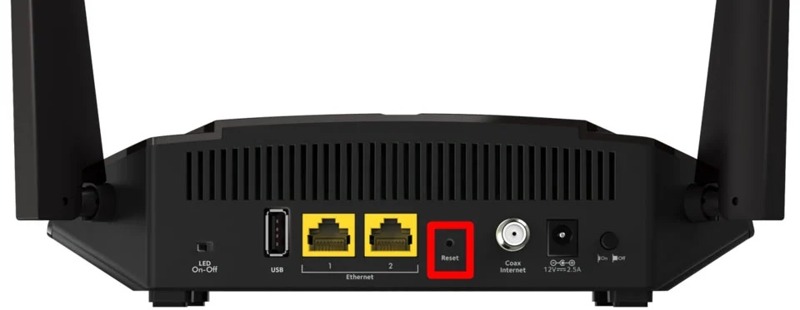
Locate The Reset Button
Before you can reset your router, you need to find the reset button. Typically, this button is small and recessed, located on the back or the bottom of the router. It might be labeled as ‘Reset’ or symbolized with a small circle.
Use a pointed object like a paperclip to access it. Be sure to check your router’s manual for the exact location, as manufacturers might place it differently.
Performing A Soft Reset
A soft reset can solve minor connectivity issues without affecting your customized settings. Start by unplugging the router from the power source. Wait for about 30 seconds to ensure a complete power cycle.
Plug the router back in and allow it to reboot. This simple action can often resolve common connectivity hiccups, restoring your internet connection swiftly.
Performing A Hard Reset
Sometimes a hard reset is necessary, especially if you’re dealing with persistent issues or forgotten passwords. Press and hold the reset button for about 10-15 seconds using a paperclip or similar tool.
Keep holding until the router’s LED indicators blink or change, signaling the reset process. Be aware that a hard reset will erase your personalized settings, returning the router to factory defaults.
After a hard reset, you’ll need to set up your network again, including your Wi-Fi name and password. Consider this a fresh start, an opportunity to update your network settings for better security and performance.
What challenges have you faced while resetting your router? Share your experiences in the comments to help others who might be tackling similar issues!
Reconfiguring Your Router
Reconfiguring your router after a reset is crucial to restoring your internet connection and optimizing performance. It gives you a chance to customize settings tailored to your needs, especially when managing dual-band routers. Getting this right ensures smooth connectivity and better security for all your devices.
Accessing Router Settings
Start by connecting your computer or smartphone to the router, either via Wi-Fi or an Ethernet cable. Open a web browser and enter the router’s IP address, usually found on the device label or in its manual—common ones include 192.168.1.1or 192.168.0.1. You’ll be prompted to log in; use the default username and password unless you’ve changed them before.
If you’ve never logged in, these credentials might be ‘admin’ for both fields, but check your router’s guide to be sure. Once inside, you’ll see various menus—look for sections labeled “Wireless,” “Network,” or “Setup” to begin.
Setting Up Dual Bands
Dual-band routers broadcast two separate networks: 2.4 GHz and 5 GHz. Assign clear, distinct names (SSID) to each band so you can easily identify them. For example, you could name them HomeNetwork_2.4and HomeNetwork_5.
Choosing which devices connect to which band can improve your network’s efficiency. Use the 2.4 GHz band for devices farther from the router or those that don’t require high speeds. Reserve the 5 GHz band for newer devices and activities like streaming or gaming that benefit from faster speeds.
Securing Your Network
Security is often overlooked but essential. Change the default admin password to something strong and unique to prevent unauthorized access. Next, enable WPA3 or WPA2 encryption in your wireless security settings—avoid outdated options like WEP.
Consider disabling WPS (Wi-Fi Protected Setup) as it can be a security risk. Also, set a strong Wi-Fi password that combines letters, numbers, and symbols. A secure network protects your data and stops neighbors or strangers from using your bandwidth without permission.
Troubleshooting After Reset
Resetting a dual band router often solves many network problems. Yet, some issues may arise after the reset. Troubleshooting these problems helps restore smooth internet connection quickly. This section covers common problems and advice on when to seek professional help.
Common Reset Issues
- Lost Wi-Fi name and password: The router resets to default settings.
- Slow internet speed: Settings might need fine-tuning after reset.
- Devices not connecting: New security settings can block connections.
- Router not responding: Power cycle the device and try again.
- Incorrect time or date: Check router’s system settings for accuracy.
When To Contact Support
Contact support if problems continue after basic fixes. Persistent connection drops or no internet signal require expert help. If the router won’t reset properly, support can guide you. Firmware updates can also fix hidden bugs, so ask if an update is needed.

Credit: www.youtube.com
Frequently Asked Questions
How Do I Reset A Dual Band Router Safely?
To reset a dual band router safely, locate the reset button. Press and hold it for 10-15 seconds using a pin. Release the button and wait for the router to reboot. This restores factory settings without damaging the device.
What Happens When You Reset A Dual Band Router?
Resetting a dual band router erases custom settings like Wi-Fi names and passwords. It restores the router to its default factory settings. This can fix connectivity issues but requires reconfiguration for internet access.
How Often Should I Reset My Dual Band Router?
Reset your dual band router only when facing persistent connectivity or performance issues. Frequent resets are unnecessary and won’t improve routine performance. Regular reboots can help, but full resets are for troubleshooting.
Can Resetting A Dual Band Router Improve Wi-fi Speed?
Resetting a dual band router can temporarily improve Wi-Fi speed by clearing glitches. However, it doesn’t boost internet speed from your provider. Proper placement and firmware updates are better for lasting speed improvements.
Conclusion
Resetting a dual band router can fix many connection problems. Follow the steps carefully to avoid mistakes. Keep your router’s settings safe before you start. After resetting, reconnect your devices and check the internet. This simple process often improves speed and stability.
Remember, patience helps when troubleshooting tech issues. Now, enjoy a smoother and faster Wi-Fi experience at home or work.