Is your gaming router acting up, causing lag or connection drops right when you need it most? Sometimes, the quickest way to fix these issues is to reset your router to factory settings.
But you might be wondering, how exactly do you do that without messing up your setup? Don’t worry—this guide will walk you through the simple steps to reset your gaming router safely and effectively. By the end, you’ll have a fresh start and a smoother gaming experience.
Keep reading to learn how to take control of your connection and get back in the game!
Credit: www.youtube.com
Reasons To Reset Your Gaming Router
Resetting your gaming router to factory settings might seem like a drastic step, but there are several practical reasons why it can be the best solution. Whether you’re struggling with slow speeds or unexpected glitches, a reset can often clear up problems faster than troubleshooting settings one by one. Understanding why and when to reset can save you time and improve your gaming experience significantly.
Fixing Connectivity Issues
Are you facing frequent disconnections or unstable internet while gaming? Resetting your router can resolve these issues by restoring default network settings. Sometimes, incorrect configurations or temporary glitches cause your connection to drop, and a reset removes these errors instantly.
Think about the last time your game lagged just when you were about to win. A quick factory reset might have kept your connection steady and your gameplay smooth.
Improving Performance
Over time, routers can slow down due to overloaded memory or outdated settings. Resetting your router clears its cache and refreshes its software, which can boost speed and reduce latency. If your gaming experience feels sluggish despite a good internet plan, a reset could give your router the fresh start it needs.
Have you noticed your download speeds dip unexpectedly? A reset often restores optimal performance, helping you enjoy faster downloads and smoother online play.
Clearing Configuration Errors
Misconfigured settings can cause more harm than you realize. If you’ve tinkered with advanced router options or installed custom firmware, errors might block your gaming traffic or cause conflicts. Resetting wipes these configurations clean, allowing you to start fresh with factory defaults.
Before diving into complex settings again, ask yourself: Is it easier to reset and reconfigure than to troubleshoot unknown errors? Often, a reset saves you the headache and gets you back to gaming faster.
Preparing For A Factory Reset
Preparing for a factory reset on your gaming router is more than just a quick button press. It involves careful planning to avoid losing important settings and access details. Taking a few moments now can save you hours of frustration later.
Backing Up Router Settings
Before hitting that reset button, make sure you back up your current router settings. Most gaming routers have a backup option in their admin dashboard. This backup file stores custom configurations like port forwarding, QoS settings, and parental controls.
Access your router’s settings page through your browser. Look for a section labeled “Backup & Restore” or “System.” Download the backup file and save it somewhere safe, like an external drive or cloud storage. This way, you can quickly restore your preferred setup after the reset.
Noting Down Important Credentials
Resetting your router will erase all your login details and Wi-Fi passwords. If you don’t write these down beforehand, you might get locked out or struggle to reconnect your devices.
Jot down your router’s admin username and password, as well as your Wi-Fi network name (SSID) and password. If you’ve customized guest networks or VPN settings, include those too. Having this info handy ensures a smooth restart and reconnect experience.
Methods To Reset Your Gaming Router
Press and hold the reset button on your gaming router for about 10 seconds to restore factory settings. Alternatively, access the router’s web interface and select the reset option in the settings menu. This clears custom settings and helps fix connection issues.
Resetting your gaming router to factory settings can be a lifesaver when you’re facing connectivity issues or forgotten passwords. But how do you actually reset it? There are several methods you can use, each with its own advantages. Whether you’re a tech-savvy gamer or someone who just wants a quick fix, these reset methods will guide you through the process.Using The Reset Button
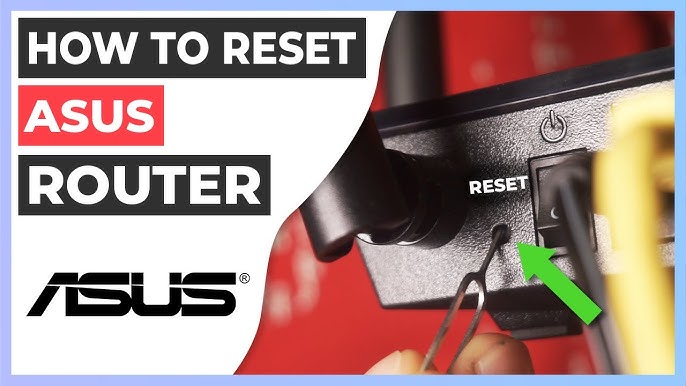
The simplest way to reset your gaming router is by using the physical reset button. This button is usually located at the back or bottom of the router. – Locate the button: Look for a small, pin-sized hole labeled “Reset.” – Press and hold: Use a paperclip or similar object to press and hold the button for about 10 seconds. – Wait for reboot: Release the button and wait for the router to reboot. You’ll know it’s complete when the lights stabilize. This method is quick and doesn’t require any additional tools beyond a paperclip. It’s perfect for those moments when you need an immediate reset and don’t want to fuss with software.Resetting Via Router Web Interface
If you’d rather reset your router using a computer, the web interface is a great option. This method gives you more control and additional settings to explore. – Access the interface: Open a web browser and type in your router’s IP address. Common addresses are 192.168.1.1 or 192.168.0.1. – Log in: Enter your administrator username and password. If you’ve never changed these, they might still be the factory defaults. – Find the reset option: Navigate to the ‘Administration’ or ‘Maintenance’ tab and look for the ‘Factory Reset’ option. Using the web interface is handy if you want to back up settings before resetting. It also offers a more comprehensive look at your router’s features.Resetting Through Mobile Apps
Modern routers often come with companion apps that make managing your network easier. Resetting through a mobile app can be as simple as a few taps. – Download the app: Make sure you have the correct app for your router model. These are usually available on the App Store or Google Play. – Connect to the router: Open the app and connect to your router using your login credentials. – Locate the reset function: Navigate to the settings menu and find the ‘Reset Router’ option. Mobile apps are convenient for those who prefer managing their router on the go. They often provide additional features like parental controls or guest network settings. Have you ever had to reset your gaming router using any of these methods? Each option offers a unique set of benefits tailored to different needs. Whether you’re troubleshooting or just starting fresh, resetting your router can give your gaming experience a much-needed boost.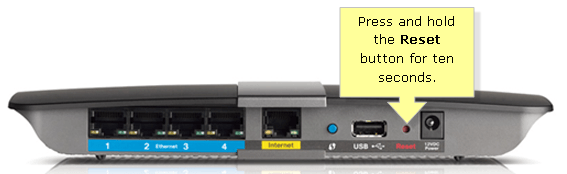
Credit: www.online-tech-tips.com
Step-by-step Factory Reset Process
Resetting your gaming router to factory settings can fix many connection problems. It erases custom settings and restores the device to its original state. Follow these clear steps to reset your router safely and correctly.
Locating The Reset Button
Most gaming routers have a small reset button on the back or bottom. It is often recessed to prevent accidental presses. Use a paperclip or a thin object to press it. Check your router’s manual if you cannot find the button.
Performing A Hard Reset
Press and hold the reset button for about 10 to 30 seconds. Keep holding until the router lights blink or turn off. This signals the router is restarting. Wait for the router to power back on fully. The reset will erase all your settings.
Resetting With Software Controls
Access the router’s web interface by typing its IP address in a browser. Login using your username and password. Find the “System” or “Administration” section. Look for an option named “Factory Reset” or “Restore Defaults.” Click it and confirm your choice. The router will reboot with default settings.
Configuring Router After Reset
After resetting your gaming router to factory settings, it needs proper configuration to work correctly. The reset erases all previous settings, so setting up the router again is crucial for a stable and secure connection.
Start by reconnecting your devices to the network. Then, set up your Wi-Fi with strong security. Finally, update the router’s firmware to improve performance and fix bugs.
Reconnecting To The Network
First, connect your computer or device to the router using an Ethernet cable or Wi-Fi. Use the default network name (SSID) and password found on the router label or manual.
Open a web browser and enter the router’s IP address, usually something like 192.168.1.1or 192.168.0.1. Log in with the default username and password, often “admin” for both.
Setting Up Wi-fi And Security
Change the Wi-Fi network name (SSID) to something unique and easy to remember. Set a strong password using a mix of letters, numbers, and symbols.
Enable WPA2 or WPA3 security for better protection. Disable WPS to reduce security risks. Save the settings and restart the router if needed.
Updating Firmware
Check for the latest firmware update on the router’s admin page. Firmware updates fix bugs and improve router performance.
Download and install the update carefully. Avoid interrupting the process. After updating, the router will restart automatically.
Credit: www.youtube.com
Tips To Avoid Future Router Issues
Preventing router problems saves time and keeps your gaming smooth. Small habits can improve your network’s health. Follow these tips to reduce future router issues.
Regular Firmware Updates
Keep your router’s software up to date. Updates fix bugs and improve security. Check the router’s admin panel for new versions. Set reminders to update regularly. Updated firmware helps avoid crashes and slowdowns.
Optimizing Router Placement
Place your router in an open area. Avoid walls and metal objects that block signals. Higher locations reduce interference. Keep the router away from other electronics. Better placement means stronger, more stable connections.
Monitoring Network Traffic
Watch for unusual activity on your network. High traffic can slow down your gaming. Use built-in router tools or apps to check usage. Identify devices that use too much bandwidth. Limit or control traffic to keep speeds fast.
Frequently Asked Questions
How Do I Reset My Gaming Router To Factory Settings?
To reset your gaming router, press and hold the reset button for 10 seconds. Use a paperclip if needed. This restores default settings and clears custom configurations.
When Should I Reset My Gaming Router To Factory Defaults?
Reset your router when facing connectivity issues, slow speeds, or forgotten passwords. It clears errors and restores optimal performance.
Will Resetting My Gaming Router Delete Saved Settings?
Yes, resetting deletes all saved settings, including Wi-Fi passwords and custom configurations. Backup settings if you want to restore them later.
How Can I Access My Router After A Factory Reset?
After reset, connect via Ethernet or Wi-Fi using default credentials. Check the router label or manual for default username and password.
Conclusion
Resetting your gaming router clears old settings fast. It helps fix slow or unstable internet. Just follow the simple steps carefully. Keep your login info handy before you start. After reset, set up your router again for best play. This small action can improve your gaming experience a lot.
Stay patient and take your time. Enjoy smooth, lag-free gaming every time you connect.