Are you worried about hackers sneaking into your home Wi-Fi? Securing your dual band router is the best way to protect your personal data and keep your internet running smoothly.
But where do you start? You might think it’s complicated, but with the right steps, you can lock down your network quickly and easily. In this guide, you’ll discover simple, effective tips that anyone can follow to make sure your router is safe from threats.
Keep reading to learn how to take control of your Wi-Fi security right now.

Credit: www.ebay.com
Choosing A Strong Password
Choosing a strong password is the first step to protect your dual band router. A weak password makes it easy for hackers to access your network. Strong passwords keep your internet safe and your devices secure. Focus on making passwords hard to guess but easy to remember.
Creating Complex Passwords
Use a mix of letters, numbers, and symbols in your password. Combine uppercase and lowercase letters to increase strength. Avoid common words, names, or dates. Aim for at least 12 characters to make it tougher to crack. Think of a phrase or sentence and use its first letters as a base.
Using Password Managers
Password managers help store and create strong passwords safely. They remember all your passwords for different devices and accounts. You only need to recall one master password. Many password managers generate complex passwords automatically. This tool reduces the chance of reusing passwords.
Changing Default Credentials
Routers come with default usernames and passwords. These are well known and easy to guess. Change these credentials as soon as you set up your router. Use a unique username and a strong password instead. This step blocks unauthorized users from accessing your router’s settings.
Updating Router Firmware
Updating your dual band router’s firmware is one of the most important steps you can take to keep your network secure and running smoothly. Firmware updates often include patches for security vulnerabilities, performance improvements, and new features that help protect your router from emerging threats.
Skipping these updates can leave your network exposed to hackers and slow down your internet connection without you realizing it. Have you checked your router’s firmware version lately?
Checking For Updates Regularly
Make it a habit to check your router’s firmware status at least once a month. You can usually do this by logging into your router’s admin panel through a web browser.
Look for a section labeled “Firmware Update” or “Router Upgrade.” If an update is available, download and install it following the on-screen instructions.
Don’t ignore update notifications—they’re there for a reason. Even if your router seems to be working fine, a security patch could be waiting to protect you.
Enabling Automatic Updates
Many modern dual band routers offer the option to enable automatic firmware updates. Turning this feature on takes the guesswork out of security maintenance and ensures you’re always running the latest software.
Automatic updates usually happen during low-traffic hours so they don’t interrupt your internet use. Just verify your router supports this feature and toggle it on in the settings.
Have you ever missed an update because you forgot to check manually? Automatic updates solve that problem effortlessly.
Benefits Of Firmware Updates
Firmware updates do more than just close security holes. They can also enhance your router’s speed and stability, improving your overall browsing experience.
Updates may introduce new functions like better parental controls or improved device management tools. These features can give you greater control over your network.
Think of updates as essential maintenance—like oil changes for your car. Skipping them can lead to bigger issues down the road.
Configuring Network Encryption
Configuring network encryption is a crucial step to protect your dual band router from unauthorized access. Encryption scrambles your data, making it unreadable to outsiders. Without proper encryption, your network is vulnerable to hackers and data breaches.
Selecting Wpa3 Or Wpa2
Choose WPA3 if your router supports it, as it offers the latest and strongest security. WPA3 includes improved encryption methods and better protection against password guessing attacks.
If your router or devices don’t support WPA3, WPA2 remains a solid choice. Avoid older protocols that don’t provide adequate security.
Avoiding Wep And Open Networks
WEP is an outdated encryption standard that can be cracked within minutes. Using WEP is like leaving your front door unlocked—anyone can get in.
Open networks, which don’t use any encryption, expose your data to anyone nearby. Always disable open network options to keep your internet safe.
Enabling Network Encryption On Both Bands
Dual band routers operate on 2.4 GHz and 5 GHz frequencies. Make sure to enable encryption on both bands separately in your router settings.
Sometimes users secure only one band, leaving the other open unintentionally. Double-check your settings to avoid this common mistake.
Setting Up Guest Networks
Setting up a guest network on your dual band router is a smart way to keep your main network safe while still offering internet access to visitors. It creates a separate Wi-Fi channel, so guests can’t reach your private files or devices. This simple step boosts security without making your home network feel unwelcoming.
Isolating Guest Access
Isolating guest access means keeping your main devices hidden from anyone using the guest network. This separation stops guests from seeing your printers, shared folders, or smart home devices. Most routers let you enable “guest isolation” with a single click, which is a powerful security feature.
I once had a friend who left his guest network open without isolation. A visitor accidentally accessed his shared family photos and private documents. That experience taught me to always activate guest isolation immediately.
Limiting Bandwidth And Access
Limiting bandwidth on the guest network prevents guests from hogging all your internet speed. You can set data limits or speed caps to keep your main network running smoothly. Some routers even allow you to restrict which websites or services guests can use.
Think about a situation where your guest is streaming videos all day. Without limits, your work calls might drop or lag. Setting these boundaries ensures everyone gets a fair share of the connection.
When To Use Guest Networks
Guest networks are perfect whenever you invite friends, family, or contractors to use your Wi-Fi. If you run a small business, it’s essential to separate customer traffic from your internal systems. Even if you host online gaming sessions, a guest network keeps the core network safe from potential risks.
Ask yourself: Do you want visitors to access your printers or home security cameras? If not, a guest network is the easiest way to keep your main network private and secure.
Disabling Unnecessary Features
Disabling unnecessary features on a dual band router enhances security. Turn off features like remote management and WPS. This reduces potential vulnerabilities, keeping your network safer.
Disabling unnecessary features on your dual-band router can enhance security. Many routers come with features that are not essential for everyday users. Disabling these can help protect your network from potential threats.Turning Off Wps
Wi-Fi Protected Setup (WPS) is designed for easy device connection. But it often has security flaws. Disabling WPS can prevent unauthorized access. It reduces risks from brute-force attacks. Access your router settings to turn off WPS. This step can make your network more secure.Disabling Remote Management
Remote management lets you control your router from anywhere. But it also opens up security vulnerabilities. Only enable this feature if absolutely needed. Most users can manage their router locally. Turn off remote management in your router settings. This reduces the chance of outside attacks.Limiting Upnp Usage
Universal Plug and Play (UPnP) allows devices to find each other. It’s convenient but can be risky. Hackers can exploit UPnP to access your network. Limit UPnP usage to essential devices only. Check your router’s UPnP settings. Disable it if you don’t need it. This step can prevent unwanted access and improve security.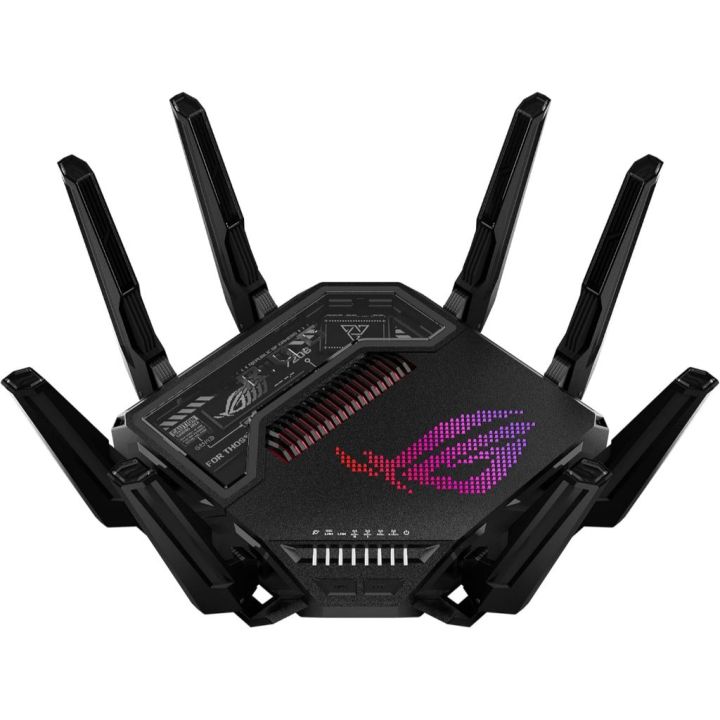
Credit: www.jokersclays.com
Using Mac Address Filtering
Using MAC address filtering is a smart way to control which devices can connect to your dual band router. This method adds a layer of security by allowing only trusted devices to access your network. It works by checking each device’s unique MAC address before granting access.
How Mac Filtering Works
Each device has a unique MAC address, like a digital fingerprint. Your router keeps a list of allowed MAC addresses. When a device tries to connect, the router compares its MAC address to the list. If the address is on the list, access is granted. If not, the device is blocked from joining the network.
Adding Allowed Devices
To add devices, log in to your router’s admin panel. Find the MAC filtering section, usually under security settings. Enter the MAC address of each device you want to allow. Save the list to activate filtering. Only devices on this list can connect to your dual band router.
- Locate device MAC address in device settings
- Enter MAC addresses one by one in router’s filter list
- Save changes to apply the filter
Limitations Of Mac Filtering
MAC filtering is not foolproof. Skilled hackers can spoof allowed MAC addresses to bypass this filter. Managing many devices can become tedious and slow. Some devices may change their MAC addresses automatically. Use MAC filtering as part of a wider security plan for best results.
Positioning Your Router Safely
Positioning your dual band router safely is key to keeping your network secure and fast. Proper placement reduces risks from physical tampering and boosts signal quality. It also helps avoid common issues like interference from other devices. Follow these tips to find the best spot for your router.
Avoiding Physical Access
Place your router where only trusted people can reach it. Avoid public or open areas like hallways or living rooms. Use locked cabinets or high shelves to keep it safe. Physical access can lead to tampering or resetting the device. Securing the router physically adds an important security layer.
Optimizing Signal Range
Position the router in a central spot of your home or office. Keep it elevated, such as on a shelf or table. Avoid placing it near floors or inside cabinets. Walls and large objects can weaken signals. A good location helps both 2.4 GHz and 5 GHz bands reach all devices well.
Minimizing Interference
Keep your router away from other electronic devices like microwaves, cordless phones, and baby monitors. These devices create signals that interfere with Wi-Fi. Avoid metal objects and thick walls near the router. Clear space around the router improves connection stability and speed.
Monitoring Network Activity
Monitoring network activity is key to keeping your dual band router secure. It helps spot unusual behavior early. You can protect your devices and personal data by regularly checking your network’s activity.
Checking Connected Devices
Start by viewing all devices connected to your router. This shows every phone, computer, or smart device using your Wi-Fi. Unrecognized devices could be intruders. Most routers let you access this list through the admin panel. Look for device names, IP addresses, and connection times. Remove any unknown devices immediately. This simple step keeps unauthorized users out of your network.
Setting Up Alerts
Enable alerts on your router to get instant updates. Alerts notify you when a new device joins or if there is suspicious activity. This real-time information helps you act fast. Many routers allow you to set email or mobile notifications. Check your router’s settings to activate these alerts. Staying informed reduces risks and improves your network’s security.
Using Router Logs
Router logs record all network events and activities. These logs include connection attempts, errors, and security warnings. Reviewing logs regularly helps identify patterns or threats. Access logs through your router’s admin interface. Save or export logs for deeper analysis. Keeping track of logs enhances your control over the network environment.
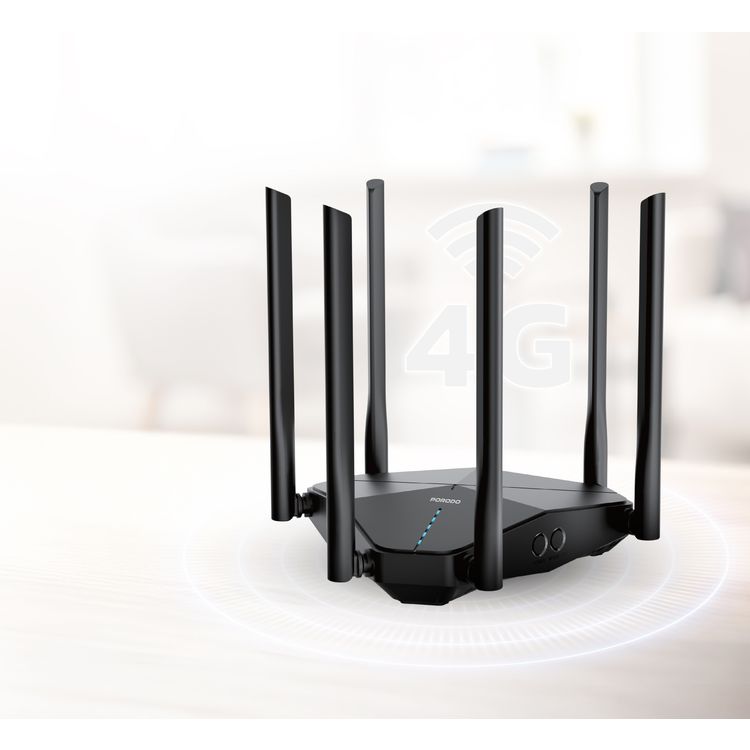
Credit: www.runbazaar.com
Frequently Asked Questions
How Do I Change My Dual Band Router Password?
To change your password, log in to the router’s admin panel. Navigate to wireless settings. Update the password for both 2. 4 GHz and 5 GHz bands. Choose a strong, unique password to enhance security. Save the changes to apply the new password.
Why Update Firmware On A Dual Band Router?
Updating firmware fixes security flaws and improves performance. It ensures your router runs the latest software with better features. Regular updates protect against new cyber threats. Check the manufacturer’s website or router settings for updates often.
How To Enable Wpa3 Security On Dual Band Routers?
Access the router’s wireless security settings in the admin panel. Select WPA3 as the encryption method if supported. WPA3 offers stronger protection than WPA2. Save the changes to secure your Wi-Fi network effectively.
Can I Separate Ssids For Dual Band Router?
Yes, you can create separate SSIDs for 2. 4 GHz and 5 GHz bands. This allows better control over devices and network traffic. Assign different names and passwords for each band. It helps optimize speed and security for connected devices.
Conclusion
Securing your dual band router keeps your network safe and private. Change default passwords and use strong encryption methods. Regularly update your router’s firmware to fix security issues. Disable WPS and limit device access for better control. These simple steps protect your data from hackers.
Stay alert and check your network often. A secure router means a safer internet experience for everyone at home. Take action today to keep your connection strong and secure.