Are you worried about what your kids access online at home? Setting parental controls on your mesh WiFi can give you peace of mind.
With just a few simple steps, you can protect your family from inappropriate content and manage screen time easily. Imagine having full control over your home internet, right at your fingertips. Keep reading, and you’ll learn exactly how to set up these controls quickly and confidently.
Your family’s online safety starts here.
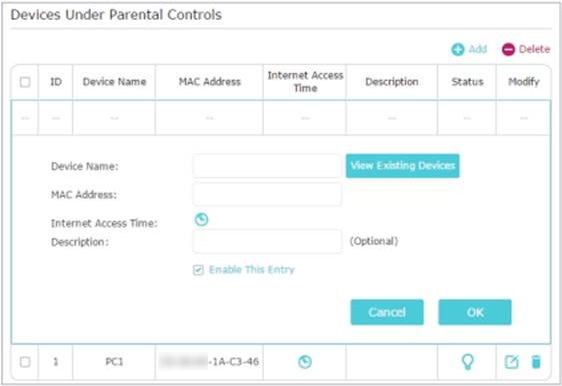
Credit: www.tp-link.com
Choosing The Right Mesh Wifi System
Choosing the right mesh WiFi system is key to managing your home internet effectively. A good system provides strong coverage in every room. It helps control what your children can access online. Selecting a mesh WiFi system with parental controls makes your job easier.
Not all mesh WiFi systems offer the same features. Some focus more on speed, while others emphasize security or ease of use. Understanding your needs helps pick the best system for your family and home size.
Key Features To Look For
- Easy-to-use parental controls with time limits and content filters
- Strong WiFi coverage for all rooms and outdoor areas
- Ability to pause internet access on specific devices
- Guest network options to keep your main network safe
- App-based control for managing settings remotely
- Regular firmware updates for security and new features
Popular Mesh Wifi Brands
- Google Nest Wifi:User-friendly with simple parental controls
- Netgear Orbi:Strong performance and advanced controls
- TP-Link Deco:Affordable with good coverage and parental options
- Amazon Eero:Easy setup and reliable parental controls
- Asus ZenWiFi:High speed and customizable settings
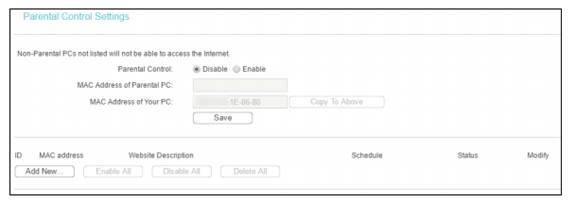
Credit: www.tp-link.com
Accessing Your Mesh Wifi Settings
Accessing your mesh WiFi settings is the first step to setting up parental controls effectively. You need to get into the system where you can manage devices, schedules, and restrictions. Depending on your mesh WiFi brand, you can do this through a mobile app or a web interface, both designed to make the process straightforward and user-friendly.
Using The Mobile App
Most mesh WiFi systems offer a dedicated mobile app that simplifies managing your network. After downloading the app, you’ll usually create or log into an account linked to your device.
Once inside, navigate to the settings or parental controls section. The app often provides a clear layout where you can see all connected devices, making it easy to select which ones to manage.
The convenience of the app is that you can adjust controls anytime, even when you’re away from home. Have you ever needed to pause your child’s internet during dinner or bedtime? The app lets you do that with a tap.
Logging In Via Web Interface
If you prefer working on a larger screen, accessing your mesh WiFi through a web browser is a solid option. Start by entering your router’s IP address—commonly something like 192.168.1.1—in the browser’s address bar.
You will be prompted to enter your admin username and password. If you haven’t changed these from the default, check your router’s manual or the device itself for the login info.
Once logged in, explore the settings menu for parental controls. This interface often provides more detailed options than the mobile app, which is helpful if you want to customize access rules precisely.
Setting Up User Profiles
Setting up user profiles on your mesh WiFi system helps you control internet access for each family member individually. This feature lets you tailor restrictions and schedules based on who is using the network. It makes managing screen time and content filters much easier and more effective.
Creating Individual Profiles
Start by opening your mesh WiFi app or web dashboard. Look for the section labeled “User Profiles” or “Family Settings.”
Here, you can add a new profile by entering the name and age of the person. This information often helps the system suggest appropriate filters automatically.
Think about the specific needs of each user. For example, your younger child might need stricter content filtering than a teenager. Naming profiles clearly, like “Emma – Age 8” or “Jake – Teen,” helps you keep things organized.
Assigning Devices To Profiles
Once profiles are created, link each device your family uses to the correct profile. This step is crucial because parental controls work by monitoring and restricting devices, not just users.
- Identify devices like smartphones, tablets, laptops, or gaming consoles.
- Assign them to the corresponding profile in the mesh WiFi app.
Have you ever noticed a child sneaking extra screen time on a shared tablet? Assigning devices to profiles stops that from happening, as controls apply per device.
Some mesh systems allow you to see device usage and adjust restrictions live. This gives you real-time control and insight into how your family uses the internet.
Configuring Time Limits
Configuring time limits on mesh WiFi helps manage online activities effectively. Parents can easily set specific hours for internet access. This ensures children have balanced screen time and focus on other important tasks.
Configuring time limits on your mesh WiFi enhances control over your household’s internet usage. It helps in managing screen time effectively and ensures a balanced digital life. Setting these limits is crucial for creating a healthy online environment. Parents can regulate internet access to suit their family’s routine. This feature is vital for maintaining discipline and promoting offline activities.Scheduling Internet Access
Scheduling internet access allows parents to decide when devices can connect. Many mesh WiFi systems offer user-friendly interfaces for this purpose. You can set specific hours for internet availability. This helps in organizing daily routines and reducing online distractions. By scheduling, children focus better on homework and other responsibilities.Managing Screen Time
Managing screen time is essential for child development. Mesh WiFi parental controls make it simple to set device usage limits. You can allocate daily or weekly screen time for each device. This control encourages kids to spend time on offline activities. It also aids in preventing excessive internet usage. Parents can adjust limits based on educational or leisure needs.Blocking Inappropriate Content
Keeping your children safe online is a top priority, and blocking inappropriate content on your mesh WiFi network is a powerful way to help with that. Mesh WiFi systems often come with built-in parental controls that allow you to filter content automatically. This way, you don’t have to constantly monitor every website your kids visit—your network does the hard work for you.
Using Built-in Filters
Most mesh WiFi routers have preset filters designed to block categories like adult content, violence, or gambling. You can usually activate these filters through the router’s app or web interface with just a few taps. This setup is ideal if you want immediate protection without spending time on complicated settings.
For example, when I set up my mesh WiFi at home, enabling the built-in filters instantly stopped my kids from accessing inappropriate sites. It was a relief knowing the system was actively working in the background.
Keep in mind that these filters aren’t perfect. Sometimes, they might block harmless sites or miss some inappropriate ones. That’s why customizing your blocked websites can give you finer control.
Customizing Blocked Websites
You can add specific websites to a blacklist or whitelist to control exactly what your children can or cannot access. This customization is helpful if you want to block certain social media platforms or gaming sites that aren’t covered by default filters.
- Identify sites you want to block based on your child’s habits.
- Add these URLs manually in the parental control section of your mesh WiFi app.
- Regularly update the list as your child’s interests or risks change.
One time, I blocked a popular video streaming site after noticing my child spent too much time there. It helped reduce distractions during homework without shutting down the entire internet.
Have you thought about which specific sites or content could affect your child’s online experience? Customizing your blocked websites lets you tailor safety measures to your family’s unique needs.
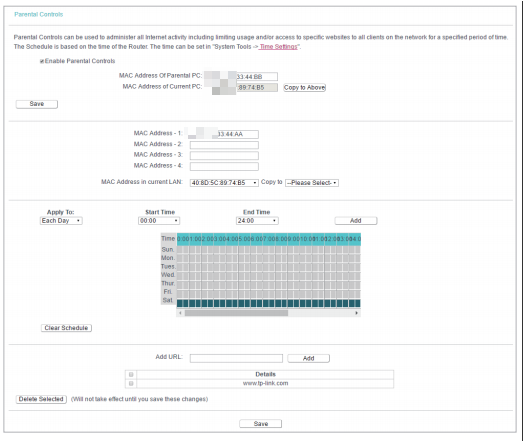
Credit: www.tp-link.com
Monitoring Internet Activity
Monitoring internet activity through your mesh WiFi system is key to keeping your home network safe and balanced. It helps you understand how your family uses the internet and spot any unusual behavior early. Keeping a close eye on online habits can prevent unwanted content access and manage screen time effectively.
Viewing Usage Reports
Most mesh WiFi systems offer detailed usage reports. These reports show you which devices are online, how much data they use, and what websites they visit. You can quickly spot if your child spends too much time on streaming sites or gaming platforms.
Accessing these reports usually requires logging into your mesh WiFi app or web portal. Look for sections labeled “Activity,” “Usage,” or “Reports.” Some systems even break down data by time of day, helping you see when your network is busiest.
Have you ever been surprised by how much time your child spends online? Usage reports can reveal hidden patterns that you might not notice otherwise.
Setting Alerts And Notifications
Alerts and notifications help you stay informed without checking reports constantly. You can set up alerts for specific activities, such as new device connections or attempts to access restricted sites.
Many mesh WiFi apps let you receive notifications via email or push messages on your phone. This way, you get real-time updates about your network’s activity.
Imagine getting a notification the moment your child tries to visit a blocked website. This immediate feedback allows you to address the issue quickly and have a timely conversation about safe internet use.
Troubleshooting Common Issues
Troubleshooting parental controls on mesh WiFi can feel frustrating, especially when things don’t work as expected. It’s common to face issues like settings not applying or devices bypassing restrictions. Understanding how to quickly identify and fix these problems will save you time and keep your family’s internet use safe.
Resetting Parental Controls
If your parental controls seem unresponsive or incorrect settings persist, resetting them often clears hidden glitches. Most mesh WiFi systems have an option in their app or web interface to reset parental controls without affecting other network settings.
Try the following when resetting controls:
- Log into your mesh WiFi app and locate the parental control section.
- Look for a “Reset” or “Clear Settings” button to remove all current restrictions.
- After resetting, re-add the devices you want to manage and set fresh rules.
I once faced a situation where my kids’ devices were still accessing blocked sites despite correct settings. A quick reset fixed the issue immediately, proving that even tech-savvy parents can overlook this simple step. Have you checked if a reset could resolve your control problems?
Connectivity Problems
Connectivity issues often cause parental controls to fail or behave unpredictably. If a device frequently disconnects or jumps between mesh nodes, it might bypass filters temporarily.
To tackle this, consider:
- Ensuring all mesh units have the latest firmware installed.
- Placing mesh nodes strategically to avoid weak signal zones where devices lose connection.
- Restarting your mesh router to refresh network connections.
Sometimes, devices with multiple network interfaces (WiFi and Ethernet) can confuse parental control settings. Double-check that the device isn’t switching networks behind your back. What’s your experience with device connectivity affecting parental controls?
Tips For Effective Parental Controls
Setting parental controls on your mesh WiFi system can feel like walking a tightrope. You want to protect your kids from inappropriate content without making them feel overly restricted. Finding that balance is key to making parental controls work effectively in your home.
Balancing Restrictions And Freedom
Think about the internet like a vast playground. You don’t want to shut it down completely, but you also don’t want your kids running into dangerous areas. Set clear rules that limit harmful content while allowing access to educational and fun sites.
Try customizing controls based on age or time of day. For example, allow social media access after homework but block gaming sites during school hours. This approach respects your child’s independence while keeping them safe.
Ask yourself: Are these controls helping your child learn responsibility or just creating frustration? The goal is to guide, not just restrict.
Keeping Controls Updated
Technology changes fast, and so do your child’s online habits. Regularly review and adjust your parental controls to match their age and maturity. What worked last year might not be enough now.
Check for firmware updates on your mesh WiFi system. Updates often include improved security features and better control options. Ignoring updates is like leaving the front door unlocked.
Encourage open conversations about internet safety. This way, your controls become part of a bigger strategy where trust and communication matter just as much as restrictions.
Frequently Asked Questions
What Are Parental Controls On Mesh Wifi?
Parental controls on mesh WiFi allow you to manage and restrict internet access for specific devices. You can block inappropriate content, set time limits, and monitor usage. These features help create a safer online environment for children and ensure responsible internet use.
How Do I Enable Parental Controls On Mesh Wifi?
To enable parental controls, access your mesh WiFi app or web interface. Locate the parental control settings, then create profiles for each child’s device. Customize filters, time limits, and content restrictions. Save changes, and controls will be active immediately across your network.
Can I Schedule Internet Access With Mesh Wifi Controls?
Yes, mesh WiFi parental controls typically include scheduling options. You can set specific time blocks when internet access is allowed or blocked. This feature helps enforce screen time limits and ensures children disconnect from the internet during homework or bedtime.
Are Parental Controls Effective On All Mesh Wifi Brands?
Most modern mesh WiFi systems offer effective parental controls, but features vary by brand. Popular brands like Google Nest, Eero, and Netgear provide robust options. Check your device’s specifications and app features to ensure it meets your parental control needs.
Conclusion
Setting parental controls on mesh WiFi keeps your family safe online. You can block harmful sites and limit screen time easily. Control access by device or user with simple steps. This helps children use the internet responsibly. Regularly update settings to match your family’s needs.
Protect your home network without stress or confusion. Take charge of your WiFi for peace of mind. Safe internet use starts with smart control choices.