Imagine this: you’re all set to stream your favorite movie, but the buffering never ends. Frustrating, right?
That’s where a high-end router can change the game. If you’re tired of slow internet speeds and constant connectivity issues, setting up a high-end router might be the solution you’ve been looking for. But, where do you start? Don’t worry, we’ve got you covered.
In this guide, you’ll discover easy steps to set up your high-end router, ensuring seamless internet access and optimal performance for all your devices. Get ready to transform your online experience and make those buffering woes a thing of the past. Dive in, and let’s get your internet running smoother than ever!
Choosing The Right Router
Key featureshelp decide which router fits your needs. Look for speed, range, and security options. A fast router supports many devices without slowing down. Good range covers your whole home or office. Strong security keeps your network safe from threats.
| Model | Speed | Range | Security | Price |
|---|---|---|---|---|
| Model A | Up to 1 Gbps | Medium | WPA3 | High |
| Model B | Up to 500 Mbps | Large | WPA2 | Medium |
| Model C | Up to 300 Mbps | Small | WPA2 | Low |
Budgetaffects what you can buy. More money means better performanceand features. Cheaper routers work well for small spaces or few devices. Expensive ones suit larger homes and many users. Choose a router that fits your budget and needs.

Credit: www.popularmechanics.com
Preparing For Setup
Unbox the router carefully. Check if all parts are inside the box. Look for the power adapter, Ethernet cables, and manuals. Inspect the router for any damage.
Place the router in a central spot in your home. Avoid corners or areas near thick walls. Keep it away from microwaves and cordless phones to reduce interference.
Gather important details before starting setup:
- Internet service provider (ISP) account info
- Username and password from your ISP
- Network name (SSID) and password you want to use
- Any special settings like static IP or VPN details
Connecting Your Router
Connect the router to the modem using an Ethernet cable. Plug one end into the modem’s port, and the other into the router’s WAN or Internet port. Next, connect the router to a power source and switch it on. Wait a few moments until all the lights show a steady glow. This means the router is powered and ready.
Open a web browser on your computer or phone. Enter the router’s IP address in the address bar. Common addresses include 192.168.1.1or 192.168.0.1. You will see the login screen for the router interface. Use the default username and password found in the router manual or on a sticker on the device.
- Change the admin username and password to secure the router.
- Set the Wi-Fi name (SSID) and password for your network.
- Choose the security type, like WPA2 or WPA3, to protect your Wi-Fi.
- Save all changes and restart the router if needed.
Optimizing Wi-fi Performance
Choosing the best Wi-Fi channelhelps reduce interference. Most routers use channels 1, 6, or 11. Check which channel has less traffic around you. Use a Wi-Fi scanner app to find the clearest channel.
Adjusting bandwidth settingscontrols how much data your network can send. Set it to 20 MHz for better range or 40 MHz for faster speeds. Be careful: wider bandwidth can cause more interference.
Enabling Quality of Service (QoS)lets you prioritize important devices or apps. This keeps video calls and games smooth. Set high priority for work or streaming devices to avoid slowdowns.
Enhancing Security
Setting strong passwordshelps protect your router from unwanted access. Use a mix of letters, numbers,and symbols. Avoid common words or easy-to-guess phrases. Change passwords regularly for better safety.
Network encryptionkeeps your data safe from intruders. Choose WPA3if your router supports it. WPA2 is also good but less secure. Encryption stops others from seeing your online activity.
Regularly update your router’s firmwareto fix security holes. Updates add new features and improve performance. Check the router’s settings or website for updates. Keeping firmware current protects against hackers.
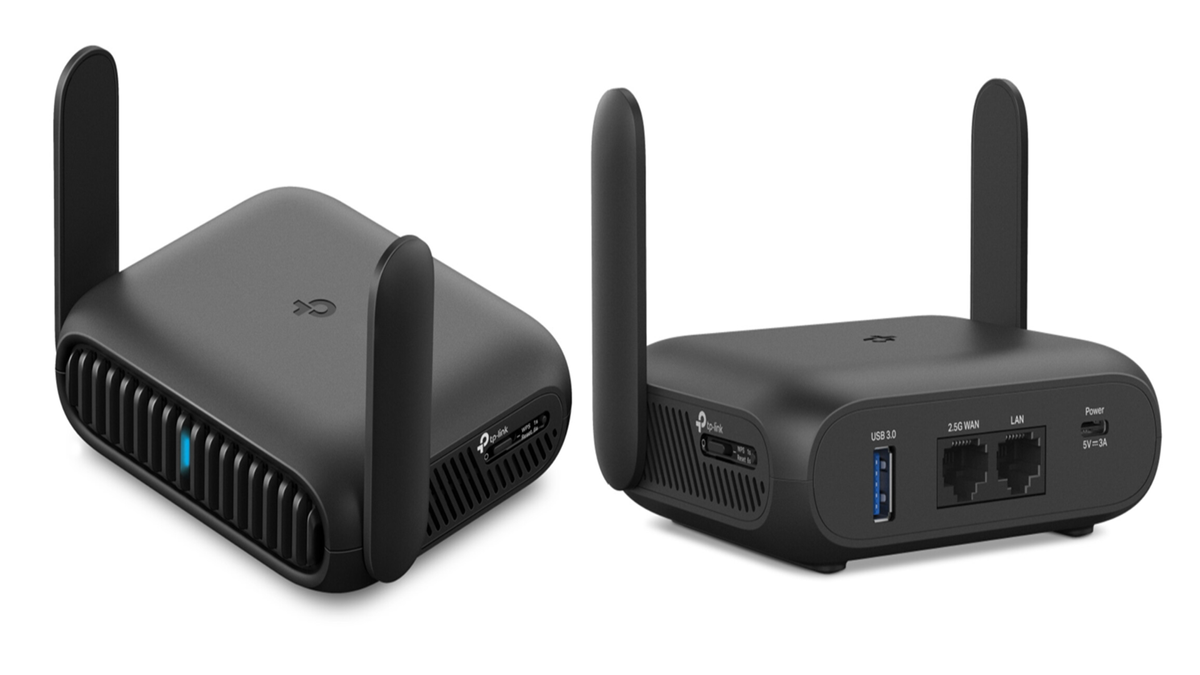
Credit: www.techradar.com
Advanced Features Setup
Setting up a guest networkhelps keep your main network safe. It lets visitors use the internet without accessing private files or devices. Turn on the guest network option in your router’s settings. Choose a different network name (SSID)and a strong password. Limit bandwidth or set time limits for guests if available.
Parental controlsprotect children online. These controls block harmful websites and limit screen time. Use your router’s app or web interface to set rules for each device. You can block specific sites, schedule internet access times, and monitor activity. This keeps internet use safe and balanced for kids.
VPN integrationincreases privacy by encrypting your internet traffic. Many high-end routers support VPNs directly. Enter VPN details provided by your service in the router’s settings. This protects all devices on your network without installing software on each one. It’s a smart way to stay secure online.
Troubleshooting Common Issues
Slow speedsoften happen due to many devices using the network. Try moving closer to the router for a better signal. Check for interferencefrom other electronics like microwaves or cordless phones. Updating the router’s firmwarecan improve speed and performance.
Connection dropsmay occur if the router overheats or loses power. Ensure the router is placed in a cool, open space. Secure all cables and check if the internet service is stable. Changing the wireless channel can reduce interference and keep the connection steady.
For reset and reboot, restart the router by unplugging it for 10 seconds, then plug it back in. This clears temporary issues. Use the reset button only if you want to restore factory settings. Keep the router’s password safe and update it regularly for security.

Credit: www.youtube.com
Frequently Asked Questions
What Is The First Step To Set Up A High-end Router?
Begin by connecting your router to a power source and your modem. Then, access the router’s admin panel via a web browser using the default IP address. This initial setup allows you to configure network settings and secure your router effectively.
How Do I Secure My High-end Router Properly?
Change the default admin username and password immediately. Enable WPA3 encryption for Wi-Fi security. Regularly update firmware to patch vulnerabilities and disable WPS to prevent unauthorized access.
Can I Optimize Router Settings For Better Performance?
Yes, prioritize bandwidth for critical devices using Quality of Service (QoS). Select the least congested Wi-Fi channel manually or through auto settings. Position your router centrally for optimal signal coverage.
How Often Should I Update My Router’s Firmware?
Check for updates every 1-3 months or when notified by the manufacturer. Firmware updates improve security, fix bugs, and enhance performance, keeping your router running smoothly.
Conclusion
Setting up a high-end router can improve your internet speed and security. Follow the steps carefully to avoid mistakes. Test your connection after setup to ensure everything works well. Keep your router’s software updated for best performance. Change your passwords regularly to keep your network safe.
A good router setup helps you enjoy smooth browsing and streaming. Take your time, and don’t rush the process. This way, your home network will stay strong and reliable.