Setting up a portable router with a SIM card might sound tricky, but it’s easier than you think. If you want fast, reliable internet wherever you go, this guide is made just for you.
You’ll learn step-by-step how to get your portable router up and running quickly. By the end, you’ll enjoy seamless internet on the move, without relying on public Wi-Fi or complicated setups. Ready to take control of your connection? Let’s dive in and make your portable router work perfectly with your SIM card.

Credit: www.amazon.com
Choosing The Right Portable Router
Choosing the right portable router is crucial for a smooth and reliable internet experience on the go. Your choice affects speed, battery life, and compatibility with your SIM card. Let’s break down what you need to know to pick a device that truly fits your needs.
Types Of Portable Routers
There are several types of portable routers available, each designed for different uses and budgets.
- MiFi Routers:Compact devices that create a Wi-Fi hotspot using a SIM card. Perfect for personal use or small groups.
- Travel Routers:Often support multiple connectivity options including SIM cards and Ethernet. Good if you need flexibility.
- 4G/5G Mobile Hotspots:Support the latest cellular networks for faster speeds and better coverage.
Think about how many devices you’ll connect and where you’ll use the router most. Would you prefer a simple plug-and-play device or one with advanced settings?
Key Features To Consider
Not all portable routers are created equal. Some features can make a big difference in your daily use.
- Battery Life:Look for routers with at least 8 hours of battery life if you’re often away from power sources.
- Speed Support:Check if the router supports the network speeds your SIM card offers, such as 4G LTE or 5G.
- Number of Connections:Consider how many devices you want to connect simultaneously without slowdown.
- Security Options:Ensure it supports strong encryption like WPA3 to keep your data safe.
Have you ever been stuck with a router that dies too quickly or can’t handle your devices? Choosing wisely can save you from that frustration.
Compatibility With Sim Cards
Not all portable routers accept every SIM card. Compatibility depends on network bands and the router’s firmware.
- Verify the router supports your carrier’s frequency bands for proper signal strength.
- Some routers are locked to specific carriers, so make sure it’s unlocked if you plan to switch SIM cards.
- Check if the router supports the SIM card size you have: nano, micro, or standard SIM.
I once bought a router that didn’t support my local carrier’s bands. It was a costly mistake and taught me to always double-check compatibility first.
Are you ready to pick a router that matches your SIM card and keeps you connected wherever you go?
Preparing Your Sim Card
Preparing your SIM card is a key step before using a portable router. It ensures smooth internet connection and avoids any network issues. This preparation involves choosing the right data plan, activating the SIM card, and verifying network compatibility. Each step helps your device perform at its best.
Selecting A Data Plan
Pick a data plan that suits your internet needs. Consider how much data you will use daily. Choose plans with fair prices and good coverage. Some providers offer unlimited data, while others have limits. Check if the plan supports 4G or 5G speeds for faster browsing.
Activating The Sim Card
Activate your SIM card before placing it in the router. Follow the instructions from your carrier carefully. Activation can be done online or through a phone call. You may need to provide your ID or registration details. Activation ensures the SIM is ready to send and receive data.
Checking Network Compatibility
Verify if your SIM card works with the portable router. Check the router’s supported network bands and frequencies. Match these with the carrier’s network specifications. Incompatible SIM cards may cause weak signals or no connection. Confirm compatibility to enjoy fast and stable internet access.
Inserting The Sim Card
Inserting the SIM card into your portable router is a key step to get your device online. It may seem straightforward, but a small mistake here can cause connectivity issues or even damage the SIM card. Paying attention to the details ensures your router works smoothly and connects you to the internet without hassle.
Locating The Sim Slot
Start by finding the SIM slot on your portable router. Typically, this slot is on the side or under the back cover of the device. Some models require you to remove the battery first, so check your router’s manual if you’re unsure.
If your router has a removable back panel, gently pry it open. Look for a small tray or slot labeled “SIM” or “SIM card.” Using the right approach here avoids unnecessary damage and saves you from frustration later.
Proper Sim Card Placement
Once you have the SIM slot in sight, it’s time to place your SIM card correctly. Align the card with the metal contacts facing down and the cut corner matching the slot shape. Incorrect placement can prevent the router from recognizing the SIM.
Many users accidentally flip the SIM card or insert it upside down. Take a moment to double-check the orientation before pushing the card in. This small pause can prevent you from troubleshooting connection problems later on.
Securing The Sim Card
After placing the SIM card, ensure it is firmly seated in the slot. Some routers have a tray that you slide back in, while others may have a spring-loaded mechanism. Either way, the SIM card should not move or wiggle once secured.
If your SIM card feels loose, the router might fail to detect it. Press gently but firmly until you hear a click or feel resistance. Then close the back cover or reinsert the battery and power on your router to test the connection.
Powering Up The Router
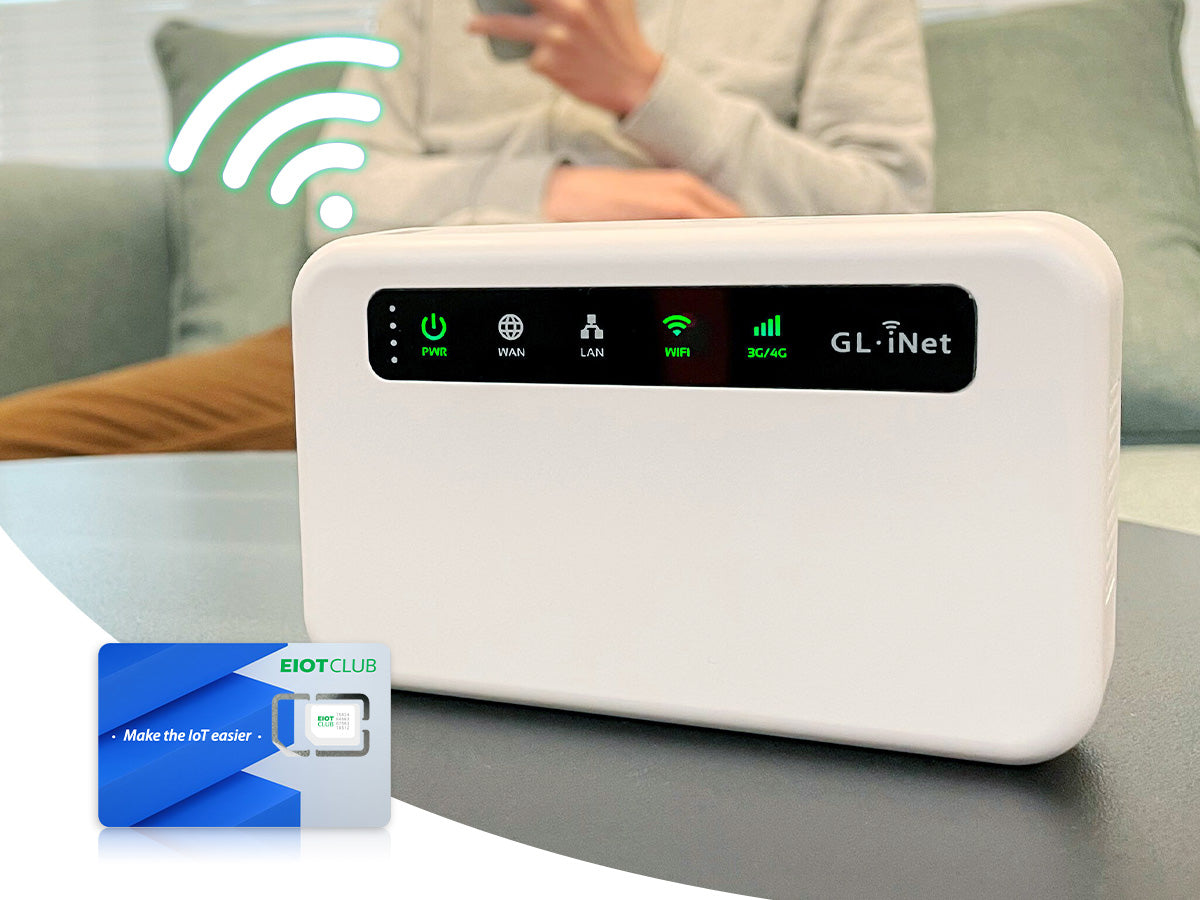
Powering up a portable router with a SIM card is simple. Insert the SIM card into the designated slot. Connect the router to a power source, and watch the device light up, indicating it’s ready for use.
Powering up your portable router is the first step towards creating your own personal internet hotspot. Whether you’re on a road trip, camping, or just need a reliable connection on the go, setting up your router correctly ensures a seamless experience. Let’s dive into the practical steps to get your device up and running.Charging The Device
Before you can power on your portable router, ensure it’s fully charged. Most routers come with a USB charging cable, allowing you to connect it to a power bank, laptop, or wall adapter. Charging times can vary, so check the manual for specific details. A fully charged device not only ensures uninterrupted connectivity but also maximizes battery life. Keep an eye on the LED indicators, which typically flash or change color once the device is fully charged.Turning On The Router
Once charged, locate the power button, usually found on the side or top of the router. Press and hold the button for a few seconds until the LED lights activate. This indicates that your device is turning on. It’s a good idea to familiarize yourself with these lights, as they provide valuable information about signal strength, battery status, and connectivity. Have you ever noticed how these tiny indicators can tell an entire story about your device’s status?Initial Boot Process
After turning on the router, give it a moment to complete the initial boot process. This phase is crucial as the device establishes a connection with the network. You might see the lights blink or change colors during this process. Most routers will notify you when they’re ready to connect, often through a steady or blinking LED. It’s the anticipation of this moment that makes the process exciting, knowing that you’re just steps away from being online, anytime and anywhere. By following these steps, you’re now ready to enjoy a seamless internet connection wherever you are. Have you ever found yourself needing to connect multiple devices on the go? This setup can make all the difference in staying connected.Configuring Router Settings
Configuring your portable router’s settings is the key step to get your internet connection running smoothly. It’s where you personalize your network, secure it, and ensure the SIM card communicates effectively with your provider’s network. Let’s break down each part so you can set up your router confidently and avoid common pitfalls.
Accessing The Admin Panel
To start, you need to log into your router’s admin panel. This is usually done by typing the router’s IP address into your web browser—most commonly 192.168.0.1or 192.168.1.1. If you’re unsure, check the router’s manual or the label on the device for the exact address.
Once you enter the IP address, you’ll be prompted to enter a username and password. Default credentials are often “admin” for both fields, but it’s important to change these later for security. Have you ever left your devices with default passwords? It’s a common mistake that can expose your network.
Setting Up Network Name And Password
Inside the admin panel, look for the wireless settings section. This is where you can change your Wi-Fi network name (SSID) and create a strong password. Choose a name that you can easily recognize, especially if you’re in an area with many Wi-Fi signals.
For the password, use a mix of letters, numbers, and symbols to make it harder to guess. Avoid simple words or sequences like “12345678.” If you want your network to be more secure, select WPA2 or WPA3 encryption if your router supports it. Remember, a strong password keeps your internet safe from unauthorized users.
Configuring Apn Settings
APN (Access Point Name) settings connect your SIM card to your mobile network provider. Without the correct APN, your router won’t access the internet even if the SIM card is active. Find the APN settings section in the admin panel—sometimes under “Mobile Network” or “WAN” settings.
Enter the APN details exactly as provided by your SIM card carrier. This usually includes:
- APN name
- Username (if required)
- Password (if required)
- Authentication type (often “PAP” or “CHAP”)
If you don’t know these details, a quick search with your carrier’s name and “APN settings” usually brings up the correct info. Incorrect APN entries are a common cause of no internet connection, so double-check what you type. Have you ever struggled to get online because of missing or wrong APN info? This step fixes that.

Credit: www.junhaoyue.com
Connecting Devices To The Router
Connecting devices to your portable router is simple and fast. After setting up your router with the SIM card, you need to link your devices to it. This step allows your phone, tablet, or laptop to use the internet through the router’s signal.
Each device connects wirelessly by finding the router’s network name. Next, you enter the password to gain access. Testing the connection ensures everything works well before you start browsing or streaming.
Finding The Network
Open the Wi-Fi settings on your device. Look for the network name that matches your router’s SSID. This name is usually on the router’s label or manual. Select the network from the list of available Wi-Fi connections.
Entering Password
After selecting the network, a password prompt will appear. Type the password exactly as shown on the router’s sticker or user guide. Use capital letters, numbers, and symbols carefully. Press “Connect” or “Join” to continue.
Testing The Connection
Once connected, open a web browser or app to check internet access. Load a website or stream a video to confirm the connection is active. If pages load quickly, your device is online and ready to use.
Troubleshooting Common Issues
Troubleshooting common issues with a portable router and SIM card can save time and frustration. Understanding typical problems helps fix them quickly. Most issues relate to signal, SIM recognition, or internet speed.
No Signal Or Weak Signal
Check the router’s placement first. Keep it near a window or open area. Avoid thick walls or metal objects blocking the signal. Restart the router to refresh the network connection. Confirm the SIM card is active and has data service. Use the router’s signal indicator to see signal strength. Try changing the router’s network mode between 3G, 4G, or LTE for better reception.
Sim Card Not Recognized
Power off the router and remove the SIM card carefully. Clean the SIM card gently with a soft cloth. Reinsert the SIM card firmly in the correct slot. Make sure the SIM card is compatible with the router. Check for SIM card damage or expiration. Update the router’s firmware to improve SIM compatibility. Reset the router to factory settings if the problem persists.
Slow Internet Speeds
Check the data plan limits and usage to avoid throttling. Place the router closer to the window or away from electronic devices. Restart the router to clear temporary network issues. Connect fewer devices to reduce bandwidth sharing. Change the router’s channel to avoid network interference. Test speed at different times to find peak and off-peak performance. Update router firmware for the latest improvements.
Credit: www.eiotclub.com
Tips For Optimizing Performance
Optimizing the performance of your portable router with a SIM card can make a huge difference in your internet experience. Small adjustments in how you set up and maintain your device can boost speed, reduce interruptions, and help you get the most out of your data plan. Let’s look at some practical tips to enhance your router’s performance.
Placing The Router For Best Signal
Where you place your portable router matters more than you might think. Position it near a window or an open area to catch the strongest mobile network signals.
Avoid placing it in enclosed spaces like cabinets or near large metal objects, which can block or weaken the signal. Sometimes, a small change in location—just a few feet—can improve your connection dramatically.
Have you noticed how your phone signal changes in different rooms? Your router behaves the same way, so test different spots until you find the best one.
Managing Data Usage
Data is precious, especially on limited plans. Keep an eye on which devices use the most data and consider setting limits or priorities within your router’s settings.
Streaming videos and online gaming consume large amounts of data quickly. You might want to schedule heavy data use for times when you have unlimited access or are less likely to need a strong connection elsewhere.
Checking your data usage regularly helps you avoid unexpected slowdowns or extra charges. Have you set alerts for your data limits yet?
Updating Firmware Regularly
Firmware updates are more than just routine maintenance—they often fix bugs and improve your router’s speed and security. Skipping updates can leave your device vulnerable and slow.
Most routers notify you when updates are available, but you can also check manually through the router’s app or web interface. Updating might take only a few minutes but can save you headaches later.
Think of firmware updates as tuning up your car; it keeps everything running smoothly and efficiently.
Frequently Asked Questions
What Is A Portable Router With A Sim Card?
A portable router with a SIM card uses cellular data to provide internet. It offers Wi-Fi access anywhere with mobile network coverage. This device is ideal for travel and remote locations without fixed internet.
How Do I Insert A Sim Card Into The Portable Router?
To insert a SIM card, power off the router first. Locate the SIM card slot, usually under the battery or on the side. Gently insert the SIM card with the chip facing down. Power on and configure the router.
How To Configure Apn Settings On A Portable Router?
Access the router’s admin panel via a browser using its IP address. Navigate to the network or mobile settings. Enter the correct APN details from your mobile provider. Save the settings and restart the router to connect.
Can I Use Any Sim Card With My Portable Router?
Most portable routers support standard SIM cards, but check compatibility. Ensure your SIM card has an active data plan. Some routers may lock to specific carriers or require unlocked SIMs for use.
Conclusion
Setting up a portable router with a SIM card is simple and quick. Just follow the steps carefully, and you will have internet access anywhere. This device helps you stay connected on the move. No need to rely on public Wi-Fi or cables.
Portable routers offer convenience and flexibility for your online needs. Keep your SIM card active and check the signal strength often. Enjoy fast and secure internet wherever you go. Stay connected with ease and enjoy your browsing or work without interruptions.