Imagine you’re somewhere without Wi-Fi, and you need to connect your phone, laptop, or tablet to the internet. What if you could turn your portable router into a powerful tool that shares internet with all your devices at once?
You’re about to learn exactly how to do that—quickly, easily, and without any hassle. Keep reading, and by the end, you’ll have the confidence to share your internet connection anytime, anywhere. This simple trick can save you time, frustration, and keep you connected no matter where you are.
Ready to get started?
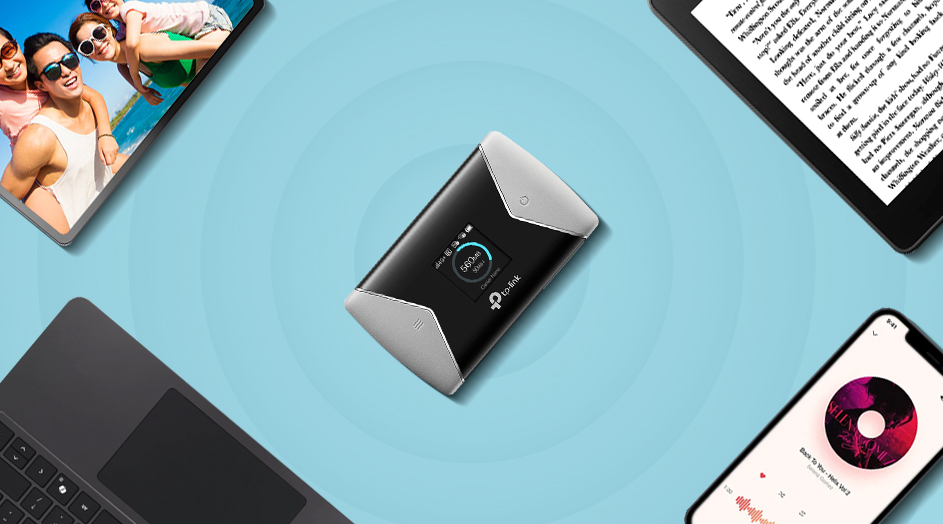
Credit: www.tp-link.com
Choosing The Right Portable Router
Choosing the right portable router is crucial for sharing your internet smoothly and efficiently. The right device ensures you stay connected without interruptions, whether you’re traveling, working remotely, or just need reliable Wi-Fi on the go. Let’s break down the main factors you should consider to find a router that fits your needs perfectly.
Key Features To Look For
Start by checking the router’s speed capabilities—look for one that supports at least 4G LTE or 5G if you want fast and stable internet. Dual-band support (2.4GHz and 5GHz) is another important feature, as it helps reduce interference and improves connection quality.
Some routers include extra features like a built-in SIM card slot, multiple device support, and security options such as VPN compatibility. Think about how many devices you usually connect; a router that handles more connections without slowing down will make your life easier.
Battery Life And Portability
Battery life is a dealbreaker for portable routers. You want a device that lasts several hours, at least 8 to 10, so you’re not constantly hunting for a power source. Compact size and lightweight design matter too—if your router is bulky, you might not carry it around as often as you’d like.
Imagine being on a long train ride and your internet cuts out because your router’s battery died early. Choose a model with fast charging or even USB-C support for more convenience. How often do you find yourself needing internet access away from outlets?
Compatibility With Networks
Not all portable routers work with every carrier or network worldwide. Check if the router supports the frequency bands used by your carrier to avoid connectivity issues. Some routers are locked to specific networks, so make sure you pick one that is unlocked or compatible with multiple providers.
If you travel internationally, consider routers that support global roaming or have multi-band support to keep you connected abroad. Ask yourself: will your router serve you well if your travel plans change?

Credit: www.youtube.com
Setting Up Your Portable Router
Setting up your portable router is the crucial first step to sharing internet seamlessly wherever you go. Getting it ready doesn’t have to be complicated. With a little guidance, you can have your device powered, configured, and connected in no time.
Charging And Powering On
Before anything else, ensure your portable router has enough battery life. Plug it into a power source using the provided charger or a compatible USB cable. A full charge prevents interruptions during setup and usage.
Once charged, press and hold the power button until the indicator lights turn on. These lights usually show battery status and connectivity signals, so watch them closely. If nothing happens, double-check the charger or try a different power outlet.
Initial Configuration
After powering on, connect your device—like a laptop or smartphone—to the router’s default Wi-Fi network. This network name and password are often printed on the router’s label or in the manual.
Open a browser and enter the router’s setup IP address, commonly something like 192.168.0.1 or 192.168.1.1. Here, you’ll be prompted to create a new Wi-Fi name (SSID) and password. Choose something easy for you but hard for others to guess.
Don’t forget to update your router’s admin password during this setup. Keeping default passwords puts your network at risk. Have you checked if your router offers firmware updates? Installing them now can improve performance and security.
Connecting To The Internet Source
Your portable router needs an internet source to share connectivity. This could be a SIM card with mobile data, an Ethernet cable, or a Wi-Fi hotspot.
- If your router supports a SIM card, insert it carefully into the designated slot.
- For Ethernet connections, plug the cable into the WAN or internet port on your router.
- Some routers allow connecting to another Wi-Fi network; follow on-screen instructions to join that network.
Once connected, your router should display a strong signal indicator. Test the connection on your device by browsing a website or running a speed test. What’s your experience with different internet sources? Some work better depending on location and network traffic.
Sharing Internet Via Wi-fi
Sharing your internet through a portable router’s Wi-Fi is one of the easiest ways to connect multiple devices without the hassle of cables. This method gives you the freedom to move around while staying connected. Let’s dive into how you can set up and manage your Wi-Fi network effectively.
Creating A Wi-fi Network
Start by powering on your portable router and accessing its setup page, usually through a web browser. You’ll typically need to enter an IP address like 192.168.0.1 or 192.168.1.1 in your browser’s address bar.
Once logged in, look for the wireless settings or Wi-Fi section. Here, you can enable the Wi-Fi feature to create your network. It’s important to double-check that the router’s internet connection is active before proceeding.
Setting Network Name And Password
Your network name, or SSID, is what devices will see when they search for Wi-Fi. Choose a name that’s easy to identify but avoid using personal information.
Setting a strong password is crucial for keeping your connection secure. Aim for a combination of letters, numbers, and symbols. Remember, a secure password protects your data and prevents unauthorized users from hogging your bandwidth.
Connecting Devices To The Network
Now that your Wi-Fi network is ready, find it on your device’s Wi-Fi list. Select the network name you created and enter the password you set.
After connecting, test the internet by opening a web page or streaming a video. If connection issues arise, restarting the router or your device often solves the problem quickly.
Have you ever wondered how many devices your portable router can support simultaneously? Checking your router’s manual can help avoid slowdowns caused by too many connections.
Sharing Internet Via Usb Or Ethernet
Sharing your internet connection through a portable router can be done efficiently using either USB or Ethernet connections. These wired options often provide more stable and faster connections compared to wireless sharing. Whether you’re working remotely or need a reliable link for multiple devices, understanding these methods can help you get connected quickly.
Using Usb Tethering
USB tethering lets you share your portable router’s internet with a single device using a USB cable. This method is especially handy when Wi-Fi signals are weak or when you want to conserve battery on your router. Simply connect the router to your laptop or PC via USB, then enable USB tethering in the router’s settings.
You might wonder if your device supports this feature. Most modern laptops and smartphones do, but double-checking your router’s manual can save you time. Keep in mind, USB tethering usually limits connection to one device at a time, so it’s best for solo use or when stability is a priority.
Connecting Through Ethernet Cable
Using an Ethernet cable to share internet from a portable router offers a fast and reliable connection. Plug one end of the Ethernet cable into your router’s LAN port and the other into your computer or a network switch for multiple devices. This setup minimizes interference and is ideal for gaming, streaming, or large file transfers.
One tip: some portable routers don’t have built-in Ethernet ports. In that case, a USB-to-Ethernet adapter can bridge the gap. Have you ever experienced lag during an important video call? Ethernet could be the solution you need to avoid those frustrating drops.
Device Compatibility Tips
Not all devices handle USB or Ethernet sharing the same way. Check the specifications of your portable router and your device to ensure compatibility. For example, some routers require specific drivers for USB connections, which you can usually find on the manufacturer’s website.
Also, consider your device’s operating system. Windows, macOS, and Linux handle tethering differently. If your device struggles with a wired connection, updating drivers or changing settings might fix the issue. Have you tested your connection on different devices? That can reveal hidden compatibility quirks.
Troubleshooting Connection Issues
Dealing with connection issues on your portable router can be frustrating, especially when you need reliable internet on the go. Troubleshooting these problems quickly helps you stay connected without wasting time. Let’s look at some practical ways to fix common issues and get your internet sharing back on track.
Common Problems And Fixes
One frequent problem is slow or no internet access despite being connected to the router. This often happens due to weak signal strength or network congestion.
- Weak Signal:Move closer to the router or place it near a window for better reception.
- Network Overload:Limit the number of devices connected at once to reduce bandwidth strain.
- Incorrect Password:Double-check your Wi-Fi password to ensure it’s entered correctly.
- IP Conflicts:Restart your device to refresh its IP address and avoid conflicts.
Have you ever tried connecting to a public portable router only to find no internet? Often, the router needs proper authorization or has limited data left. Always check your router’s status page to confirm these details.
Restarting And Resetting Router
Restarting your portable router is a simple yet powerful fix. It clears temporary glitches that may block your connection.
- Turn off the router, wait for about 30 seconds, then turn it back on.
- This process refreshes the network and can resolve many connectivity issues.
If restarting doesn’t help, consider resetting the router to factory settings. But remember, this wipes all your customized settings, so back up important configurations first.
Have you noticed your router acting up after software updates or power outages? A quick restart often restores smooth performance.
Updating Firmware
Firmware controls your router’s core functions and security. Outdated firmware can cause bugs and compatibility problems.
Check your router’s admin panel for firmware updates regularly. Most routers have a built-in update option that downloads and installs new firmware automatically.
- Updating firmware can improve speed, fix bugs, and add new features.
- It also protects your network from vulnerabilities.
Imagine you’ve been struggling with random disconnects—updating firmware might be the fix you haven’t tried yet. When was the last time you checked your router’s firmware?
Maximizing Internet Sharing Performance
Sharing internet from a portable router works best with a strong signal and limited connected devices. Choose a central spot to place the router for better coverage and faster speeds. Keep the router’s firmware updated to improve performance and security.
Maximizing Internet Sharing Performance Sharing internet from a portable router can be handy. Ensuring optimal performance is vital for a smooth experience. Let’s explore ways to enhance your network’s efficiency.Optimizing Signal Strength
Place your router in a central location. This helps distribute the signal evenly. Avoid placing it near walls or metal objects. These can block or weaken the signal. Elevate the router if possible. It improves signal coverage.Managing Connected Devices
Limit the number of connected devices. Each device reduces available bandwidth. Disconnect devices not in use. This frees up bandwidth for active devices. Use quality of service (QoS) settings. Prioritize devices needing more bandwidth.Securing Your Network
Always secure your network with a strong password. This prevents unauthorized access. Use WPA3 encryption if available. It’s more secure than older standards. Regularly update your router’s firmware. It protects against security vulnerabilities.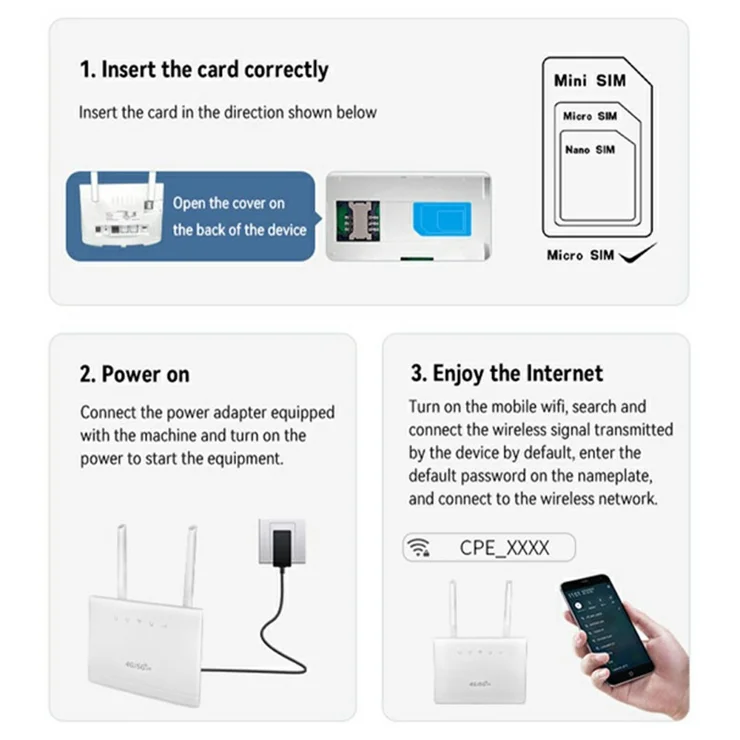
Credit: m.tvcmall.com
Frequently Asked Questions
How Do I Connect Devices To A Portable Router?
To connect devices, turn on the portable router and enable Wi-Fi. Select the router’s network name on your device and enter the password. Once connected, devices can access the internet through the router’s shared connection instantly.
Can I Share Internet From A Portable Router To Multiple Devices?
Yes, portable routers support multiple device connections simultaneously. Check your router’s specifications for the maximum supported devices. This feature allows you to share a single internet source with smartphones, laptops, and tablets easily.
What Type Of Internet Can A Portable Router Share?
Portable routers can share various internet types, including mobile data (3G/4G/5G) and wired Ethernet connections. They convert these sources into Wi-Fi signals, enabling wireless internet access for connected devices wherever you are.
Is It Secure To Share Internet Via A Portable Router?
Yes, portable routers use WPA/WPA2 encryption to secure your network. Always set a strong password to prevent unauthorized access. Regularly update the router firmware for enhanced security and protection against vulnerabilities.
Conclusion
Sharing internet from a portable router is simple and useful. Just follow the steps carefully. You can connect many devices easily. It saves data and keeps you online anywhere. Remember to secure your connection to stay safe. Portable routers offer great freedom for internet access.
Try it out and enjoy fast, reliable internet on the go. Keep your devices connected without any hassle. Sharing internet has never been this easy and convenient.