Are you struggling to get the best speed and range from your Wi-Fi? Knowing how to switch between 2.4GHz and 5GHz on your dual-band router can make a huge difference.
You might not realize it, but choosing the right frequency can boost your internet experience, reduce interference, and help your devices run smoother. In this guide, you’ll learn simple steps to take control of your Wi-Fi settings and get the most out of your connection.
Keep reading, and you’ll be surfing faster and more reliably in no time.
Credit: community.surfboard.com
Dual Band Router Basics
Understanding the basics of a dual band router helps you make the most of your home or office Wi-Fi. These routers broadcast signals on two frequencies, giving you options to connect devices in ways that best suit your needs. Knowing how these bands work can improve your internet speed and reduce interference.
What Are 2.4ghz And 5ghz Bands
The 2.4Ghz band is the older and more common frequency. It covers a wider area and penetrates walls better, making it useful for devices far from the router.
On the other hand, the 5Ghz band offers faster speeds but with a shorter range. It works best for devices close to the router or in open spaces.
Think about your own space: do you need coverage over several rooms or faster speeds for gaming and streaming in one spot? Your choice between these bands depends on this.
Benefits Of Dual Band Routers
- Less Interference:Since many household gadgets use 2.4Ghz, switching to 5Ghz can reduce signal interference.
- Better Speed Management:You can assign devices that need high speed, like laptops or smart TVs, to 5Ghz while letting simpler devices use 2.4Ghz.
- Improved Network Stability:With two bands, your router can balance traffic better, preventing slowdowns during peak usage.
- Flexibility:You control which band your devices connect to based on their location and usage.
When I switched my smart home devices to 2.4Ghz and kept my work laptop on 5Ghz, the Wi-Fi became noticeably smoother. This simple adjustment made a big difference, proving that understanding these bands isn’t just technical jargon—it’s practical for everyday use.
Credit: help.iinet.net.au
Reasons To Switch Bands
Switching between the 2.4GHz and 5GHz bands on your dual-band router can significantly improve your internet experience. Each band offers unique benefits, and knowing when to switch can help you maximize speed, range, and connection stability. Understanding the reasons behind switching bands lets you tailor your Wi-Fi to fit your specific needs and environment.
When To Use 2.4ghz
The 2.4GHz band is best when you need wider coverage. It travels farther and penetrates walls better than 5GHz, making it ideal for larger homes or spaces with many obstacles.
If you notice your devices struggling to connect in distant rooms or basements, switching to 2.4GHz can improve reliability. It’s also the better choice for simple tasks like browsing or checking emails, where speed isn’t critical.
- Use 2.4GHz for devices far from the router
- Choose it when you want better coverage through walls
- Ideal for low-bandwidth activities like streaming music or browsing
When To Use 5ghz
The 5GHz band offers faster speeds and less interference than 2.4GHz, which is great if you’re gaming or streaming high-definition videos. Its shorter range means it works best when you’re close to the router.
If your home is filled with many Wi-Fi networks or other devices, 5GHz helps reduce signal interference. This band is perfect for high-demand activities where every millisecond counts.
- Use 5GHz when you need faster speeds and lower latency
- Choose it for streaming HD videos, online gaming, or video calls
- Best when you’re in the same room or close to the router
Accessing Router Settings
Accessing your router settings is the first step to switch between 2.4GHz and 5GHz bands. These settings control how your router works and how it connects to your devices. You can change network names, passwords, and frequencies through the router interface. This process helps you manage your internet better and improve your Wi-Fi experience.
Finding Your Router Ip Address
Your router IP address lets you enter the settings page. It is usually a set of numbers like 192.168.1.1 or 192.168.0.1. You can find it by checking your device’s network details.
- On Windows, open Command Prompt and type
ipconfig. Look for “Default Gateway.” - On Mac, open System Preferences, choose Network, select your connection, and click Advanced. Find the “Router” address.
- On smartphones, check Wi-Fi settings and look for the gateway or router IP.
Write down this IP address. You need it to log into your router.
Logging Into The Router Interface
Open a web browser on a device connected to your network. Type the router IP address into the address bar and press Enter.
A login screen appears. Use your router’s username and password to access the settings. These details are often on a sticker on the router or in the manual.
- Common usernames: admin, user
- Common passwords: admin, password, or a unique code
After logging in, you can find the wireless settings to switch between 2.4GHz and 5GHz bands.
Switching Between Bands
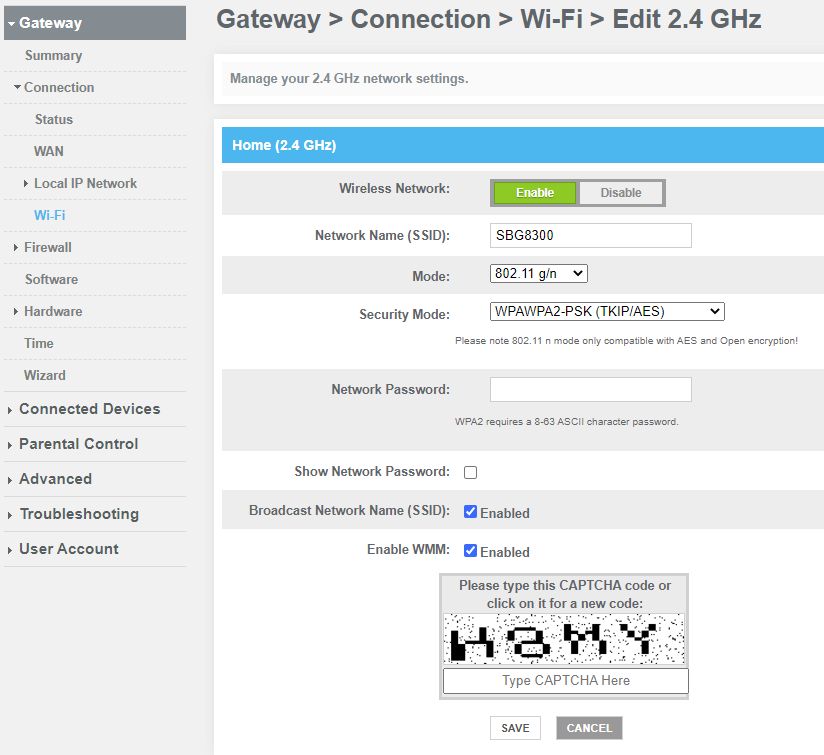
Access your router’s settings through a web browser using its IP address. Choose the wireless section to select either 2. 4GHz or 5GHz band for your device. Save changes and reconnect to the chosen network for better speed or range.
Switching between the 2.4GHz and 5GHz bands on a dual-band router can improve network performance. Each band has its unique benefits. The 2.4GHz band covers a larger area but offers slower speeds. The 5GHz band provides faster speeds but covers a smaller area. Switching between these bands is essential for optimizing your Wi-Fi experience.Locating Wireless Settings
Access your router’s settings through a web browser. Type the router’s IP address in the browser’s address bar. Log in using your credentials. Navigate to the ‘Wireless’ or ‘Wi-Fi’ section. Here, you will find the settings for both bands.Enabling Or Disabling Bands
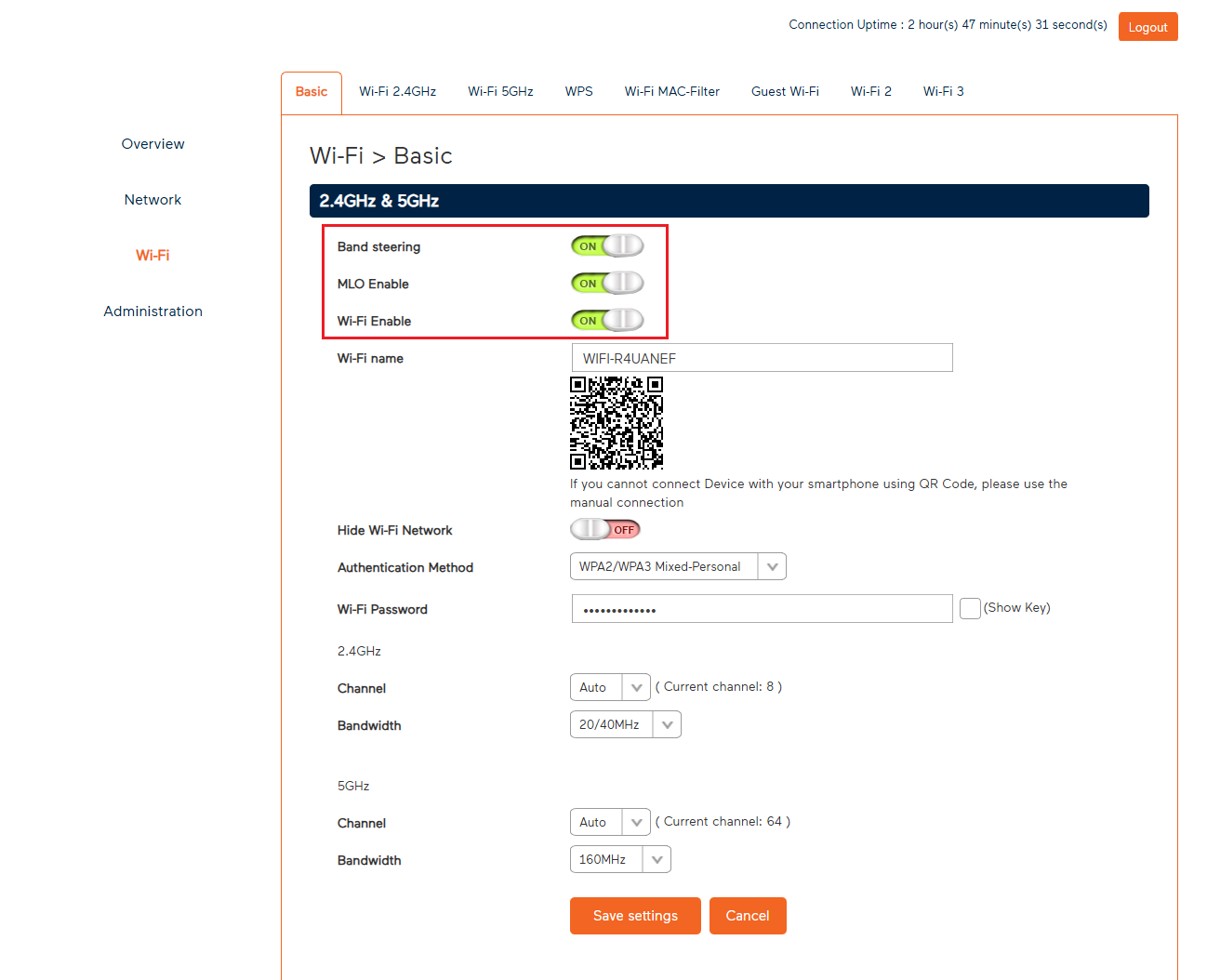
In the wireless settings, look for options to enable or disable bands. You can switch off a band if not in use. This can help reduce interference. Enable both bands if you want to use them simultaneously. Ensure to save changes after making any adjustments.Changing Ssid Names For Each Band
Assign different SSID names to each band. This helps in easy identification. Navigate to the SSID field in your wireless settings. Enter a unique name for each band. Save the settings to apply the changes. This ensures you can connect devices to the correct band easily.Connecting Devices To A Specific Band
Connecting your devices to the right Wi-Fi band on a dual-band router can improve your internet speed and reliability. Since 2.4GHz and 5GHz bands serve different purposes, picking the correct one for your device is essential. Understanding how to select and force connections can help you avoid slow speeds and dead zones.
Choosing The Right Band On Your Device
Most modern devices automatically choose the best available Wi-Fi band. However, you can manually select the network if your router broadcasts separate SSIDs for 2.4GHz and 5GHz. Look for network names that often end with “_2.4G” or “_5G” to identify the bands.
If you want better range and stability, especially for devices far from the router, connect to 2.4GHz. This band penetrates walls better but offers slower speeds. For faster speeds and less interference, especially for gaming or streaming near your router, pick the 5GHz band.
Some devices allow you to prioritize bands in their network settings. Check your device’s Wi-Fi preferences to see if you can set it to prefer 5GHz or 2.4GHz networks. This option can help avoid automatic switching that might interrupt your connection.
Forcing Connection To 2.4ghz Or 5ghz
If your device connects to the wrong band automatically, you can force it to connect to a specific one by changing network names or settings. The simplest way is to give each band a unique SSID. This way, you manually pick which band to connect to from your device’s Wi-Fi list.
On some routers, you can disable one band temporarily in the router’s admin panel. This forces all devices to connect to the active band. Be cautious with this approach, as disabling a band affects all connected devices.
Advanced users can use MAC address filtering or band steering settings on the router to control which devices use which band. This requires logging into the router’s settings and assigning devices to specific bands based on their hardware addresses.
Have you noticed your device switching bands mid-session? Changing SSIDs or adjusting router settings might be the fix you need to keep your connection stable and fast.
Troubleshooting Band Switching
Switching between 2.4GHz and 5GHz bands on a dual-band router may sometimes cause connection problems. Troubleshooting helps identify and fix these issues. Understanding common problems and ways to improve signal strength ensures a smoother experience.
Common Connection Issues
- Devices not detecting the 5GHz network.
- Frequent disconnections or slow speeds.
- Interference from other wireless devices.
- Incorrect network settings or passwords.
- Outdated router firmware causing instability.
Check device compatibility with 5GHz bands. Some older devices only support 2.4GHz. Confirm that the router’s bands have different network names (SSIDs) to switch easily.
Improving Signal Strength
- Place the router in a central, open location.
- Avoid physical obstructions like walls or furniture.
- Reduce interference by moving away from microwaves and cordless phones.
- Update router firmware for better performance.
- Use a Wi-Fi extender or mesh system for larger areas.
Stronger signals help devices maintain stable connections on both bands. Regularly restarting your router can also refresh connections and improve stability.
Tips For Optimal Band Usage
Choosing the right band on your dual-band router can dramatically improve your internet experience. Understanding how to use the 2.4GHz and 5GHz bands effectively helps you get the best of both worlds—speed and coverage. Here are some practical tips to help you optimize your band usage.
Balancing Speed And Range
The 5GHz band offers faster speeds but has a shorter range compared to 2.4GHz. If you’re close to your router, the 5GHz band is ideal for activities like streaming HD videos or online gaming.
However, if you need to connect devices farther away or through walls, the 2.4GHz band provides better coverage. Think about where you use your devices most and switch bands accordingly to maintain a strong and fast connection.
Avoiding Interference
The 2.4GHz band is crowded because many household devices like microwaves and cordless phones use it. This can cause interference and slow your connection down.
Try using the 5GHz band in busy areas or during peak times to avoid this interference. If you notice frequent drops or slow speeds, switching bands might solve the problem quickly.
Credit: www.dailymotion.com
Frequently Asked Questions
How Do I Switch Between 2.4ghz And 5ghz Bands?
Access your router’s settings via its IP address. Find the wireless section, then select either 2. 4GHz or 5GHz. Save changes and reconnect your device to the chosen band for optimal performance.
Why Choose 2.4ghz Over 5ghz Frequency?
2. 4GHz covers a larger area and penetrates walls better. It’s suitable for devices far from the router or with weak signals. However, it offers slower speeds compared to 5GHz.
When Should I Use The 5ghz Band On My Router?
Use 5GHz for faster speeds and less interference. It works best for high-bandwidth activities like streaming and gaming. Ideal for devices close to the router with minimal obstacles.
Can I Connect Devices To Both 2.4ghz And 5ghz Simultaneously?
Yes, dual-band routers allow simultaneous connections on both frequencies. This lets you optimize network traffic by assigning devices to the best band based on distance and speed needs.
Conclusion
Switching between 2. 4GHz and 5GHz on your router is simple. Choose 2. 4GHz for better range and 5GHz for faster speed. Adjust settings through your router’s control panel. This balance helps your devices work well and your internet stay strong.
Keep these steps handy for easy network changes anytime. Enjoy smooth and reliable Wi-Fi at home or work.