Struggling with weak WiFi signals in your backyard or patio can be frustrating, especially when you’re trying to stream your favorite show or work from the comfort of your garden. If you’ve invested in an outdoor WiFi extender but are still facing connectivity issues, you’re not alone.
Imagine effortlessly browsing and streaming without any interruptions, no matter where you are on your property. This dream can become a reality by mastering a few troubleshooting techniques. In this guide, you’ll discover simple yet effective ways to troubleshoot your outdoor WiFi extender, ensuring you enjoy seamless internet coverage all around your home.
Ready to boost your WiFi experience? Let’s dive into the solutions that will transform your connectivity woes into a thing of the past.
Common Outdoor Wifi Extender Issues
Weak signalsand connectivity dropsoften happen due to distance. Walls, trees, and buildings block the WiFi signal. The further the extender is from the router, the weaker the signal becomes.
Weatherlike rain, snow, and wind can cause interference. Metal objects and thick walls also reduce signal strength. Clear line of sight helps maintain a strong connection.
Power issues may cause the extender to turn off or restart. Check if the power adapteris securely plugged in. Hardware faults like broken antennas or damaged ports can also disrupt performance.
| Issue | Cause | Solution |
|---|---|---|
| Weak Signal | Distance, obstacles | Move extender closer, remove barriers |
| Interference | Weather, metal, walls | Place extender in open, avoid metal |
| Power Problems | Loose plug, hardware faults | Check power connection, inspect device |

Credit: simplewifi.com
Initial Checks Before Troubleshooting
Check if the outdoor WiFi extender is plugged in and powered on. A loose power cable or switch off can stop it from working.
Make sure all cables are tightly connected. This includes Ethernet cables and any power adapters.
- Place the extender where it can get a strong signal from your main router.
- Avoid walls, metal objects, and large trees that block signals.
- Keep the extender high and open to improve coverage.
Verify the network settings on the extender match your router’s settings. Use the correct network name (SSID) and password.
Check if the extender’s firmware is updated. Outdated software can cause connection issues.
Quick Fixes For Signal Problems
Place the extender where the signal is weak but still reachable. Walls and large objects block signals. Moving it closer to the router helps.
Adjust antennas to point in the direction of your devices. Sometimes, changing their angle improves signal strength. Try different positions for best results.
- Keep the extender away from microwaves and cordless phones.
- Avoid placing it near large metal objects or thick walls.
- Turn off other wireless devices that cause interference.
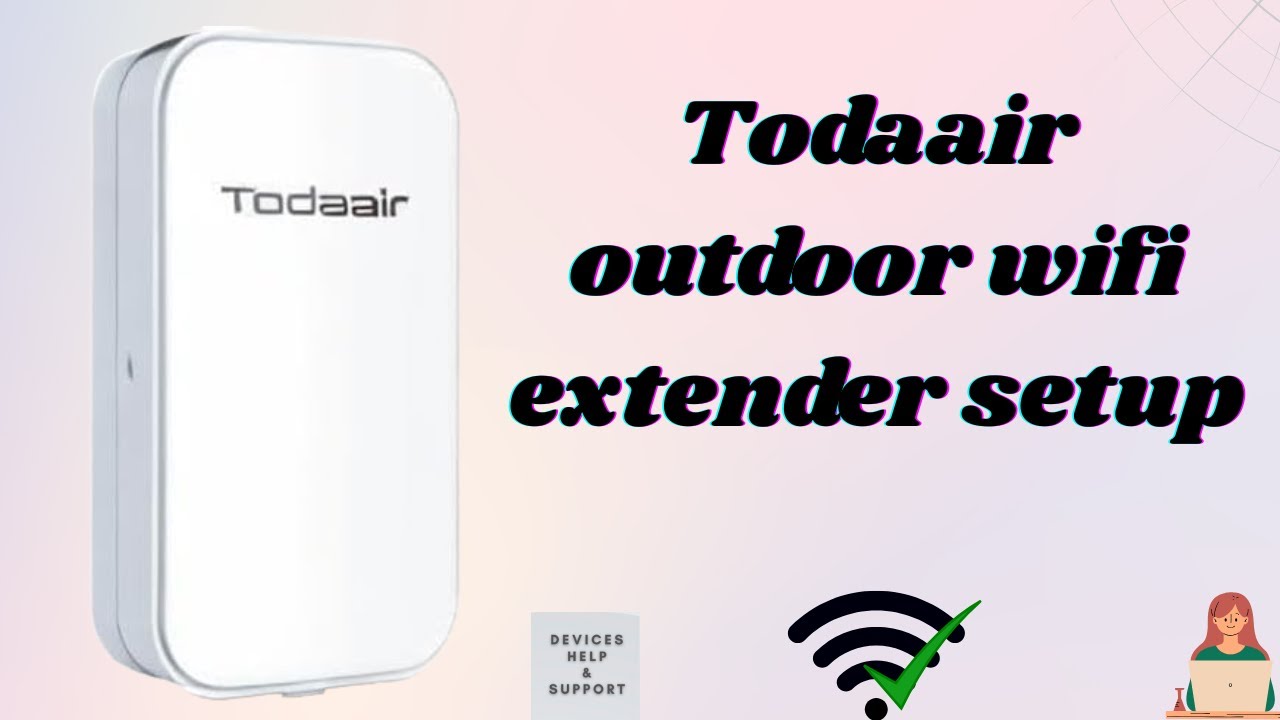
Credit: www.youtube.com
Resetting And Updating Firmware
A soft resetrestarts the extender without losing settings. It usually involves pressing the reset button briefly or using the device’s app or web interface. This can fix minor connection issues.
A hard resetrestores factory settings. Press and hold the reset button for about 10 seconds. This deletes all custom settings. Use it if the extender is not working well after a soft reset.
| Step | Action |
|---|---|
| Connect | Link your computer or phone to the extender’s Wi-Fi network. |
| Access | Open a web browser and enter the extender’s IP address or URL. |
| Login | Use your username and password to sign in. |
| Check Firmware | Find the firmware update section in the settings menu. |
| Download Update | Download the latest firmware version if available. |
| Install | Follow on-screen instructions to install the update. |
| Restart | Reboot the extender after updating the firmware. |
Advanced Troubleshooting Techniques
Check the outdoor WiFi extender’s placement to ensure it has a clear signal path. Test the connection and reset the device if it shows weak or no signal. Inspect cables and power sources to rule out physical issues affecting performance.
Using Wifi Analyzer Tools
WiFi analyzer tools show which channels are crowded. They help find the best channel for your extender. Choose a channel with less traffic for better speed and connection. These tools also display signal strength. Move your extender to a spot with a stronger signal.
Changing Wifi Channels
WiFi signals use different channels. Some channels are busy and cause slow speeds. Switch to a less crowded channel. This reduces interference from other devices. Try channels 1, 6, or 11 for 2.4 GHz networks. For 5 GHz, pick a channel with fewer users.
Adjusting Security Settings
Strong security keeps your network safe and fast. Use WPA2 or WPA3 encryption. Avoid WEP, as it is weak and outdated. Change your WiFi password regularly. Disable WPS (WiFi Protected Setup) to stop unauthorized access. These steps keep your extender working well and secure.

Credit: manuals.plus
When To Replace Your Extender
Signs of hardware failureinclude frequent disconnections and slow speeds. The extender might stop powering on or show blinking lights. Physical damage from weather or wear can also affect performance. If resets do not fix the issues, hardware may be faulty.
Upgrading for better performanceis wise when the current extender is outdated. New models offer improved range and faster speeds. They support newer Wi-Fi standards like Wi-Fi 6. Upgrading can help cover dead zones and handle more devices smoothly.
Frequently Asked Questions
How To Reset An Outdoor Wifi Extender?
To reset your outdoor WiFi extender, locate the reset button. Press and hold it for 10 seconds. The device will reboot and restore factory settings. This helps fix connectivity issues and allows fresh setup.
Why Is My Outdoor Wifi Extender Signal Weak?
Weak signals can result from distance, obstacles, or interference. Ensure the extender is placed within range of the main router. Avoid physical barriers like walls or metal objects. Also, check for overlapping channels and adjust settings accordingly.
How To Update Firmware On Outdoor Wifi Extender?
Visit the manufacturer’s website and download the latest firmware. Access the extender’s admin panel via its IP address. Upload and install the firmware file. Firmware updates improve performance and fix bugs.
What Causes Outdoor Wifi Extender Connection Drops?
Connection drops often stem from unstable power supply, interference, or outdated firmware. Check cables and power sources. Reduce interference from other devices and update firmware regularly to maintain stable connectivity.
Conclusion
Troubleshooting your outdoor WiFi extender can be simple and quick. Start by checking the power and cable connections. Make sure the device is placed in a good spot with a strong signal. Restarting the extender often fixes many problems. Keep your extender’s firmware up to date for best performance.
Test your internet speed to see if the extender works well. Small steps can bring big improvements to your WiFi range. Stay patient and try each tip carefully. Soon, your outdoor WiFi should work smoothly and keep you connected.