Are you struggling with your tri band router acting up? When your internet feels slow or keeps dropping, it can be incredibly frustrating.
But don’t worry—you don’t have to be a tech expert to fix these problems. In this guide, you’ll discover simple, effective steps to troubleshoot your tri band router and get your connection back on track. Keep reading, and by the end, you’ll feel confident handling these issues on your own.
Your seamless internet experience is just a few easy fixes away!
Identifying Common Tri Band Router Problems
Tri band routers offer strong performance by using three separate frequency bands. Despite this, users can face issues that affect connectivity and speed. Identifying common problems is the first step to fixing them quickly. Knowing what to watch for helps keep the network stable and fast.
Connection Drops
Frequent connection drops disrupt online tasks. These drops can happen due to interference from other devices. Physical obstacles like walls also weaken signals. Router overheating may cause unexpected restarts. Firmware bugs might lead to unstable connections.
Slow Internet Speeds
Slow speeds reduce browsing and streaming quality. Network congestion from many devices can slow the connection. Distance from the router affects signal strength. Outdated router settings might limit speed. Sometimes, internet service issues cause delays.
Device Compatibility Issues
Not all devices work well with tri band routers. Older devices might not support newer frequency bands. Some gadgets may struggle to switch between bands. Incompatible drivers or software can block connections. This leads to poor network performance or no access.
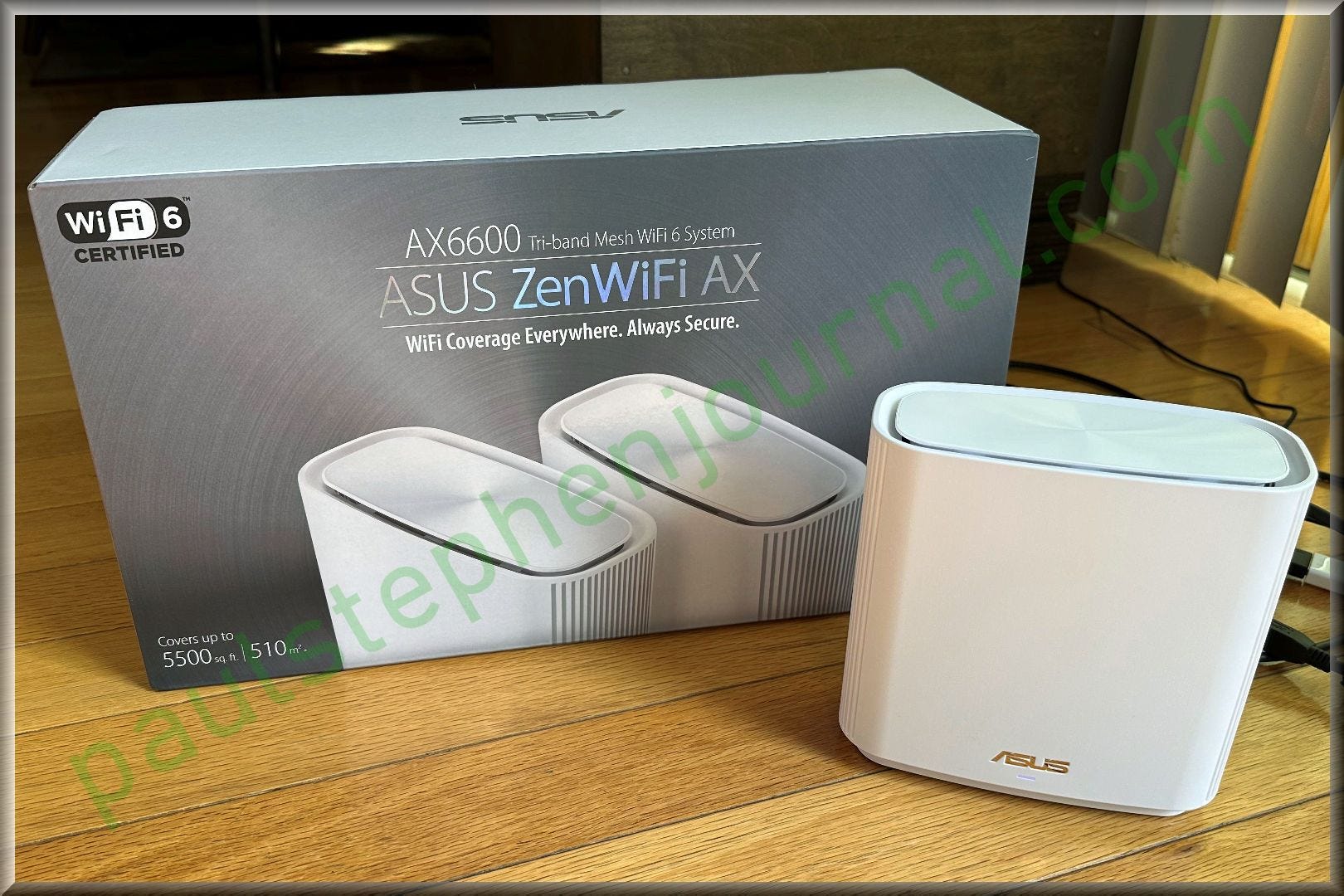
Credit: medium.com
Basic Router Checks
Basic router checks help solve common tri band router problems fast. These simple steps often fix connection issues without extra tools or skills.
Start with easy tasks. This saves time and avoids complex fixes. Check power, cables, and software first. These basics keep your router working well.
Power Cycle Your Router
Turn off your router. Wait 30 seconds. Turn it back on. This clears temporary glitches. It refreshes the router’s system and network connections.
Power cycling often restores internet speed. It fixes slow or dropped signals. Try this before changing any settings.
Check Cable Connections
Look at all cables. Make sure they plug in firmly. Check power cable, Ethernet cables, and any other wires.
Loose or damaged cables cause connection problems. Replace broken cables. Secure all plugs to keep signals strong.
Verify Firmware Updates
Firmware controls your router’s performance. Check if the firmware is up to date. Visit the router’s admin page or app to see update status.
Updated firmware improves security and fixes bugs. Install new updates promptly. This keeps the router stable and fast.
Optimizing Router Placement
Optimizing the placement of your tri band router can boost signal strength and reduce connection issues. The right spot helps the router cover your home evenly. Small changes in location can make a big difference in performance.
Avoiding Signal Interference
Keep your router away from devices that cause signal interference. Items like microwaves, cordless phones, and baby monitors can block or weaken Wi-Fi signals. Metal objects and thick walls also disrupt the connection.
Place the router where it has fewer obstacles. Clear space around the router helps signals travel farther. Avoid placing it near large electronics or inside cabinets.
Choosing Central Locations
Put the router in a central spot in your home. This helps the signal reach every room equally. Corners or rooms at the edge of the house get weaker signals.
Open areas work better than closed-off rooms. Try a hallway or living room where many devices connect. This simple move can improve speed and reduce dead zones.
Elevating The Router
Raise your router off the floor for better coverage. Higher placement reduces interference from furniture and walls. A shelf or a high table works well.
Keep it away from the ground and away from metal surfaces. Elevation lets the signal spread out smoothly and reach more devices.
Adjusting Router Settings
Adjusting router settings can solve many tri-band router issues. It enhances network performance and stability. This guide will help you tweak some key settings. Let’s dive into some practical adjustments.
Selecting The Best Frequency Band
Tri-band routers offer three frequency bands: one 2.4 GHz and two 5 GHz. Choose the right band for your devices. Use 2.4 GHz for longer range, but slower speed. Opt for 5 GHz for faster speed, but shorter range. Adjust based on your device’s needs and location.
Changing Wireless Channels
Wireless channels can affect your network performance. Too many devices on one channel cause interference. Change the channel to reduce interference. Access the router settings page. Find the wireless settings section. Select a different channel. Channels 1, 6, and 11 are usually best for 2.4 GHz.
Enabling Quality Of Service (qos)
Quality of Service prioritizes bandwidth for important tasks. Enable QoS to ensure smooth streaming and gaming. Access the router settings page. Find the QoS settings section. Enable QoS and set priorities for devices or applications. Adjust settings based on your usage preferences.
Managing Connected Devices
Managing the devices connected to your tri-band router is key to solving many common network problems. Too many devices competing for bandwidth can slow down your internet and cause interruptions. Understanding how to control and prioritize these connections helps maintain a smooth and fast Wi-Fi experience.
Limiting Bandwidth-hungry Devices
Devices that stream video, play online games, or download large files can consume most of your bandwidth. Identify these devices by checking your router’s device list. Then, set limits on their bandwidth usage to prevent them from hogging the connection.
Many routers have built-in tools to cap bandwidth per device. You can also schedule times for these devices to access the internet, reducing their impact during peak hours. Have you noticed your video calls drop when someone starts a download? Controlling these devices can stop that from happening.
Prioritizing Essential Devices
Not all devices need equal priority. Your work laptop or smart home security system often requires a faster, more reliable connection than a guest’s smartphone. Use Quality of Service (QoS) settings on your router to prioritize these critical devices.
Adjusting QoS ensures your important devices get the bandwidth they need first. This can significantly improve your experience during video conferences or while streaming. Think about which devices you rely on most and give them the priority they deserve.
Removing Unauthorized Connections
Unauthorized devices can slow down your network and pose security risks. Regularly check your router’s connected device list for unknown entries. Remove any devices you don’t recognize to keep your network safe and efficient.
Set a strong Wi-Fi password and change it regularly to prevent unwanted access. You might be surprised how many devices connect without your knowledge. Keeping your network clean helps maintain speed and protects your data.
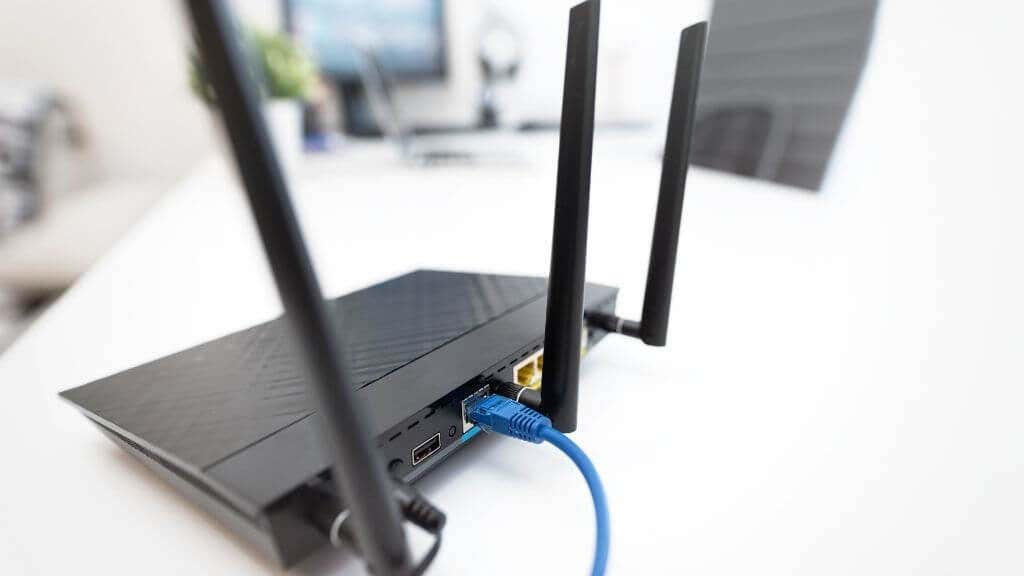
Credit: helpdeskgeek.com
Advanced Troubleshooting Steps
Advanced troubleshooting helps solve tough tri band router problems. It digs deeper than basic fixes and finds hidden issues. These steps require some technical effort but often restore your router’s full performance. Focus on clear, simple actions to avoid confusion and errors.
Resetting To Factory Settings
Resetting your router erases all custom settings. It returns the device to its original state. This can fix software glitches and conflicts. Use a small pin to press the reset button on the router’s back. Hold it for 10-15 seconds until the lights blink. After reset, reconfigure your network with default credentials.
Checking For Hardware Issues
Hardware problems may cause poor connection or no signal. Inspect cables for damage or loose connections. Make sure the power adapter works and plugs firmly. Check router antennas for cracks or breaks. Try placing the router in a different outlet or location. If problems persist, hardware replacement might be necessary.
Using Router Logs For Diagnostics
Router logs record device activity and errors. Access them through the router’s admin page under “Logs” or “System.” Look for repeated error messages or warnings. These clues help identify network failures or interference. Save the logs and share them with your internet provider for advanced support.
When To Seek Professional Help
Knowing when to seek professional help can save time and avoid frustration. Some tri band router issues require expert skills. Troubleshooting alone may not fix deep problems. Professionals have tools and knowledge to diagnose and repair complex faults. Recognizing signs that need expert care keeps your network stable and fast.
Persistent Connectivity Problems
Constant disconnections or slow speeds might signal serious issues. If basic resets and updates don’t help, issues may be beyond simple fixes. Persistent problems can indicate firmware corruption or interference that needs advanced tools. Professional technicians can analyze and resolve these tricky problems quickly.
Hardware Replacement Options
Old or damaged routers may cause repeated failures. Identifying faulty hardware parts is not always easy. Experts can test components like antennas, power supplies, or circuit boards. They recommend proper replacements or upgrades based on your needs. This avoids wasting money on unnecessary new purchases.
Consulting Internet Service Providers
Sometimes the problem lies with the internet service provider (ISP). Slow internet or outages might be due to line issues or service disruptions. Contacting your ISP can confirm if the problem is on their side. They also provide support for router compatibility and advanced configuration help.

Credit: www.softwarehubs.com
Frequently Asked Questions
What Causes Tri Band Router Connection Problems?
Tri band router issues often stem from interference, outdated firmware, or improper device placement. Overlapping signals from other networks can disrupt performance. Ensuring firmware updates and optimal router location can reduce connectivity problems effectively.
How To Reset A Tri Band Router Properly?
To reset, press and hold the reset button for 10 seconds. This restores factory settings and clears glitches. After resetting, reconfigure your network settings to ensure smooth operation and resolve persistent issues.
Why Is My Tri Band Router Slow On One Band?
Slow speed on one band may result from interference or device compatibility issues. Check device frequency support and reposition the router to minimize obstacles. Updating firmware can also enhance band performance significantly.
How To Update Firmware On A Tri Band Router?
Access your router’s admin panel via its IP address. Navigate to firmware update section and follow prompts. Keeping firmware current fixes bugs and improves router security and functionality, ensuring stable tri band performance.
Conclusion
Troubleshooting your tri band router can be simple and quick. Start by checking connections and restarting the device. Keep your firmware updated for better performance. Test each band to find the problem. Reset settings only if needed. These steps help fix common issues without stress.
Stay patient and follow the guide carefully. Your internet should run smoother soon. Remember, small fixes make a big difference in connectivity.