Updating the firmware on your dual band router can seem tricky, but it’s one of the smartest moves you can make to keep your internet fast and secure. If you want to boost your Wi-Fi performance and protect your network from bugs and threats, this simple step is a must.
In this guide, you’ll learn exactly how to update your router’s firmware quickly and safely—no tech jargon, no confusion. Stick with me, and you’ll have your router running like new in no time.
Check Router Model And Firmware Version
Before updating the firmware on your dual band router, it’s important to know exactly which model you have and the current firmware version installed. This information ensures you download the correct update, avoiding compatibility issues that could disrupt your network. Checking these details is simpler than you might think and sets the foundation for a smooth update process.
Locate Your Router Model Number
Your router model number is usually printed on a label attached to the device itself. Look at the back or bottom of your router for a sticker that includes information like the model name, serial number, and MAC address.
If you have a manual or the original box, the model number will also be listed there. Knowing this exact model helps you find the right firmware update on the manufacturer’s website without confusion.
Find The Firmware Version On The Router Interface
Access your router’s web interface by typing its IP address into a browser—often it’s 192.168.1.1or 192.168.0.1. Log in using your username and password; if you haven’t changed it, the default credentials are typically “admin” for both fields.
Once logged in, navigate to the status or system information page to see the current firmware version. This version number tells you whether your router needs an update or if it’s already running the latest software.
Why Does Knowing Your Firmware Version Matter?
Many people skip checking their firmware version and jump straight into updates, risking installing the wrong version. This can lead to network instability or even bricking your router.
By confirming your firmware version first, you avoid unnecessary headaches and ensure your router performs at its best. Have you ever updated the wrong firmware and faced connectivity problems? Knowing this step can save you from that frustration.
Download The Latest Firmware
Downloading the latest firmware is essential for your dual band router’s performance. Firmware updates fix bugs and improve security. Using the newest firmware keeps your network stable and fast.
Before downloading, identify your router’s model and version. This ensures you get the correct firmware file. Visit the official website of your router’s manufacturer for the safest downloads.
Find Your Router Model And Version
Look at the label on the back or bottom of your router. You will see the model number and version. Write down this information to avoid confusion during the download.
Visit The Manufacturer’s Support Page
Open your web browser and go to the router brand’s official website. Navigate to the support or downloads section. Enter your router model in the search bar to find the firmware.
Choose The Correct Firmware File
Check the firmware release date and version number. Pick the newest file that matches your router model and version. Avoid downloading files for different models or regions.
Download And Save The Firmware
Click the download link to save the firmware file to your computer. Use a folder where you can easily find it later. Keep the file safe until you update your router.
Backup Router Settings
Backing up your router settings is a crucial step before updating the firmware on your dual band router. It ensures that you don’t lose your personalized configurations like Wi-Fi names, passwords, and custom security settings. Imagine spending hours setting everything up, only to have it wiped out after a firmware update. That’s why saving a backup can save you from frustration and extra work.
Accessing The Router’s Admin Panel
Start by logging into your router’s admin panel. You usually do this by typing the router’s IP address into your web browser, often something like 192.168.1.1or 192.168.0.1. If you’re unsure, check the label on your router or the user manual.
Once logged in, look for a section labeled Settings, Administration, or System. This area typically contains the option to back up your current configuration.
Saving Your Router Configuration
Find the option that says Backupor Save Settings. Clicking this will allow you to download a file containing all your current router settings. Keep this file somewhere safe on your computer or an external drive.
Think about it like saving a game before a tough level—you want to make sure you can restart from where you left off if something goes wrong.
Verifying The Backup File
After you save the file, double-check that it has downloaded properly. The file is usually in a format like .binor .cfg. You don’t need to open it, but make sure the file size is not zero or suspiciously small.
Have you ever lost data because you forgot to verify a backup? This quick check can prevent that headache.
Restoring Settings If Needed
If the firmware update doesn’t go as planned, you can restore your settings by uploading the backup file through the router’s admin panel. Look for an option like Restoreor Import Settings.
This restores your customized setup without the need to re-enter everything manually. It’s like hitting the undo button on your router’s configuration.
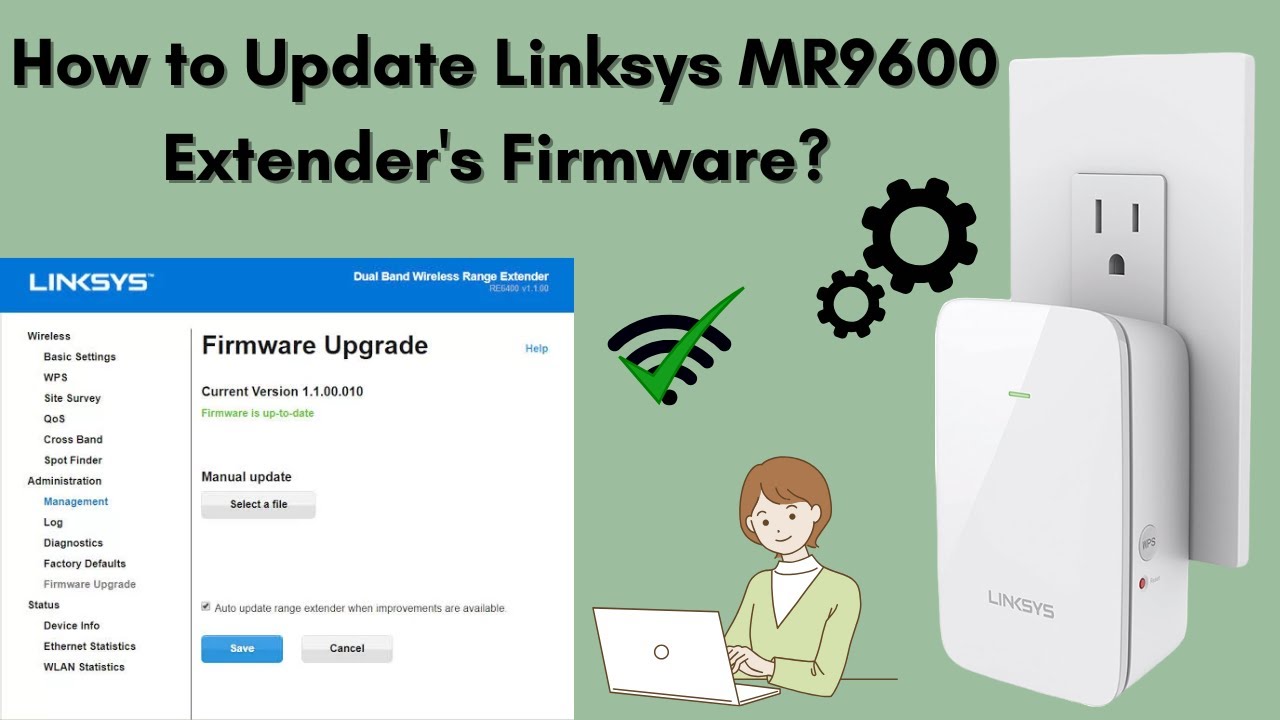
Credit: www.youtube.com
Connect To The Router
Access your router by connecting your computer or device to its Wi-Fi or using an Ethernet cable. Open a web browser and enter the router’s IP address to reach the login page. Enter your username and password to access the router settings.
Connecting to your router is a crucial step in updating its firmware. It’s the gateway to accessing your router’s admin panel and ensuring that the update process goes smoothly. But how exactly do you connect to your router effectively? Let’s dive into the essentials.Use Wired Connection
Always opt for a wired connection when updating firmware. A direct Ethernet connection between your computer and the router minimizes the risk of disconnection. Wi-Fi connections can be unstable, which could disrupt the update process. Imagine you’re downloading a large file over Wi-Fi and it suddenly stops. The same risk applies here. Use an Ethernet cable for a seamless experience.Access Router Admin Panel
Once connected, open a web browser and type in the router’s IP address. This address is usually printed on a label on the router or found in the manual. Common IP addresses include 192.168.1.1 or 192.168.0.1. After entering the IP address, you’ll see a login screen. Enter the admin credentials, which are often ‘admin’ and ‘password’. If these don’t work, check the manual or reset the router to factory settings. Have you ever wondered why this step is crucial? Accessing the admin panel is like opening the door to your router’s brain. You can manage settings, update firmware, and more. Taking these steps ensures a stable and successful firmware update. Are you ready to dive into your router’s admin panel and take control?Upload And Install Firmware
Uploading and installing firmware on your dual band router is essential for better performance and security. This process replaces the old software with the latest version provided by the manufacturer. It ensures your router runs smoothly and supports new features. Follow these steps to update the firmware safely and correctly.
Locate Firmware Update Section
Access your router’s admin panel using its IP address. Login with your username and password. Look for a menu item labeled “Firmware Update,” “Router Upgrade,” or “System Update.” This section is usually under “Administration,” “Maintenance,” or “Advanced Settings.”
Upload Firmware File
Download the correct firmware file from your router manufacturer’s website. Make sure the file matches your router model and region. In the firmware update section, click on the “Choose File” or “Browse” button. Select the downloaded file from your computer. Double-check the file before uploading.
Start Update Process
Click the “Upload” or “Update” button to begin. Do not turn off or unplug the router during the update. The router will install the new firmware and restart automatically. Wait for the process to finish completely. After reboot, check if the firmware version has changed to confirm the update.

Credit: www.youtube.com
Wait For Firmware Installation
Waiting for the firmware installation is a crucial part of updating your dual band router. This process ensures the new software is properly applied and your device works smoothly. Patience here helps avoid errors and possible damage to your router.
During installation, the router may restart several times. This is normal and part of the update process. Do not turn off or unplug the router while the update is running. Interrupting the installation can cause serious problems.
Recognize The Installation Progress
Most routers show a progress bar or indicator on the screen. This lets you know the update is ongoing. Watch the indicator carefully but avoid interacting with the router until it finishes.
Keep Your Device Connected
Ensure your computer or mobile device stays connected to the router. Losing connection may stop the update. Use a wired connection if possible, as it is more stable than Wi-Fi.
Wait For The Router To Reboot
After the firmware installs, the router restarts automatically. This reboot applies the new settings. Wait quietly until all lights on the router stabilize. This usually takes a few minutes.
Confirm Successful Installation
Once the router restarts, log back into the router’s settings page. Check the firmware version to confirm the update. If the version matches the new firmware, the installation succeeded.
Verify Firmware Update
Verifying the firmware update on your dual band router is crucial after installation. It ensures the update installed correctly and your router runs the latest features and security patches.
Check the firmware version through the router’s admin interface. This confirms the update matches the version you installed. A mismatch may mean the update failed or installed incorrectly.
Look for any new settings or options added after the update. These changes often indicate the new firmware is active. Also, test your internet connection to ensure it is stable and fast.
Access Router Admin Panel
Open a web browser and enter your router’s IP address. Common addresses are 192.168.0.1 or 192.168.1.1. Log in using your admin username and password. This panel controls your router’s settings.
Check Firmware Version
Find the firmware or system information section in the panel. The current firmware version appears here. Compare this number with the latest version from the manufacturer’s website.
Confirm Update Success
- Verify the firmware version matches the latest release.
- Ensure the router functions normally without errors.
- Look for any new features or security improvements.
Test Network Stability
Run a speed test to check internet performance. Connect multiple devices to test dual band functionality. Watch for any drops or lag during normal use.
Restore Settings If Needed
Restoring settings on your dual band router can fix issues after a firmware update. Sometimes updates reset configurations or cause unexpected changes. Knowing how to restore settings helps keep your network stable and secure.
Keep a backup of your router’s settings before updating firmware. This backup file stores all your current configurations. It makes restoration quick and easy if needed.
Access The Router’s Settings Page
Open a web browser and enter your router’s IP address. Common addresses are 192.168.0.1 or 192.168.1.1. Log in with your username and password. This opens the router’s control panel.
Locate The Backup And Restore Section
Find the menu for system tools or administration. Look for “Backup & Restore” or “Save/Reload Settings.” This section manages your router’s configuration files.
Upload The Backup File
Click the “Restore” button or option. Choose the backup file saved before the firmware update. Confirm the upload to start restoring your settings.
Wait For The Router To Reboot
The router will reboot after restoration. Do not turn it off or disconnect it. The reboot applies your saved settings and fixes any changes caused by the update.
Verify Restored Settings
Log back into the router’s control panel. Check if all your configurations, like Wi-Fi names and passwords, are correct. Test your internet connection to confirm everything works.
Troubleshoot Common Issues
Common firmware update problems include connection drops and failed installations. Restart the router and check the internet link before retrying. Clear browser cache or try another device if the update page won’t load.
Updating the firmware on your dual-band router can be a smooth process, but sometimes things don’t go as planned. Understanding how to troubleshoot common issues can save you a lot of time and frustration. Let’s dive into some frequent problems you might encounter and how to solve them effectively.Failed Update
A failed update can be a nerve-wracking experience. Often, this happens because the firmware file is corrupted or incompatible with your router model. Double-check that you’ve downloaded the correct file from the manufacturer’s website. Another reason for a failed update could be an unstable internet connection during the download process. Ensure your connection is reliable and, if possible, use a wired connection instead of Wi-Fi for stability.Router Not Responding
If your router isn’t responding after a firmware update, don’t panic. First, try rebooting the router. Unplug it for about 10 seconds and plug it back in. If rebooting doesn’t work, perform a hard reset. This involves pressing the reset button on the router for around 10 seconds. Be aware that a hard reset will restore factory settings, so you will need to reconfigure your network.Connectivity Problems
After updating the firmware, you might face connectivity issues. This can be due to outdated settings or changes in the firmware that affect network configuration. Make sure your network settings, such as the SSID and passwords, are correct. Sometimes, changing the channel or frequency band can also resolve connectivity issues. Keep a backup of your previous settings before updating. This way, if you encounter issues, you can easily revert to the last known good configuration. Have you ever found yourself frustrated by a simple tech task? Keeping a cool head and knowing these troubleshooting tips can make a world of difference.Tips For Future Firmware Updates
Keeping your dual band router’s firmware up to date is essential for security and performance. But how do you make future updates easier and more reliable? A few simple habits can save you time and prevent headaches when the next update rolls around.
Keep A Backup Of Your Current Settings
Before updating, save your router’s configuration to a file. This way, if something goes wrong, you can quickly restore your settings without starting from scratch. I once lost hours reconfiguring my router because I skipped this step—it’s a hassle you can avoid easily.
Schedule Regular Checks For Firmware Updates
Don’t wait for problems to appear before updating. Set a reminder every few months to check your router manufacturer’s website or app for new firmware versions. Staying proactive helps you catch updates that improve speed or fix security holes.
Ensure A Stable Power Source During Updates
Firmware updates can fail if your router loses power mid-process. Use a surge protector or an uninterruptible power supply (UPS) if possible. A stable power source protects your device and keeps your update smooth.
Read Update Notes Carefully
Update logs often highlight important changes or new features. Skipping this step might mean missing out on improvements that benefit your network. Have you ever updated without knowing what changed? It’s like upgrading your phone and ignoring the new apps you just got.
Keep Your Router’s Admin Credentials Safe
You’ll need your login details to access the firmware update page. Store them securely so you don’t get locked out. If you share your network with others, ensure they know how to update the firmware or can reach you if needed.

Credit: www.thinktides-onu.com
Frequently Asked Questions
How Do I Check My Dual Band Router Firmware Version?
You can check the firmware version by logging into your router’s web interface. Look for the “Firmware” or “About” section in settings. This displays the current version installed on your device. Knowing this helps determine if an update is needed.
Why Is Updating Router Firmware Important?
Firmware updates improve router security, fix bugs, and enhance performance. They protect your network from vulnerabilities. Regular updates ensure your dual band router runs smoothly and supports new features.
Can I Update Firmware Without Disconnecting Internet?
Most routers allow firmware updates without internet disconnection, but a stable connection is recommended. Avoid interrupting the process to prevent firmware corruption or router malfunction.
How Often Should I Update My Router Firmware?
Update your router firmware every few months or when prompted by the manufacturer. Regular updates keep your network secure and efficient. Check for updates especially if you experience connectivity issues.
Conclusion
Updating your dual band router’s firmware keeps it secure and fast. It fixes bugs and adds new features. Always download updates from the official website. Follow the steps carefully to avoid problems. Regular updates help your network run smoothly. Don’t skip this simple task.
It protects your devices and improves your internet experience. Stay connected and safe by updating today.